


Buy DROffline, get a free gift with purchase:
DROffline
The value-priced version of MAAT's official DRi (integrated Dynamic Range) measurement utility.
DROffline :: Software
MAAT’s DROffline is the entry-level batch measurement companion application to our original DRMeter real-time DR estimator plug-in.
Truly the Only Way to Measure DR
MAAT’s DROffline batch measurement app is the only software that generates official DR readings. Offering essential options for musically justified, file-based metering, DROffline includes DR dynamic range, SPPM Peak and RMS amplitude. One file can be evaluated, or an entire directory can be measured in batch mode.
What is DR?
The DR algorithm, akin to PLR (Peak–to–Loudness Ratio) or “crest factor,” specifically measures the dynamic density or lack of dynamics caused by overly aggressive dynamic compression and limiting. Although the companion DRMeter provides an estimate of the "official" DR Value, only the DROffline utility can generate official values, which are cumulative over the entire length of a song. Only DROffline can scrub through an entire song or track, resulting in an official DR number.
The complete DR metering system, composed of the real-time DRMeter plus the DROffline batch processor, was created by Friedemann Tischmeyer to address the need to generate a repeatable, easy to understand numeric value. Seeing a meaningful and easy to understand indication of dynamic range inspires users to back away from hyper-compression.
Is there a good reason to use DR?
Unlike R128 and BS. 1770 meters, DR measures dynamic range from the perspective of a music engineer’s needs. In contrast, R128 and 1770 are designed to control loudness for commercials, not measure dynamic range for music, especially pop music. DR isn’t designed for broadcast loudness control, its purpose is to gauge the amount of dynamic range reduction or the absence of dynamic range contrast. Designed by a member of the EBU ploud committee, the same body that created R128, DR informs an engineer about how much the mix is being or has been “stepped on,” dynamic range-wise, not about “will it pass through a broadcast chain without loudness reduction?”
Not Only the Doctor has a Companion
The MAAT DROffline release is MAAT’s second step in bringing forward the legacy of the PMF’s legendary TT Dynamic Range metering system, which was certainly the most popular metering plugin of the last decade. DROffline has to be modernized to work with the current version of Windows and macOS operating systems.
The companion DRMeter is a plug-in that generates approximate DR values when applied to the loudest passages in a track. Due to its real-time operation, it cannot measure official DR values, but it can estimate DR while you work.
Features
- Official DR, SPPM, RMS
- File or Batch Processing
System Requirements
- macOS 10.9 or newer (Universal Binary 2) (64-bit only)
- Windows 7 and newer (32 & 64-bit)
Supported Formats:
- 24-bit WAV & AIFF file types.
- Sample rates from 44.1 to 384 kHz.
Important Note: This product is available in Standalone format only.
Note: DRMeter MkII is used as the example
Mac Installation
1. Download the .zip folder from your Plugin Boutique User Account and double-click it's contents.
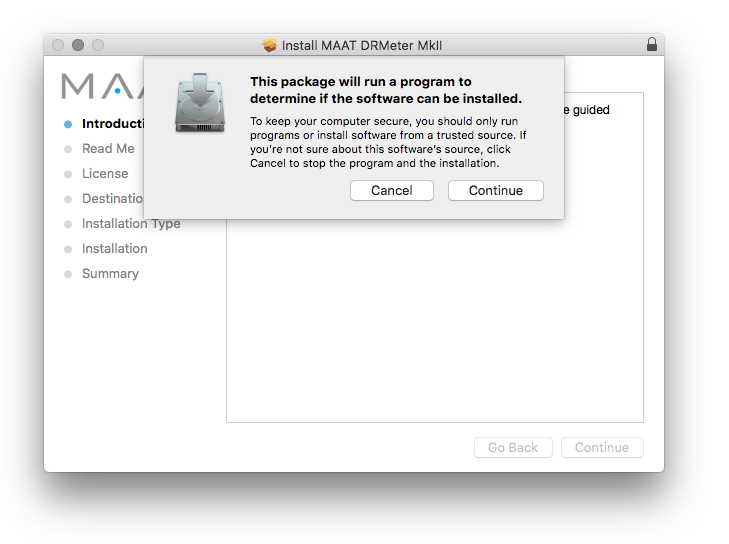
2. Double-click the .dmg installer file to begin the installation process > Click 'Continue'.
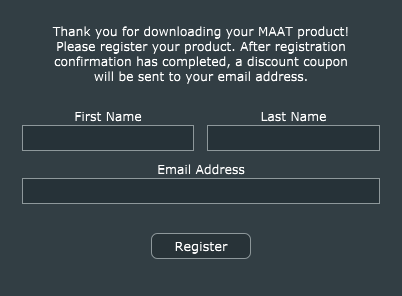
3. Enter your name and Email > Click 'Register'.
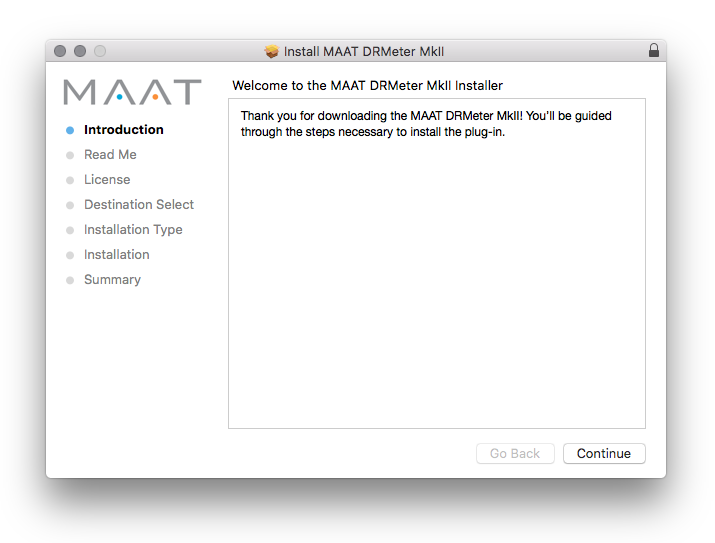
4. Click 'Continue'.
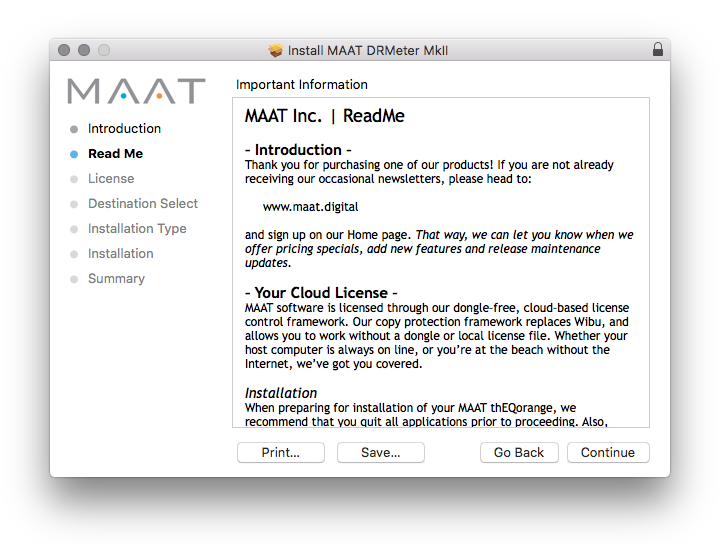
5. Click 'Continue'.
6. Click 'Continue'.
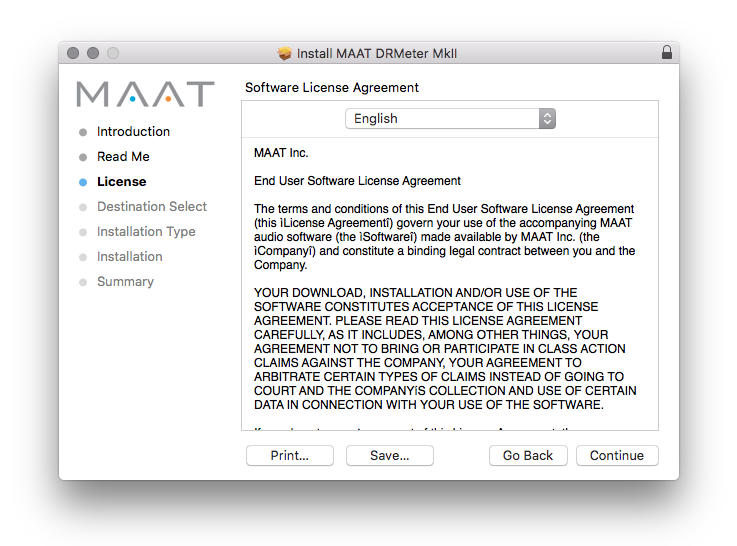
7. Click 'Agree'.
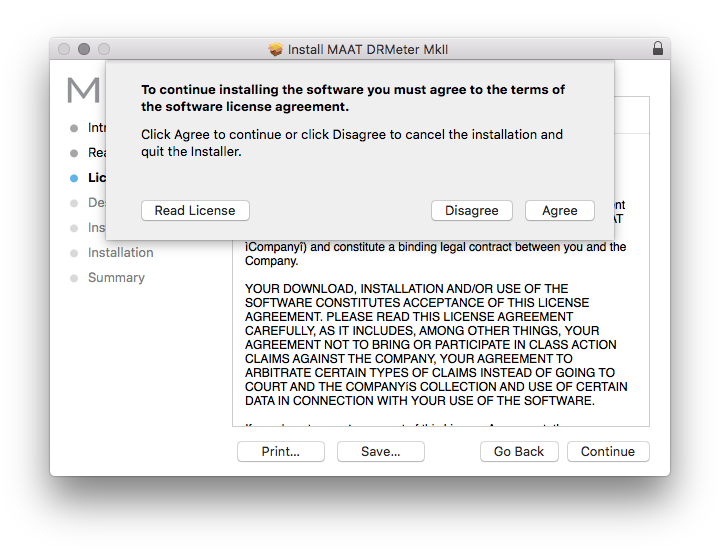
8. Click 'Continue'.
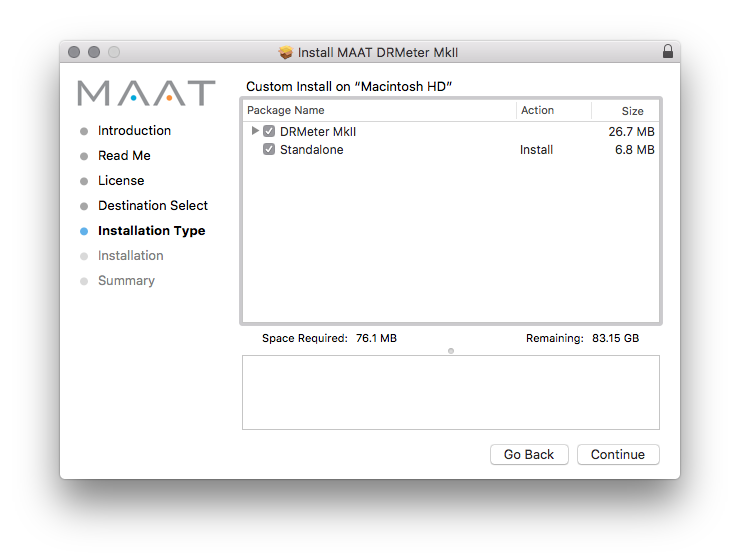
9. Click 'Install'.
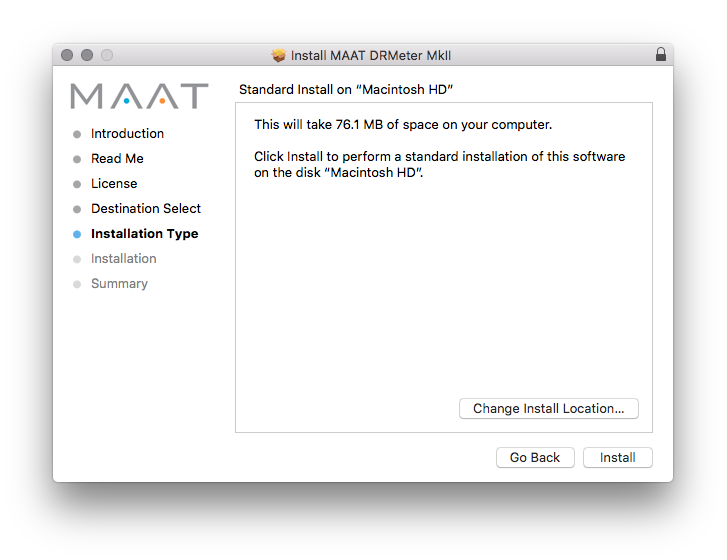
10. Click 'Close'.
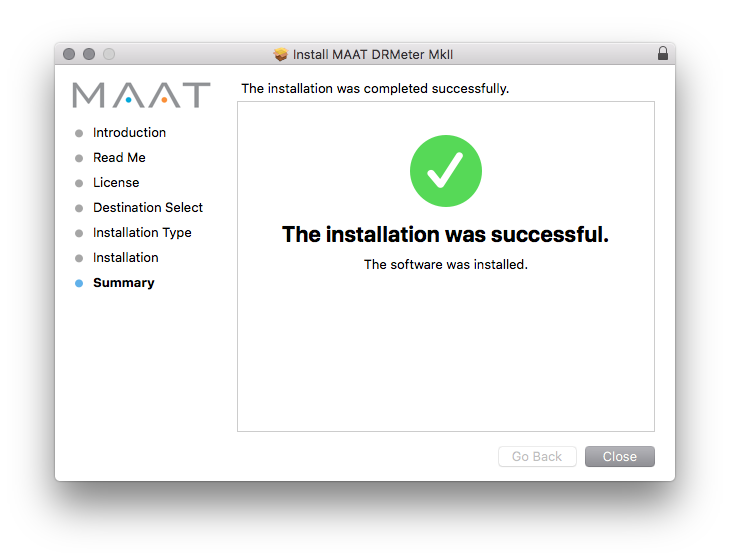
Mac Online Activation
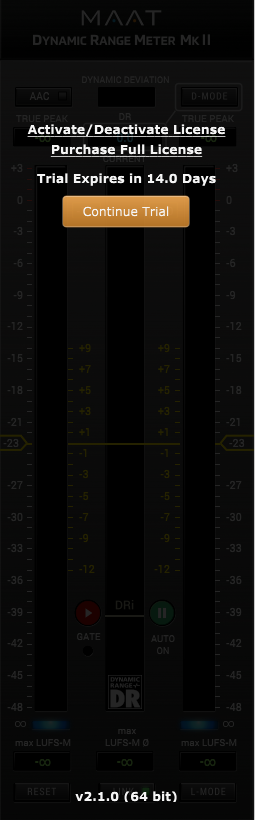
1. Open MAAT DRMeter MKII as a standalone or inside of your DAW. > Click 'Activate/Deactivate License'.
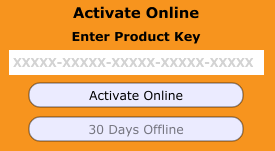
2. Enter the Product Key that can be found in your Plugin Boutique User Account > Click 'Activate Online'.
3. Click 'Ok'.
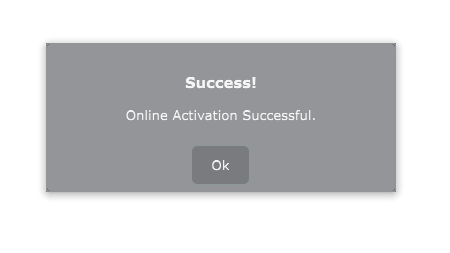
Your software has now been activated and is ready for use!
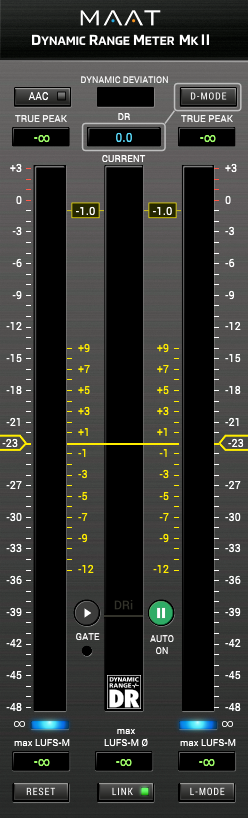
Mac Offline Activation
1. Open MAAT DRMeter MKII as a standalone or inside of your DAW. > Click 'Activate/Deactivate License'.
2. Enter the Product Key that can be found in your Plugin Boutique User Account > Click 'Create License Request'.
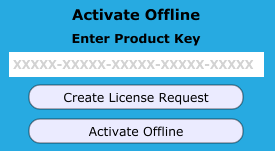
3. Click 'OK'.
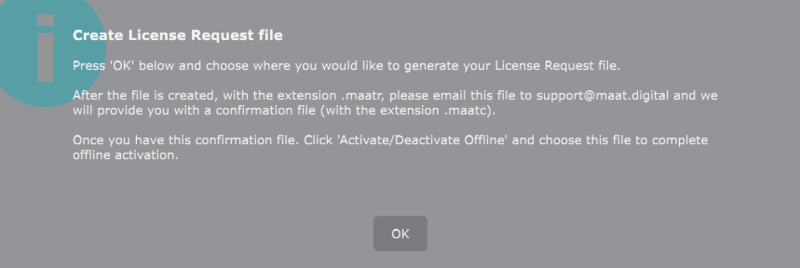
4. Choose a location for the License Request File to be saved > Click 'Open'.
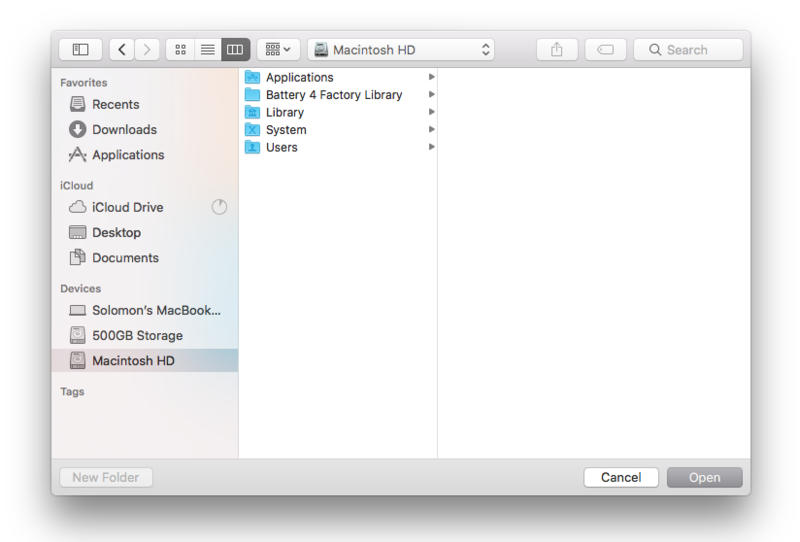
5. Email the License Request File to support@maat.digital
6. Once you have received the .maatc confirmation file from MAAT open MAAT DRMeter MKII > Click 'Activate/Deactivate License'.
2. Click 'Activate Offline'.
3. Click 'OK'.
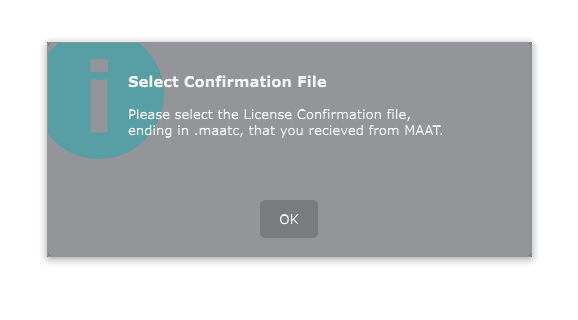
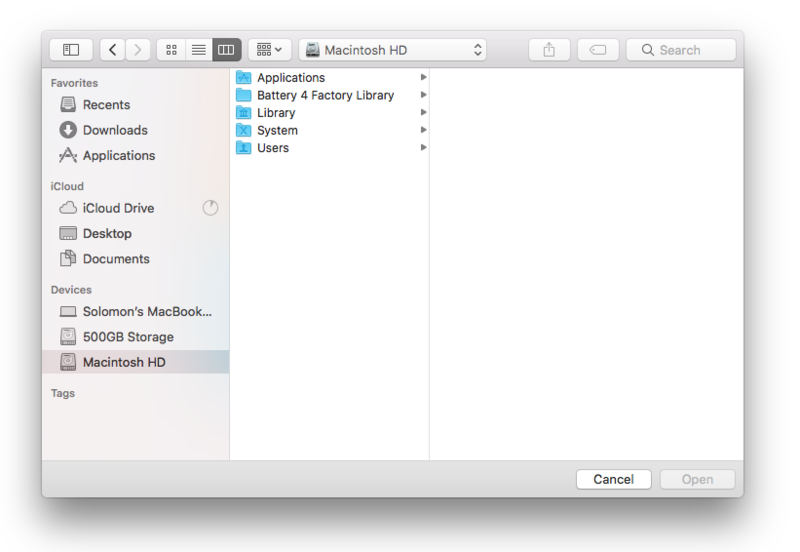
4. Find the .maatc confirmation file sent from MAAT > Click 'Open'.
5. Click 'Ok'.
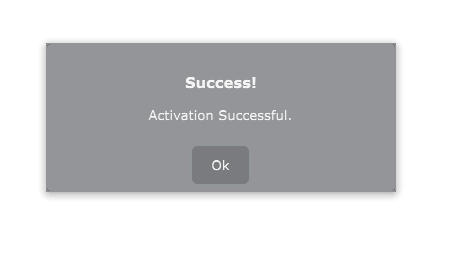
Your software has now been activated and is ready for use!
Windows Installation
1. Download the .zip folder from your Plugin Boutique User Account and double-click it's contents.
2. Double-click the .exe installer file to begin the installation process.
3. Enter your name and Email > Click 'Register'.
4. Select 'I accept the agreement' > Click 'Next'.
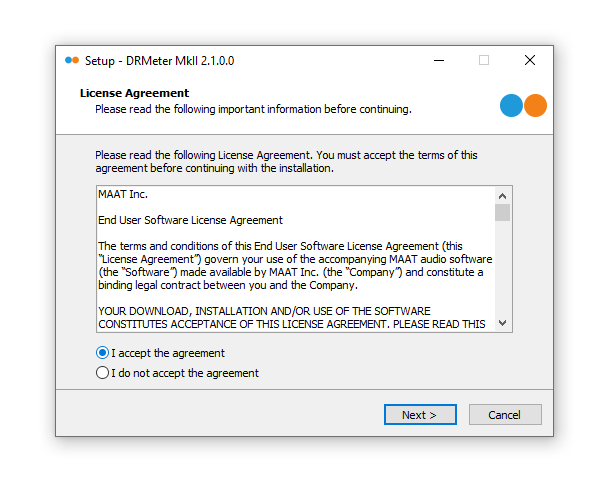
5. Click 'Next'.
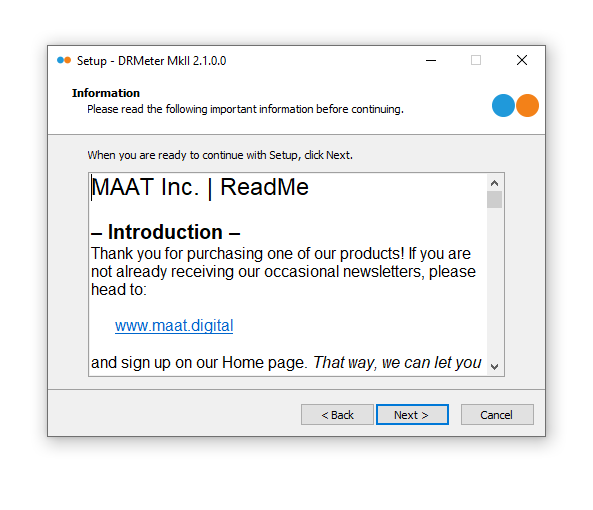
6. Click 'Next'.
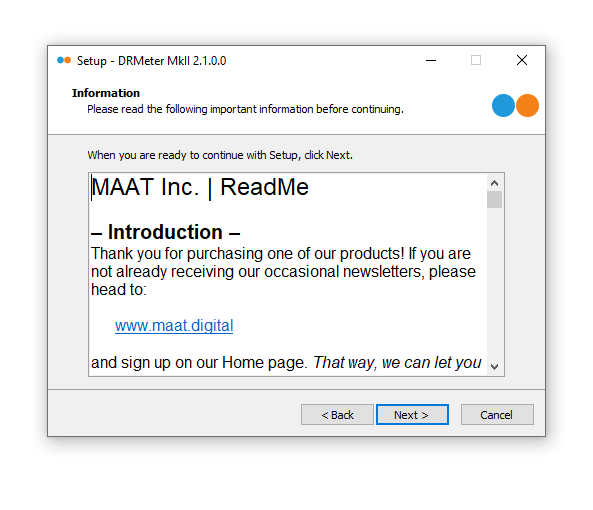
7. Click 'Next'.
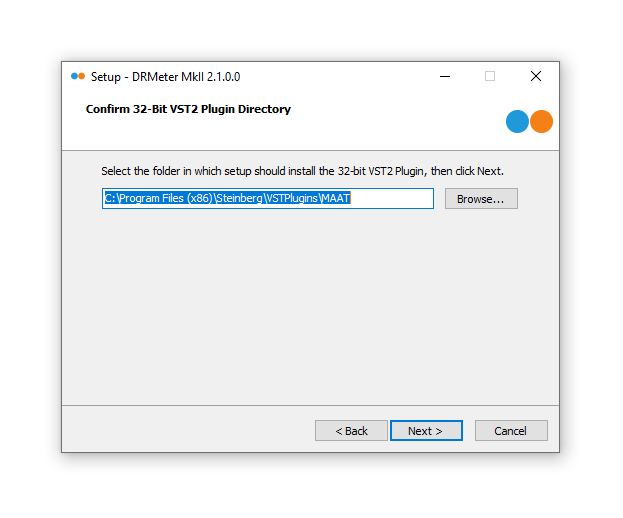
8. Click 'Next'.
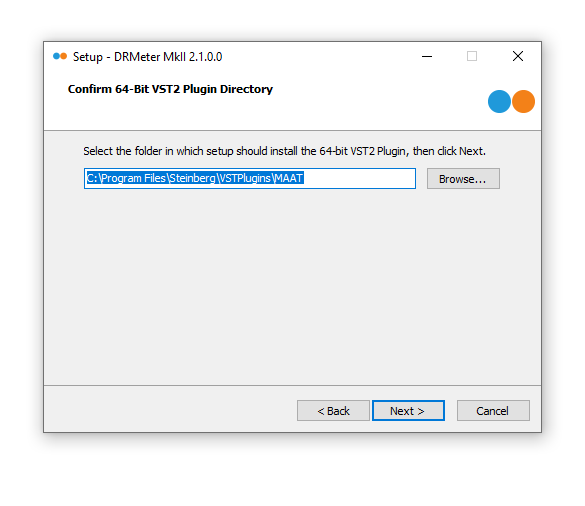
9. Select the components you would like to install > Click 'Next'.
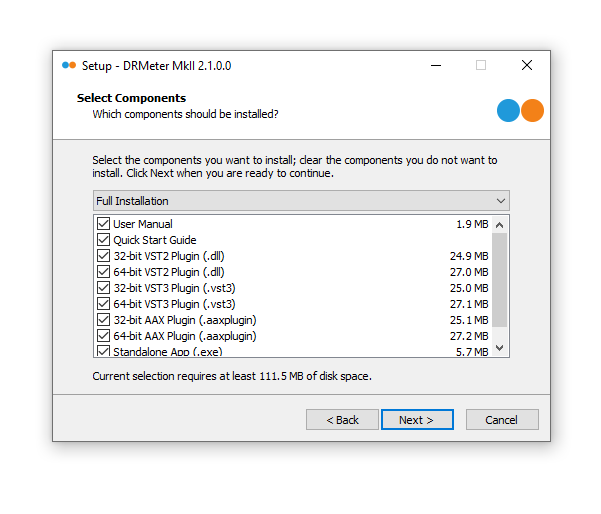
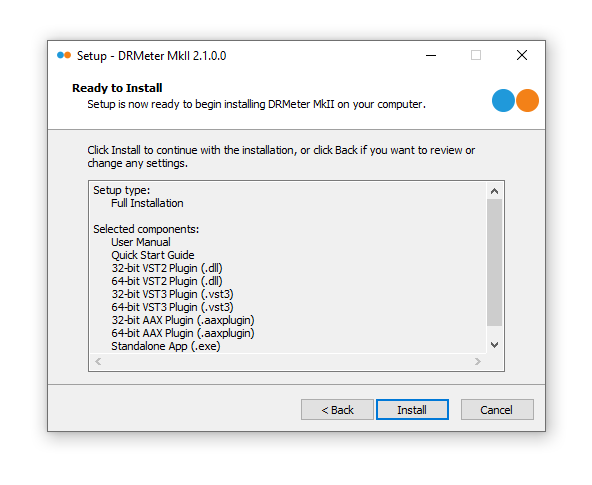
10. Click 'Install'.
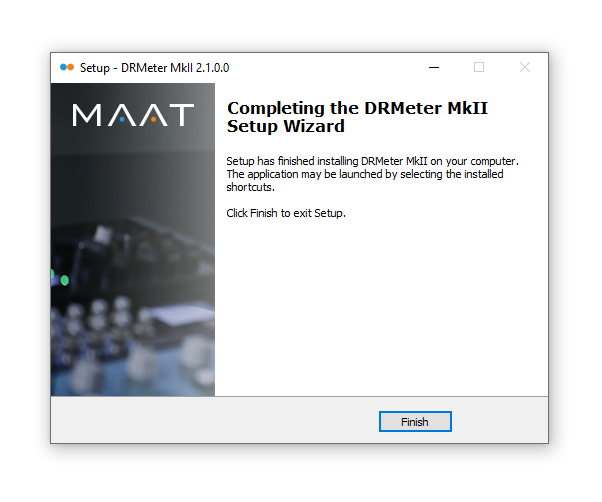
11. Click 'Finish'.
Windows Online Activation
1. Open MAAT DRMeter MKII as a standalone or inside of your DAW. > Click 'Activate/Deactivate License'.
2. Enter the Product Key that can be found in your Plugin Boutique User Account > Click 'Activate Online'.
3. Click 'Ok'.
Your software has now been activated and is ready for use!
Windows Offline Activation
1. Open MAAT DRMeter MKII as a standalone or inside of your DAW. > Click 'Activate/Deactivate License'.
2. Enter the Product Key that can be found in your Plugin Boutique User Account > Click 'Create License Request'.
3. Click 'OK'.
4. Choose a location for the License Request File to be saved > Click 'OK'.
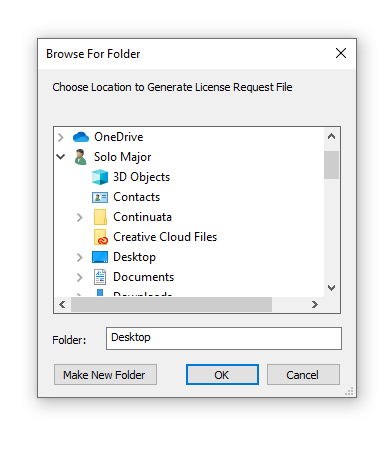
5. Click 'OK' and email the License Request File to support@maat.digital
6. Once you have received the .maatc confirmation file, open MAAT DRMeter MKII > Click 'Activate/Deactivate License'.
2. Click 'Activate Offline'.
3. Click 'OK'.
4. Find the .maatc confirmation file sent from MAAT > Click 'Open'.
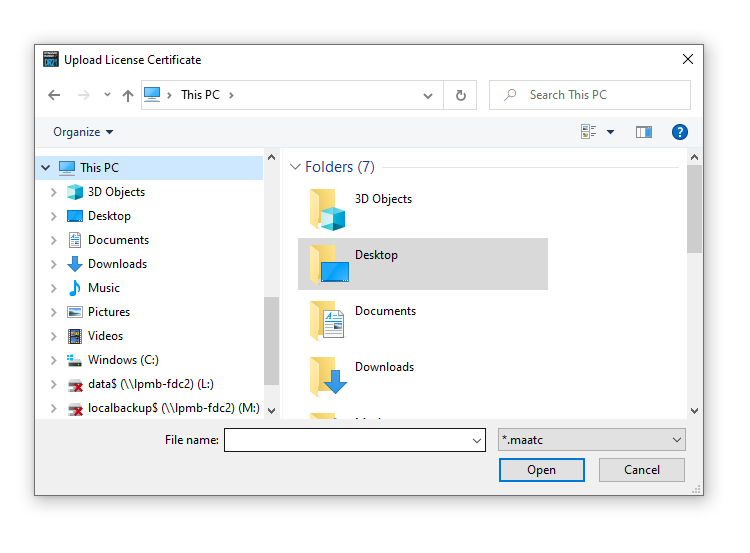
5. Click 'Ok'.
Your software has now been activated and is ready for use!


