/ Audio Editor / PEEL
zplane

PEEL

4.4 (570 Reviews)
$22.00 $40.00

45% off until Dec 12

Main Image
Main Image
zplane PEEL - Create unique acapellas with PEEL gallery thumbnail
PEEL - dig inside your samples & recordings gallery thumbnail
PEEL: Using separate outputs with Ableton Live gallery thumbnail
PEEL and Pro Tools: isolating and routing audio gallery thumbnail
PEEL: Using separate outputs with FL Studio gallery thumbnail
PEEL: Using separate outputs with Reason 11 gallery thumbnail
PEEL and Reaper: isolating and routing audio gallery thumbnail
PEEL: processing isolated audio in Logic Pro gallery thumbnail
zplane PEEL ("Photoshop For Audio" Plugin) - THE DEFINITIVE GUIDE gallery thumbnail
zplane PEEL
zplane PEEL Colour
zplane PEEL Main
Buy Now
Product information

Spatial Spectral Isolator EQ

Get creative with your audio recordings and samples. PEEL isolates individual instruments or vocals in stereo recordings so you can solo, mute or route the audio for external processing. Got a song where the vocals are too loud? PEEL can route the vocals to a separate track in your DAW [1] so you can set level and pan as if it was before mixdown. Do you have a drum loop where you wish the snare had a little reverb on it? No problem! PEEL can help you extract the snare only and add any effect you want to it.

Features

  • Spectral processing audio plugin
  • Visually identify single instruments in a mix
  • Mute problematic instruments
  • Solo performances you wish to emphasize
  • Route selected audio to external processing
  • See your entire mix visually as a way to help identify mix problems
  • VST/VST3/AU/AAX formats

System Requirements

Mac

  • macOS 11+ (64-bit only)

Windows

  • Windows 10+ (64-bit only)

Note: Not all DAWs support sending audio from PEEL’s second output to its own audio track. See table below for more information.

  • Multiple Outputs Supported: Ableton Live, Pro Tools, FL Studio, Reaper, Reason
  • Multiple Outputs Not Supported: Cakewalk, Cubase, Logic Pro, Studio One
Installation Instructions
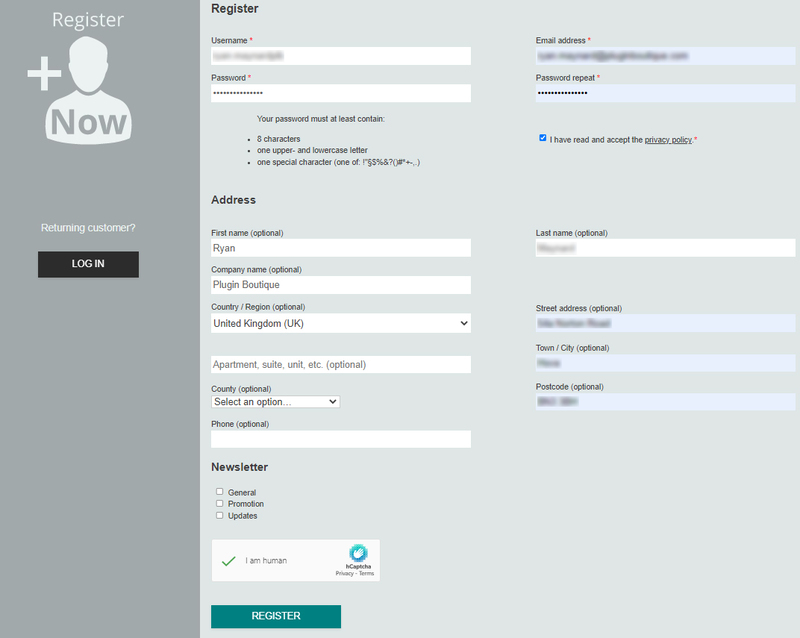

Please note: deCoda is used as an example.

Registration

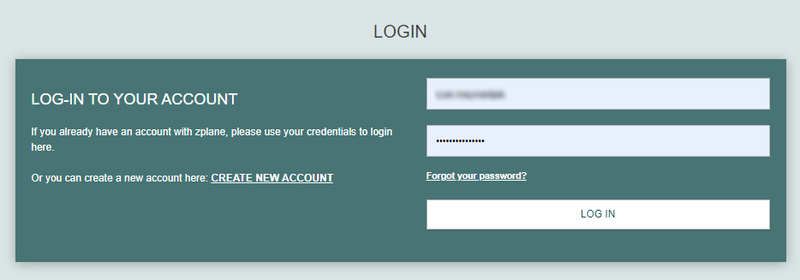
1. Go to the zplane registration page > Enter your details (make sure to select the privacy policy tick box and select 'I am human') > Click Register. If you already have an account, log in to your zplane account and skip to step 4. 

2. Click the link you were sent via email from zplane to confirm your account > Click LOG IN.

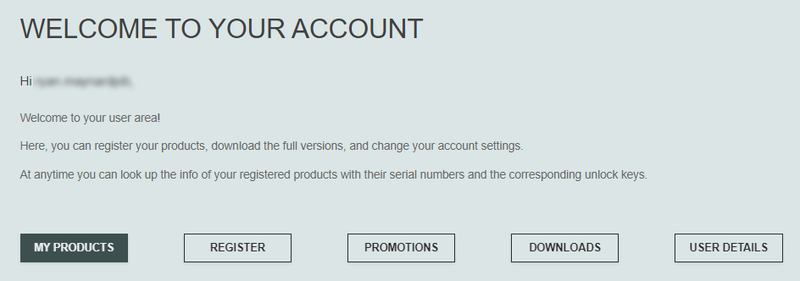
3. Enter your username and password > Click LOG IN.

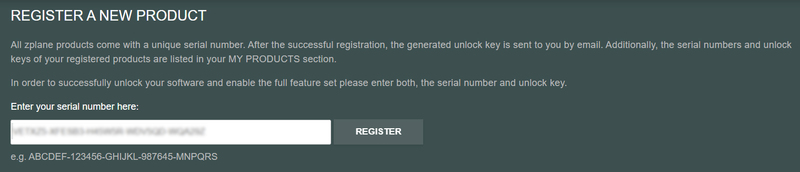
4. Click Register.

5. Copy the serial number from your Plugin Boutique account > Enter in the box on this page > Click REGISTER.

Your software is now registered.

Mac Installation

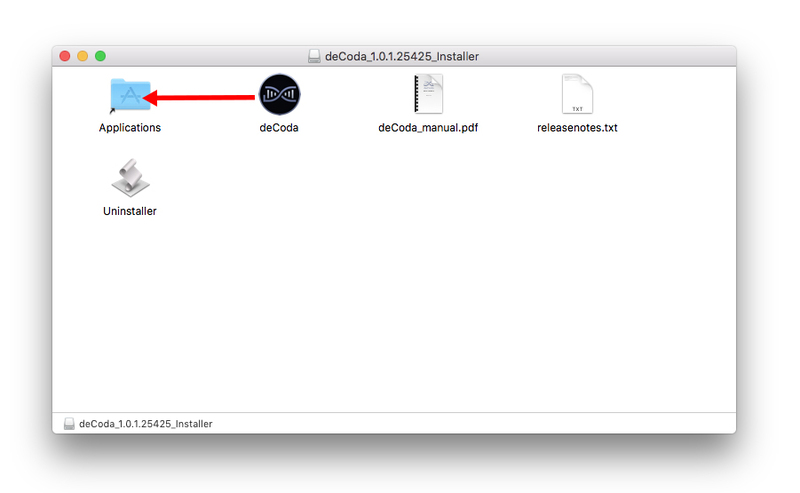
1. Download the .dmg installer file from your Plugin Boutique account > Double-click to open it.

2. Drag 'deCoda' into your Applications folder.

Activation

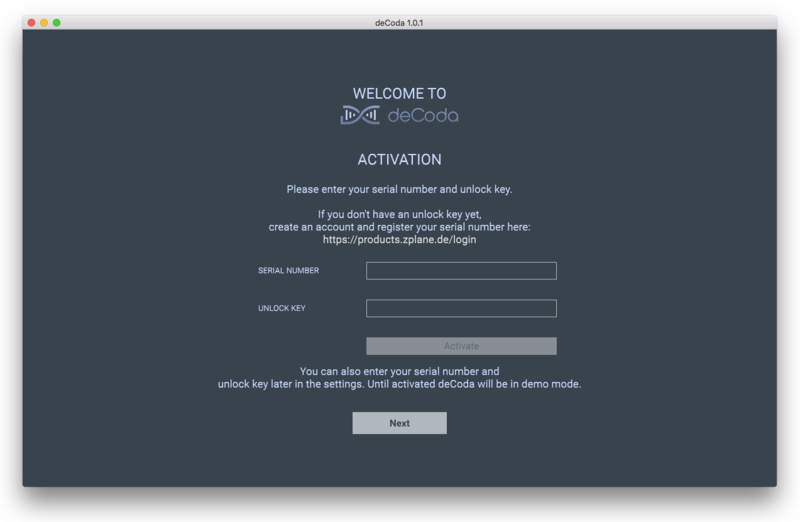
1. Open up the recently installed software from your Applications folder.

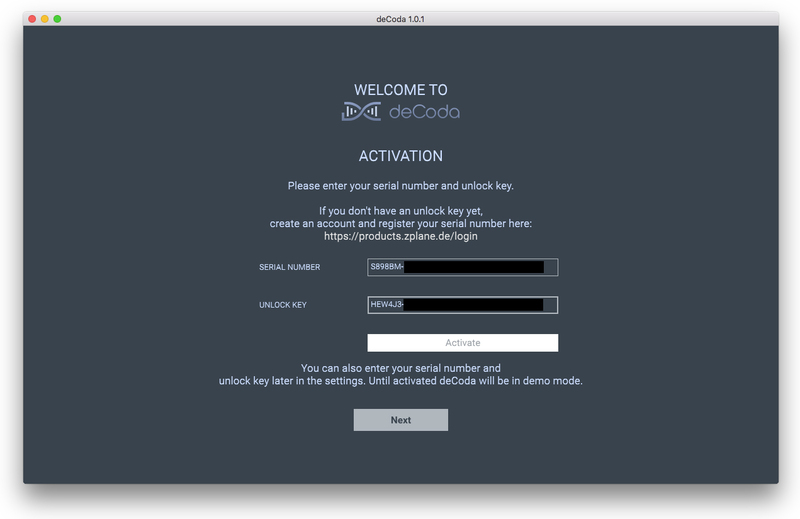
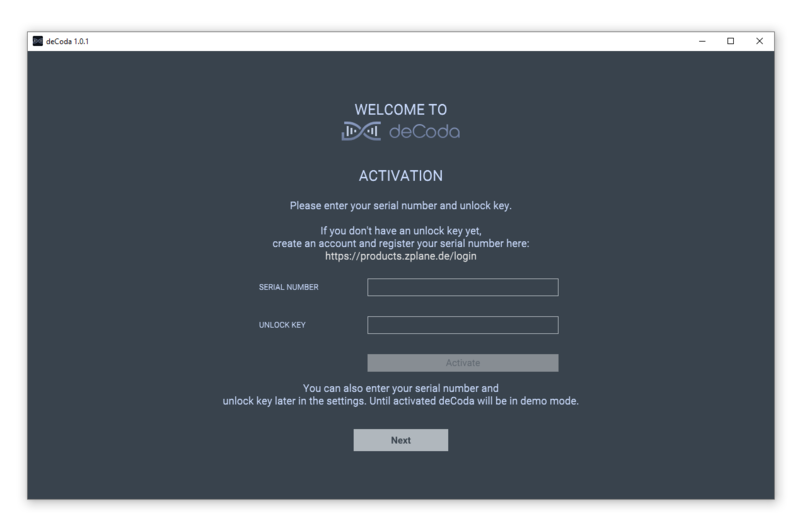
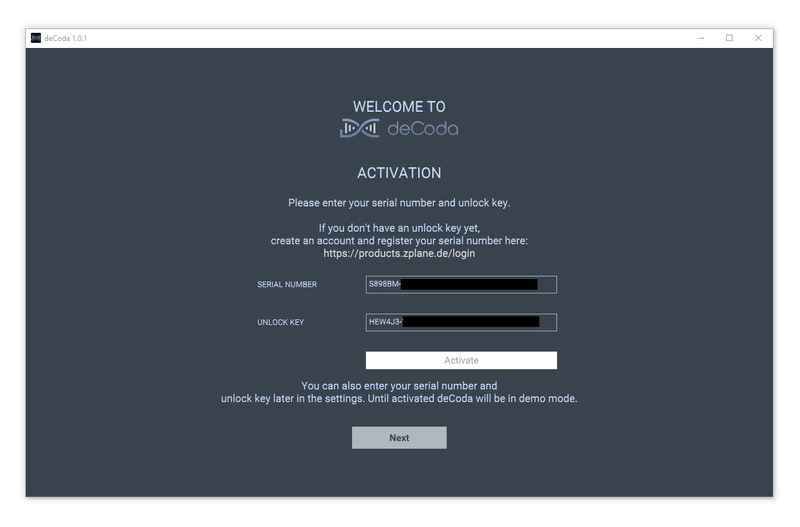
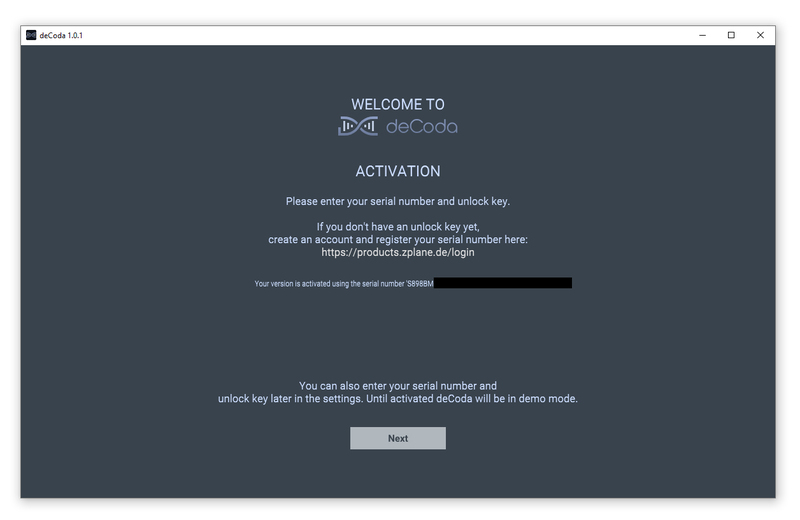
2. Enter your serial number found in your Plugin Boutique account and your Unlock Key sent to your Email > Click Activate.

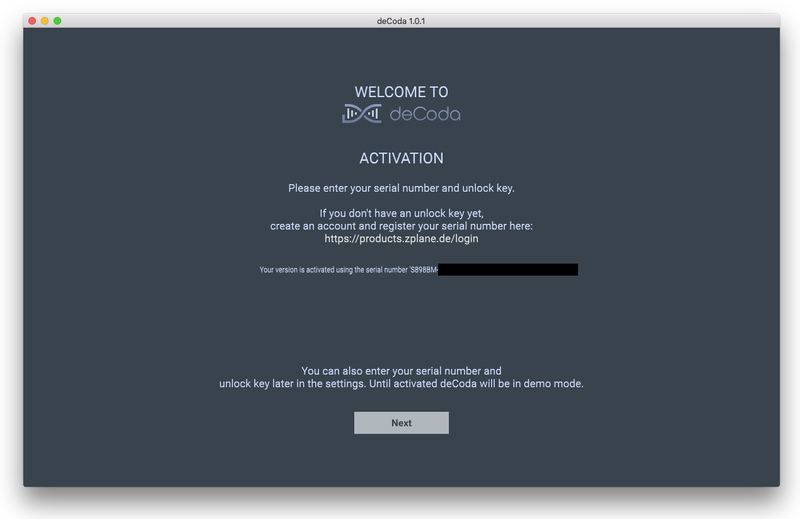
3. Click Next.

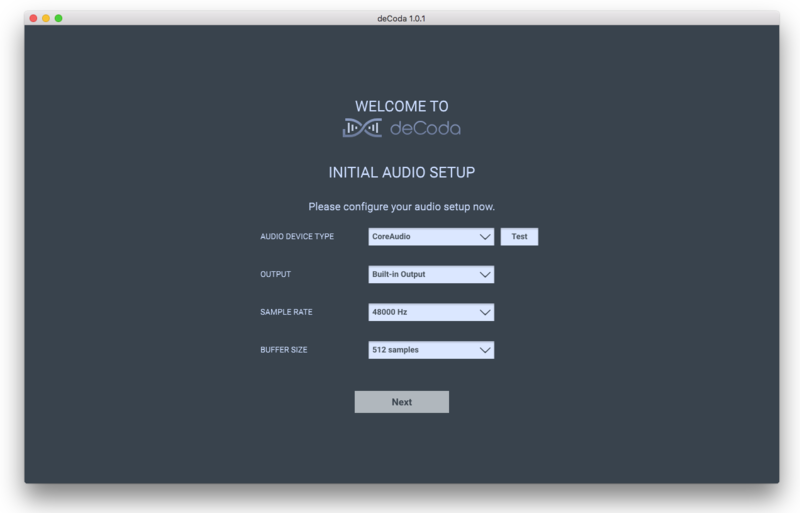
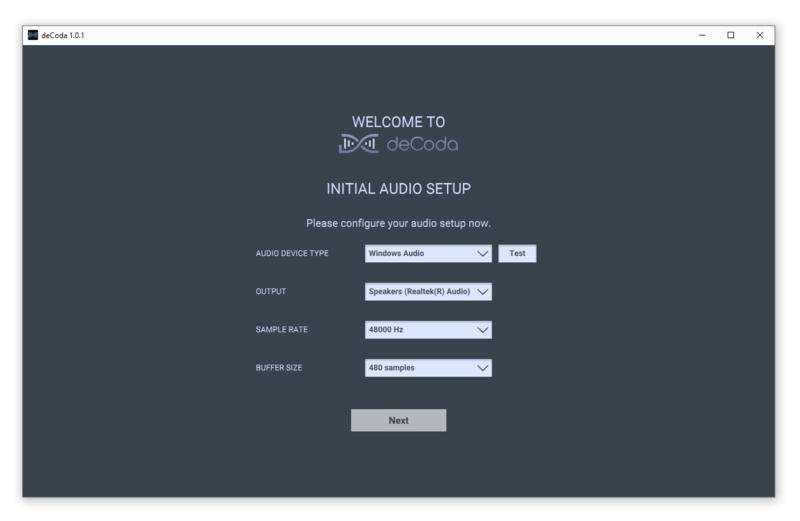
4. Confirm your audio setup is correct > Click Next.

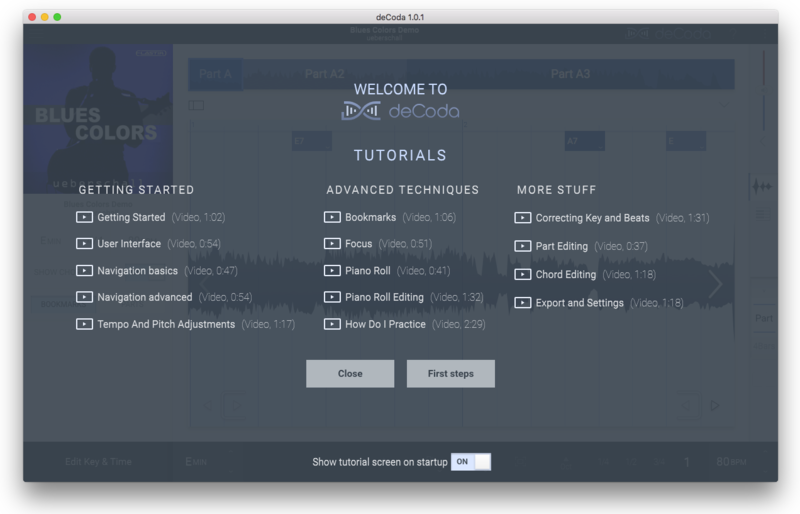
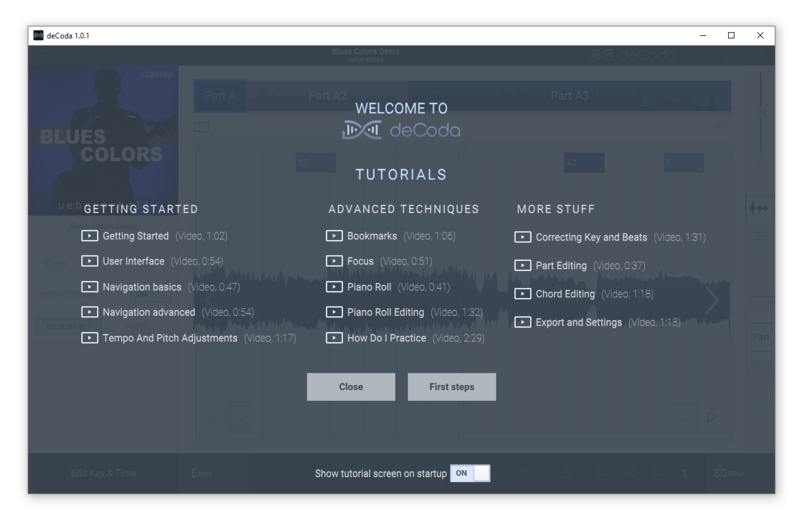
5. Start the interactive tutorial by clicking 'First steps', watch a tutorial video, or click Close.

Your software is now activated and ready to use!

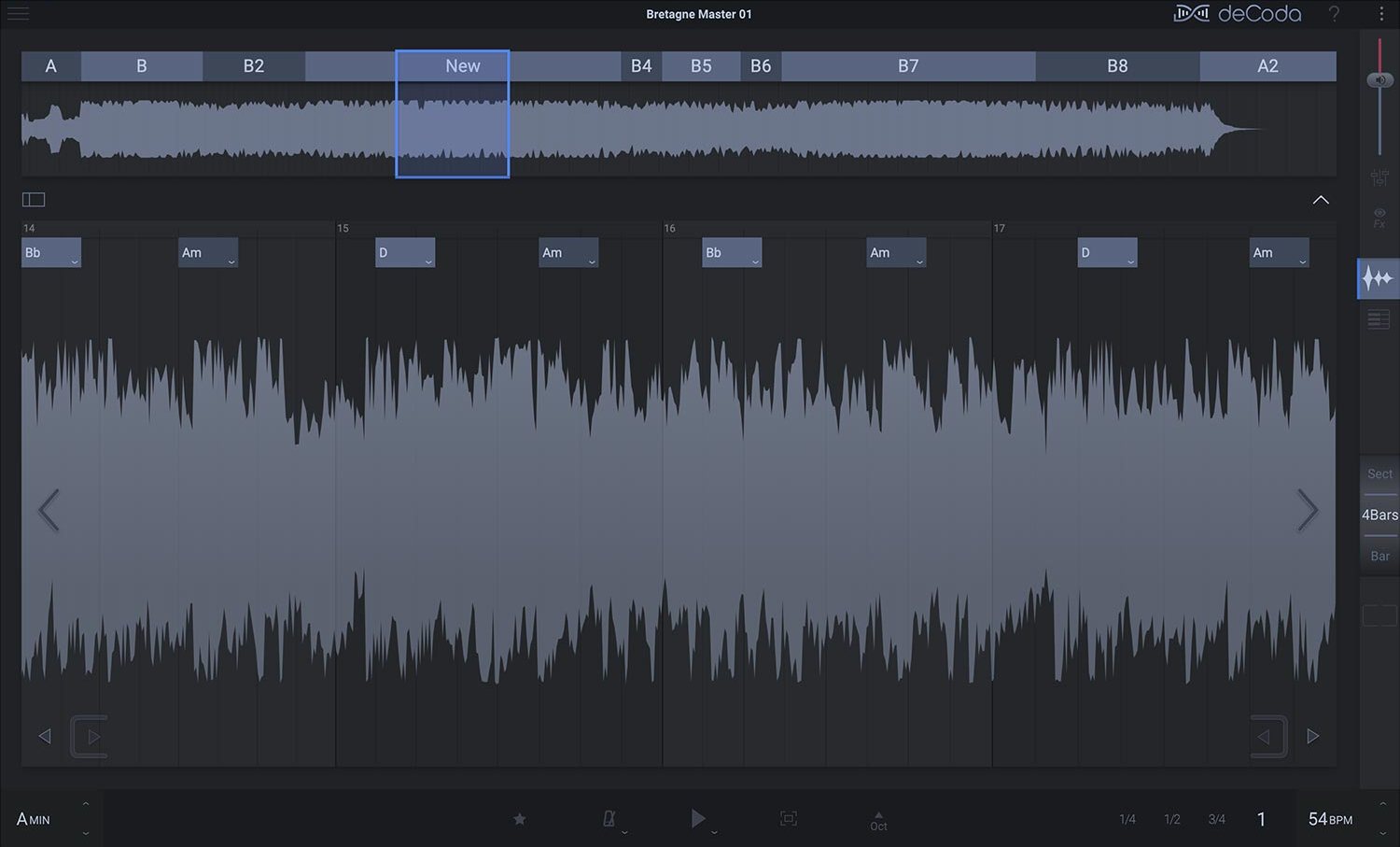
deCoda - Main UI (Dark Theme)

Windows Installation

1. Download the .zip file from your Plugin Boutique account > Double-click to extract its contents.

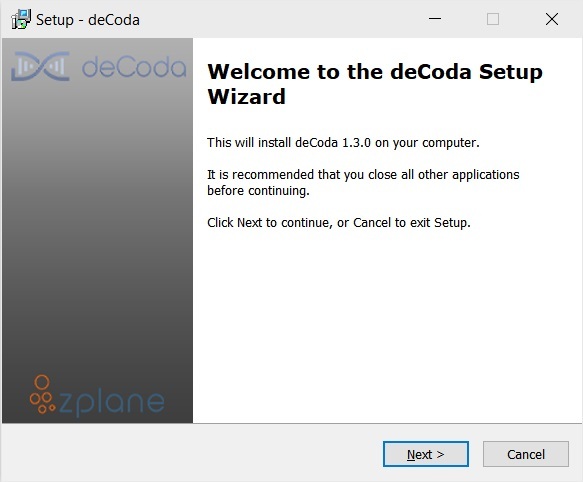
2. Double click the .exe file to run the installer > Click Next.

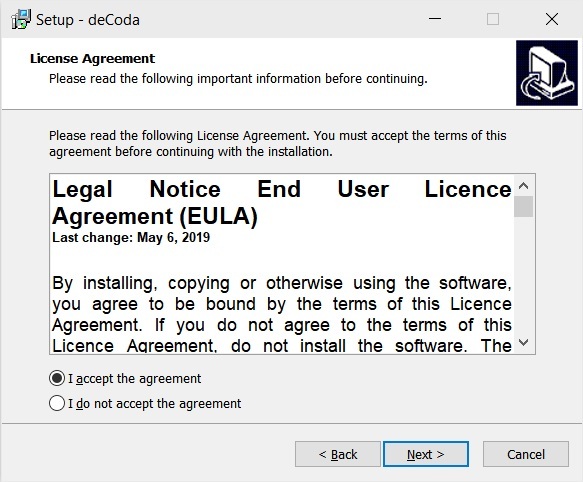
3. Read the License Agreement > Select 'I accept the agreement' > Click Next.

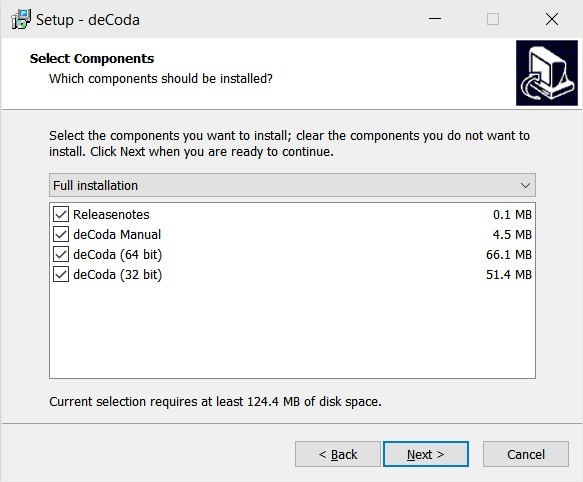
4. Select which components you would like to install > Click 'Next'.

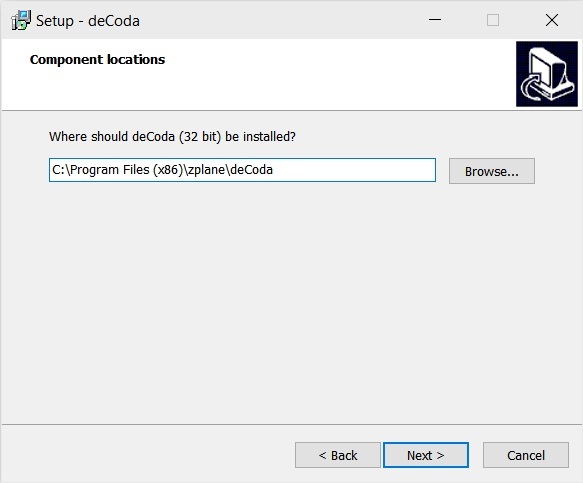
5. Select where deCoda should be installed > Click Next.

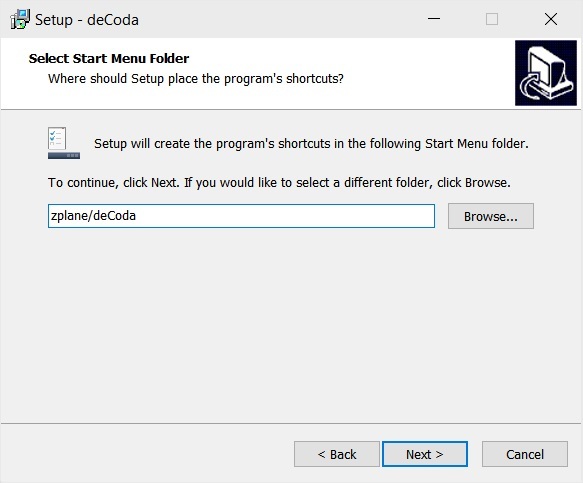
6. Select the start menu folder > Click Next.

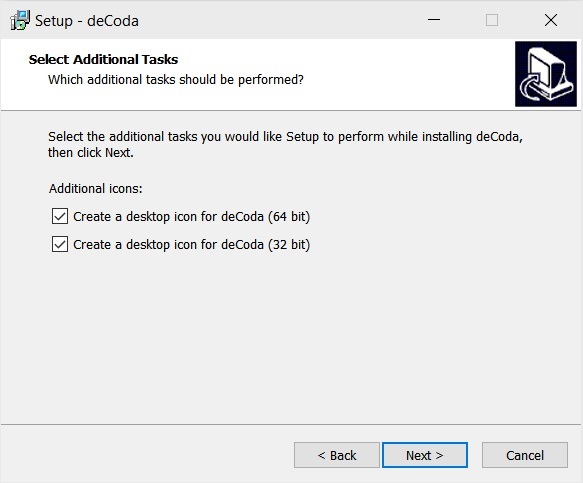
7. Select whether you would like a desktop shortcut to be created > Click Next.

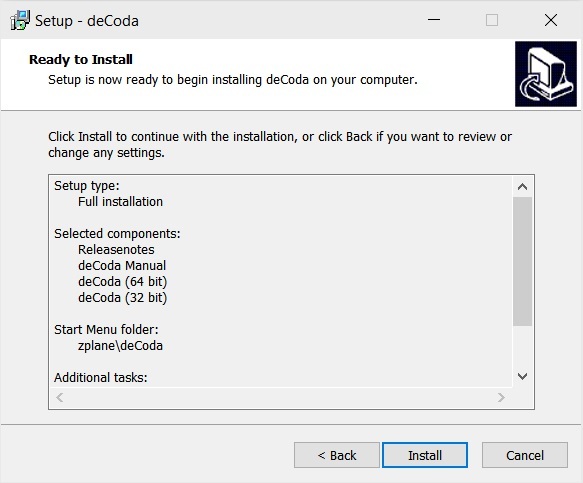
8. Check all details are correct > Click Install.

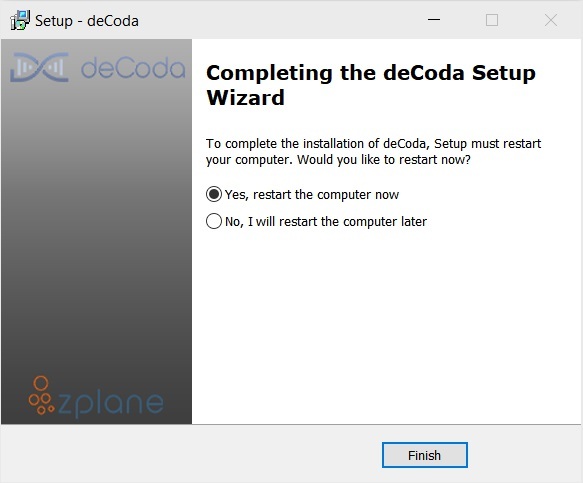
9. Your install is complete > Make sure you have saved any data > Select 'Yes, restart the computer now' > Click Finish.

Activation

1. Open up the recently installed software from your Start Menu or desktop.

2. Enter your serial number found in your Plugin Boutique account and your Unlock Key sent to your Email > Click Activate.

3. Click Next.

4. Confirm your audio setup is correct > Click Next.

5. Start the interactive tutorial by clicking 'First steps', watch a tutorial video, or click Close.

Your software is now activated and ready to use!

deCoda - Main UI (Dark Theme)

Plugin Boutique Rewards

Discover the most rewarding loyalty programme among all plugin retailers.

  • Free Loopmasters Samplepacks
  • Discounts on products and courses
  • Extra Virtual Cash claimed immediately at checkout
Find out more

Follow us:

X (Twitter) Facebook YouTube Instagram
Logo Logo

Plugin Boutique Limited, Part of the Beatport Group LLC.

Copyright © 2011-2025 Plugin Boutique. All rights reserved