/ EQ / Summit Audio EQF-100
Softube

Summit Audio EQF-100

4.8 (18 Reviews)
$159.00
Summit Audio EQF-100 Full Range Equalizer Main Image
Summit Gear! gallery thumbnail
Softube Summit EQF-100 Tube Equalizer Review - bass, vocals, guitars, drum gallery thumbnail
Dialing in Acoustic Guitar Tone with the Softube Summit EQF 100 by Little Fish Audio gallery thumbnail
Product Demo: Softube EQF 100 gallery thumbnail
Summit Audio EQF-100 Full Range Equalizer User Interface (Side)
Summit Audio EQF-100 Full Range Equalizer User Interface (Above)
Summit Audio EQF-100 Full Range Equalizer User Interface (Colour Background)
Buy Now
Product information

The Summit Audio EQF-100 Full Range Passive Tube Equalizer really sets the standard for all passive equalizer designs. It is a highly versatile and sweet sounding equalizer that will solve most of the tonality issues you may experience in a mix. The EQF-100 is equally suitable for separate tracks as across subgroups or the entire stereo buss.
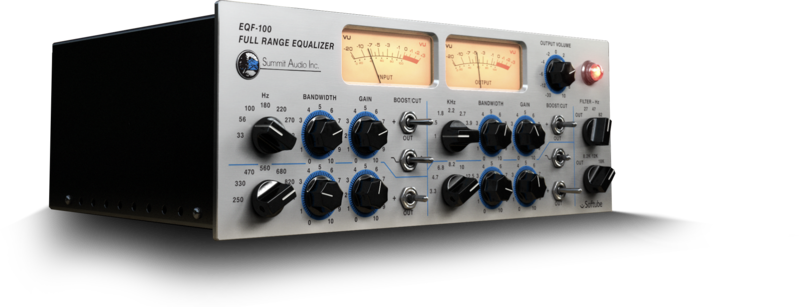
Flexibility and smoothness are the key features of this tube driven passive equalizer. Here's finally an equalizer you can use in your DAW to boost frequencies and not limit yourself to cutting. Four fully parametric bands of equalization plus low and high cut filters with three selectable cutoff frequencies each make the EQF-100 a go-to equalizer for any sound or instrument in your mix. A mix that no doubt will sound warmer and fatter with the help of the EQF-100 and its unique blend of tube and solid state technology. If you want more edge from your EQ, just drive the output meter into the red and you'll experience a woody and thick saturation coming from the output stage.

Features

  • Smooth sound and flexible operation
  • Modelled output stage distortion
  • Four fully parametric bands of equalisation with fixed frequency bands
  • High and low filters can be switched from bell to shelf
  • Three-position low and high cut filters
  • Each and every component carefully modelled

System Requirements

  • macOS Big Sur 11, Monterey 12, Ventura 13
  • Windows 10 (64-bit), Windows 11
  • Softube account
  • iLok account
  • Computer with AU, VST, VST3, and/or AAX-compatible DAW host software
  • Internet access (for downloading installers and managing licenses)

Supported CPU Families 

  • Apple macOS computers with Intel Core i3/i5/i7 or Apple silicon (M1 or newer) CPU. Apple silicon is supported natively. 
  • Windows computers with quad-core Intel Core i3/i5/i7 or AMD quad-core processors with SSE 4.2 support.
  • Other Intel processors (Celeron, Pentium, and Xeon) are compatible if they support SSE 4.2 instructions. 

Supported Host Software (DAW)  

Any 64-bit VST, VST3, AU, or AAX (Pro Tools 11.0.2 or higher) compatible host application should work. However, due to plug-in host differences between DAWs—and our rigorous standards—Softube only officially test their plug-ins and instruments in the most recent versions of Pro Tools, Logic Pro, Cubase, Ableton Live, Studio One, and Reaper. Softube plug-ins are not tested regularly in non-listed systems. They will likely work if the system requirements are met. However, the manufacturer cannot guarantee a solution for issues in unsupported systems. 
  
Softube strongly recommend using VST3, as some of their plug-ins have features that are not present in the older VST format. Supported sample rates: 44.1, 48, 88.2, 96, 176.4, and 192 kHz, in both mono and stereo. The most recent maintenance release of your DAW application is recommended. AAX DSP is not currently in active development. TDM/VENUE/RTAS are no longer supported. See Legacy Installers.

Important Note: Make sure that you always use the latest iLok License Manager. It is not included in the Softube installer but can be downloaded from www.ilok.com​

Testimonials

Steve Levine

"The Summit Audio EQF-100 is just such a nice way to get a more expensive sound out of things."

Geoff Sanoff

"The Summit Tube EQ is my new secret weapon with electric guitars. It adds beef and bite while taming the harshness you can easily get when brightening guitars. I don't leave home without it."

Installation Instructions

Important Note: Spring Reverb is used as the example

Installation Video

Note: Before starting the installation, you are required to create a FREE iLok user ID and install the iLok License Manager.

Please take a look at this Help Centre Guide for more information.

Registration

1. Click 'DOWNLOAD' in your Plugin Boutique Account. This will direct you to the Softube login page.

2. Enter your details > tick the Privacy Policy box > click 'Sign up' to create an account. (If you already have a Softube account, please log in and skip to step 5).

3. Go to your email account > find the Softube registration email > click 'ACTIVATE MY ACCOUNT'. (Your account has now been successfully created)

4. Go back to www.softube.com (you should now be logged in) > click 'MY ACCOUNT'.

5. Click 'REGISTER LICENSE'.

6. Enter the License Code (referred to as serial number on our site) found in your Plugin Boutique User Account > click 'REGISTER LICENSE'.

7. Click 'GO FOR IT!'.

Your product is now registered.

Mac

1. On the My Products page, click 'MAC' > you will be directed to the Mac Installation page. 

2. Click 'HERE (highlighted in orange) to start downloading Softube Central.

3. Once it has downloaded, open the Softube Central PKG file > click 'Continue'.

4. Read through the Software License Agreement > click 'Continue'.

5. Click 'Agree'.

6. Click 'Install'.

7. Enter your password > click 'Install Software'.

8. Click 'Close'.

9. Open Softube Central > click 'INSTALL' to install all the necessary iLok licensing components. (This may take a few minutes)

10. Sign in to your Softube account.

11. Your product will now be displayed in Softube Central.

Please note: if it says 'DISCONNECTED' at the top of the window, please go to the settings and click 'RESTART', close Softube Central and then open it again.

Your software is now activated and ready for use within your DAW.

Windows

1. On the My Products page, click 'WINDOWS' > you will be directed to the Windows Installation page. 

2. Click 'here' (highlighted in orange) to start downloading Softube Central.

3. Once it has downloaded, open the Softube Central download > click 'Yes'.

4. Read through the Software License Agreement > click 'I Agree'.

5. Softube Central will now open > click 'Install' to download the necessary iLok licensing components.

6. Please wait for the iLok licensing components to download. (This may take up to 5 minutes).

7. Click 'Yes' > the Softube Installer Helper Setup will now run.

8. Click 'Next >'.

9. Read through the License Agreement > click 'I Agree'.

10. Click 'Next >'.

11. Choose the VST file path (we recommend the default location) > click 'Install'.

12. Click 'Finish'.

13. Softube Central has now been successfully installed > click 'START'.

14. Sign in to your Softube account.

15. Click 'INSTALL'.

Your software is now activated and ready for use within your DAW.

Plugin Boutique Rewards

Discover the most rewarding loyalty programme among all plugin retailers.

  • Free Loopmasters Samplepacks
  • Discounts on products and courses
  • Extra Virtual Cash claimed immediately at checkout
Find out more

Follow us:

X (Twitter) Facebook YouTube Instagram
Logo Logo

Plugin Boutique Limited, Part of the Beatport Group LLC.

Copyright © 2011-2025 Plugin Boutique. All rights reserved