


Buy Metal Signature Pack (BIAS FX Expansion), get a free gift with purchase:
Jeff Loomis, Keith Merrow, and Ola Englund Metal Signature Pack Arrives To BIAS FX!
Features 12 Metal signature model pack with 3 metal masters - Jeff Loomis, Ola Englund and Keith Merrow. Now you can rock with their amps and effects in BIAS FX!
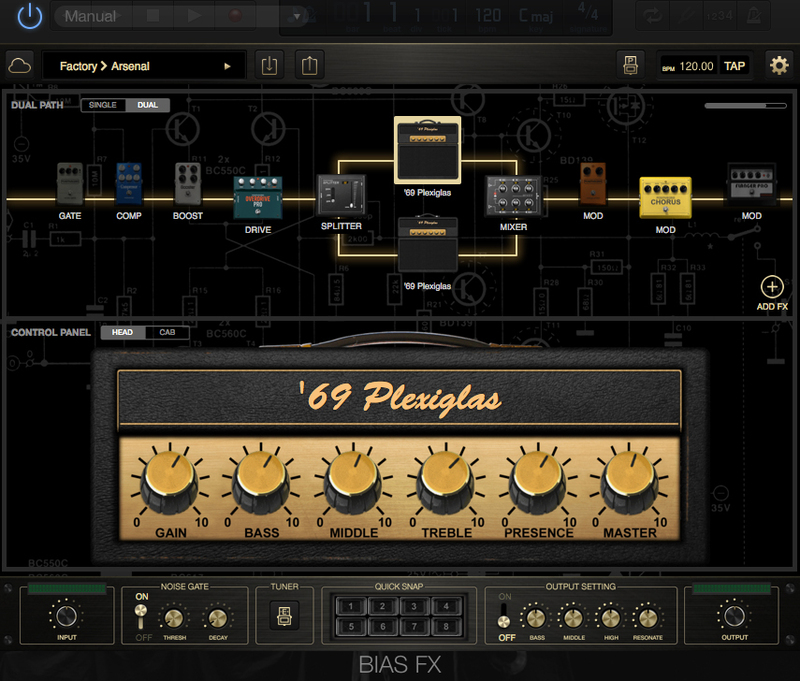
Now you can rock with the signature tones from metal giants Jeff Loomis, Keith Merrow, and Ola Englund right in BIAS FX’ dual amps, dual signal chains, and ToneCloud. Originally released for JamUp Pro, the metal signature pack features Jeff, Ola and Keith’s six signature amp models and six signature guitar pedals – from ultra clean to thrash metal; delay, chorus, four-band parametric EQ to distortion and overdrive – now right in BIAS FX desktop with a newly designed user interface and an overall sound improvement.
Features:
- 6 amps from clean to metal
- 6 effects of Noise Gate, EQ, Overdrive, Distortion, Chorus and Delay
System Requirements:
- Please note: BIAS FX Desktop is required to run this Expansion Pack
Installation Instructions
Mac:
1. Log into/create your Positive Grid User Account.
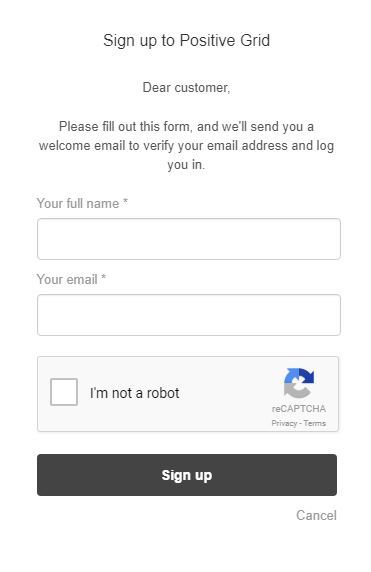
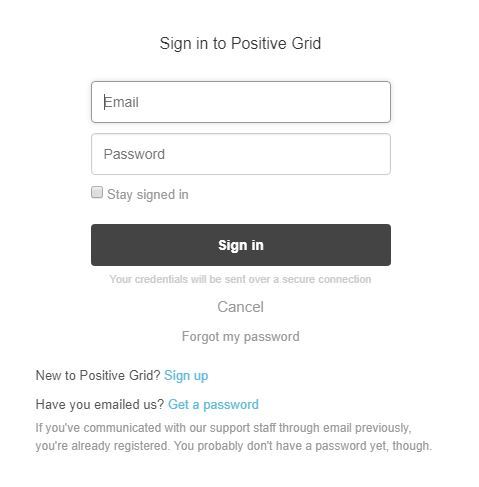
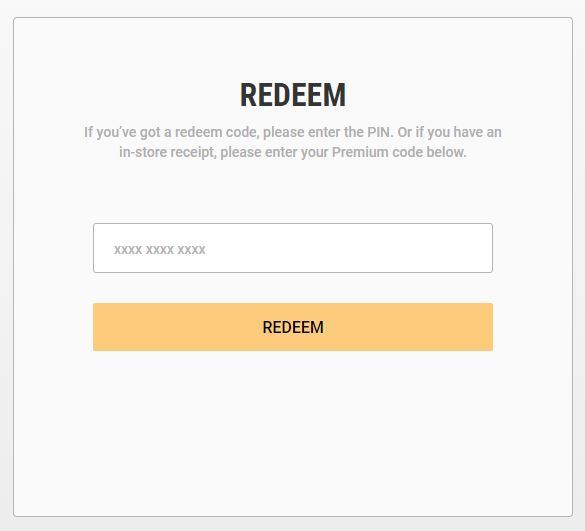
2. Copy and paste/manually enter the serial number from your User Account via Positive Grid's Redemption Area > click 'Redeem.'
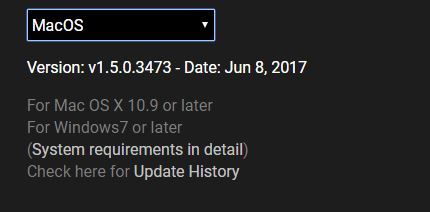
3. The download option will become available for your purchased product via the Positive Grid's download page. Scroll down the page to find your purchased product (Mac OS) installer, and click 'Download.'
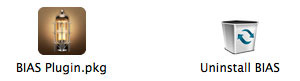
4. Once the download has concluded, double-click and open the .pkg file to run the installer.
Note: BIAS FX Desktop is used as the example.
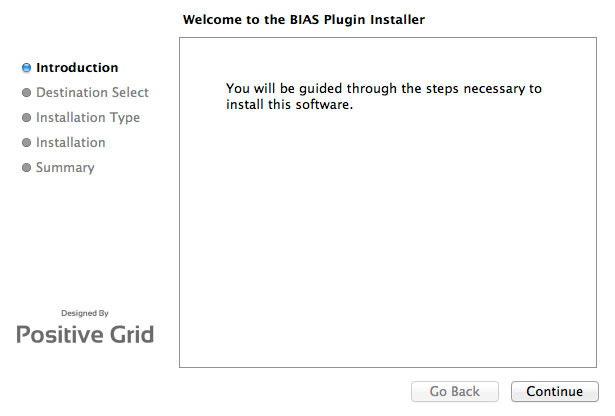
5. Click 'Continue.'
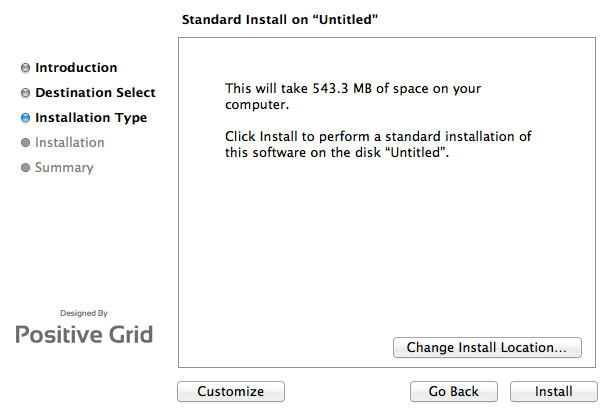
6. Confirm the computer folder/location in which to save the software to > click 'Install.'
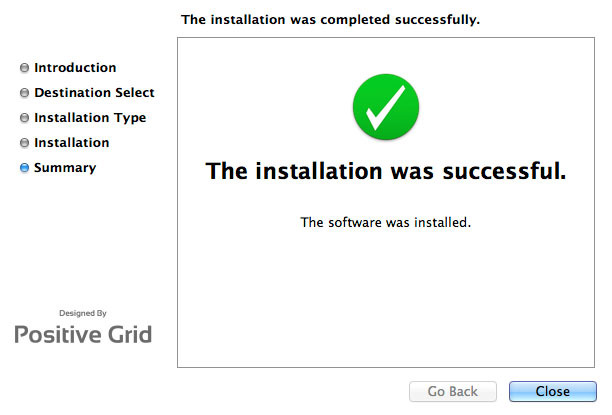
7. Once the installation has successfully completed, click 'Close.'
8. Restart your DAW and open the software.
Note: You may need to refresh/rescan your DAW's plug-in selection, in order to show the new installation.
Activation
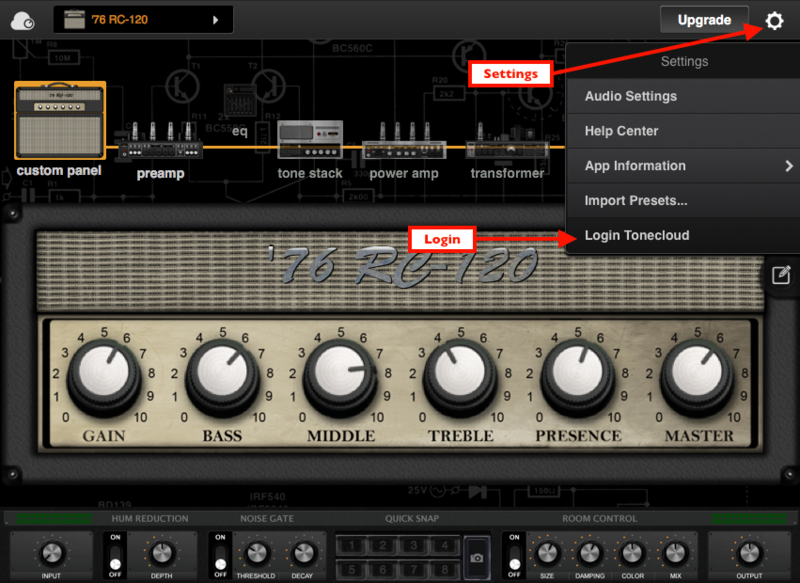
1. Open the software and click the settings icon on the upper right corner of the window. Then click "Login ToneCloud" in the drop-down menu to log in and activate the software.
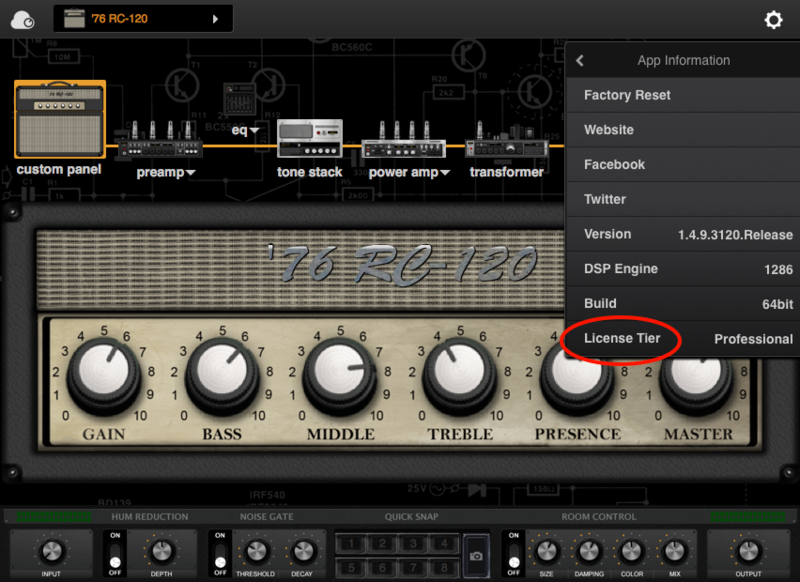
2. To check if the software has been activated, go to settings, App Information and make sure that it shows "Desktop" (for Standard license) or "Professional" (for Professional license) under License Tier.
Your software is now activated into full version mode, ready for use within your DAW
Experiencing Trouble Activating Your Software?
1. If you still can't log in after following the steps, something must went wrong. Please refer to this article for troubleshooting.
2. The licence will be tied with the account which you key in after the purchase process. If you log in with a different account, BIAS will turn into a demo version. Please make sure you are using the same account you signed up with for the purchase.
3. BIAS Desktop allows you to activate the full licence on 2 devices. Please make sure the quota is still enough. You can release the quota by uninstall the software completely from your devices.
4. Another common root cause is the firewall setting of your anti-virus software. If the version you are using is a Demo (disabled "save/save as", system message showing for upgrade) and is unable to activate to standard version. Please disable your anti-virus software temporarily then try again.
PC/Windows:
1. Log into/create your Positive Grid User Account.
2. Copy and paste/manually enter the serial number from your User Account via Positive Grid's Redemption Area > click 'Redeem.'
3. The download option will become available for your purchased product via the Positive Grid's download page. Scroll down the page to find your purchased product (Windows 32-bit/64-bit)) installer, and click 'Download.'
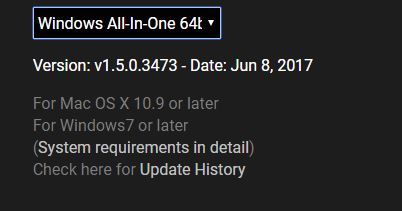
4. Once the download has concluded, double-click and open the .msi installer file to run the installer.
Note: BIAS FX Desktop is used as the example.
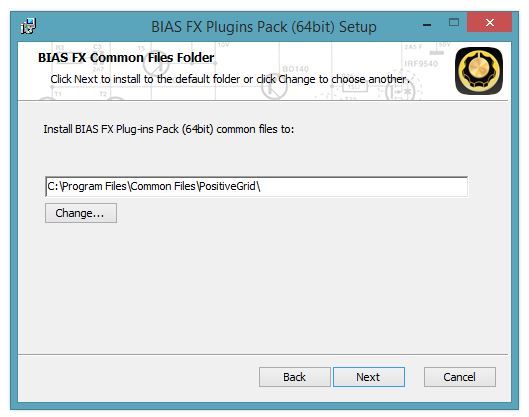
5. Choose and select a software folder in which to install the 64-bit format common files to > click 'Next.'
Note: 32-bit software formats need to be saved to - C:\Program Files (x86)\Common Files\PositiveGrid\
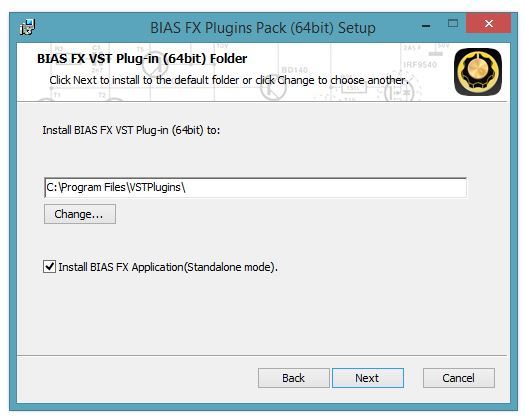
6. Choose and select a software folder in which to install the 64-bit format VST files to > click 'Next.'
Note: 32-bit software formats need to be saved to - C:\Program Files (x86)\VSTPlugins\
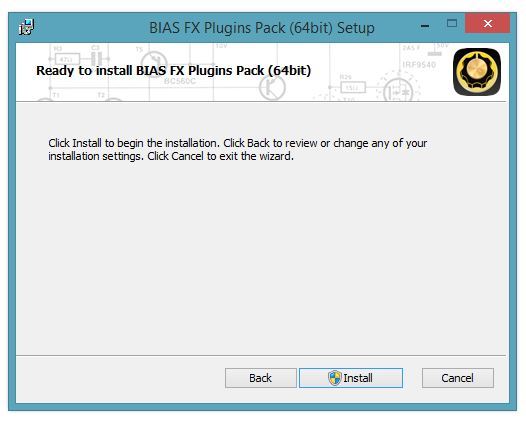
7. Review the installation and click 'Install.'
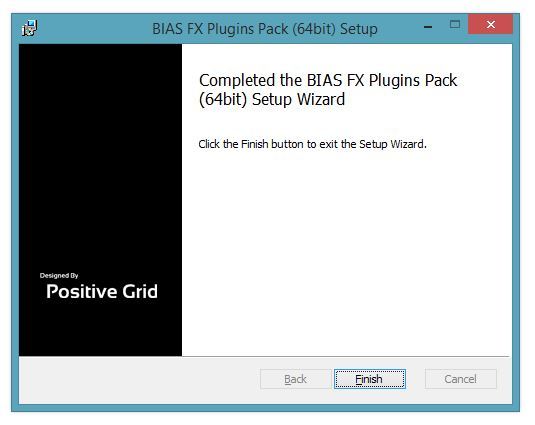
8. The installation of your software has successfully completed > click 'Finish.'
8. Restart your DAW and open the software.
Note: You may need to refresh/rescan your DAW's plug-in selection, in order to show the new installation.
Activation
1. Open the software and click the settings icon on the upper right corner of the window. Then click "Login ToneCloud" in the drop-down menu to log in and activate the software.
2. To check if the software has been activated, go to settings, App Information and make sure that it shows "Desktop" (for Standard license) or "Professional" (for Professional license) under License Tier.
Your software is now activated into full version mode, ready for use within your DAW
Experiencing Trouble Activating Your Software?
1. If you still can't log in after following the steps, something must went wrong. Please refer to this article for troubleshooting.
2. The licence will be tied with the account which you key in after the purchase process. If you log in with a different account, BIAS will turn into a demo version. Please make sure you are using the same account you signed up with for the purchase.
3. BIAS Desktop allows you to activate the full licence on 2 devices. Please make sure the quota is still enough. You can release the quota by uninstall the software completely from your devices.
4. Another common root cause is the firewall setting of your anti-virus software. If the version you are using is a Demo (disabled "save/save as", system message showing for upgrade) and is unable to activate to standard version. Please disable your anti-virus software temporarily then try again.


