


Buy Acoustic Expansion Pack (BIAS FX Expansion), get a free gift with purchase:
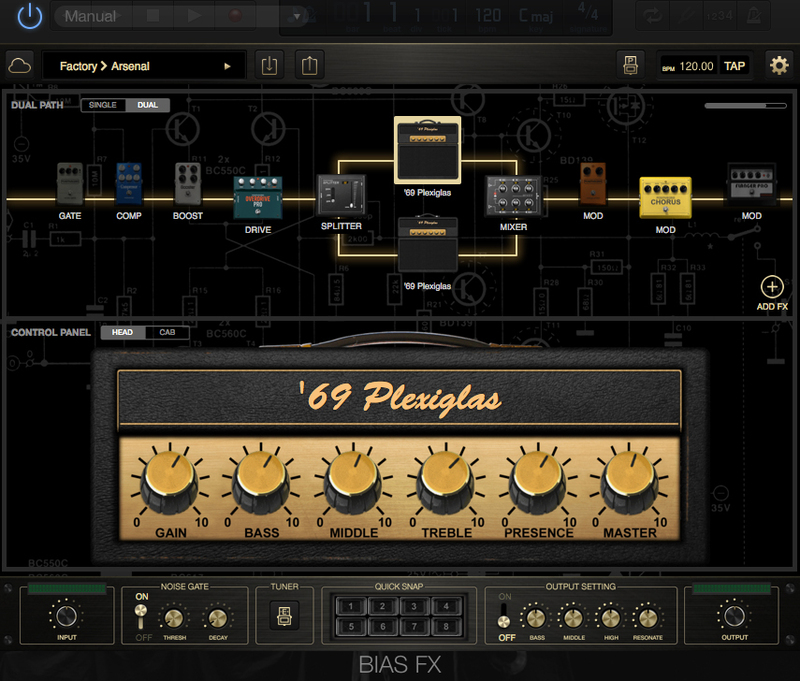
Acoustic guitar players, get ready to add some goodness to your tone! With this expansion users will be able to add some of the most sought-after acoustic guitar, with the ability to add them within BIAS FX’s dual signal chain, and integrate them with BIAS Amp models.
The complete solution for acoustic and electric guitar players - the pack features Positive Grid's acoustic imaging technology that restores a studio-miked sound to your under saddle or soundhole pickup and comes with a premium acoustic preamp can help you to deal with any playing circumstances. The included models are: Acoustic Image, Acoustic EQ / Chorus / Reverb, Acoustic Simulator and Acoustic Preamp.
Realistic Acoustic Tones
The acoustic pack features Positive Grid’s acoustic imaging technology, which accurately emulates the different sounds of an acoustic guitar pickup. However, we took this idea one step further and added a premium acoustic preamp so you can adjust each and every aspect of their output signal in real time, for both live or studio use.
Effect models include an Acoustic EQ, Imager and Chorus. The Acoustic Image pedal neutralizes a guitar’s pickup and then restores the natural body resonance. The Acoustic EQ is built as a DI Dedicated EQ module for acoustic application, and shapes the tone with adjustable low mid and high mid frequencies. An acoustic reverb is optimized for acoustic-guitar simulation for a smooth and warm sound while creating more sonic space. The acoustic chorus gives users a chorus and vibrato pedal specially designed for acoustic guitar, with an adjustable 2 band EQ. To put the icing on the sonic cake, an acoustic preamp to improves the warmth and natural body resonances of your guitar, all while keeping its original characteristics.
System Requirements:
- Please note: BIAS FX Desktop is required to run this Expansion Pack
1. Log into/create your Positive Grid User Account.
Installation Instructions
Mac:
1. Log into/create your Positive Grid User Account.
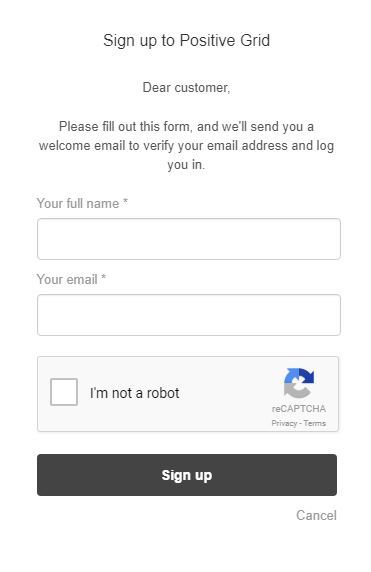
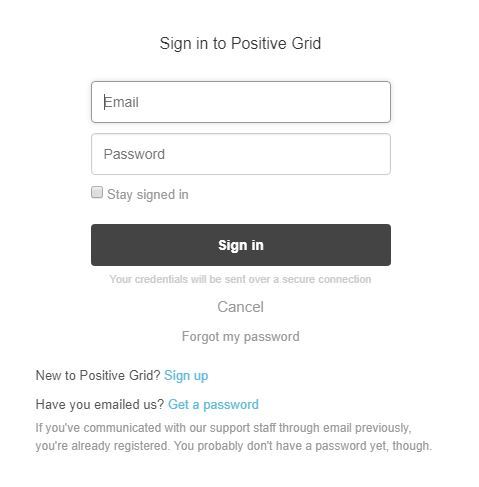
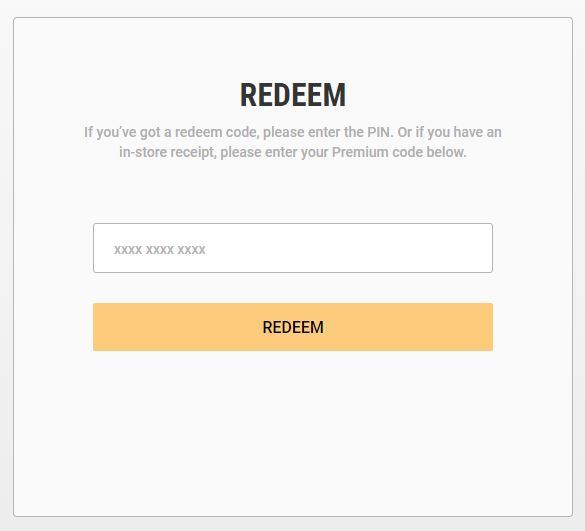
2. Copy and paste/manually enter the serial number from your User Account via Positive Grid's Redemption Area > click 'Redeem.'
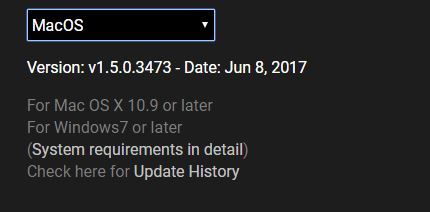
3. The download option will become available for your purchased product via the Positive Grid's download page. Scroll down the page to find your purchased product (Mac OS) installer, and click 'Download.'
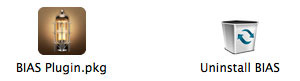
4. Once the download has concluded, double-click and open the .pkg file to run the installer.
Note: BIAS FX Desktop is used as the example.
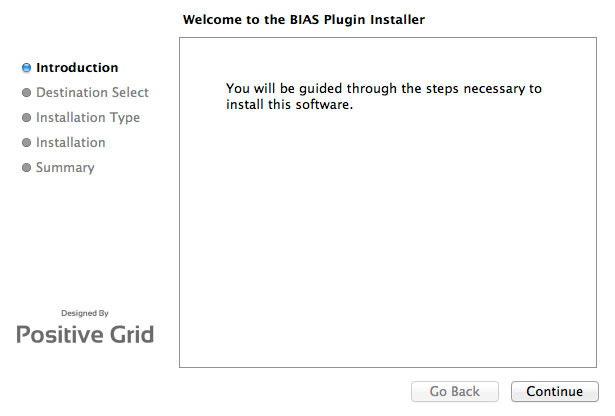
5. Click 'Continue.'
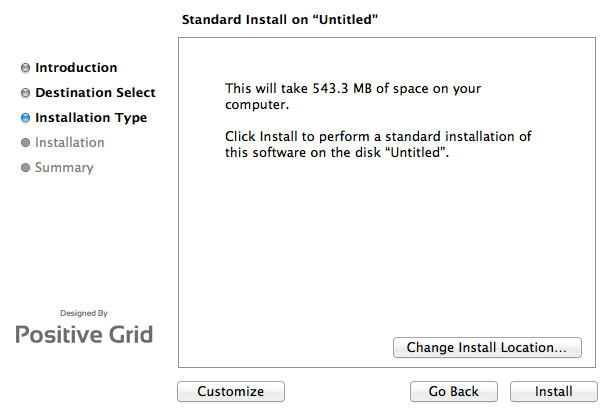
6. Confirm the computer folder/location in which to save the software to > click 'Install.'
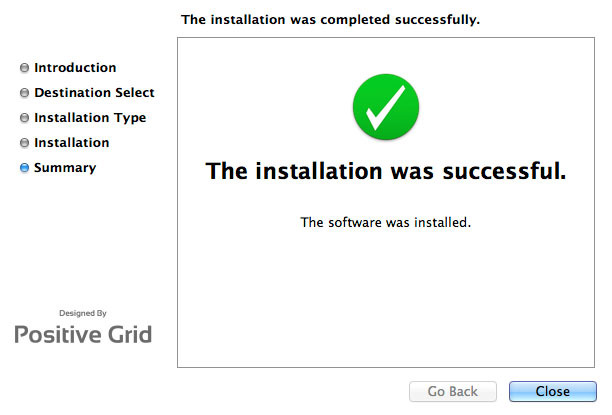
7. Once the installation has successfully completed, click 'Close.'
8. Restart your DAW and open the software.
Note: You may need to refresh/rescan your DAW's plug-in selection, in order to show the new installation.
Activation
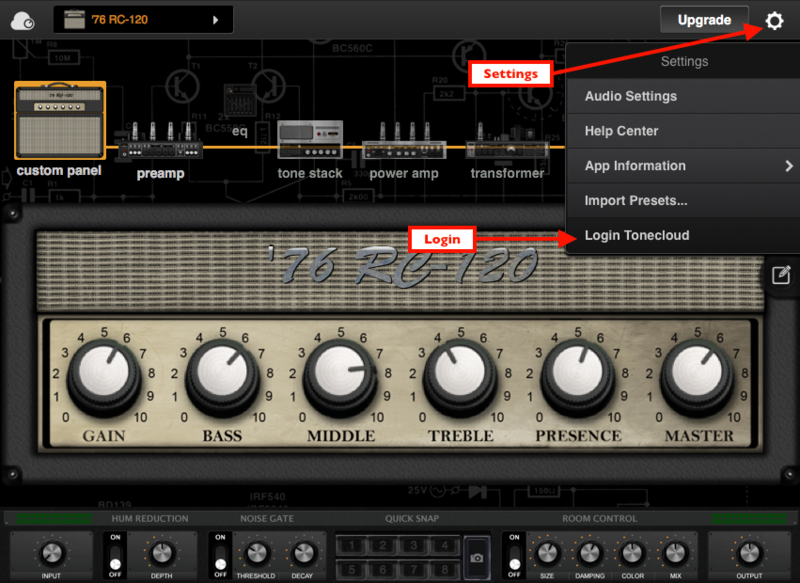
1. Open the software and click the settings icon on the upper right corner of the window. Then click "Login ToneCloud" in the drop-down menu to log in and activate the software.
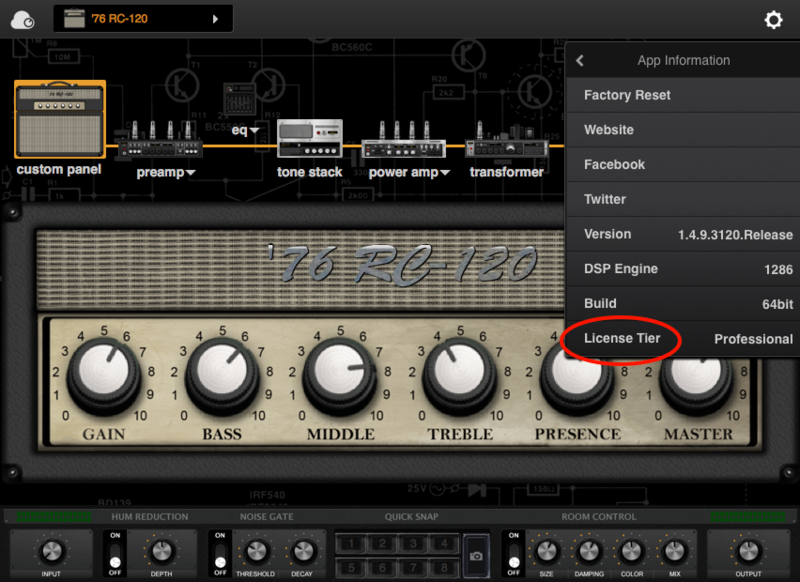
2. To check if the software has been activated, go to settings, App Information and make sure that it shows "Desktop" (for Standard license) or "Professional" (for Professional license) under License Tier.
Your software is now activated into full version mode, ready for use within your DAW
Experiencing Trouble Activating Your Software?
1. If you still can't log in after following the steps, something must went wrong. Please refer to this article for troubleshooting.
2. The licence will be tied with the account which you key in after the purchase process. If you log in with a different account, BIAS will turn into a demo version. Please make sure you are using the same account you signed up with for the purchase.
3. BIAS Desktop allows you to activate the full licence on 2 devices. Please make sure the quota is still enough. You can release the quota by uninstall the software completely from your devices.
4. Another common root cause is the firewall setting of your anti-virus software. If the version you are using is a Demo (disabled "save/save as", system message showing for upgrade) and is unable to activate to standard version. Please disable your anti-virus software temporarily then try again.
PC/Windows:
1. Log into/create your Positive Grid User Account.
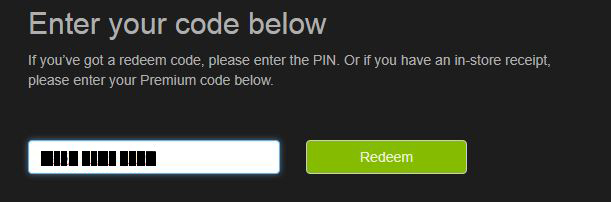
2. Copy and paste/manually enter the serial number from your User Account via Positive Grid's Redemption Area > click 'Redeem.'
3. The download option will become available for your purchased product via the Positive Grid's download page. Scroll down the page to find your purchased product (Windows 32-bit/64-bit)) installer, and click 'Download.'
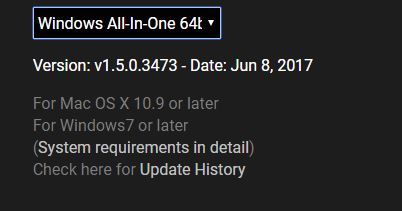
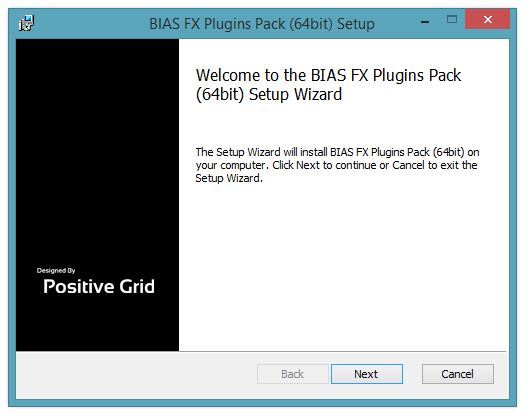
4. Once the download has concluded, double-click and open the .msi installer file to run the installer.
Note: BIAS FX Desktop is used as the example.
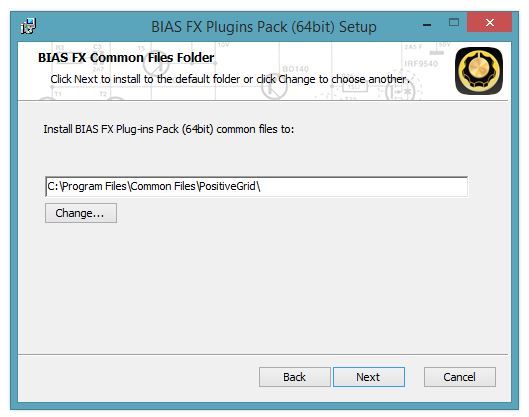
5. Choose and select a software folder in which to install the 64-bit format common files to > click 'Next.'
Note: 32-bit software formats need to be saved to - C:\Program Files (x86)\Common Files\PositiveGrid\
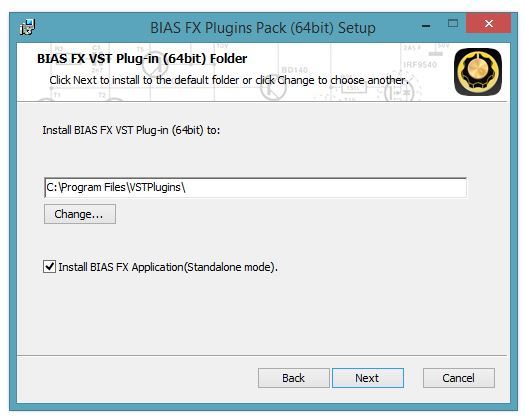
6. Choose and select a software folder in which to install the 64-bit format VST files to > click 'Next.'
Note: 32-bit software formats need to be saved to - C:\Program Files (x86)\VSTPlugins\
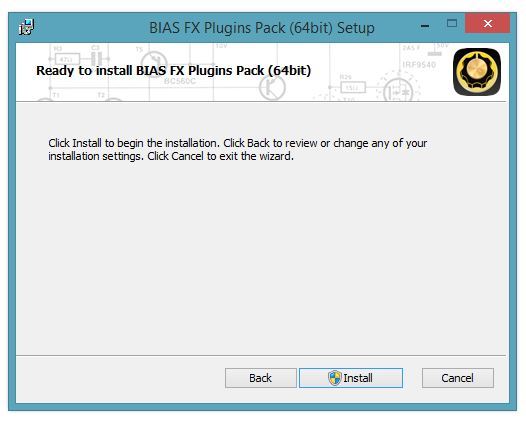
7. Review the installation and click 'Install.'
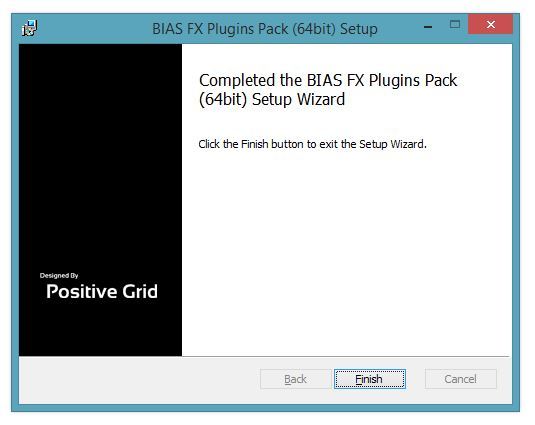
8. The installation of your software has successfully completed > click 'Finish.'
8. Restart your DAW and open the software.
Note: You may need to refresh/rescan your DAW's plug-in selection, in order to show the new installation.
Activation
1. Open the software and click the settings icon on the upper right corner of the window. Then click "Login ToneCloud" in the drop-down menu to log in and activate the software.
2. To check if the software has been activated, go to settings, App Information and make sure that it shows "Desktop" (for Standard license) or "Professional" (for Professional license) under License Tier.
Your software is now activated into full version mode, ready for use within your DAW
Experiencing Trouble Activating Your Software?
1. If you still can't log in after following the steps, something must went wrong. Please refer to this article for troubleshooting.
2. The licence will be tied with the account which you key in after the purchase process. If you log in with a different account, BIAS will turn into a demo version. Please make sure you are using the same account you signed up with for the purchase.
3. BIAS Desktop allows you to activate the full licence on 2 devices. Please make sure the quota is still enough. You can release the quota by uninstall the software completely from your devices.
4. Another common root cause is the firewall setting of your anti-virus software. If the version you are using is a Demo (disabled "save/save as", system message showing for upgrade) and is unable to activate to standard version. Please disable your anti-virus software temporarily then try again.
2. Copy and paste/manually enter the serial number from your User Account via Positive Grid's Redemption Area > click 'Redeem.'
3. Refer to this article to load your BIAS FX Expansion Pack HERE.


