Buy Epicycles Chromaphone 3 Sound Bank, get a free gift with purchase:
After his Microsound Textures compendium, Richard Devine revisits Chromaphone in its second incarnation and presents an unsettling and opaque collection of new sounds. The 111 Epicycles presets adventurously delve into enigmatic and uncertain lands. Nine categories structure the series of patterns and textures: Soundscapes, Basses, Plucked Strings, Keys, Synths, Strings and Pads, Percussions, Arps, and Effects.
Who’s Richard Devine?
Richard Devine is a versatile and prolific artist and sound designer based in Atlanta, Georgia. He has released five different albums and performed his music worldwide. He has provided sounds to major companies such as Apple, Audi, BMW, Coke, Nestlé, Nike, and many more. He has also done some scoring for TV and movies, and sound design for video games. Richard also has done synthesis programming for major audio companies and recently released his own sound effect libraries with Sony Creative Software.
Features:
- 111 Presets
- 11 Soundscapes
- 9 Basses
- 10 Plucked Strings
- 10 Keys
- 9 Synths
- 12 Strings & Pads
- 27 Percussions
- 12 Arps
- 11 Effects
System Requirements
- This preset collection can be used with the free AAS Player plug-in as well as the Chromaphone 3
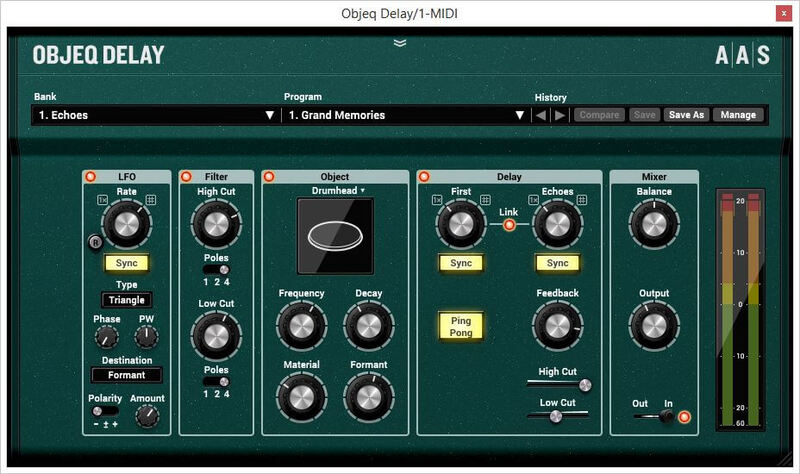
Please note: Objeq Delay is used as an example as the installation process is the same for all Applied Acoustics Systems products.
Registration
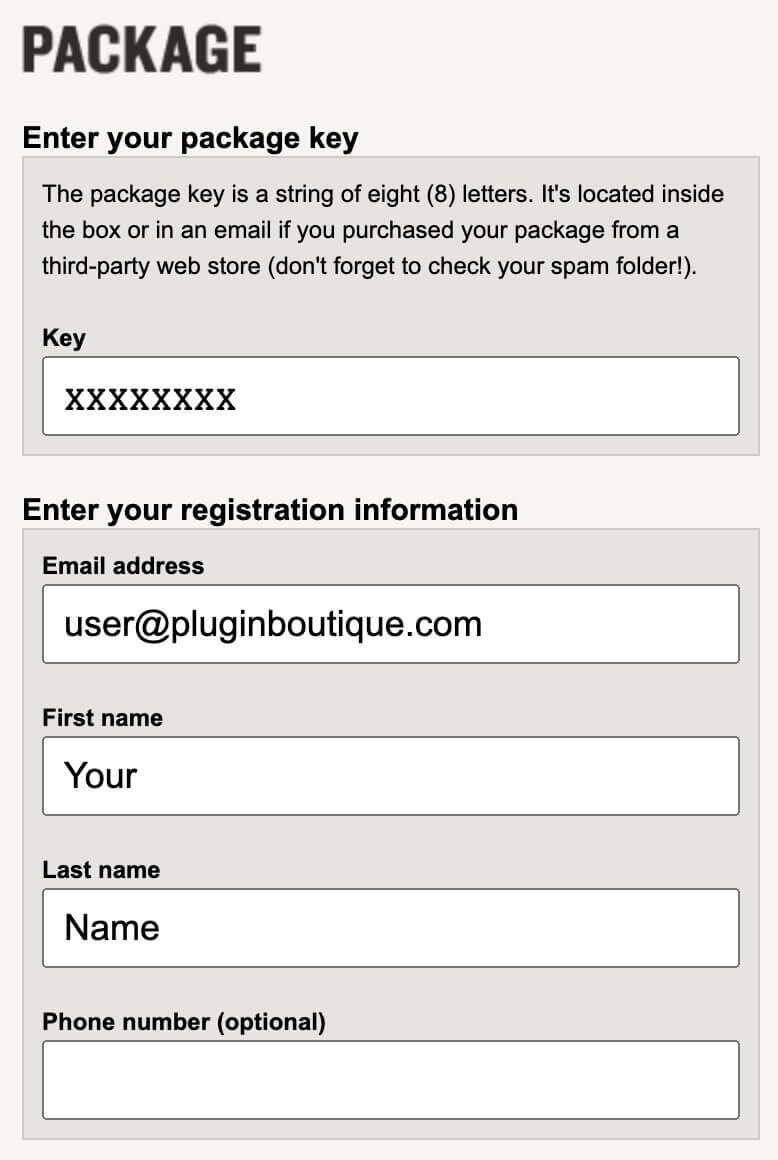
1. Copy and paste the URL which is listed as the ‘Serial Number’ in your account into your browser search bar and click enter.

2. Enter your email address and name (the key will have been automatically entered).

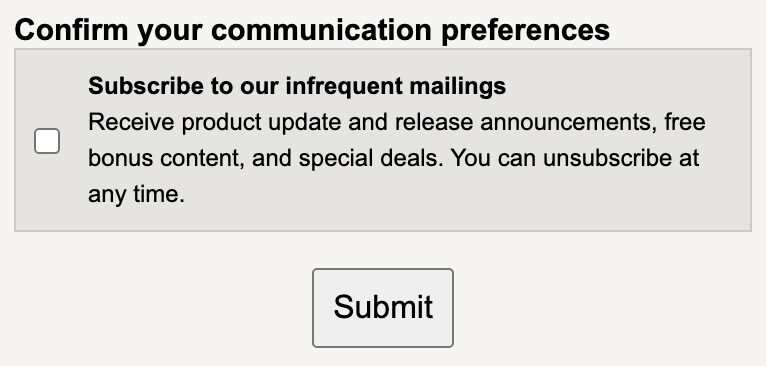
3. Choose your communication preferences > Click 'Submit'.

Mac Installation
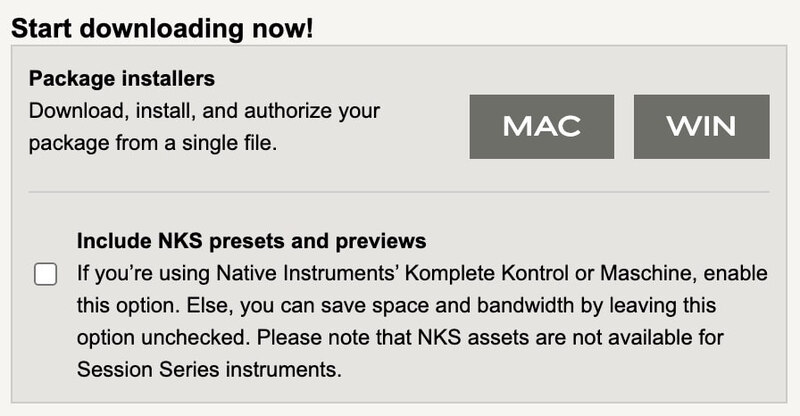
1. Download the Mac Installer.

2. Open the ZIP folder you’ve just downloaded > Double click the PKG installer file.
3. You may see this message - if so, please click 'Open'.

4. Click 'Continue'.

5. Read the Software License Agreement > Click 'Continue'.

6. Click 'Agree'.

7. Click 'Install'.

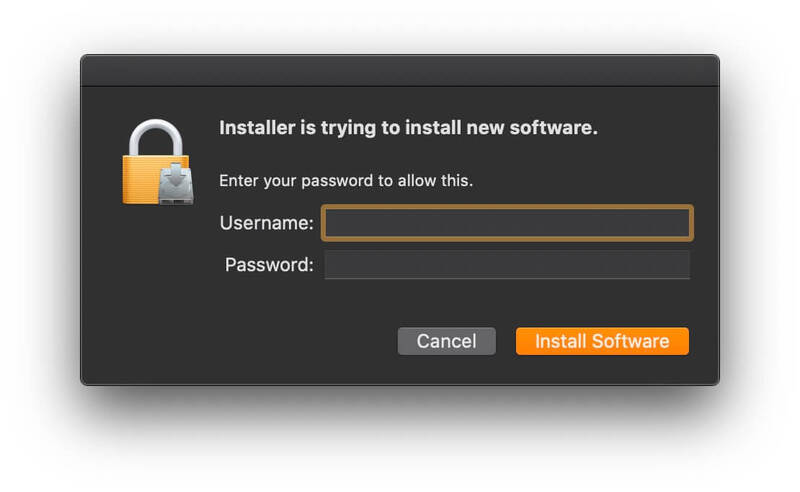
8. Tap your fingerprint or enter your password.

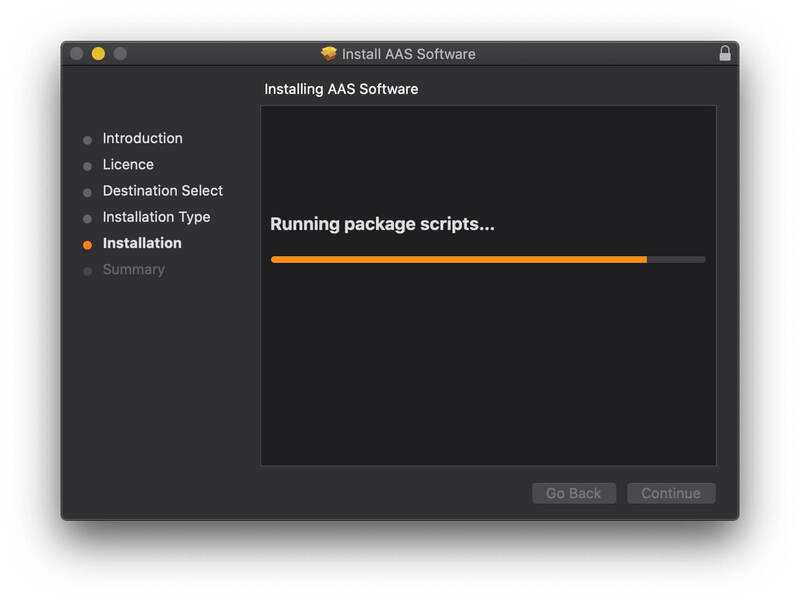
9. Your software will now install.

10. Open your new software in your DAW (you may need to restart your Mac and/or rescan your plugins).

Your software is now ready to use within your DAW!
Windows Installation
1. Download the Windows Installer.

2. Open the ZIP file you’ve just downloaded > Double click the Setup file.
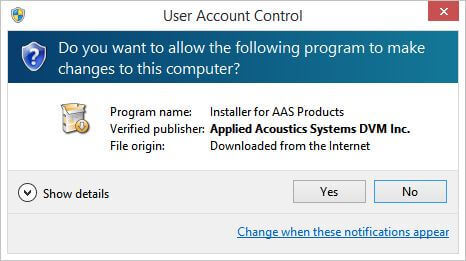
3. Click 'Yes' to allow the installation to run.
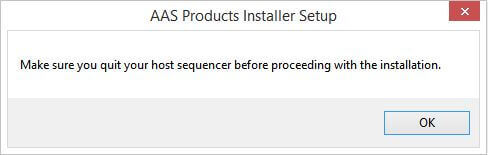
4. Close your DAW if it’s open > Click 'OK'.
5. Read the License Agreement > Click ‘I Agree’.
6. Choose the install location (we recommend leaving it as the default).
7. Your software will now install.
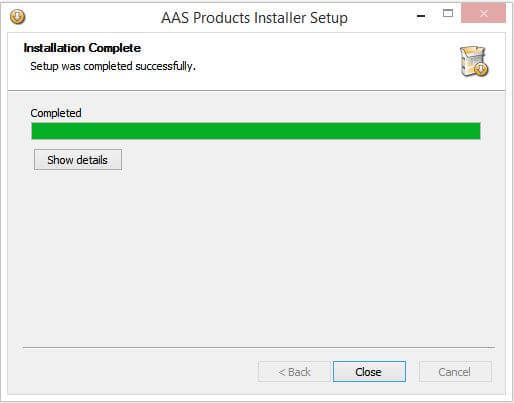
8. The installation is now complete > Click 'Close'.
9. Open your new software in your DAW (you may need to restart your Mac and/or rescan your plugins).
Your software is now ready to use within your DAW!