Buy Ting, get a free gift with purchase:
Percussion Instrument
Percussion instrument made by everyday objects
Ting is an instrument providing 28 different percussive sounds originating from everyday t(h)ings laying around at home - such as silverware, a sofa, a toy drum, or a pair of car keys. Each sound is carefully multi-sampled and processed with the common goal to be musically playable.
Ting is intended to be a creative tool and a substitute for the ordinary drum and percussion instruments. Altogether ~1500 individual samples are used to make this instrument.
In addition to the sounds, there is an EQ, a room simulator, a reverb, and a compressor.
Anatomy
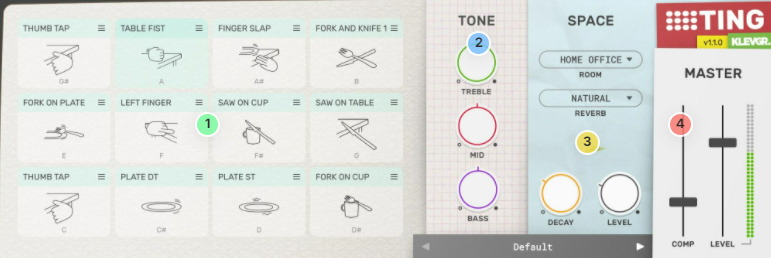
1. A dozen things - Choose between 28 carefully sampled instruments to populate the 12 sound slots.
2. Watch your tone - A lot easier if you have some EQ.
3. Plenty of room - Two parallel spaces, a convolution room, and algorithmic reverb.
4. Give it a final hug - Single-control compressor for the whole package.
Features
- 28 different high quality sounds, carefully multi-sampled and processed for maximum playability
- Built-in EQ
- Convoluting room ambiance
- Algorithmic reverb
- Individual sound parameters for pan, pitch, dynamics, room send & reverb send
- Master compressor
System Requirements
- macOS 10.15 or later (optimized for the M1-processor)
- Windows 10 or later
- AU, VST-2, VST-3, AAX
Important note: When accessing this software via a Rent to Own plan or the Beatport Studio membership, it's installed and run through the Beatport Access portal. An internet connection is required every 30 days to validate your license.
Please Note: Pana is used as the example:
Mac
License Redemption
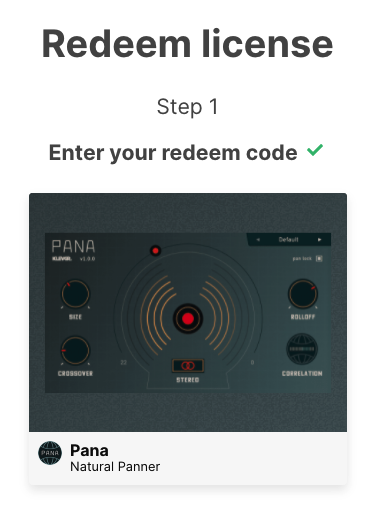
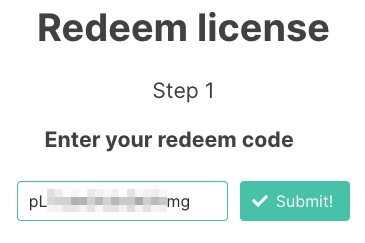
1. Navigate to https://klevgrand.com/redeem > Paste your 16 digit redemption code found in your Plugin Boutique User Account > Click 'Submit!'.
2. Your redemption code has been accepted > Scroll down to Step 2.
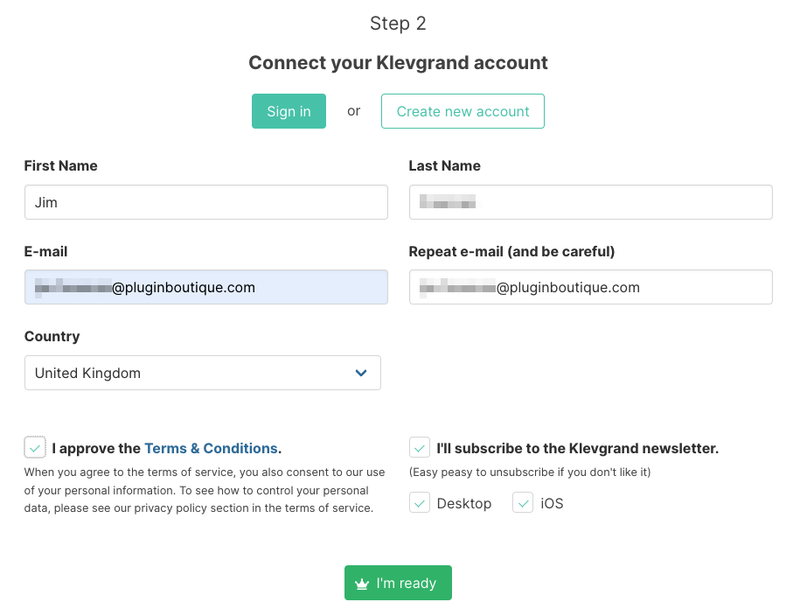
3. Click either 'Sign in' if you already have a Klevgrand account, or 'Create new account' if you do not > Fill in your personal details > Click 'I'm ready'.
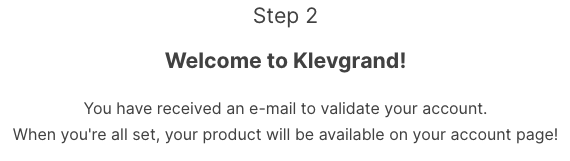
4. Your account has now been created.
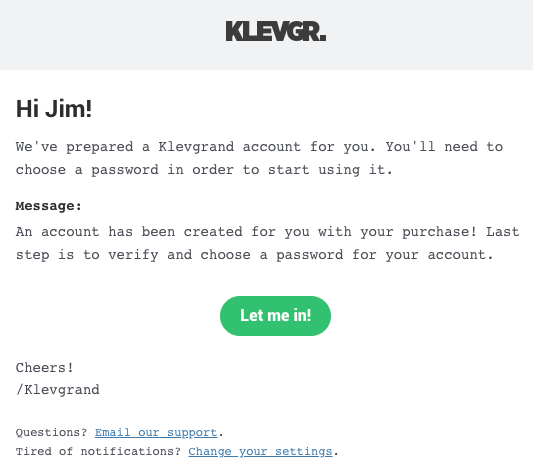
5. Navigate to your email inbox and locate the activation email that you should have received from Klevgrand > Click 'Let me in!' to activate your account.
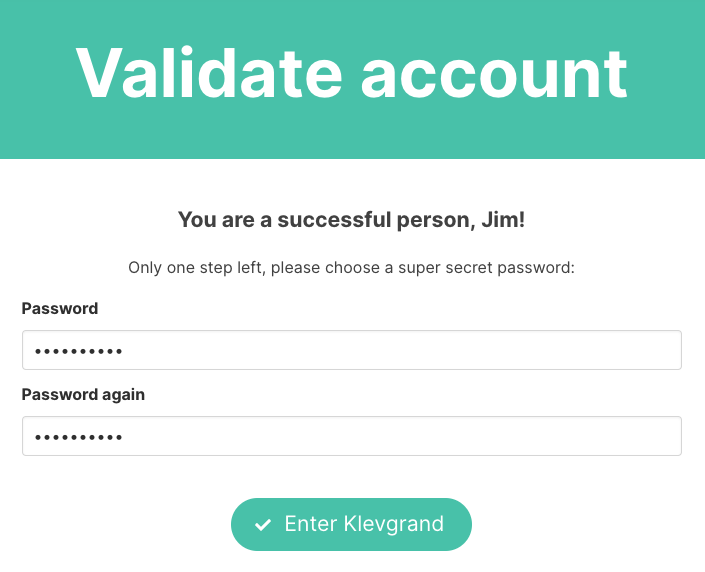
6. Create a password for your account > Click 'Enter Klevgrand'.
7. Your software and serial number is now available within your Klevgrand account > Click the Apple logo to download the installer file.
Installation
1. Launch the pana_x_x_x_macOS.dmg installer file.
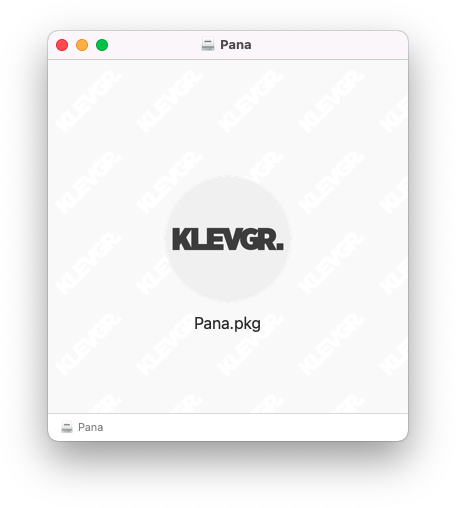
2. Double click the KLEVGR. logo to launch the installer.
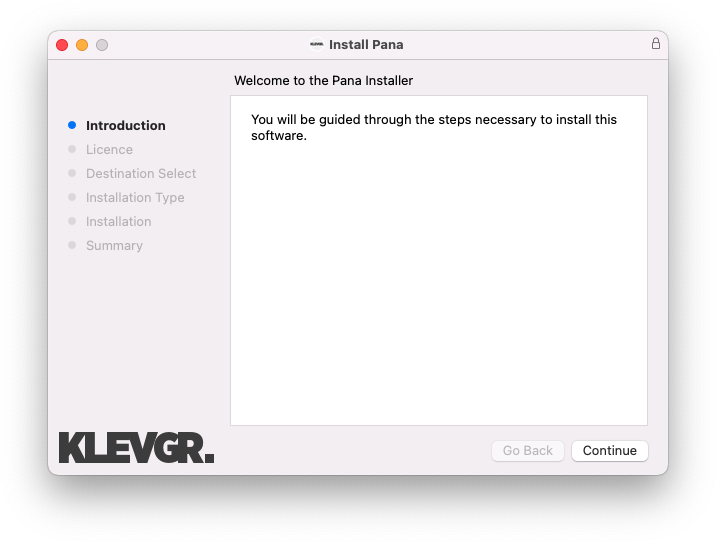
3. Click 'Continue'.
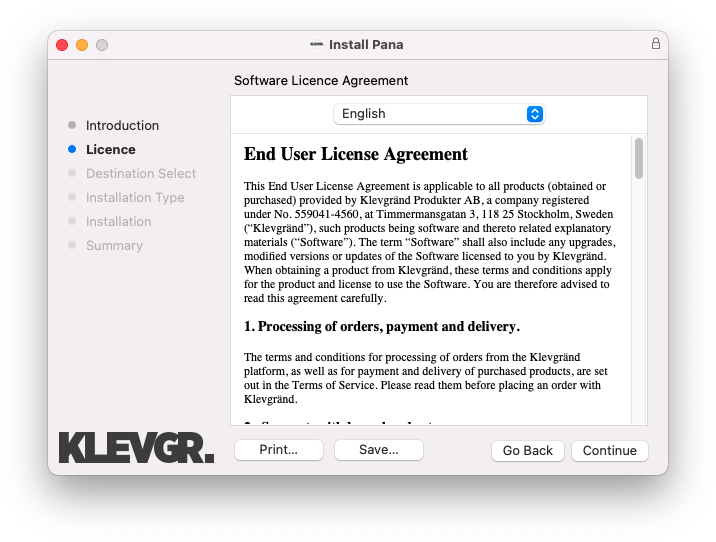
4. Click 'Continue'.
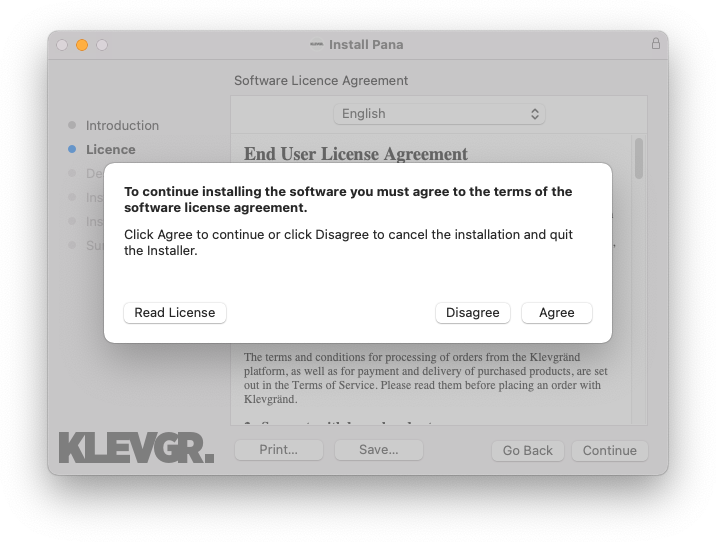
5. Click 'Agree'.
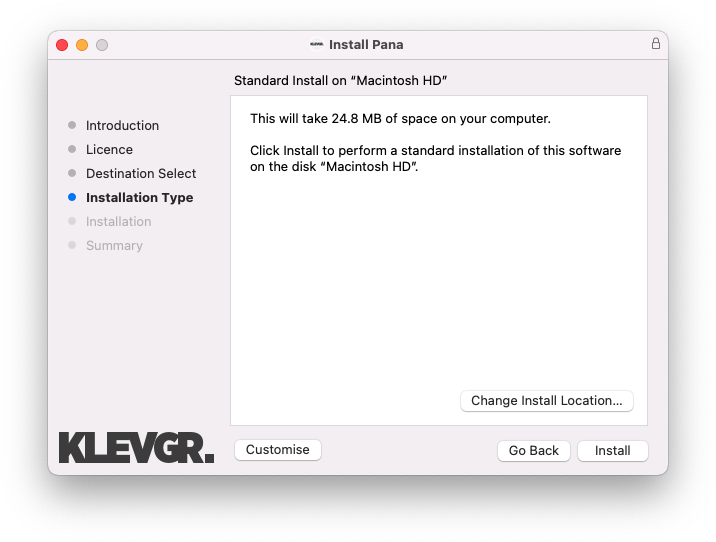
6. Click 'Install'.
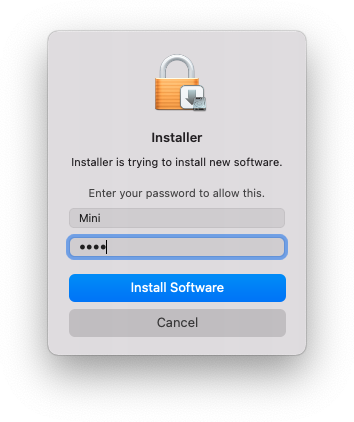
7. Enter your system password > Click 'Install Software'.
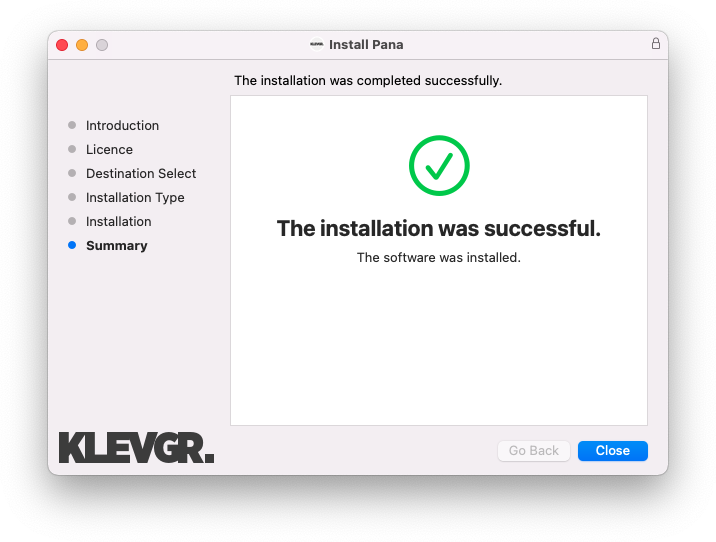
8. Click 'Close'.
9. Navigate back to your Klevgrand My Account page > Click on the serial number to copy it to your clipboard.
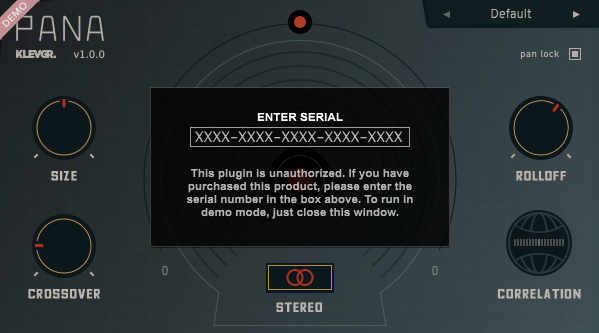
10. Launch your DAW > Create a new audio track > Insert Pana onto the channel > Paste your serial number into the box.
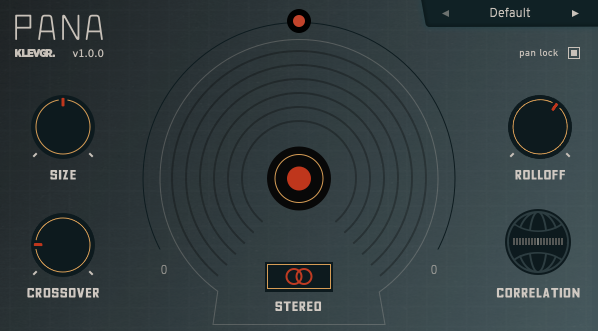
Your software is now activated and ready to use within your DAW
Windows
License Redemption
1. Navigate to https://klevgrand.com/redeem > Paste your 16 digit redemption code found in your Plugin Boutique User Account > Click 'Submit!'.
2. Your redemption code has been accepted > Scroll down to Step 2.
3. Click either 'Sign in' if you already have a Klevgrand account, or 'Create new account' if you do not > Fill in your personal details > Click 'I'm ready'.
4. Your account has now been created.
5. Navigate to your email inbox and locate the activation email that you should have received from Klevgrand > Click 'Let me in!' to activate your account.
6. Create a password for your account > Click 'Enter Klevgrand'.
7. Your software and serial number is now available within your Klevgrand account > Click the Windows logo to download the installer file.
Installation
1. Unpack the pana_x_x_x_win.zip installer file > Launch the pana_x_x_x_win.exe file.
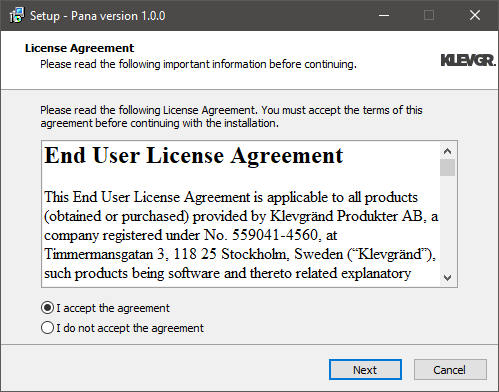
2. Click 'I accept the agreement' > Click 'Next'.
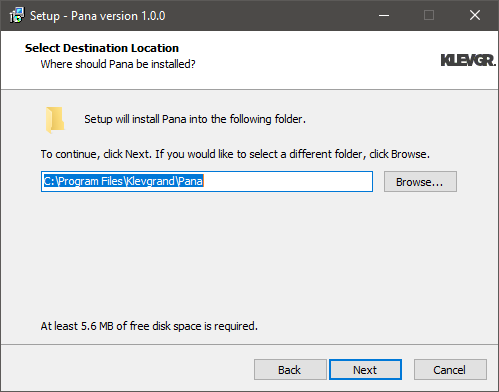
3. Click 'Next'.
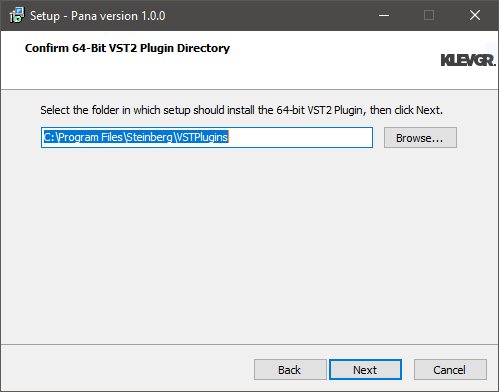
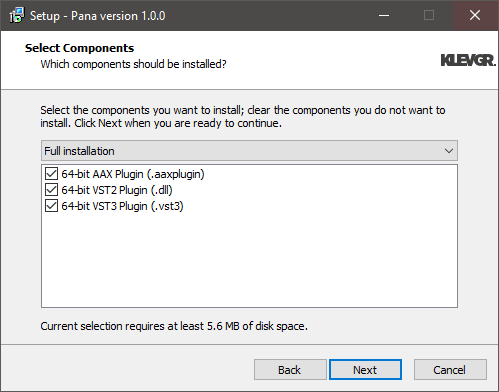
4. Click 'Next'.
5. Click 'Next'.
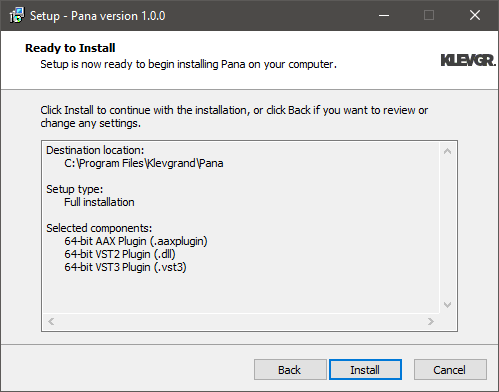
6. Click 'Install'.
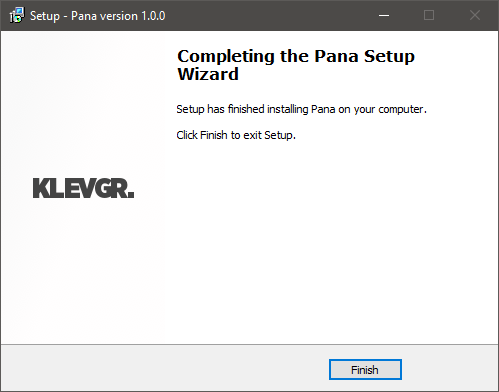
7. Click 'Finish'.
8. Navigate back to your Klevgrand My Account page > Click on the serial number to copy it to your clipboard.
9. Launch your DAW > Create a new audio track > Insert Pana onto the channel > Paste your serial number into the box.
Your software is now activated and ready to use within your DAW