/ Stereo Width / Haaze 2
Klevgrand

Haaze 2

4.6 (111 Reviews)
$23.99 $59.99

60% off until Dec 11

Haaze 2
Haaze 2
Haaze - Main User Interface
Haaze 2 - Stereo Tool gallery thumbnail
Natural positioning with the haas effect gallery thumbnail
Creating stereo width on mono guitar gallery thumbnail
Buy Now
Product information

Stereo Tool

Bring any mono signal to life with this stereo enhancer.

The upgraded Haaze v2 from Klevgrand is an elegant solution for controlling stereo width and spatially positioning a sound in a stereo mix. Regular L-R panning is a weak tool that doesn't resemble real-world acoustics, which becomes clear when trying to place a mono sound naturally in a stereo mix (especially on headphones).

The result still feels very "mono". Haaze is an audio plugin that makes the positioning feel more natural, understandable, and pleasant for the ears. It splits the audio signal into 16 frequency bands. On each band, you can delay the left or right signal (which will make the listener believe the sound arrives from the side that’s reaching the ear first), pan it to the left or right, or adjust the overall width on that band (for example, make the lower frequencies more focused in the middle than the higher). Haaze can also diffuse a mono signal and make it wider.

If this sounds complicated, Haaze comes with many presets that will help you to get started. It sounds good both in headphones and loudspeakers, and it has great mono compatibility.

Anatomy
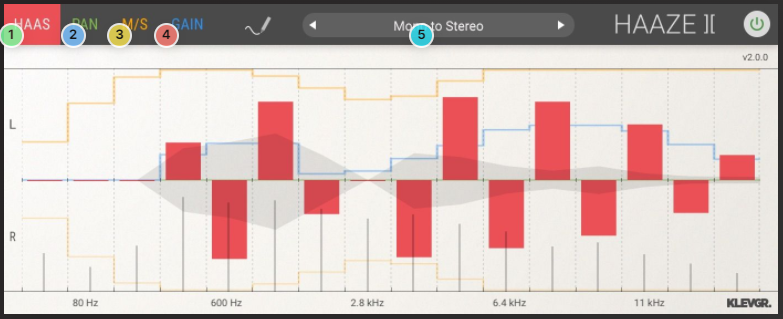
1. I Can Haaze? Control the delay between Left and Right on each band.

2. Pan(ic) button. This mode can pan each band separately between Left and Right.

3. In your widest dream. This mode sets how wide you want each band to be.

4. Gainz. Only if you need to compensate the gain after processing each band.

5. Happy Birthday Mr Presetident. Lots of presets that will help you to get started.

Features

  • 16 independent frequency bands
  • Haas: Control the delay between L/R on each band
  • Pan (Split EQ): Pan each band L/R
  • M/S: Control the width on each band
  • Gain: Compensate the gain level on each band
  • Draw mode, for easy plotting out the adjustment curve that you want
  • Lots of presets for helping you to get started
  • Stereo width meter + Level meter on each band

System Requirements

  • macOS 10.10 or later (optimized for the M1-processor)
  • Windows 7 SP1 or later
  • AU, VST-2, VST-3, AAX
Installation Instructions

Please Note: Pana is used as the example:

Mac

License Redemption

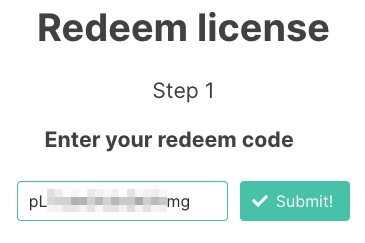
1. Navigate to https://klevgrand.com/redeem > Paste your 16 digit redemption code found in your Plugin Boutique User Account > Click 'Submit!'.

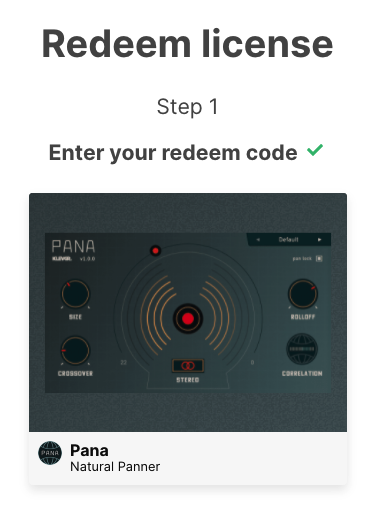
2. Your redemption code has been accepted > Scroll down to Step 2.

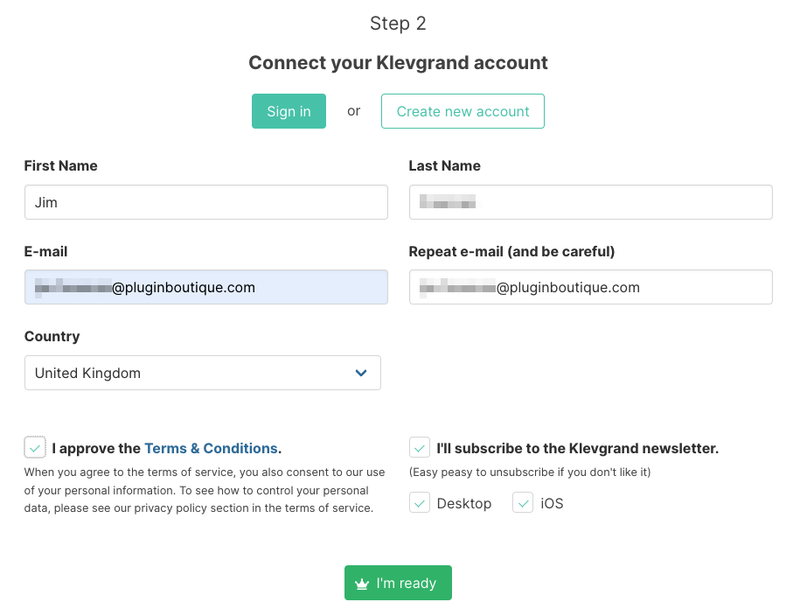
3. Click either 'Sign in' if you already have a Klevgrand account, or 'Create new account' if you do not > Fill in your personal details > Click 'I'm ready'.

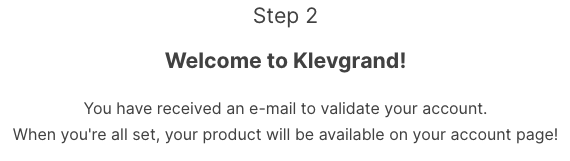
4. Your account has now been created.

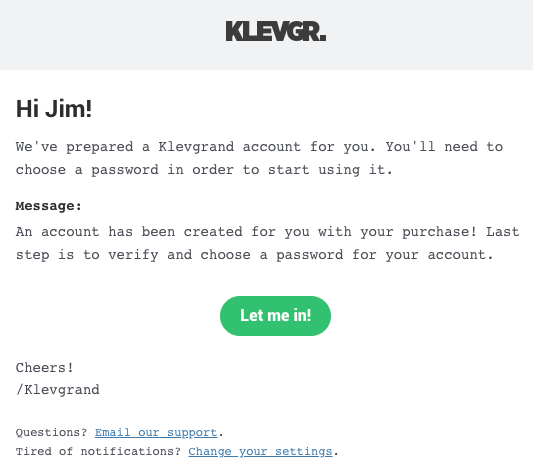
5. Navigate to your email inbox and locate the activation email that you should have received from Klevgrand > Click 'Let me in!' to activate your account.

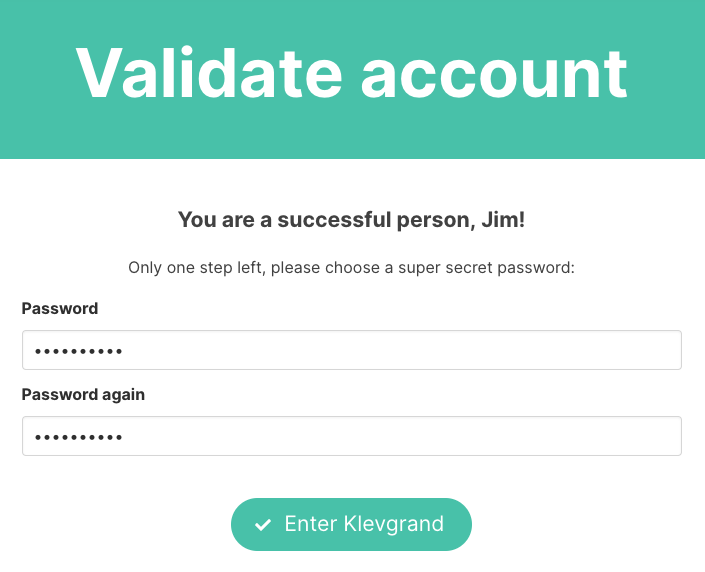
6. Create a password for your account > Click 'Enter Klevgrand'.

7. Your software and serial number is now available within your Klevgrand account > Click the Apple logo to download the installer file.

Installation

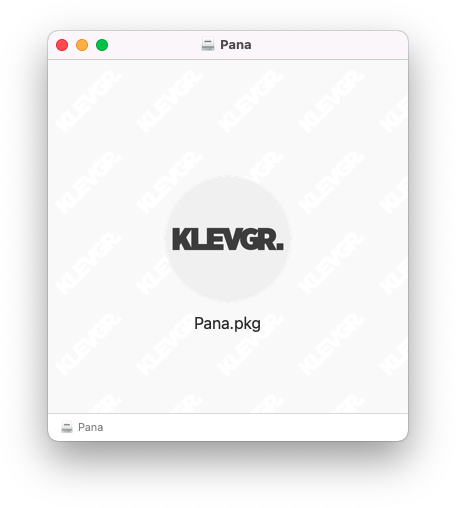
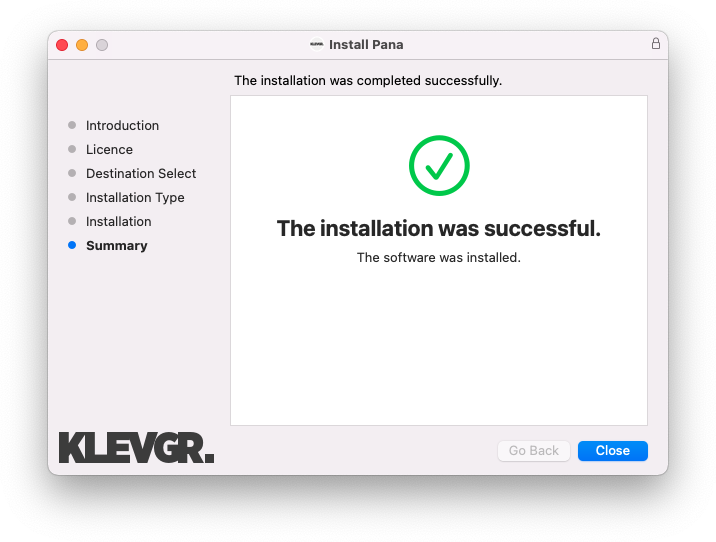
1. Launch the pana_x_x_x_macOS.dmg installer file.

2. Double click the KLEVGR. logo to launch the installer.

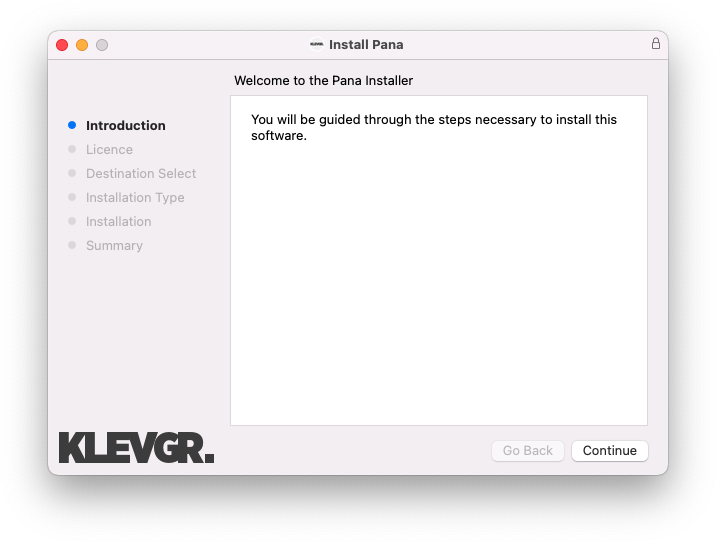
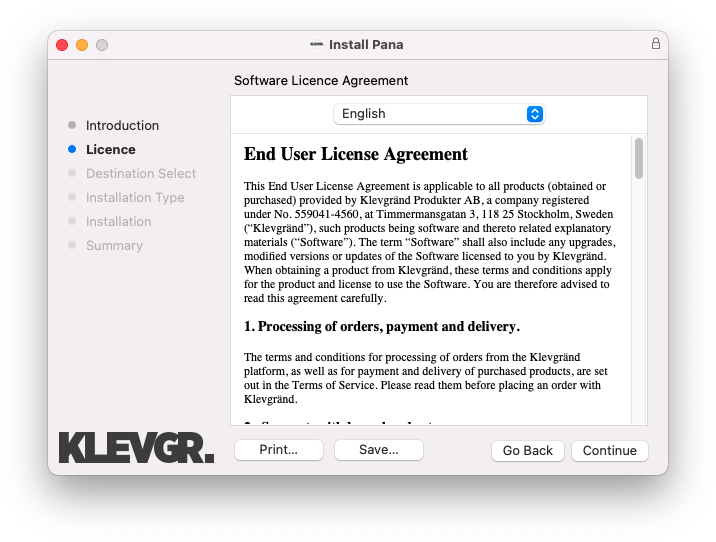
3. Click 'Continue'.

4. Click 'Continue'.

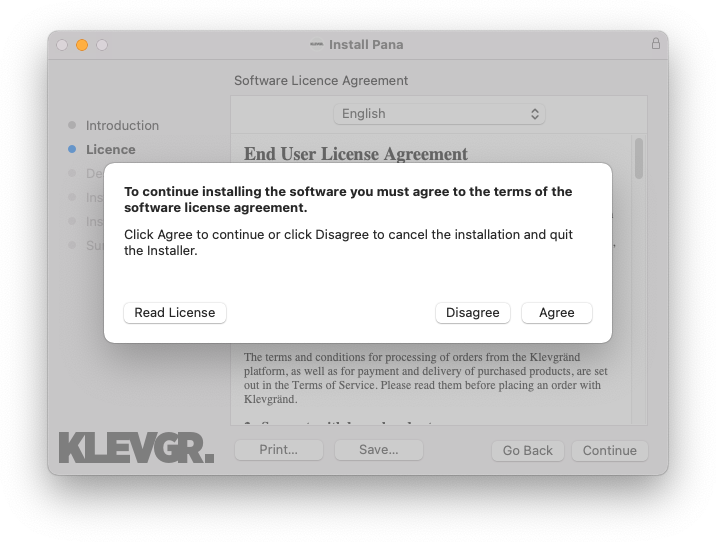
5. Click 'Agree'.

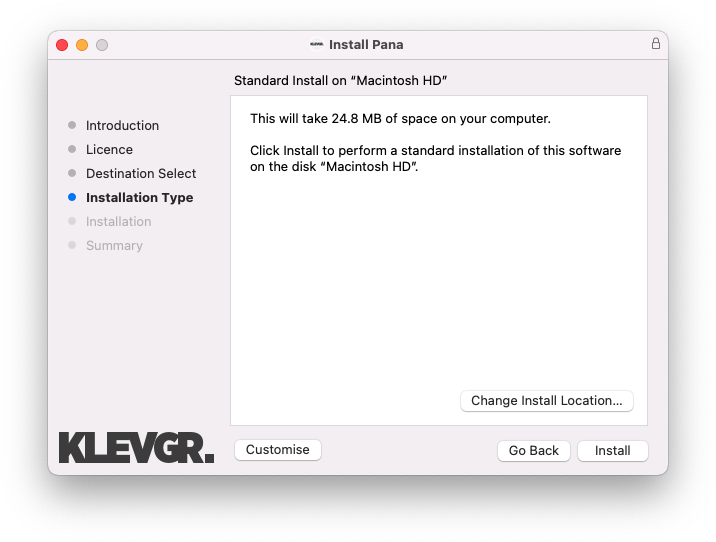
6. Click 'Install'.

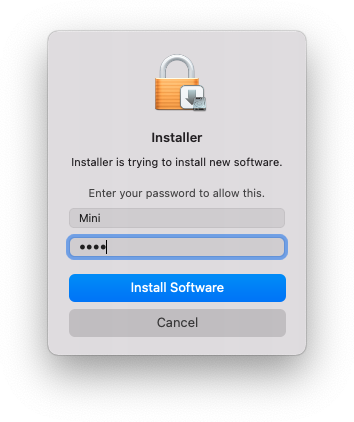
7. Enter your system password > Click 'Install Software'.

8. Click 'Close'.

9. Navigate back to your Klevgrand My Account page > Click on the serial number to copy it to your clipboard.

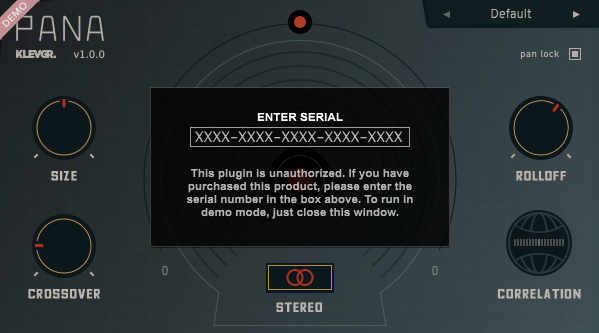
10. Launch your DAW > Create a new audio track > Insert Pana onto the channel > Paste your serial number into the box.

Your software is now activated and ready to use within your DAW

Windows

License Redemption

1. Navigate to https://klevgrand.com/redeem > Paste your 16 digit redemption code found in your Plugin Boutique User Account > Click 'Submit!'.

2. Your redemption code has been accepted > Scroll down to Step 2.

3. Click either 'Sign in' if you already have a Klevgrand account, or 'Create new account' if you do not > Fill in your personal details > Click 'I'm ready'.

4. Your account has now been created.

5. Navigate to your email inbox and locate the activation email that you should have received from Klevgrand > Click 'Let me in!' to activate your account.

6. Create a password for your account > Click 'Enter Klevgrand'.

7. Your software and serial number is now available within your Klevgrand account > Click the Windows logo to download the installer file.

Installation

1. Unpack the pana_x_x_x_win.zip installer file > Launch the pana_x_x_x_win.exe file.

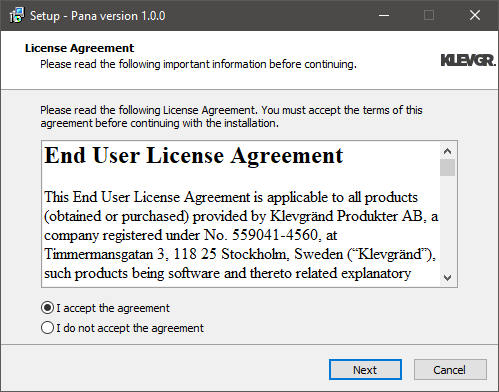
2. Click 'I accept the agreement' > Click 'Next'.

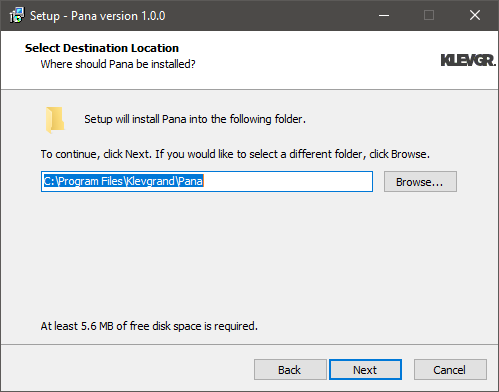
3. Click 'Next'.

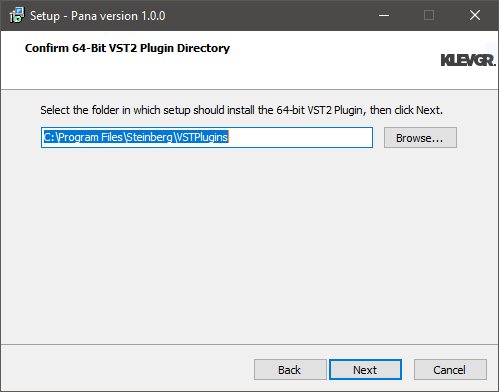
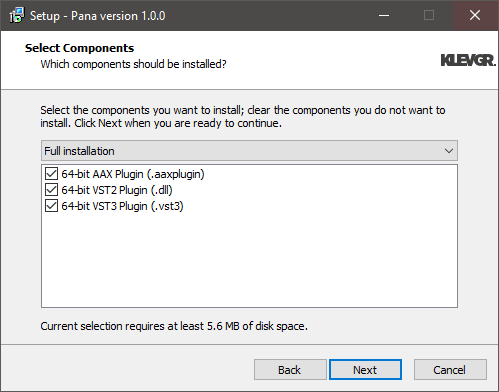
4. Click 'Next'.

5. Click 'Next'.

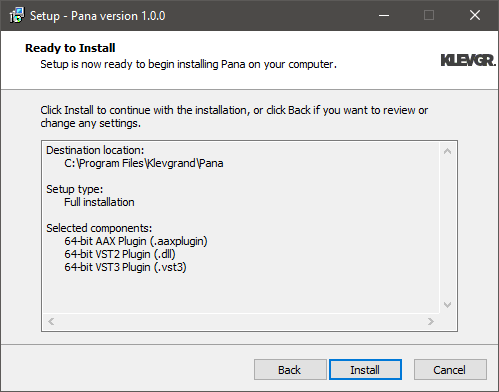
6. Click 'Install'.

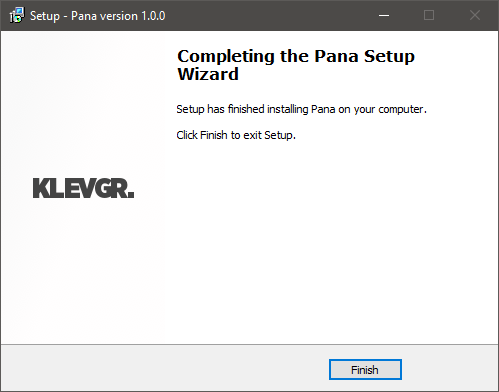
7. Click 'Finish'.

8. Navigate back to your Klevgrand My Account page > Click on the serial number to copy it to your clipboard.

9. Launch your DAW > Create a new audio track > Insert Pana onto the channel > Paste your serial number into the box.

Your software is now activated and ready to use within your DAW

Plugin Boutique Rewards

Discover the most rewarding loyalty programme among all plugin retailers.

  • Free Loopmasters Samplepacks
  • Discounts on products and courses
  • Extra Virtual Cash claimed immediately at checkout
Find out more

Follow us:

X (Twitter) Facebook YouTube Instagram
Logo Logo

Plugin Boutique Limited, Part of the Beatport Group LLC.

Copyright © 2011-2025 Plugin Boutique. All rights reserved