


 Log In

Free gifts available with your purchase
Product information
Content Creator Audio Toolkit
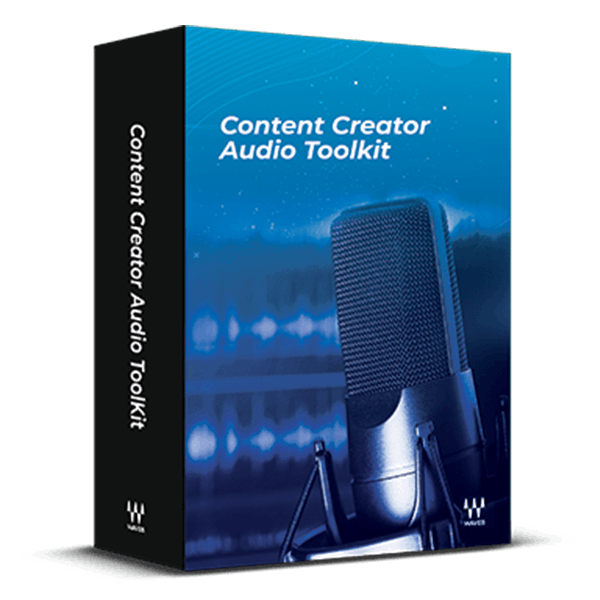
For Better Audience Engagement, Create Better Audio
From live video streams to audiobooks, “good” audio quality is no longer sufficient. Listeners and viewers will disengage if there is background noise, monotonous narration, or inconsistent levels. Solve these issues quickly and easily with the Content Creator Audio Toolkit’s curated plugins.
These purpose-built tools enhance audio quality and ensure compliance with loudness standards for platforms like Spotify, Apple Podcasts, Apple Music, and YouTube. There’s no easier way to give your audio a professional polish.
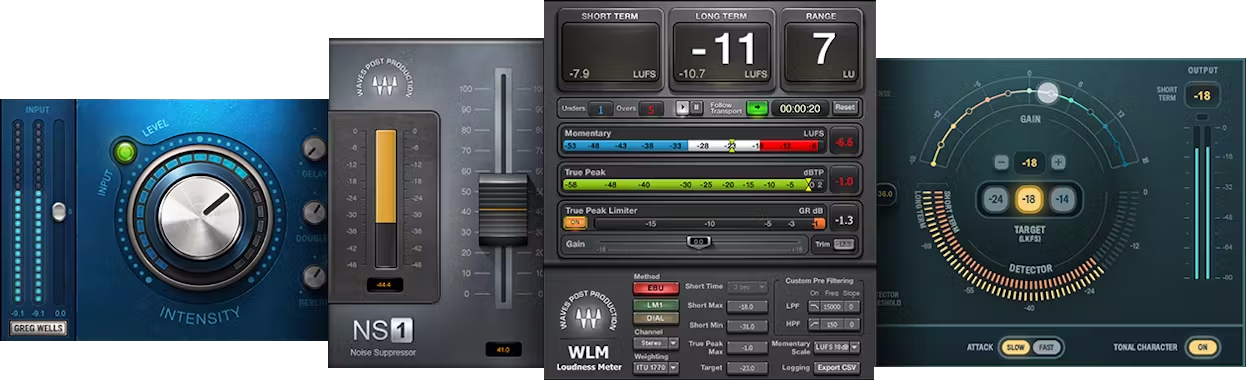
Included plugins:
- Greg Wells VoiceCentric
- NS1 Noise Suppressor
- Playlist Rider
- WLM Plus Loudness Meter
Features
- Enhance, enrich and thicken your voice with VoiceCentric
- Clean up background noise with the NS1 noise suppressor
- Balance levels from multiple audio sources automatically with Playlist Rider
- Meet the loudness standards of all streaming platforms with the WLM Plus Loudness Meter
- Presets optimize output levels for popular streaming services
- Includes presets for voice and music-under-voice
- Includes loudness presets for Spotify, YouTube, Apple Podcasts, and Apple Music
- Compatible with major audio and video editing software
System Requirements
Mac
- macOS Monterey 12, Ventura 13, Sonoma 14, Sequoia 15
- VST / AU / AAX
PC
- Windows 10+
- VST / AAX
Installation Instructions














