Log In

Free gifts available with your purchase
Test Equipment-Based Processor and Tone Generator
The Mad Processor
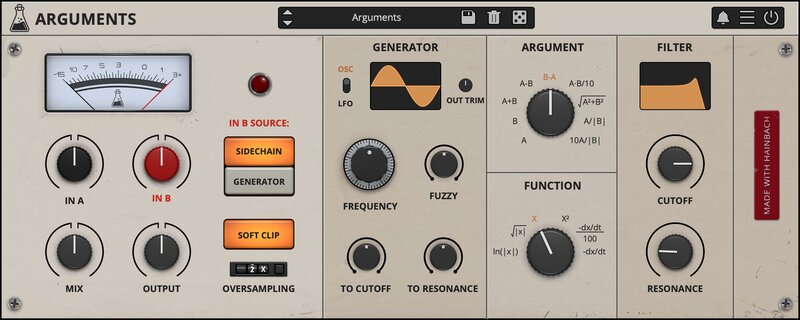
Arguments is a vintage-style test equipment plugin for tone generation and dual audio processing. It takes two signals and smashes them together using math derived from analog nuclear research processors. The results are dynamic, often unpredictable but always unique. Since each part of Arguments can run independently, it also works as a sonically rich test tone generator, as a complex distortion unit, or as a multimode filter. Arguments open nature rewards exploration, the presets are a mere suggestion for you to jump off from.
Behind the Front-plate
At its core Arguments is an analog computing-based combiner and integrator of signals, re-tuned from science to musical use. These instruments were used in analog nuclear instrumentation modular racks (NIM BIN) to allow for quick calculations without employing a dedicated computer. Arguments takes two signals A and B (B is either external via side-chain or from the internal generator) and puts them together using the argument block. The result is then put through a function block that processes it. This creates a wide range of tones, from simple boosting to high-passed industrial grit, from rhythmic modulations to raw textures. A multi-mode filter stage then allows for exact shaping and modulation. Audiothing employed analog modeling at every stage to make Arguments sound not like a calculator but like the rare vintage units that inspired it.
Side-Chain Operation
First: Every DAW handles side-chain differently. Please consult your DAWs manual to find out how to set it up. For example, if you are still hearing an unaffected side chain signal even though mix is 100% wet, check if you have turned down the sending channel in your DAW.
In general, rhythmic material works very well with Arguments, as do simple sounds. Two pinged filters can become massive when run through Arguments. An electric piano and a drum loop will sound smashing together.
When Math Fails
The most interesting sounds happen when the math of Arguments fails. By setting the gain of A and B just at the cusp before the sounds disappear, tones remind us of the overloaded op-amps of rare instruments like the „Radioactive Box“ PAR CR4-A. The dynamic signature of one signal is overlayed onto the other, which results in new peaks and rich textures. Thus it helps to map A and B to midi controllers for playful control of the gain staging.
Presets: Abyss Pull, Industrial Love
Oversampling as Texture Control
Oversampling is a sonic shaping tool. Due to the high internal gain of the plugin, you can get extreme sounds fast. If you tune the oversampling you will hear fizzling high-end frequencies appear the lower you go. If you are into industrial fuzz and destruction, turn it off. It will shred, especially in -dx/dt mode. If you own Lines, try exploring the oversampling added there, too.
Presets: Harsh Noise Shred, Harsh Random Chop
LFO as a Rhythmic Shaper
By running the generator in LFO mode in time with a drum beat, you can shape the accent of it. A+B and X² work well, adjust the LFO forms to get different results from your groove. Offset the LFO phase by clicking on the LFO window to move the accent.
Presets: Synthesize Me, Drum Reverser
Willem Twee Simulator
The famed Dutch studio for vintage electronic music employs a boatload of sine generators run into a mixing board. This way you can play the static sines, creating exciting “Klangmixturen”. You can do the same by setting up as many instances of Arguments as you like, each set to a different generator sine and tuning. Then ride the channels with an external fader bank and fly off into 1960s tonalities. Add pitch-drift like on a failing vintage unit with the fuzzy control.
Presets: Vintage Sine A440
Locked-In Patch
Employ the “bad math” patch written above, so you end up with a signal mixture that crackles dynamically, as the sounds fight for space. Add a sharp bandpass filter with a lot of resonance. Sweep the filter. The filter will now ping through the clicks exciting it at the frequency it is set at. This results in tonalities much like a lock-in amplifier, another fantastic test equipment tool that sounds great when misused for music.
Presets: Locked-In Frequency 1-3
PAR CR4A Deep Fry
This is one rare yet fantastic piece of test equipment. A wide band preamp with filter that uses a similar chipset to the ARP 2500. As a scientific amp, it is used to deal with tiny signals, like dolphins singing in the depths of the Pacific. If you hit it hard, the overloaded op amps take time to recover. This makes a signal extremely dry and crisp and adds a decaying envelope that sounds like a fading Geiger counter. You can emulate that with Arguments: Use B-A and Sample and Hold as Waveform. Pitch that to 20kHz. Set Function to -dx/dt. Input A to 0.0dB, bring up Input B set to Generator slowly. Filter to taste.
Presets: PAR CR4A
Arguments Demo
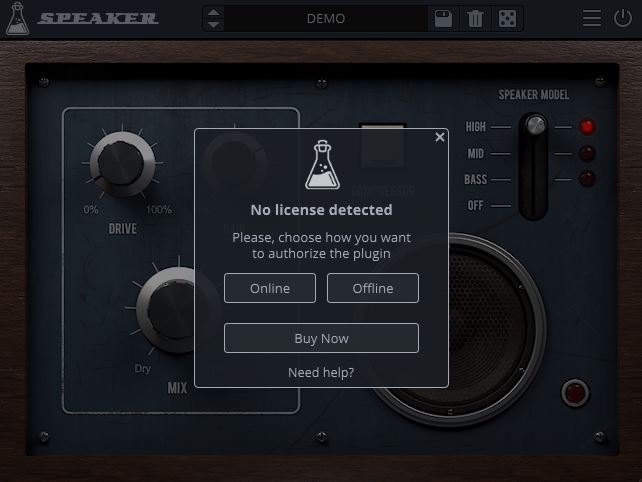
Try Arguments for free with some limitations: silence for 3 seconds every 45 seconds, saving disabled.
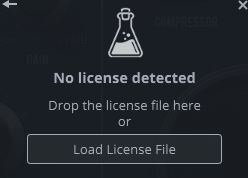
If you like it, you can purchase a license and then authorize the demo version.
Features
- Analog Modelled Oscillator
- Sidechain or Generator Mode
- 9 Arguments
- 6 Functions
- Multi-mode Filter
- Oversampling
- Resizable Window
- Brightness and Contrast Controls
- Preset system with randomizer
System Requirements
Windows
- Windows 7 – 11
- 2GHz CPU, 4 GB RAM
- VST2, VST3, AAX, CLAP (64-bit)
Mac
- macOS 10.13 – macOS 15
- 2GHz CPU, 4 GB RAM
- VST2, VST3, AU, AAX, CLAP (64-bit)
- Universal 2 Binary
Linux
- Ubuntu 20.04 LTS
- 2GHz CPU, 4 GB RAM
- VST2, VST3, CLAP (64-bit)