/ Synth Presets / KitNetix Chromaphone 3 Sound Bank
Applied Acoustics Systems

KitNetix Chromaphone 3 Sound Bank

4.7 (45 Reviews)
$19.00 $39.00

51% off until Jan 19

KitNetix Cover Picture
Buy Now
Product information

KitNetix is a macrophonic sound bank that zooms into an intricate new world. The 128-preset collection crafted by renowned sound designer Martin Walker features drum kits made from exotic materials, percussion unleashed from reality, soundscapes from dark beginnings to glittering futures, hyper-detailed generative textures, and fantasy hybrid instruments that have never been heard before, including bells, chimes, keys, strings, and pads. Moods cover a huge range, from epic soundtrack projects via weird electronica to gentle ambient minimalism.

Who’s Martin Walker?

By the time he became a professional musician and sound designer in the 1980s, Martin Walker had already been an electronic engineer in radar and hi-fi, a training manager for Atari, and a software author with a handful of well-received computer games to his credit.

His next seven years were spent on game soundtrack and sound effect commissions, completing over 100 projects across nine computer game formats. By the mid-1990s he had also started contributing heavily to music technology magazines such as Sound On Sound and AudioTechnology, writing columns, reviews and features.

Martin now divides his time between writing, sound design, releasing ambient albums on his own YewTreeMagic label and occasionally designing or circuit-bending audio projects.

What's Included with my Purchase?

  • Preset Bank for Chromaphone
  • AAS Player Plug-In (VST, AU, AAX, RTAS)
  • Serial Number
  • Installation Instructions

128 Sounds Compromising of:

  • 26 Kit Presets
  • 23 Perc Presets
  • 21 Soundscape Presets
  • 16 Generative Presets
  • 14 Bell & Chime Presets
  • 16 Keys Presets
  • 13 String & Pad Presets

System Requirements

This preset collection can be used with the free AAS Player plug-in as well as the Chromaphone 3 analogue synthesizer.

After you have installed the sound bank, there are two options to use it:

  • A. Chromaphone 3 - Reverence will automatically be added to Chromaphone 3 if it is installed on your computer.
  • B. AAS Player - If you don't own Chromaphone 3, you will be able to play Reverence from the AAS Player plug-in or standalone application.
Installation Instructions

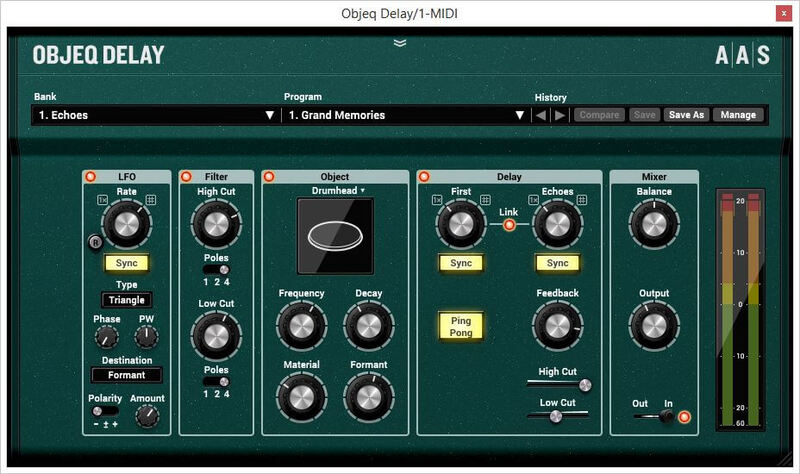
Please note: Objeq Delay is used as an example as the installation process is the same for all Applied Acoustics Systems products.

Registration

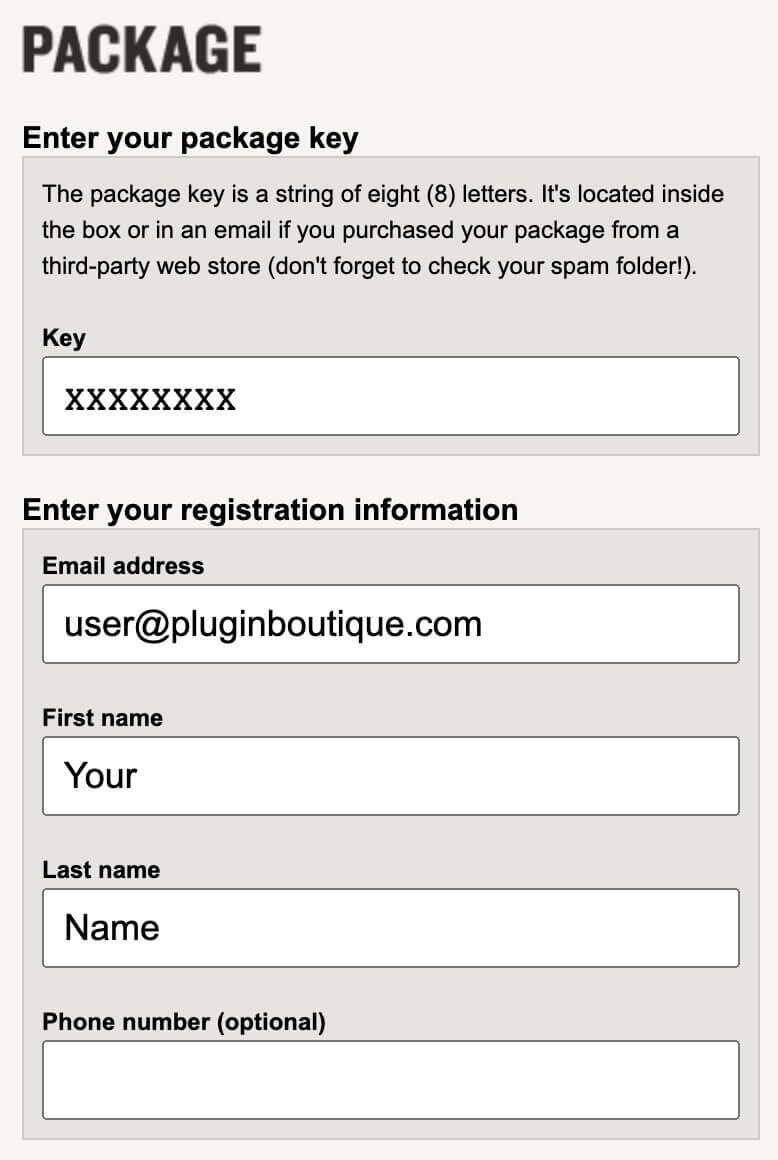
1. Copy and paste the URL which is listed as the ‘Serial Number’ in your account into your browser search bar and click enter.

Registration Process - Step 1

2. Enter your email address and name (the key will have been automatically entered).

Registration Process - Step 2

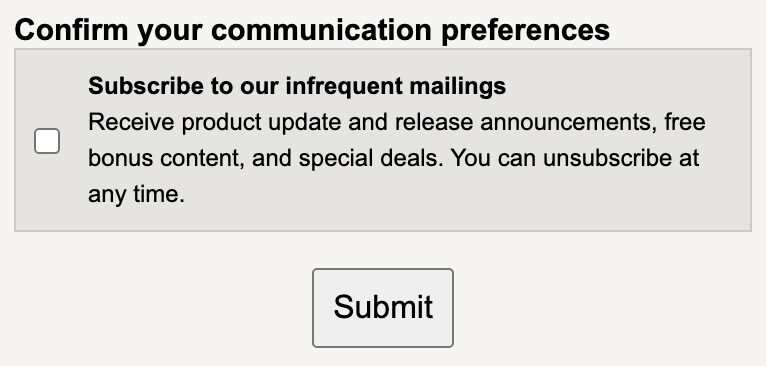
3. Choose your communication preferences > Click 'Submit'.

Registration Process - Step 3

Mac Installation

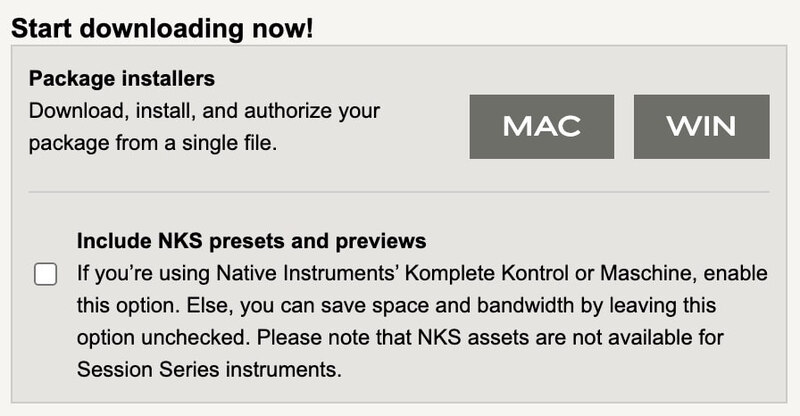
1. Download the Mac Installer.

2. Open the ZIP folder you’ve just downloaded > Double click the PKG installer file. 

3. You may see this message - if so, please click 'Open'.

Mac software installation process

4. Click 'Continue'. 

Mac AAS software installation process

5. Read the Software License Agreement > Click 'Continue'.

Mac AAS Software Installation Process

6. Click 'Agree'.

Mac AAS Software Installation Process

7. Click 'Install'.

Mac AAS Installation Process

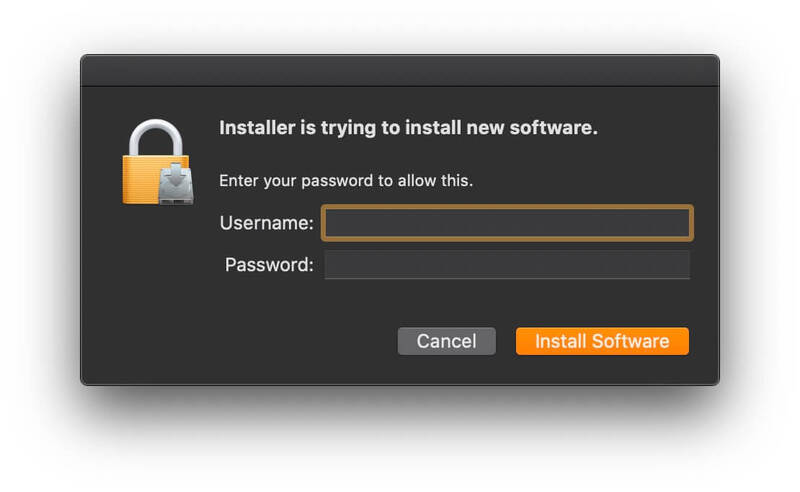
8. Tap your fingerprint or enter your password. 

Mac AAS Software Installation Process

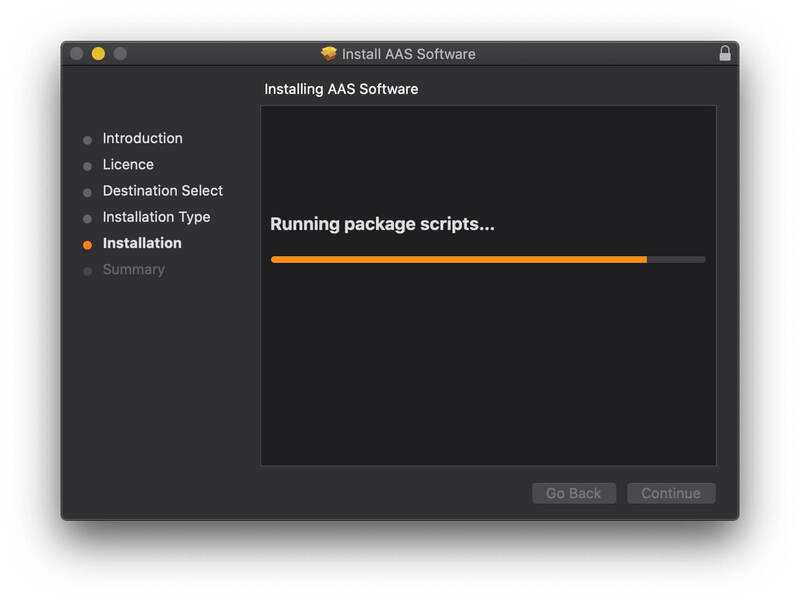
9. Your software will now install.

Mac AAS Software Installation Process

10. Open your new software in your DAW (you may need to restart your Mac and/or rescan your plugins).

Mac AAS Software Installation Process

Your software is now ready to use within your DAW! 

Windows Installation

1. Download the Windows Installer.

2. Open the ZIP file you’ve just downloaded > Double click the Setup file.

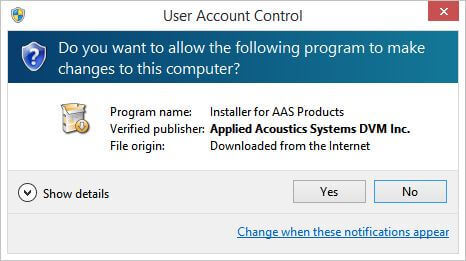
3. Click 'Yes' to allow the installation to run.

Windows AAS Software Installation Process

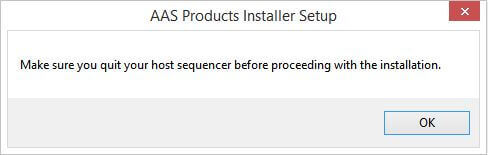
4. Close your DAW if it’s open > Click 'OK'.

Windows AAS Software Installation Process

5. Read the License Agreement > Click ‘I Agree’.

Windows AAS Software Installation Process

6. Choose the install location (we recommend leaving it as the default). 

Windows AAS Software Installation Process

7. Your software will now install.

Windows AAS Software Installation Process

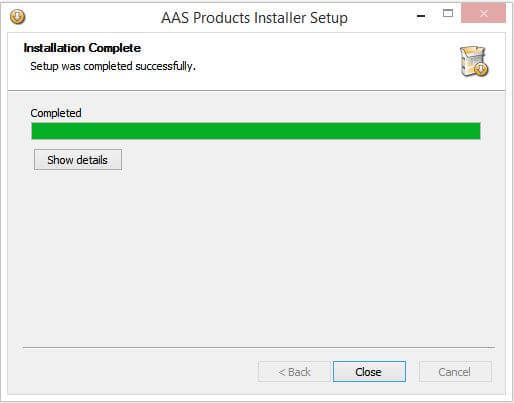
8. The installation is now complete > Click 'Close'.

9. Open your new software in your DAW (you may need to restart your Mac and/or rescan your plugins).

Windows AAS Software Installation Process

Your software is now ready to use within your DAW! 

Plugin Boutique Rewards

Discover the most rewarding loyalty programme among all plugin retailers.

  • Free Loopmasters Samplepacks
  • Discounts on products and courses
  • Extra Virtual Cash claimed immediately at checkout
Find out more

Follow us:

X (Twitter) Facebook YouTube Instagram
Logo Logo

Plugin Boutique Limited, Part of the Beatport Group LLC.

Copyright © 2011-2025 Plugin Boutique. All rights reserved