/ Synth Presets / Harmonic Geometry String Studio VS-3 Sound Bank
Applied Acoustics Systems

Harmonic Geometry String Studio VS-3 Sound Bank

4.9 (20 Reviews)
$19.00 $39.00

51% off until Jan 19

Harmonic Geometry Cover Picture
Harmonic Geometry Video Review gallery thumbnail
Buy Now
Product information

With Harmonic Geometry, Richard Devine explores our string modeling synthesizer in all its facets. In his distinctive style, he brings us elaborate timbral perspectives and intricate textural spaces using the many shapes and forms of String Studio VS-3. These ingenious constructions materialize into an eclectic collection of sounds spanning modern sci-fi territories, ambiences, surprising percussions, resonant vibrational effects, and exotic instruments. Harmonic Geometry comprises 130 presets divided into eight categories: Pad, Effect, Arpeggiator, Plucked, Synth, Keys, Percussion, and Ambient.

Who’s Richard Devine?

Richard Devine is a versatile and prolific artist and sound designer based in Atlanta, Georgia. He has released five different albums and performed his music worldwide. He has provided sounds to major companies such as Apple, Audi, BMW, Coke, Nestlé, Nike, and many more. He has also done some scoring for TV and movies, and sound design for video games. Richard also has done synthesis programming for major audio companies and recently released his own sound effect libraries with Sony Creative Software.

Harmonic Geometry was crafted by sound designer Richard Devine. He’s also the man behind the Microsound Textures and Abstractions sound banks.

What's Included with my Purchase?

  • Preset Bank for String Studio VS-3
  • AAS Player Plug-In (VST, AU, AAX, RTAS)
  • Serial Number
  • Installation Instructions

130 Sounds Compromising of:

  • 16 Pad Presets
  • 23 Effect Presets
  • 24 Plucked Presets
  • 23 Synth Presets
  • 11 Keys Presets
  • 16 Perc Presets
  • 17 Ambient Presets

System Requirements

This preset collection can be used with the free AAS Player plug-in as well as the String Studio VS-3 analog synthesizer.

After you have installed the sound bank, there are two options to use it:

  • A. The expansion will automatically be added to String Studio VS-3 if it is installed on your computer.
  • B. AAS Player - If you don't own String Studio VS-3, you will be able to play Reverence from the AAS Player plug-in or standalone application.
Installation Instructions

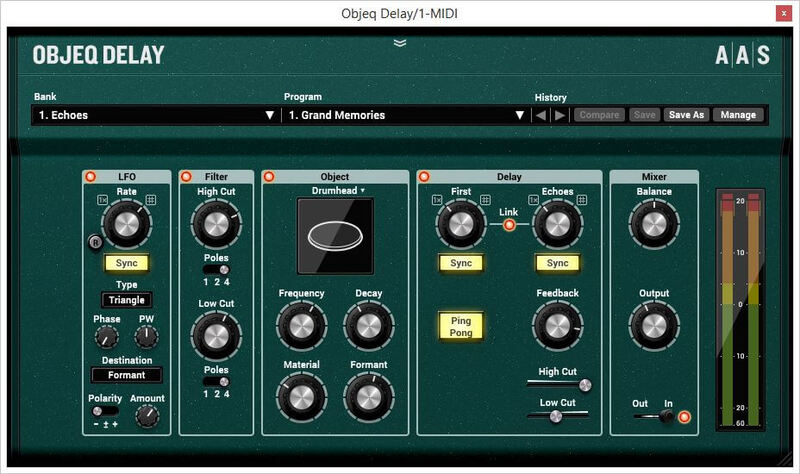
Please note: Objeq Delay is used as an example as the installation process is the same for all Applied Acoustics Systems products.

Registration

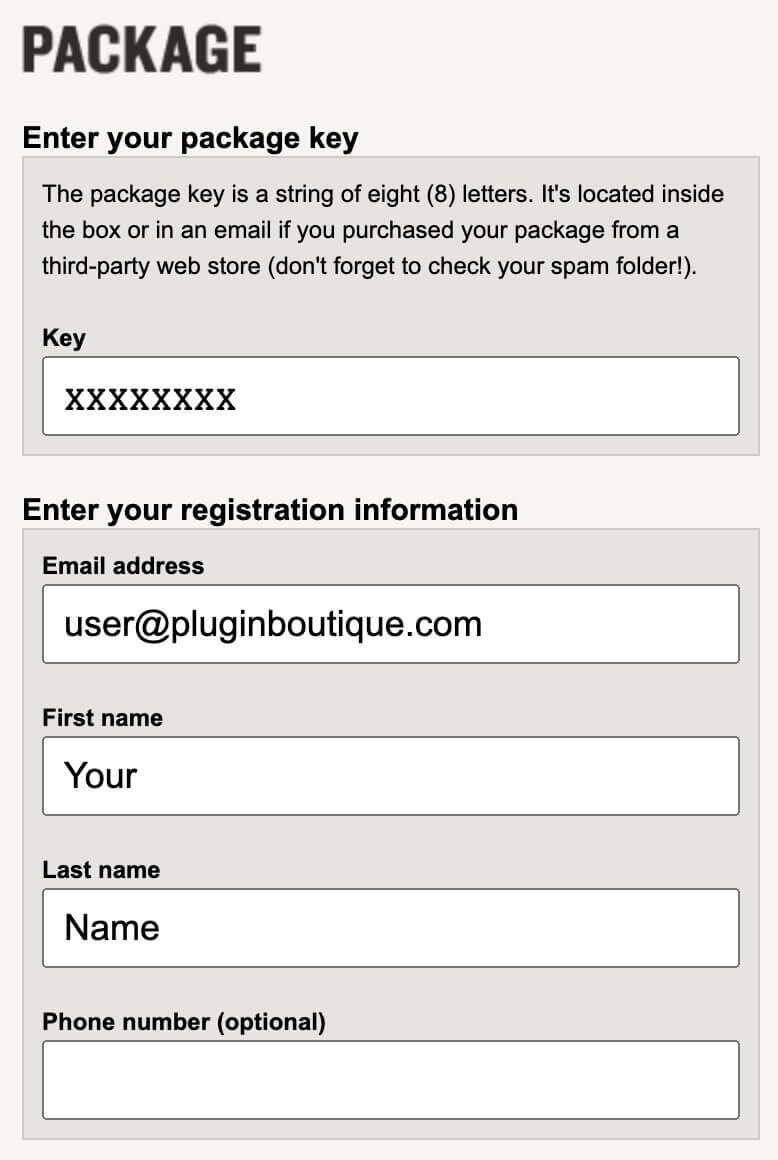
1. Copy and paste the URL which is listed as the ‘Serial Number’ in your account into your browser search bar and press enter.

Registration Process - Step 1

2. Enter your email address and name (the key will have been automatically entered).

Registration Process - Step 2

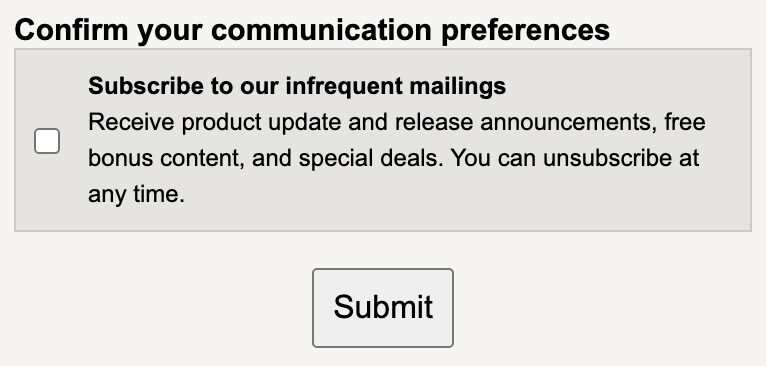
3. Choose your communication preferences > Click 'Submit'.

Registration Process - Step 3

Mac Installation

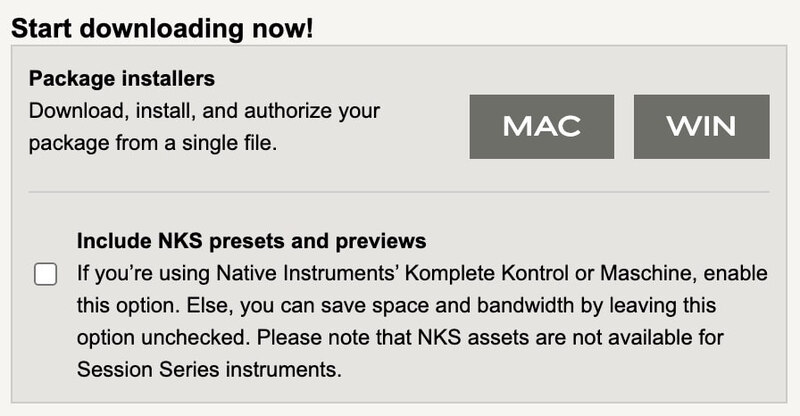
1. Download the Mac Installer.

2. Open the ZIP folder you’ve just downloaded > Double click the PKG installer file. 

3. You may see this message - if so, please click 'Open'.

Mac software installation process

4. Click 'Continue'. 

Mac AAS software installation process

5. Read the Software License Agreement > Click 'Continue'.

Mac AAS Software Installation Process

6. Click 'Agree'.

Mac AAS Software Installation Process

7. Click 'Install'.

Mac AAS Installation Process

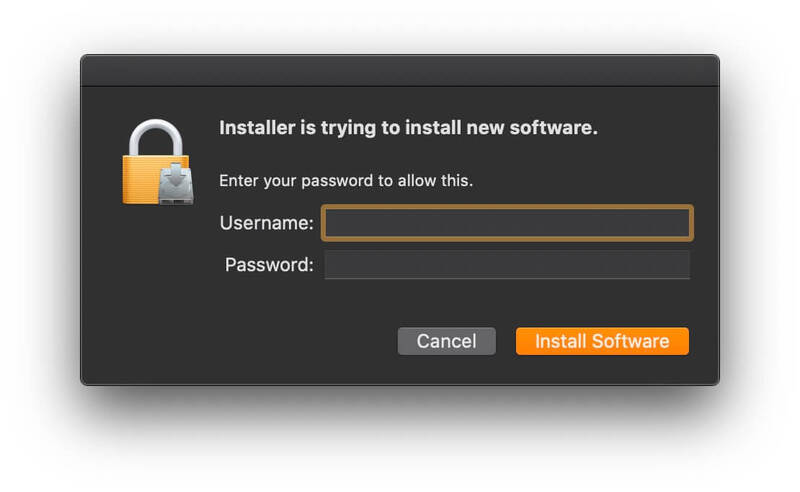
8. Tap your fingerprint or enter your password. 

Mac AAS Software Installation Process

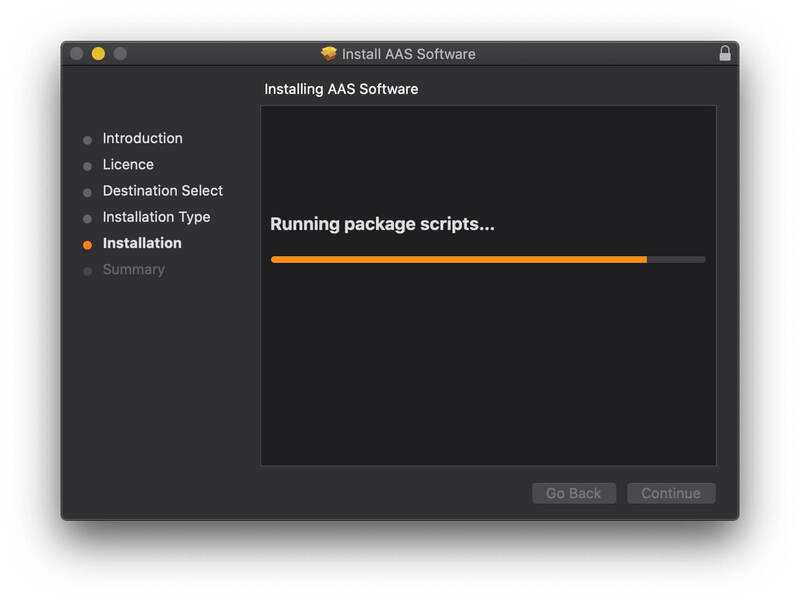
9. Your software will now install.

Mac AAS Software Installation Process

10. Open your new software in your DAW (you may need to restart your Mac and/or rescan your plugins).

Mac AAS Software Installation Process

Your software is now ready to use within your DAW! 

Windows Installation

1. Download the Windows Installer.

2. Open the ZIP file you’ve just downloaded > Double click the Setup file.

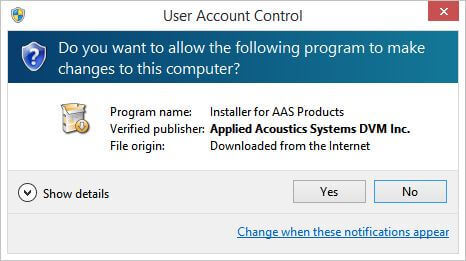
3. Click 'Yes' to allow the installation to run.

Windows AAS Software Installation Process

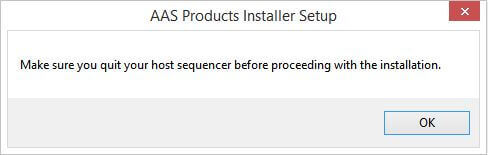
4. Close your DAW if it’s open > Click 'OK'.

Windows AAS Software Installation Process

5. Read the License Agreement > Click ‘I Agree’.

Windows AAS Software Installation Process

6. Choose the install location (we recommend leaving it as the default). 

Windows AAS Software Installation Process

7. Your software will now install.

Windows AAS Software Installation Process

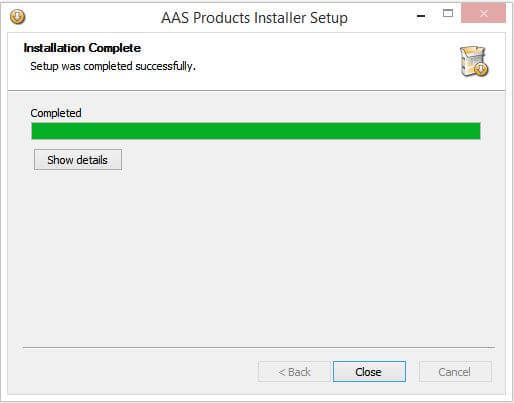
8. The installation is now complete > Click 'Close'.

9. Open your new software in your DAW (you may need to restart your Mac and/or rescan your plugins).

Windows AAS Software Installation Process

Your software is now ready to use within your DAW! 

Plugin Boutique Rewards

Discover the most rewarding loyalty programme among all plugin retailers.

  • Free Loopmasters Samplepacks
  • Discounts on products and courses
  • Extra Virtual Cash claimed immediately at checkout
Find out more

Follow us:

X (Twitter) Facebook YouTube Instagram
Logo Logo

Plugin Boutique Limited, Part of the Beatport Group LLC.

Copyright © 2011-2025 Plugin Boutique. All rights reserved