


 Log In
Free gifts available with your purchase
Please note: These presets are compatible with Serum v1 and v2
Introducing Serum Expansion Pack: Cinematic, a complete selection of arps, keys, leads, basses, pads and FX for creating all kinds of cinematic sounds with Serum.
Featuring deep, powerful basses, dark, evolving drones, warm, pulsating leads and much more, Cinematic Serum provides an impressive selection of sounds for adding compelling ambience to your music and crafting modern cinematic productions.
With this bespoke selection of 64 presets, Cinematic Serum encapsulates Serum's powerful sound design capabilities, also providing a unique array of FX with meticulously constructed noise layers for cinematic sound design and intricate sonic arrangement.
Whether you're creating modern electronic grooves, subtle ambient soundscapes or soaring cinematic scores, add a touch of atmosphere to your productions with Cinematic Serum.
Features
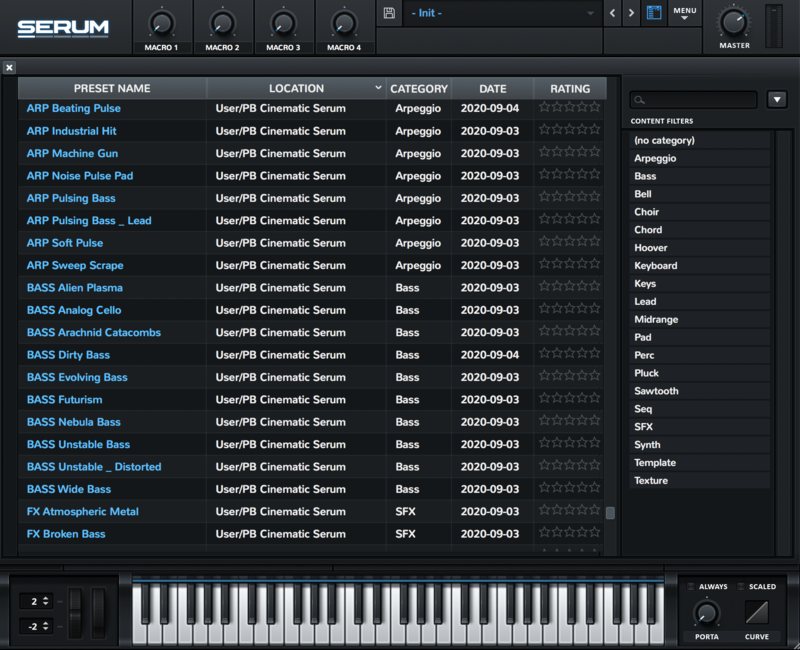
- 64 presets for Xfer Records Serum
- 8 Arps
- 8 Keys
- 8 Leads
- 10 Basses
- 12 FX
- 18 Pads
System Requirements
- The latest version of Xfer Records Serum

Reviews Summary
While it aims to provide a helpful overview, it may not capture every perspective or detail. We encourage you to read individual reviews to make an informed decision.
Overall sentiment is predominantly positive, with users praising the pack's versatility, sound quality, and rich selection of evolving textures and dark pads suitable for film scoring, trailers, and electronic music. While one reviewer found the presets generic and dated, the vast majority highlighted it as a valuable, inspiring, and easy-to-tweak addition to Serum, especially when purchased on sale.


