Log In
_(1).jpg)
Free gifts available with your purchase
Please Note: Theia is free for existing owners of Hyperion. Please check your Tracktion account for details on how to obtain it.
The Sonic Beauty of Hyperion Simplified
Theia provides easy access to the mighty Hyperion synth and its gorgeous expansive sound library with close to 600 presets. Its performance focused interface places the core controls of each sound within easy reach, allowing you to effortlessly browse complex patch designs and focus on making music. An instant source of musical inspiration for music producers of all genres.
User Interface
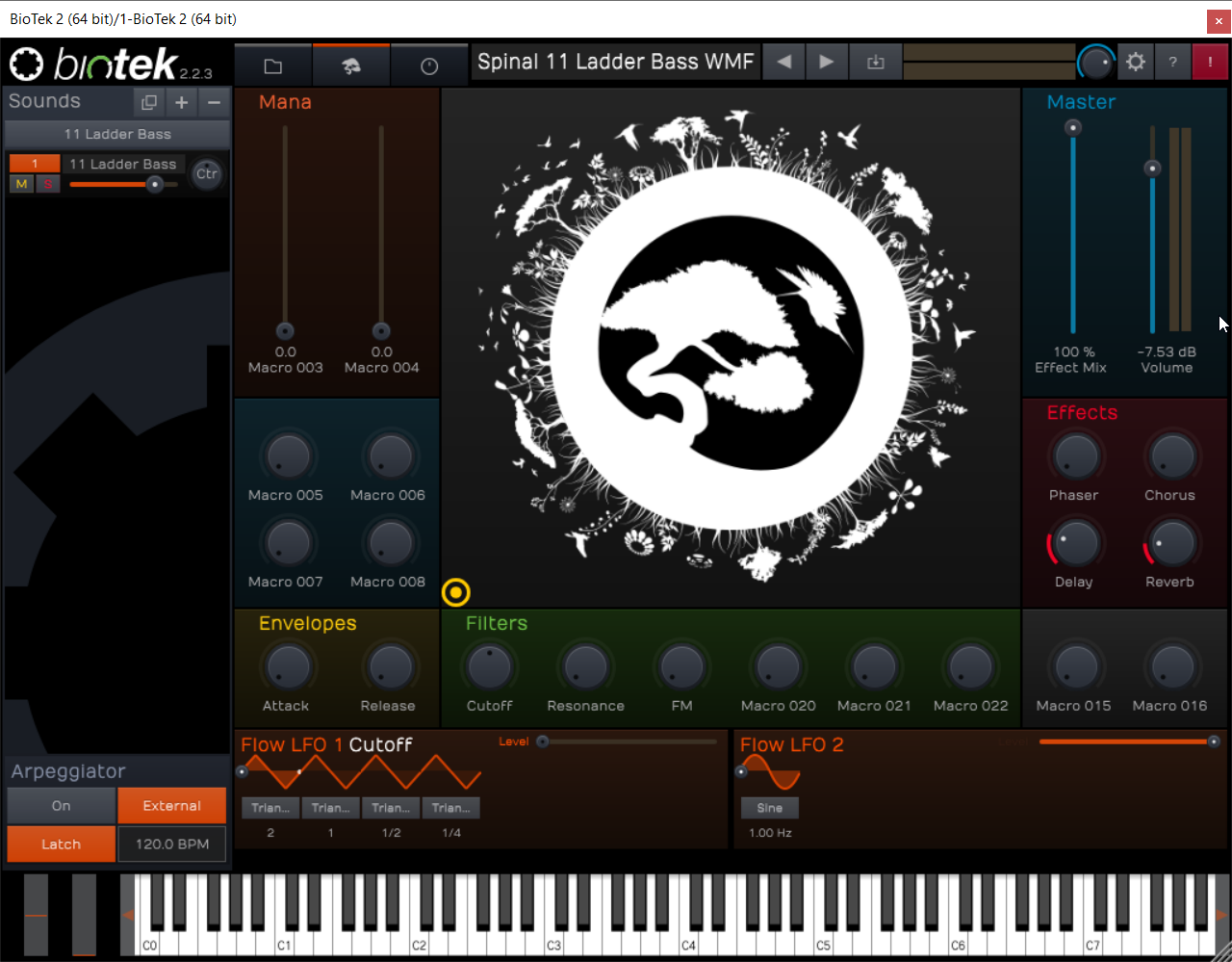
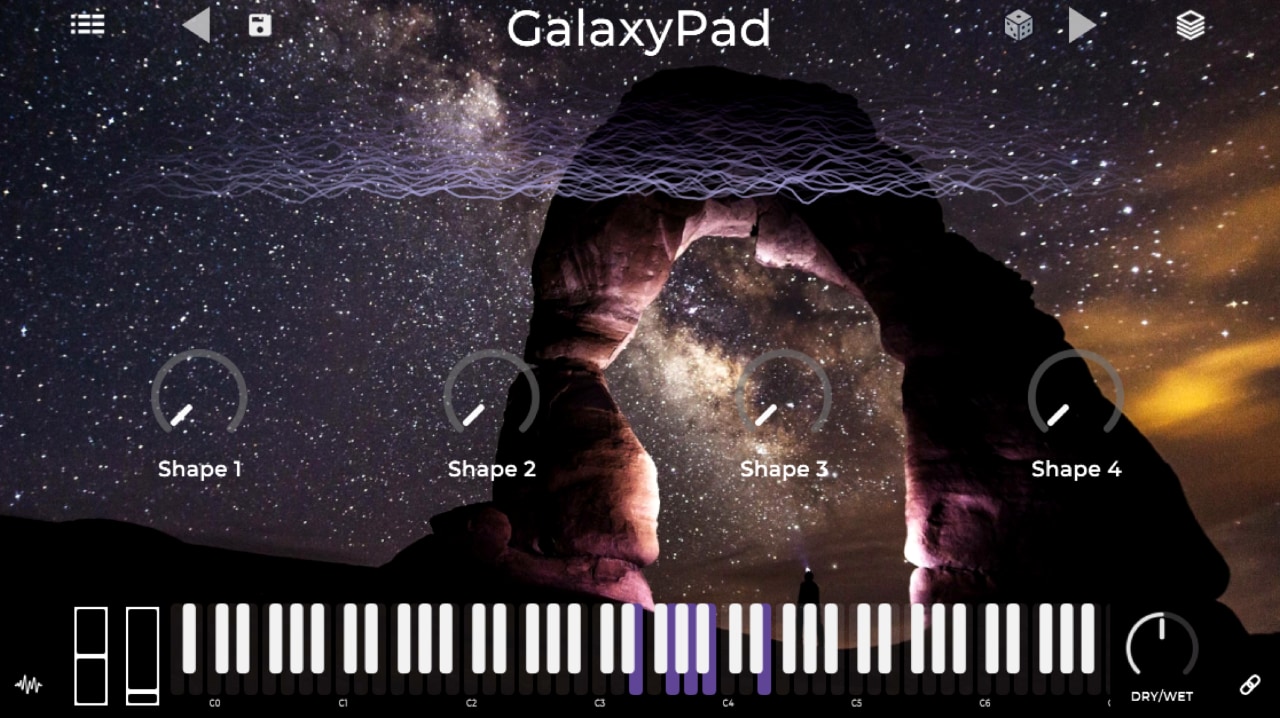
Theia’s minimalist interface puts the focus squarely on music creation and performance. Automatable pre-assigned macro controls allow for rapid adjustments to key sonic parameters while per-patch custom backgrounds aid inspiration. A waveform preview is on hand to provide visual feedback as you navigate through the carefully curated and optimized library of sounds. Feeling stuck for inspiration? - hit the dice button for a random patch!
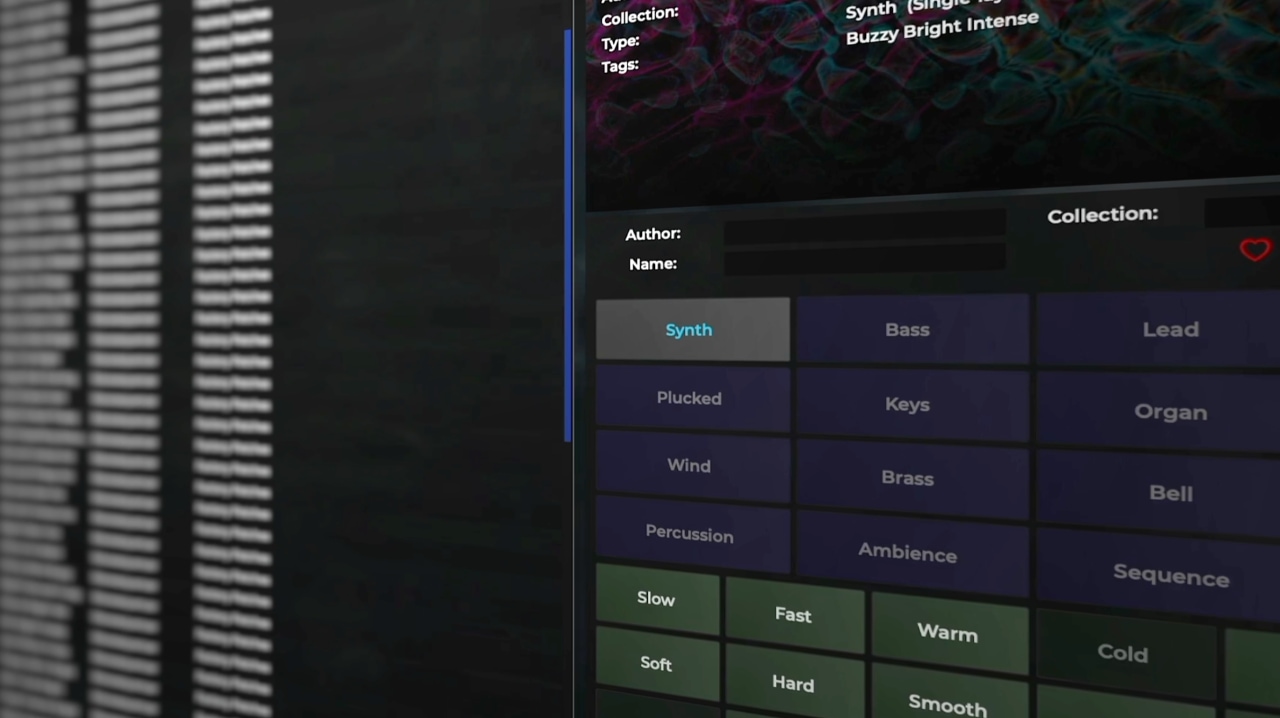
The Browser
Finding the perfect sound in a vast library of 587 factory presets is easy using the browser which allows you to filter by instrument type, performance or emotion and then further order results by author, type, name and more. Favorites can be set with the click of a button and recalled later just as easily.
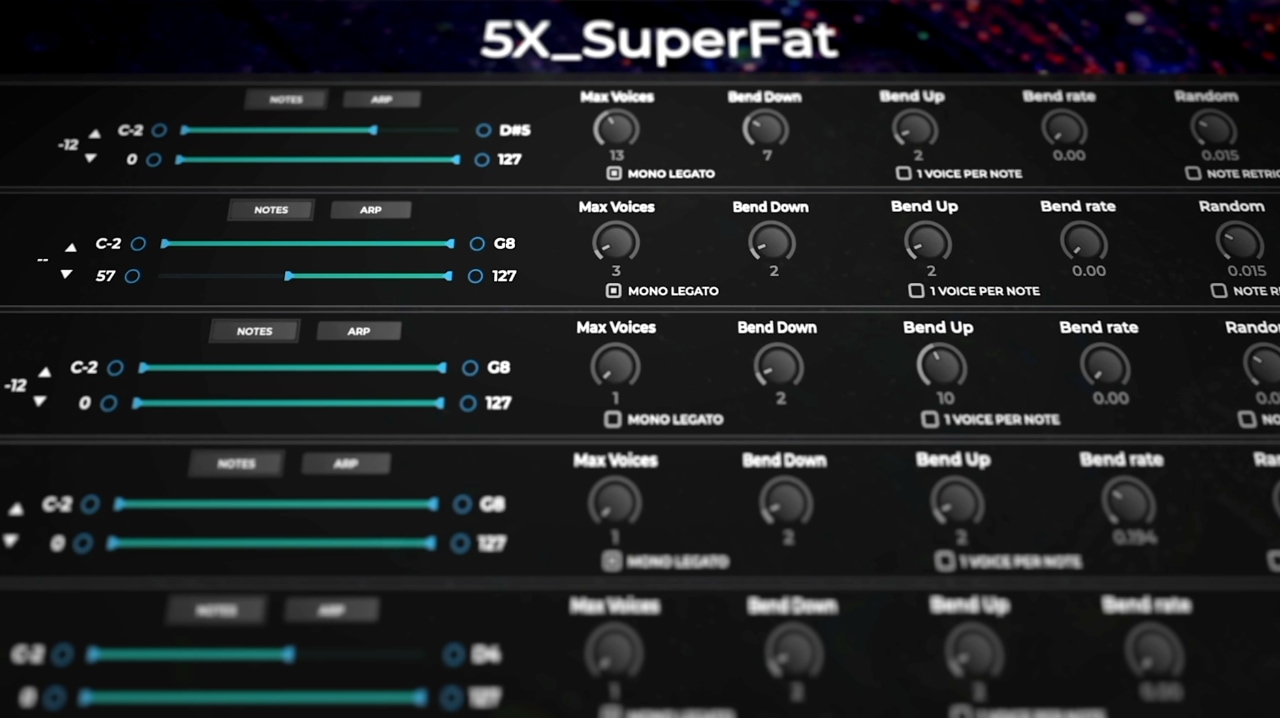
Sound Layers Editor
Preset content is built from one or more layers of lush sounds, and these layers can be accessed and modified via the Sound Layers Editor. Each layer can be adjusted independently with MIDI channel selection, transpose, key response zones, pitch bend-ranges, voice allocation and arpeggiation settings.
Theia Design Team
Theia is designed and coded by Paul Carter – AKA Wavesequencer. Originally from the UK, now living in California, Paul has worked in the semiconductor industry for many years developing both firmware and applications for consumer electronics products.
His passion for music and sound synthesis dates back to learning to play piano as a child, where he was always trying to improvise and come up with new sounds much to the annoyance of some of his music teachers and band conductors. Growing up in the 80s he was inspired by various synth pop bands as well as electronic music artists such as Vangelis, Jean-Michel Jarre, and Brian Eno amongst many others.
System Requirements
Mac
- macOS 10.11 or Later (64-bit)
- VST3 / AU
PC
- Windows 8, 10 & 11 (64-bit)
- VST3