/ Synth / PowerChord
Rob Papen

PowerChord

4.0 (2 Reviews)
$79.00
Rob Papen PowerChord
PowerChord Introduction gallery thumbnail
Rob Papen PowerChord  gallery thumbnail
Buy Now
Product information

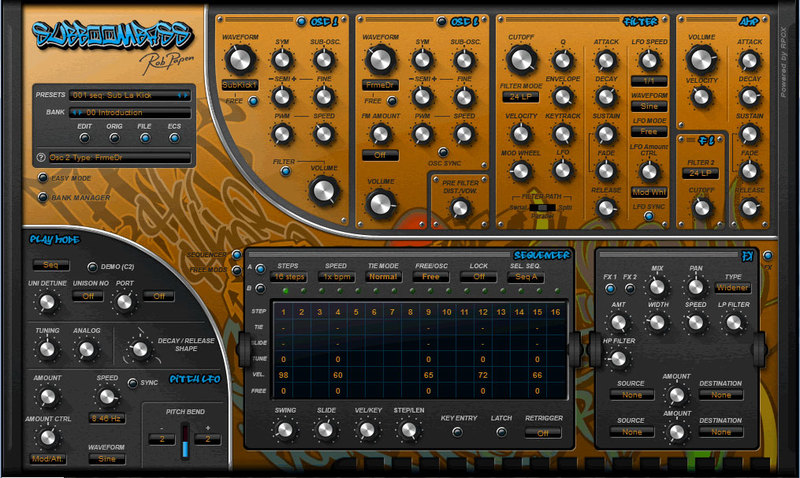
PowerChord is a unique guitar plugin that allows you to create fantastic PowerChord grooves and lots more!  

Instead of using a sampled loop, you can create your own groove sequences with PowerChord or use the many grooves that are already included inside this creative instrument. This makes PowerChord unique and even some guitar players may get envious from listening to what comes out of the speakers. Besides using the groove sequencer, you also have the option to manually play strokes, long strokes and ghost strokes.

53 Guitar Models are available including Filters, FX… all kinds of synthesizer features to help you sculpt your sounds. These are of course used already in the many included presets!

And NO… PowerChord will never replace a real guitar player… but a real guitar player can’t replace PowerChord as well, because of the unique sounds it can create!

Features

  • PowerChord and Grunge Guitar Groove Synthesizer.
  • Top-quality presets.
  • Sequencer or manual play mode.
  • 12 single solo guitar model sounds being PowerChord. PowerChord Drop-D tuning, PowerChord Drop-A, Grunge PowerChord, RG PowerChord (Distortion sound of RG), and  PowerNote (single notes).
  • 41 stacked guitar model sounds by using the solo guitar sounds.
  • Guitar Model Volume and Decay Control for Stroke, Long Stroke, and Ghost Stroke
  • Analog-modeled Filters with 25 different character Filter types, Ring modulation, and Amp Modulation modes.
  • 11 Pre-filter distortions.
  • Dedicated Filter Envelope with Attack, Decay, Sustain, Fade, and Release.
  • AMP with velocity control, Pan control, and  Envelope with Attack, Decay, and Release
  • Groove Sequencer A-B-C-D selectable by its range of the keyboard (C1 - C5 range Yamaha setting)
  • Zone 1: MIDI Notes 36 C1 to 47 B1 plays Sequence-A
  • Zone 2: MIDI Notes 48 C2 to 59 B2 plays Sequence-B
  • Zone 3: MIDI Notes 60 C3 to 71 B3 plays Sequence-C
  • Zone 4: MIDI Notes 72 C4 to 83 B4 plays Sequence-D
  • Each Sequencer has up to 32 steps.
  • Sequencer rows: Step on/off, Semi Offset, Stroke, Long Stroke, Velocity, Ratchet, Filter Decay/Release, Amp Decay Release, and Free 1&2.
  • Sequencer Swing, Vel/Key, Smooth (for the Free rows), Speed, Retrigger, Tied Mode, Ratcheting controls.
  • Sequencer preset menu and command features.
  • Mod Matrix with 8 slots.
  • EQ with fixed EQ (RG style) and 5-Band Parametric with LowCut Filter.
  • Ribbon Controller with tempo-base spring back feature, quantized spring back, and unipolar or bipolar mode. 
  • 3 HQ effects blocks in serial mode with 34 FX types.
  • Available effects: Mono Delay, Stereo Delay, Tape Delay, Comb Filter, Reverb, Chorus, Tape Chorus, Chorus/Delay, Ensemble, Flanger, Tape Flanger, Phaser, Tape Phase, Ring Modulator, Shift FX, FX Filter, WahWah, WahWah/Delay, TalkBox, AutoWah, Bass enhancer,  Amp Simulator (5 models), Cabinet Simulator (5 models), Distortion, Low Fi, Waveshaper, Clipper, Multi-distort (11 types), Stereo Widener, AutoPan, Tremelo, Gator, Compressor, and Noise Gate.
  • MIDI tempo-based settings in most effects.
  • Overall bypass for FX or bypass per FX.
  • Bank manager.
  • 100%, 125%, 150%, and 200% size options.
  • Control Menu in the upper right corner for Global settings and for downloading the latest version.
  • Back panel with additional Global settings.

System Requirements

PC

  • 64-bit VST3, AAX, & VST for Windows 7 or higher (Note: PC AAX for PT 12 or higher)
  • Serial/license system with activation while registering the product
  • The activation system is online or offline (offline meaning there is no direct connection between the plugin and the robpapen.com homepage)
  • The software can be installed on 2 of your computer systems.
  • Not yet compatible with the NI NKS system.

Mac

  • 64-bit AU, VST3, AAX & VST, for OS-10.13 or higher.
  • M1/M2/M3 ARM processor compatible.
  • Serial/license system with activation while registering the product
  • The activation system is online or offline (offline meaning there is no direct connection between the plugin and the robpapen.com homepage)
  • The software can be installed on 2 of your computer systems.
  • Not yet compatible with the NI NKS system.
Installation Instructions

(SubBoomBass is used as the example).

Mac

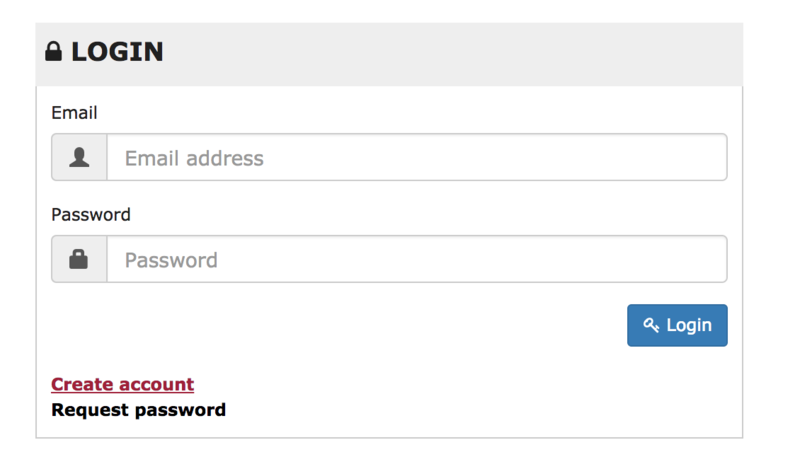
1. Visit Rob Papen and create an account by selecting 'Create Account'.

Note: If you already have an account set up with Ron Papen, 'Login' to your account and skip to step 4. of the installation process.

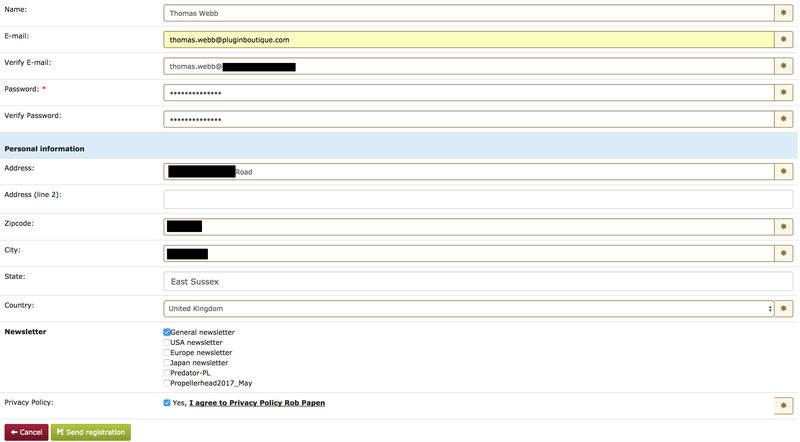
2. Enter your personal details, and once completed check the tick box that reads 'Yes, I agree to Privacy Policy Rob Papen' before clicking 'Send Registration'.

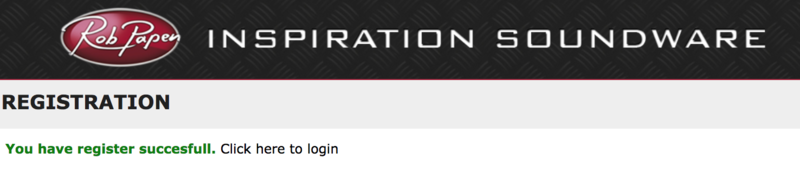
3. The registration of your account has successfully been completed > select 'click here to login' to access your account area.

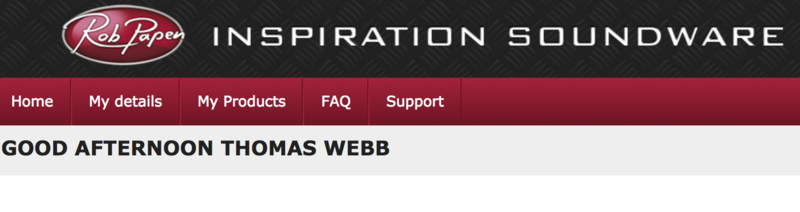
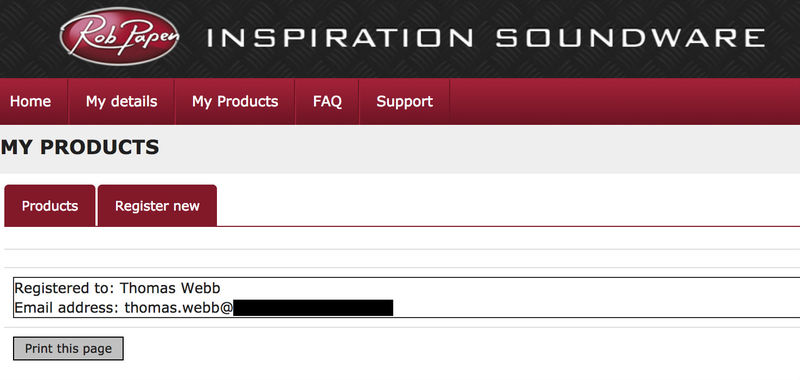
4. Select the 'My Products' tab, which is located at the top-left corner of your account area.

5. Click the 'Register New' option.

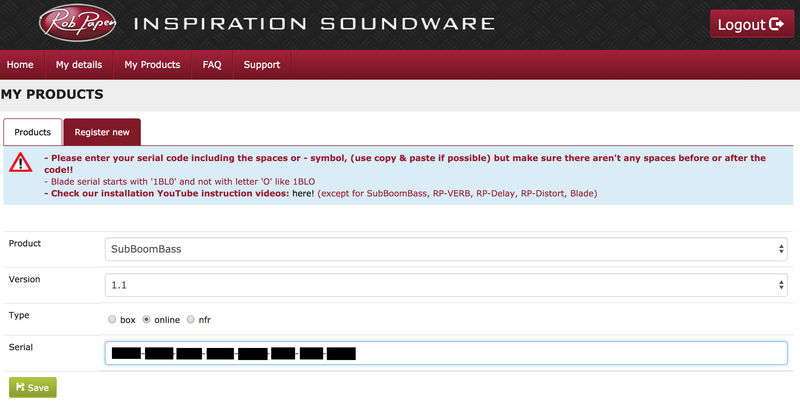
6. Select the product that you have purchased, as well as the most recent version number (which in this instance is 'Online'), before manually entering/copying and pasting the 32-digit Serial Number that is provided within your User Account > once completed, click the 'Save' tab to register your software.

Note: Ensure that you select the correct 'Product' and 'Type', as well as checking that there are no spaces/mistakes when entering your Serial Number > if you receive a code error message of any kind, refresh the web page and manually enter the digits (including the '-' hyphens) before re-clicking the 'Save' option.

7. The registration of your software has successfully completed > select the 'Download latest version: SubBoomBass' hyperlink to navigate to the software download area.

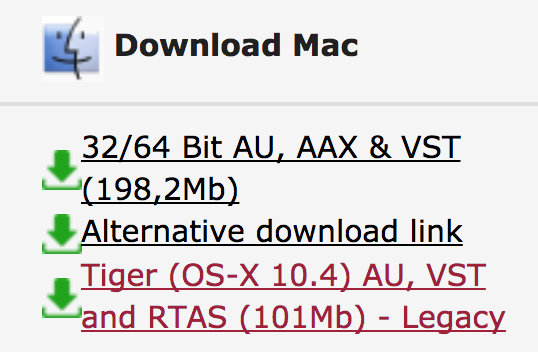
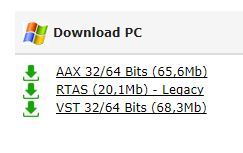
8. Select the relevant format installer download (s) in accordance with your DAW's compability specifications, to inititiate the downloading of your purchased software.

Note: The product user manual is also obtainable from this location.

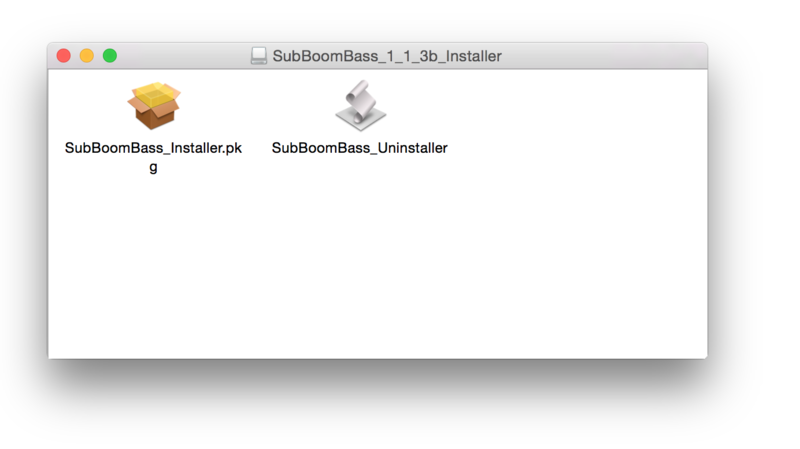
9. Once the software installer file has finished downloading, click the file entitled 'SubBoomBass_Installer.dmg' to launch the application installer application.

10. Double-click the 'SubBoomBass_Installer.pkg' application icon begin the installation process.

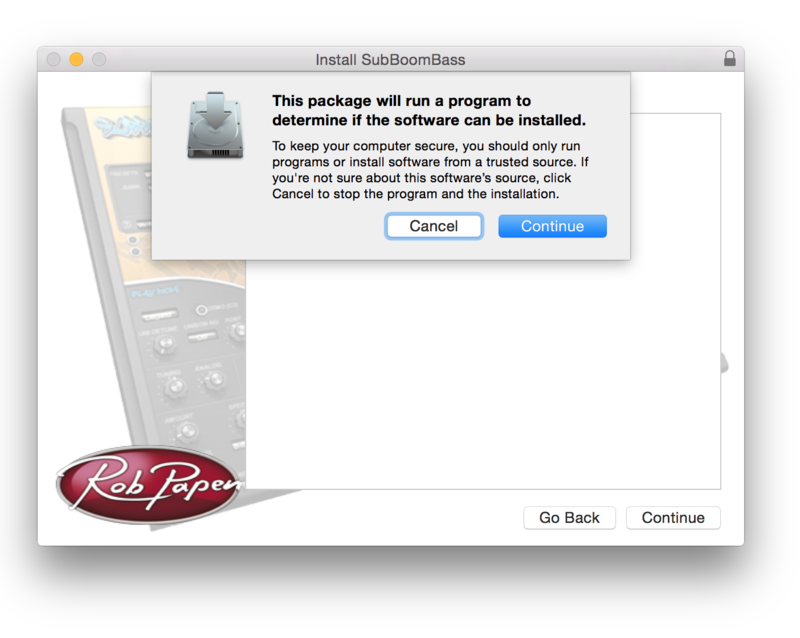
11. Click 'Continue' to verify the installation, if prompted to do so.

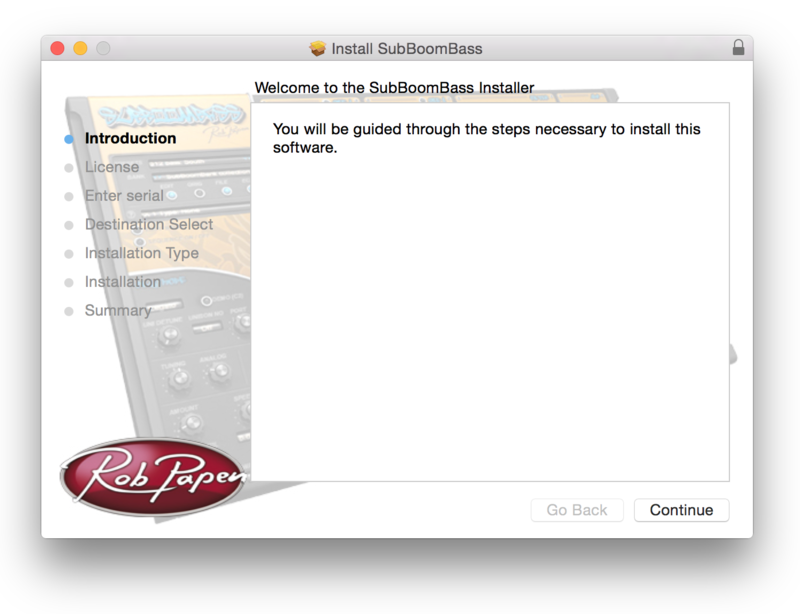
12. Click 'Continue' once again.

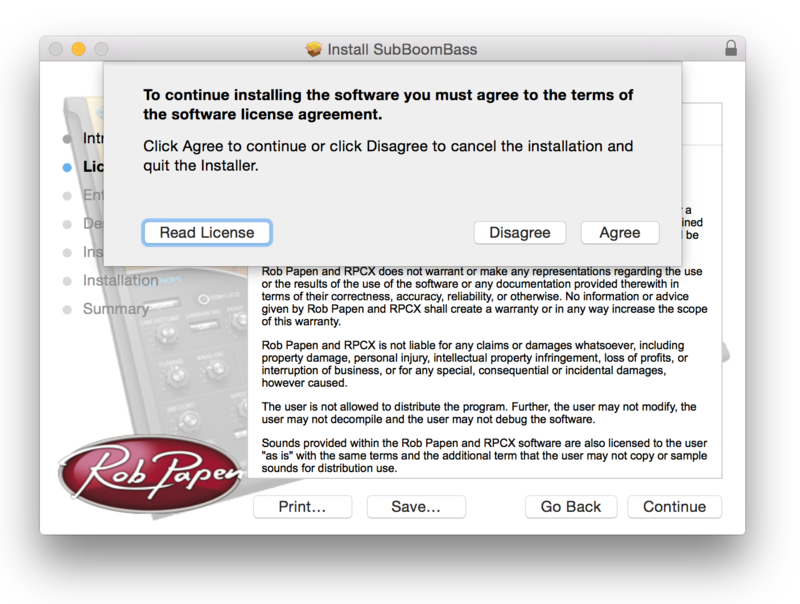
13. Read through the Licence Agreement > click 'Continue' then 'Agree'.

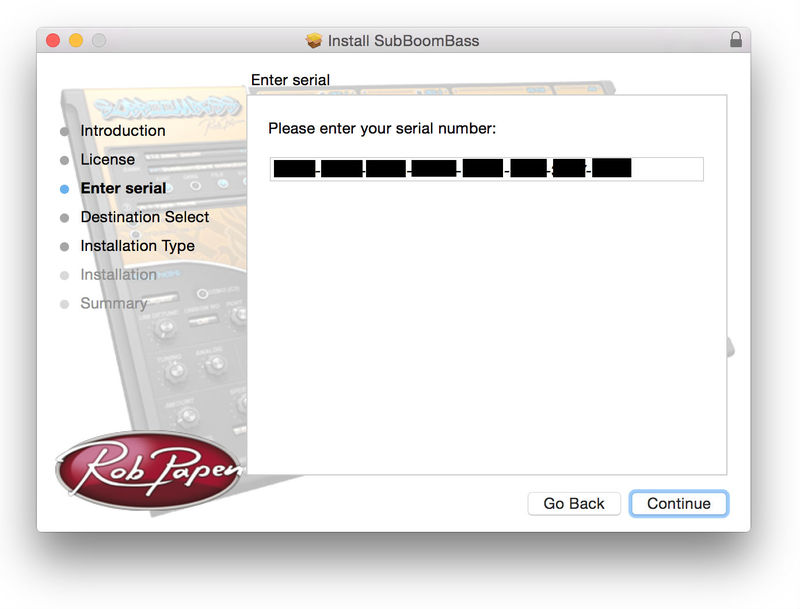
14. Manually enter/copy and paste the original 32-digit Serial Number that you were provided with, before clicking 'Continue' (the Serial Number is located in both your Plugin Boutique and Rob Papen User Accounts).

Note: Ensure that you select the correct 'Product' and 'Type', as well as checkingt that there are no spaces/mistakes when entering your Serial Number > if you receive a code error message of any kind, manually enter the digits (including the '-' hyphens) before re-clicking the 'Continue' option.

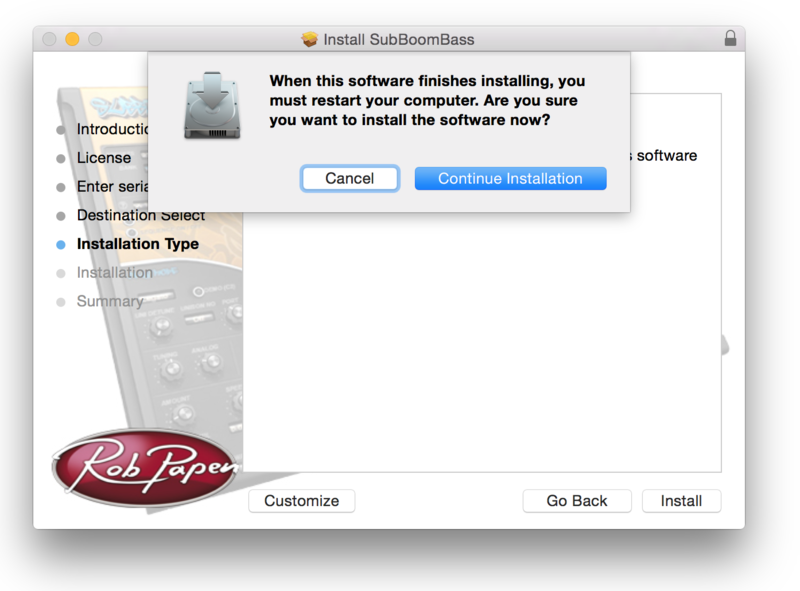
15. Review the installation before clicking 'Install', and then 'Continue Installation'.

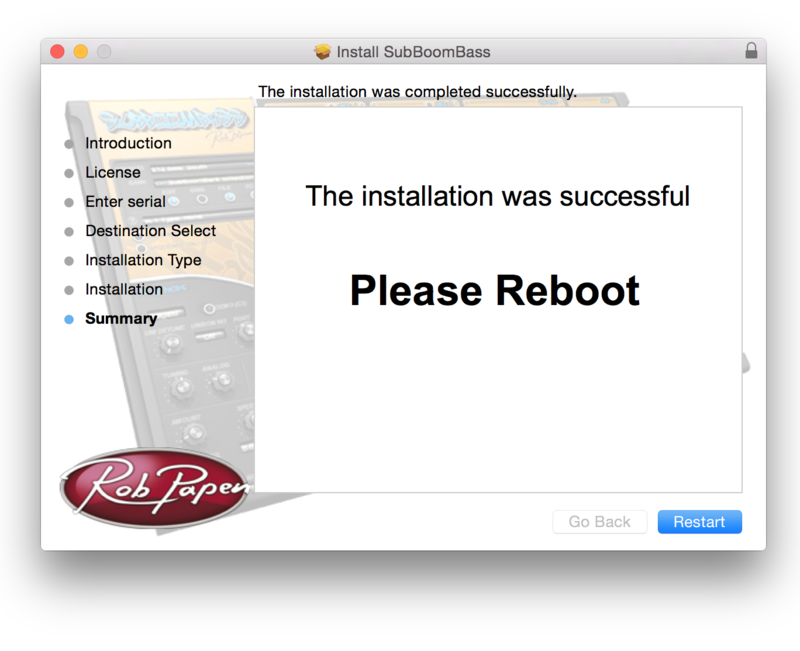
16. The installation of your software has successfully completed > click 'Restart' to reboot your computer.

Note: Ensure that you have saved any important work that may be open within the applications you currently have open, before selecting the 'Restart' option.

17. After your computer has successfully restarted, open your DAW and locate/open your newly installed/activated software VST.

Note: If the software fails to appear, rescan your DAW's Plug-in selection.

The Software is now Activated and Ready for Use Within Your DAW!

Windows

1. Visit Rob Papen and create an account by selecting 'Create Account'.

Note: If you already have an account set up with Ron Papen, 'Login' to your account and skip to step 4. of the installation process.

2. Enter your personal details, and once completed check the tick box that reads 'Yes, I agree to Privacy Policy Rob Papen' before clicking 'Send Registration'.

3. The registration of your account has successfully been completed > select 'click here to login' to access your account area.

4. Select the 'My Products' tab, which is located at the top-left corner of your account area.

5. Click the 'Register New' option.

6. Select the product that you have purchased, as well as the most recent version number (which in this instance is 'Online'), before manually entering/copying and pasting the 32-digit Serial Number that is provided within your User Account > once completed, click the 'Save' tab to register your software.

Note: Ensure that you select the correct 'Product' and 'Type', as well as checking that there are no spaces/mistakes when entering your Serial Number > if you receive a code error message of any kind, refresh the web page and manually enter the digits (including the '-' hyphens) before re-clicking the 'Save' option.

7. The registration of your software has successfully completed > select the 'Download latest version: SubBoomBass' hyperlink to navigate to the software download area.

8. Select the relevant format installer download (s) in accordance with your DAW's compability specifications, to inititiate the downloading of your purchased software.

Note: The product user manual is also obtainable from this location.

9. After the software installer file has finished downloading, double-click the file entitled 'SubBoomBass_Installer' .zip folder to extract the .exe installer file.

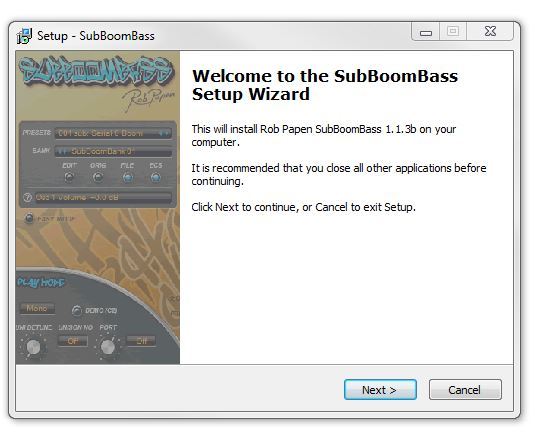
10. Once extracted, double-click the .exe installer file to begin the installation process > click 'Next'.

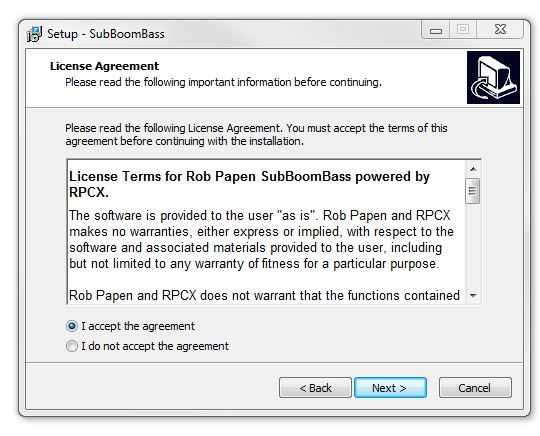
11. Read through the Licence Agreement and select 'I accept the agreement' > click 'Next'.

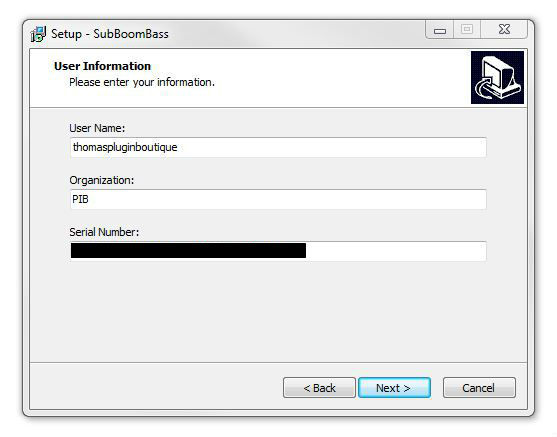
12. Type in your preferred User Name, Organization and manually enter/copy and paste the original Serial Number that you were provided with, before clicking 'Continue' (the Serial Number is located in both your Plugin Boutique and Rob Papen User Accounts).

Note: Ensure that you select the correct 'Product' and 'Type', as well as checking that there are no spaces/mistakes when entering your Serial Number > if you receive a code error message of any kind, manually enter the digits (including the '-' hyphens) before re-clicking the 'Next' option.

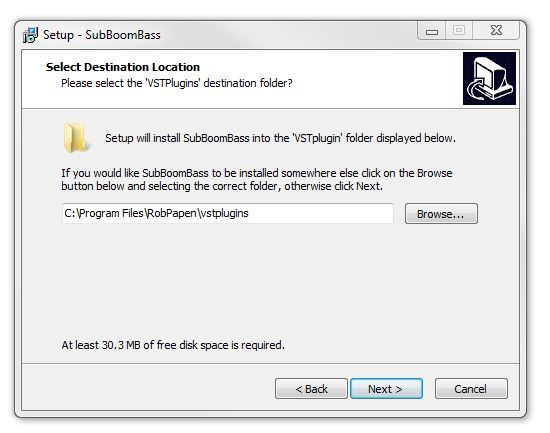
13. Select a computer VST Plug-ins folder destination in which to install/save your software to > click 'Next'.

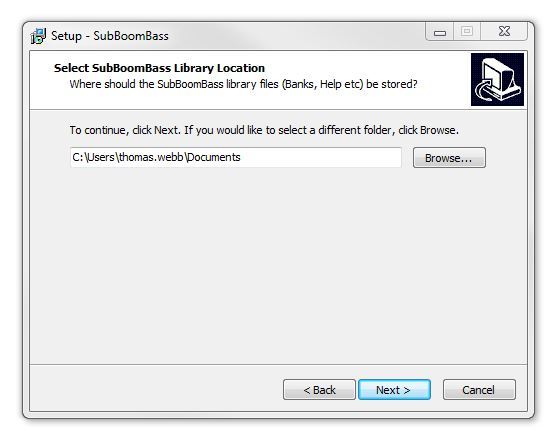
14. Select a computer Library location in which to install/save your software to > click 'Next'.

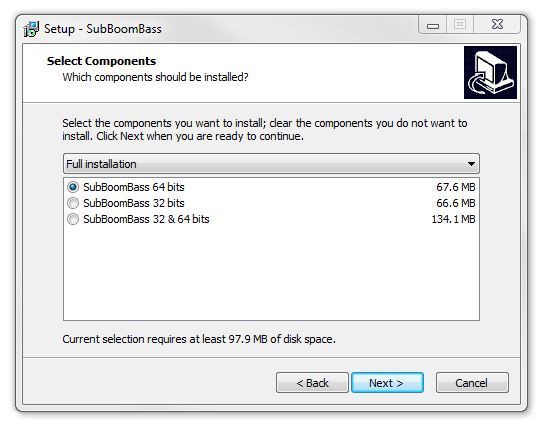
15. Select the software format (s) that you wish to install > click 'Next'.

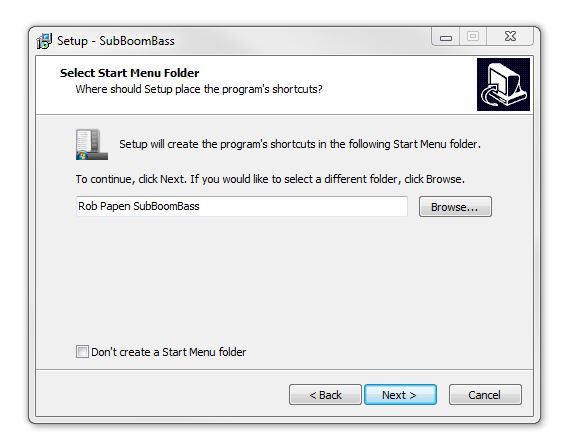
16. Select a Start Menu Folder to create a shortcut to your new software installation > click 'Next'.

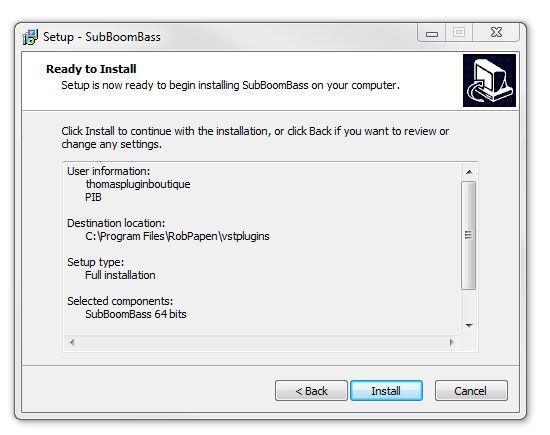
17. Review the installation and click 'Install'.

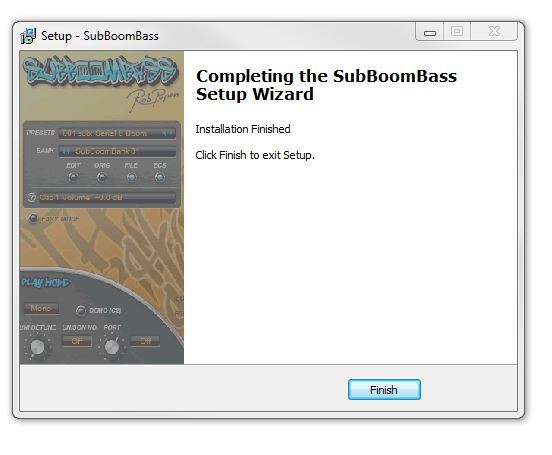
18. The installation of your software has successfully completed > click 'Finish'.

19. After your computer has successfully restarted, open your DAW and locate/open your newly installed/activated software VST.

Note: If the software fails to appear, rescan your DAW's Plug-in selection.

The Software is now Activated and Ready for Use Within Your DAW!

Plugin Boutique Rewards

Discover the most rewarding loyalty programme among all plugin retailers.

  • Free Loopmasters Samplepacks
  • Discounts on products and courses
  • Extra Virtual Cash claimed immediately at checkout
Find out more

Follow us:

X (Twitter) Facebook YouTube Instagram
Logo Logo

Plugin Boutique Limited, Part of the Beatport Group LLC.

Copyright © 2011-2025 Plugin Boutique. All rights reserved