


 Log In

Free gifts available with your purchase
8bit Synthesizer
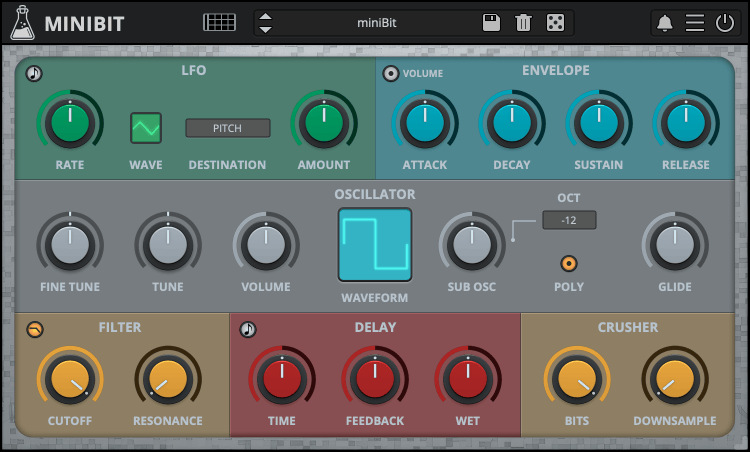
Chiptune Synth
miniBit is an 8-bit/chiptune style synthesizer plugin that emulates the sound of 80s game consoles and retro computers.
It features a main oscillator with 18 waveforms paired with a sub oscillator (a square wave pitched one octave below).
The waveforms are not bandlimited and will produce aliasing. Furthermore, using the built-in bitcrusher, you can create even more noisy and retro sounds.
miniBit also features a synced 8 Steps Stepper/Sequencer with multiple destinations.
From noisy, snare-like steps to ambient subs, miniBit has many uses beyond what one expects from a chiptune synth.
Classic Consoles
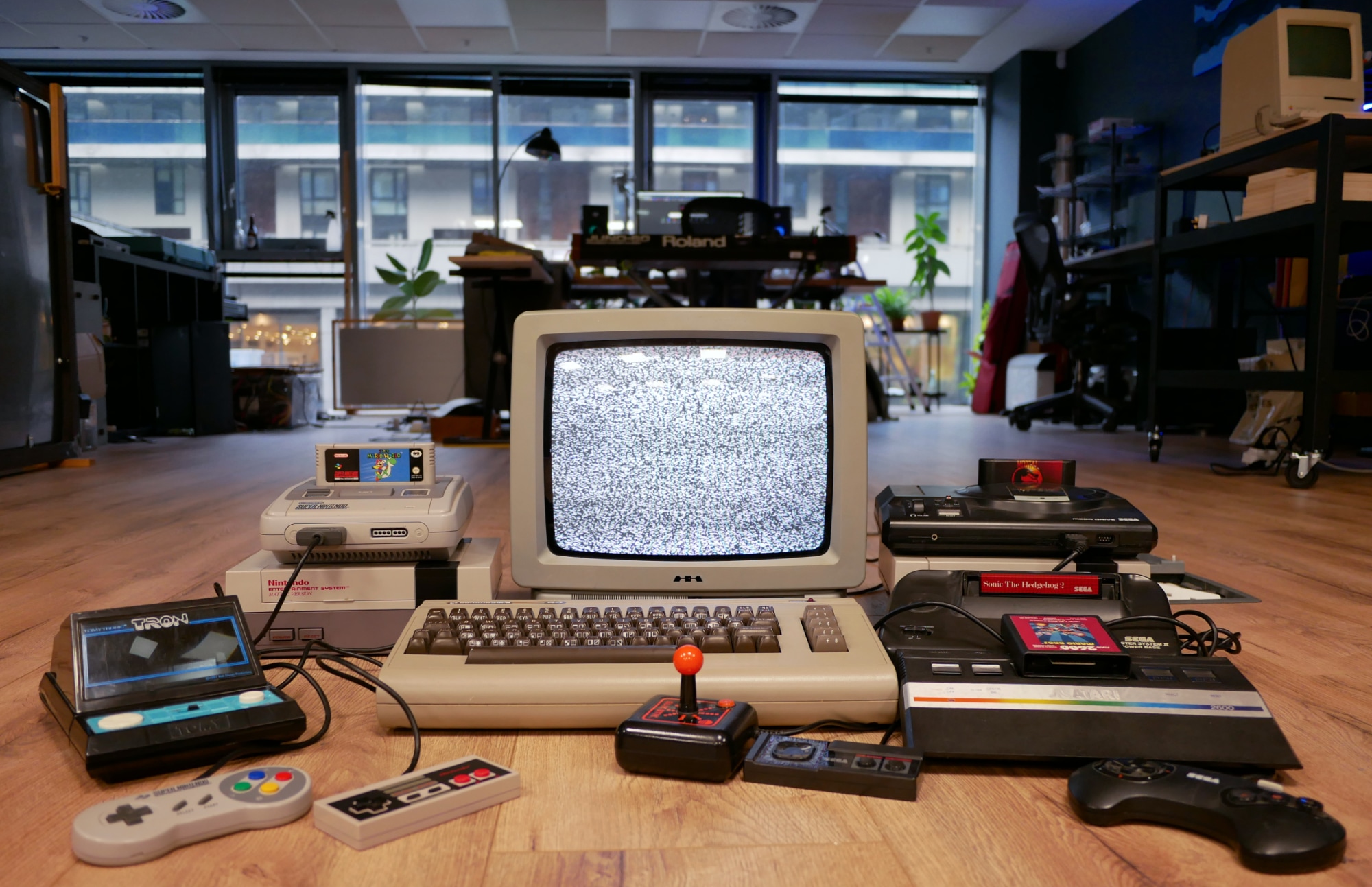
miniBit takes inspiration from the iconic sound of classic game consoles and retro computers of the 80s and 90s that AudioThing collected over the years. It delivers the unmistakable charm of vintage 8-bit sounds, ideal for creating authentic chiptune music or adding a touch of nostalgic character to any production.
To take your 8-bit creations even further, explore miniVerb, the companion effect plugin designed to enhance and transform your sounds with authentic chiptune-style effects.
Custom Waveforms
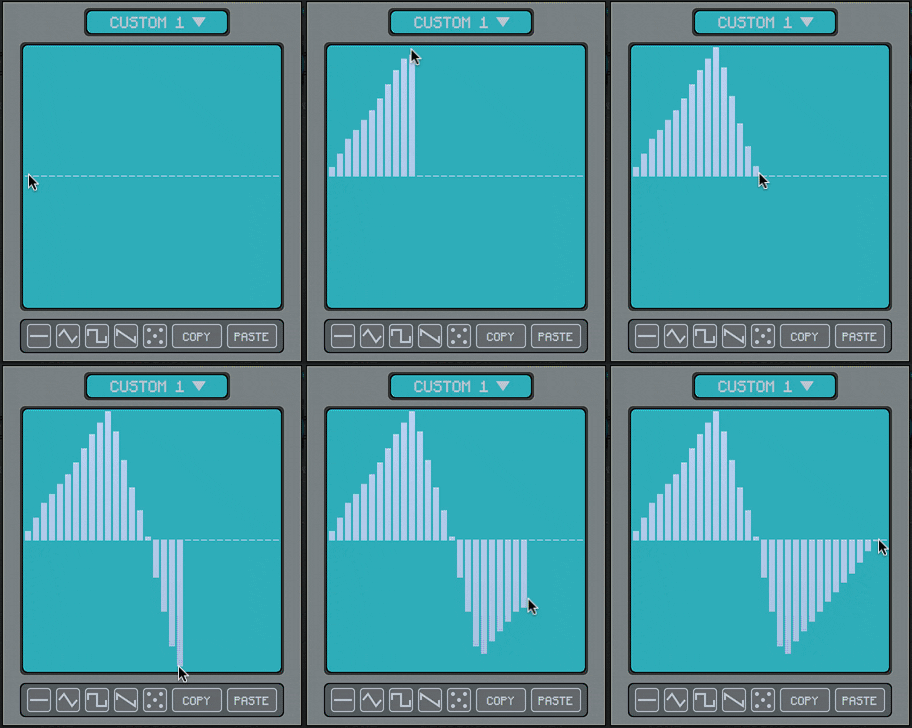
The Custom Waveform Editor features 32 steps and 8 waveform slots per preset.
You can draw your waveforms by clicking and dragging on the editor. You can also use the built-in examples as a starting point.
Each preset has its own set of custom waveforms, if you want to use a custom wave with another preset you can use the Copy/Paste buttons, or you can disable the Update Custom Waves in the global settings.
To open the Custom Waveform Editor select one of the Custom Waveforms from the Waveform monitor and click on the Editor button.
Step Sequencer
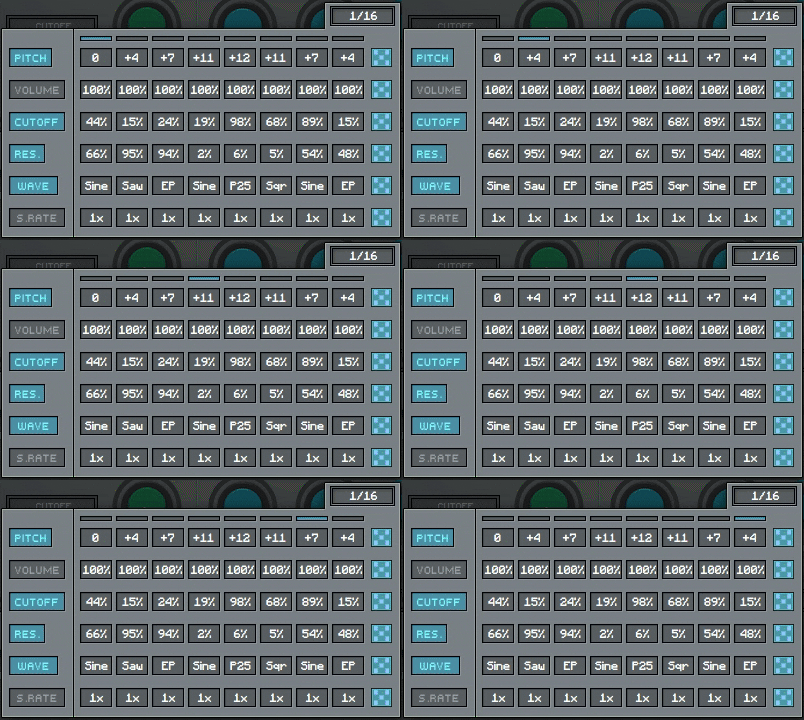
miniBit features an 8 steps sequencer that can be used to automate several parameters: pitch, volume, cutoff, resonance, waveform, and downsampling.
Sequencing the waveforms will generate sounds reminiscent of early trackers and wavetable synthesizers.
Each track can also be randomized using the dice buttons on the right.
Features
- 18 Waveforms + Custom Waves + Sub Oscillator
- Poly and Mono mode with Glide
- 2-poles LowPass/HighPass Filter
- Pitch and Volume Envelopes
- Delay and BitCrusher effects
- LFO with multiple destinations
- Volume and Pitch Envelopes
- 8 Steps Stepper with multiple destinations
- 128 Presets + Preset randomizer
Audio Demos
Windows
- Requires Windows 7 or higher
- VST2, VST3, AAX, CLAP, Standalone
- (64bit only)
Mac
- Requires macOS 10.13 or higher
- AU, VST2, VST3, AAX, CLAP, Standalone
- (64bit only)
Linux
- Requires Ubuntu 20.04 or newer
- VST2, VST3, CLAP, Standalone
- (64bit only)


Reviews Summary
While it aims to provide a helpful overview, it may not capture every perspective or detail. We encourage you to read individual reviews to make an informed decision.
Users praise this synth as a fun, accessible, and authentic tool for creating classic 8-bit and retro arcade chiptune sounds, highlighting its ease of use and great value on sale. While a few reviewers note limited creative depth and a desire for more advanced features, it is widely regarded as an enjoyable, go-to instrument for beginners and genre enthusiasts alike.


