/ Synth / SX1000
AudioThing

SX1000

4.6 (15 Reviews)
$39.33 $69.00

43% off until Jan 05

AudioThing SX1000
AudioThing SX1000
SX1000 - Vintage Analogue Synth Plugin Emulation - AudioThing gallery thumbnail
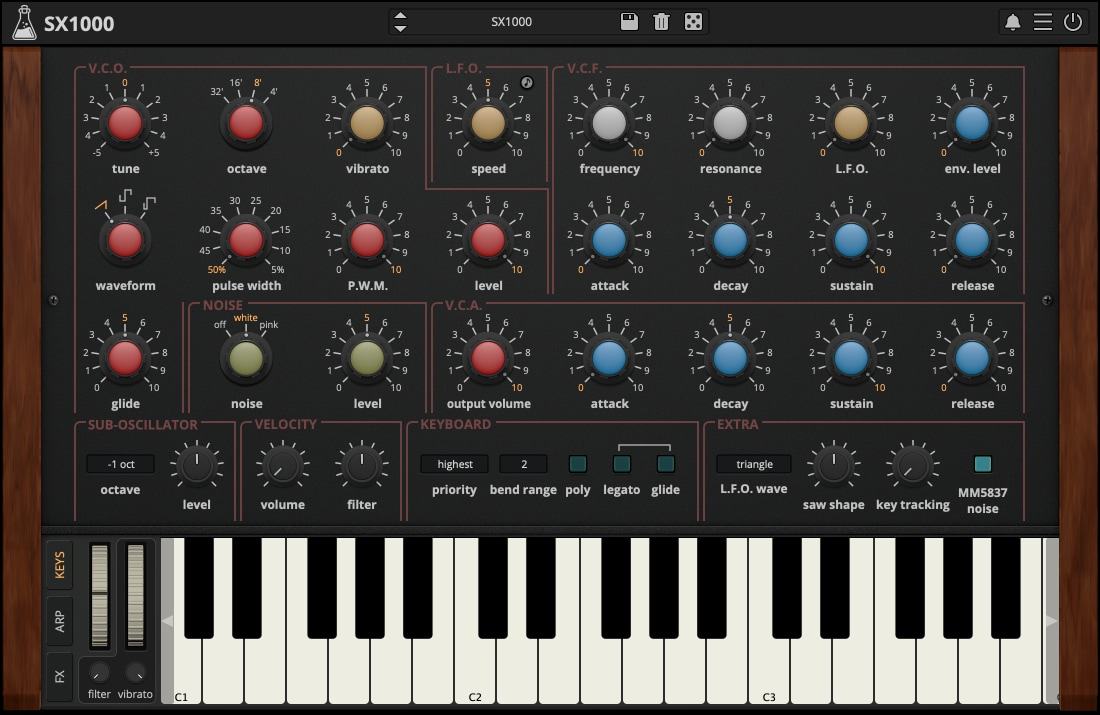
AudioThing SX1000 - UI 1
AudioThing SX1000 - UI 2
AudioThing SX1000 - UI 3
Buy Now
Product information

Vintage Analogue Synth

SX1000 is a faithful emulation of the JEN SX1000, a vintage Italian synth released in 1978. The SX1000 was one of the earliest affordable analog synthesizers, designed for musicians seeking hands-on control without breaking the bank.

The SX1000’s M110 chip has been carefully emulated, with expanded capabilities including polyphonic mode, a sub-oscillator (down to -3 octaves), and additional controls for legato modes.

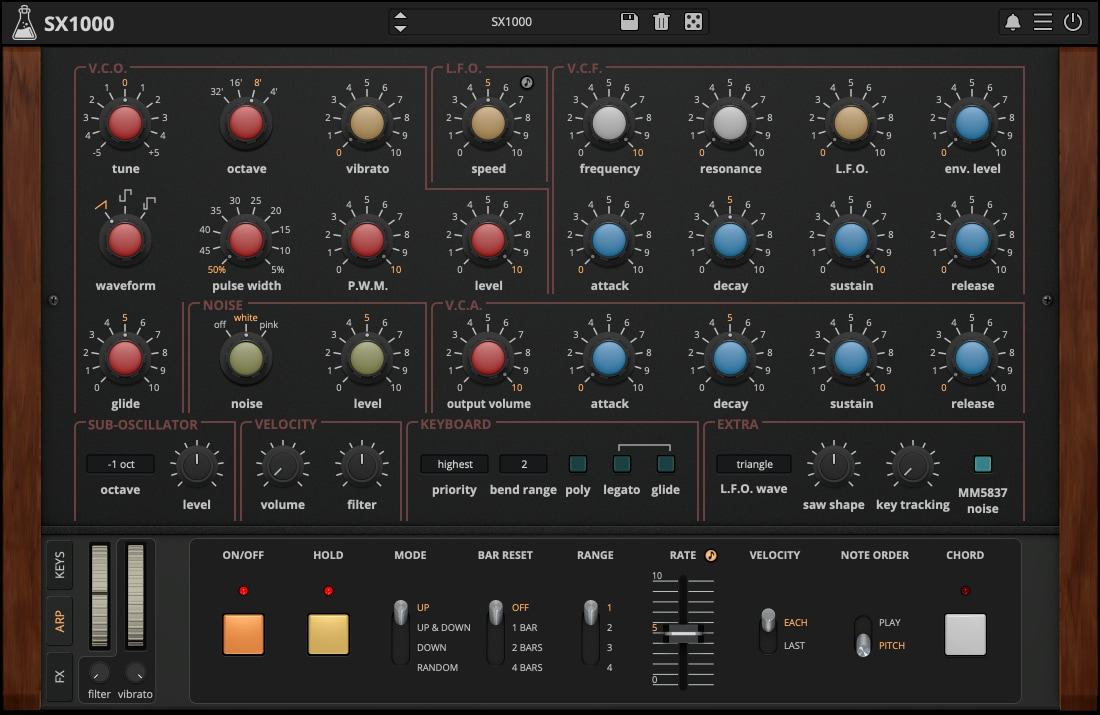
An arpeggiator borrowed from a vintage classic polysynth has also been integrated, alongside enhanced sonic possibilities with four effects featuring flexible routing.
JEN SX1000 Synthetone

The JEN SX1000 Synthetone is an analog monophonic synthesizer introduced in 1978 by the Italian company JEN Elettronica S.r.l. It holds the distinction of being one of the first affordable synthesizers widely available in Europe, making analog synthesis accessible to a broader range of musicians during a time when such technology was often prohibitively expensive.

At the core it’s a monophonic synth with a single oscillator capable of sawtooth, square, and pulse waveforms, complemented by a noise generator with white and pink sources. AudioThing have expaneded it with a full polyphonic mode, sub-oscillator (up to -3 octaves), additional controls for legato modes, velocity, and more.

The filter section features a 24dB/octave resonant low-pass filter, with a very distinct and organic sound and with classic self-oscillation. It includes basic modulation capabilities: an LFO for vibrato, tremolo, or filter modulation, which we expanded with additional waveforms and sync mode.

It also features two ADSR envelopes for controlling the volume and the filter.

Sub-Oscillator Mod

The SX1000 was notably easy to modify. In fact, AudioThing modded its unit nearly 20 years ago by adding a sub-oscillator using a simple flip-flop circuit. The principle is the same as in the divide-down organs. Since the original version had only one oscillator, this mod was essential for adding more sonic possibilities.

What Noise?

AudioThing has fully emulated the infamous MM5837 digital noise source (white/pink noise), also found in other classic analog synths like the Sequential Prophet 5, Korg MonoPoly, and Oberheim OB-X. However, it can be disabled, as this chip has a very short 17-bit LFSR (Linear Feedback Shift Register), causing the noise it produces to repeat every few seconds. This repetition is audible and has been described as sounding like a steam train puffing, rather than smooth white noise

Arpeggio

The SX1000 did not feature an arpeggiator, so AudioThing borrowed and expanded an iconic arpeggiator from a classic analog poly-synth: the Roland Juno 60.

It features:

  • up, up & down, down, random mode
  • 4 octave range
  • adjustable rate and sync
  • hold/latch mode
  • note order (pitch, key pressed)
  • chord mode

The SX1000 includes a set of four high-quality effects, inspired by classic gear and designed to complement the synth’s character. The effects section features:
Effects

  • Tape Echo, based on our Space Echo emulation Outer Space
  • Spring Reverb, adding classic vintage reverb
  • Wave Folder, for rich harmonic distortion inspired by the legendary Serge Wave Multipliers
  • Flanger, BBD based, capable of everything from subtle modulation to swirling textures

You can rearrange the effects in any order using drag and drop.

Features

  • 1 Osc (saw, square, pulse)
  • Suboscillator (up to -3 octaves)
  • 1 LFO (vibrato, filter, PWM)
  • 2 envelopes (volume, filter)
  • 24 dB/oct resonant filter
  • Oversampling
  • 4 Effects (echo, spring reverb, wave folder, flanger)
  • Arpeggiator
  • Resizable Window
  • Brightness and Contrast Controls
  • Preset system with randomizer

System Requirements:

Windows

  • Windows 7 – 11
  • 2GHz CPU, 4 GB RAM
  • VST2, VST3, AAX, CLAP, Standalone (64-bit)

Mac

  •  macOS 10.13 – macOS 15
  • 2GHz CPU, 4 GB RAM
  • VST2, VST3, AU, AAX, CLAP, Standalone (64-bit)
  • Universal 2 Binary

Linux

  • Ubuntu 20.04 LTS
  • 2GHz CPU, 4 GB RAM
  • VST2, VST3, CLAP, Standalone (64-bit)
Installation Instructions

Note: Speaker is used as the example.

Windows

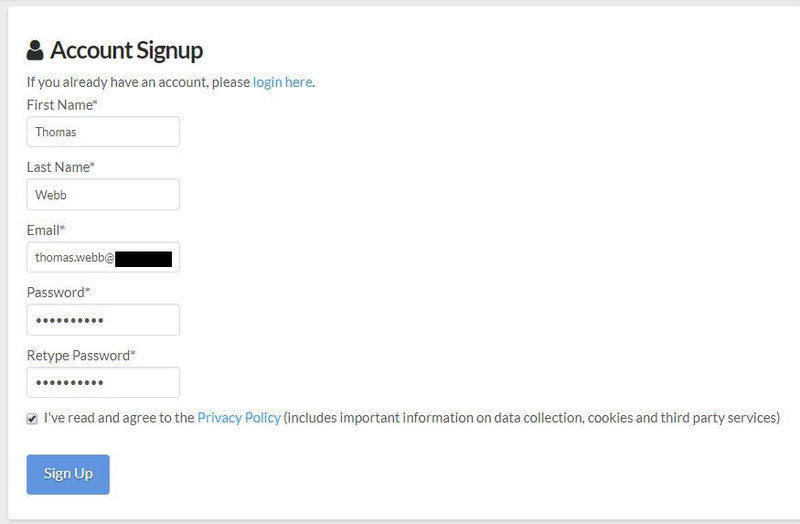
1. Visit the AudioThing Login/Registration Page and enter your personal details to set up an account > then read the 'Privacy Policy' and tick the box before clicking 'Sign Up'.

Note: If you already have an existing AudioThing account, Login here and skip to step 3 of the installation process. 

2. A confirmation email will now be sent to your registered email > click the link within the email to activate your account and Login here.

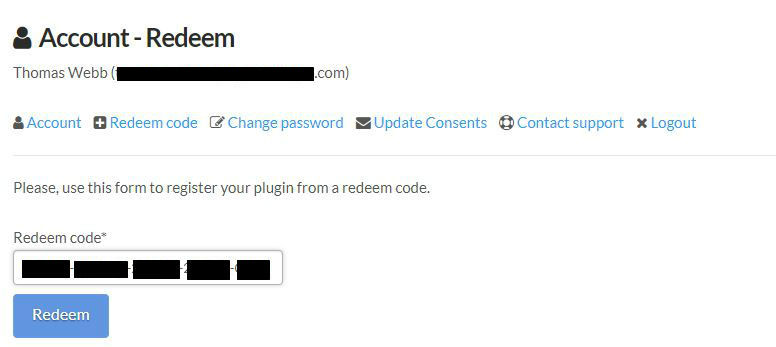
3. Once logged into your account, visit the Redeem Page and copy and paste the serial number from your User Account into the box provided > then click 'Redeem'.

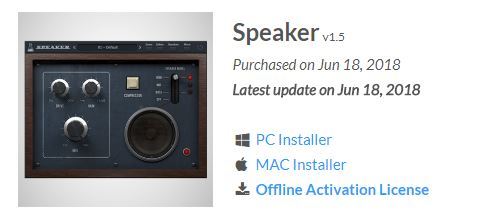
4. Download your preferred installer as well as the Activation Licence Key.

Note: Click the ‘license.atl’ file, e.g ‘speaker_license.atl’ to download it to your computer > be sure to save this to a memorable computer location so that you can easily locate and upload it when activating your software. 

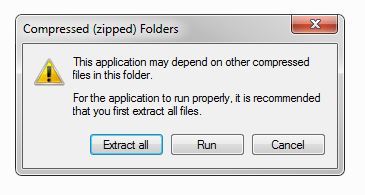
5. Double-click the compressed folder to reveal the installer file.

6. Double-click the extracted .exe file > click ‘Run' to open the installation window. 

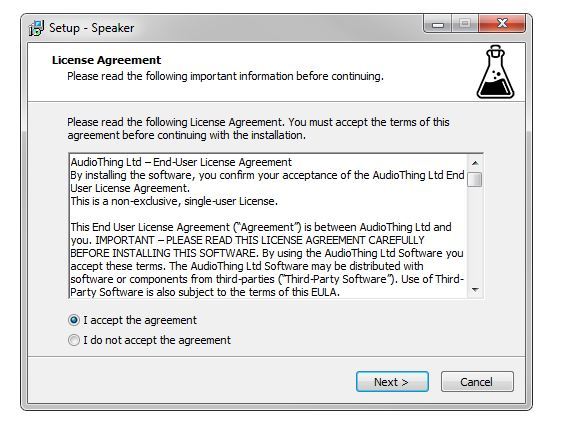
7. Read through the license agreement and click ‘I accept the agreement’ > click ‘Next’.

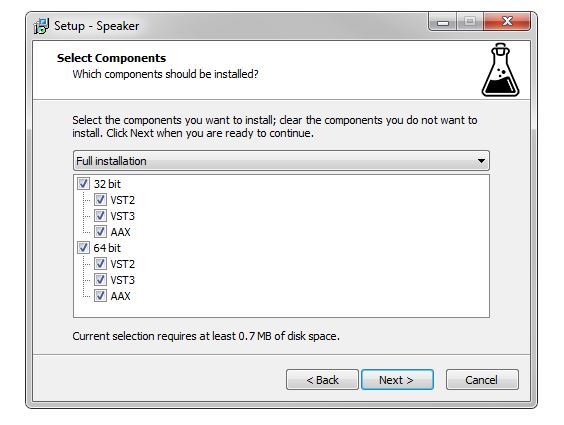
8. Select the component (s) that you wish to install > click ‘Next’.

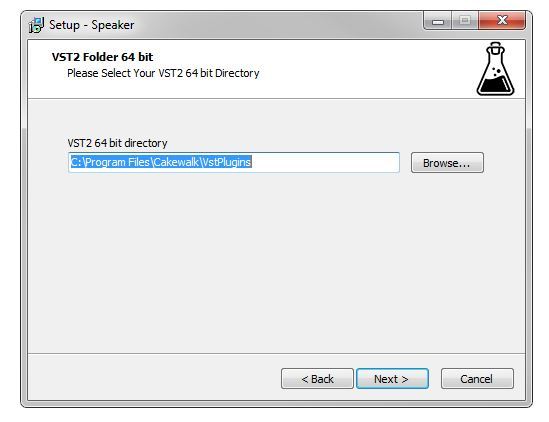
9. Choose and confirm the 64-bit plugin directory in which to save your software to > click ‘Next’. 

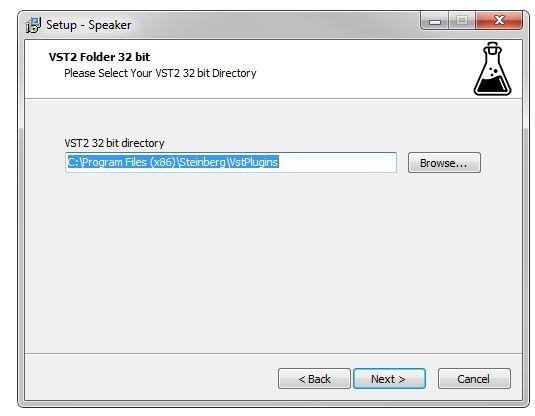
10. Choose and confirm the 32-bit plugin directory in which to save your software to > click ‘Next’.

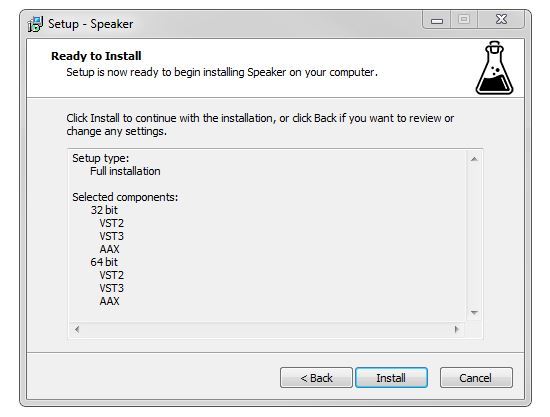
11. Review the installation and click ‘Install’. 

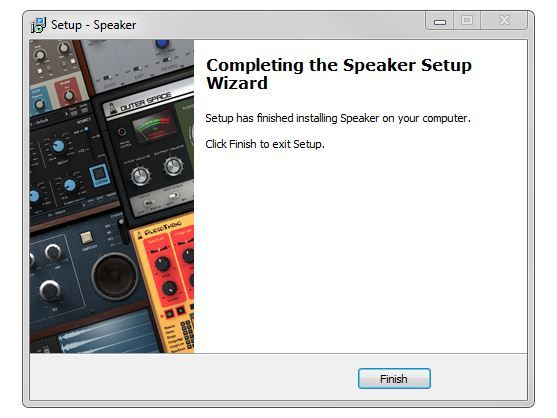
12. The installation of your software has successfully completed > click ‘Finish’.

Offline Activation

1. Restart your DAW, and rescan your plugin selection to show the new installation (in the event it fails to appear). 

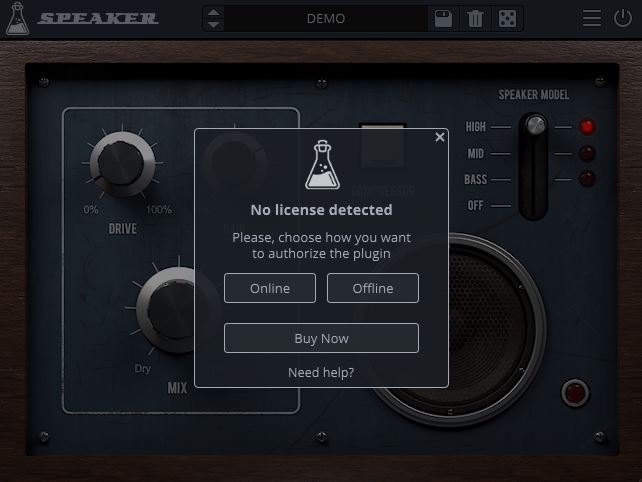
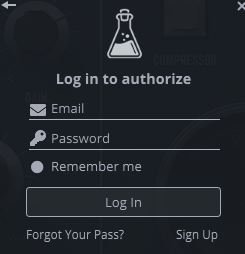
2. Locate and open the plugin on an appropriate track. You will be greeted by the window shown below > click 'Offline'.

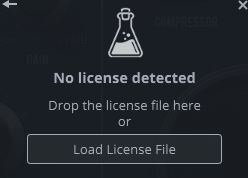
3. Load or drag and drop the downloaded Key License File into the box to activate your software. 

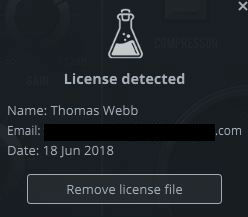
4. The software is now activated and ready for use within your DAW.

Online Activation

1. Restart your DAW, and rescan your plugin selection to show the new installation (in the event it fails to appear). 

2. Locate and open the plugin on an appropriate track. You will be greeted by the window shown below > click 'Online'.

3. Enter your registered account email and password details > click 'Log In'.

4. The software is now activated and ready for use within your DAW.

Mac

1. Visit the AudioThing Login/Registration Page and enter your personal details to set up an account > then read the 'Privacy Policy' and tick the box before clicking 'Sign Up'.

Note: If you already have an existing AudioThing account, Login here and skip to step 3 of the installation process. 

2. A confirmation email will now be sent to your registered email > click the link within the email to activate your account and Login here.

3. Once logged into your account, visit the Redeem Page and copy and paste the serial number from your User Account into the box provided > then click 'Redeem'.

4. Download your preferred installer as well as the Activation Licence Key.

Note: Click the ‘license.atl’ file, e.g ‘speaker_license.atl’ to download it to your computer > be sure to save this to a memorable computer location so that you can easily locate and upload it when activating your software. 

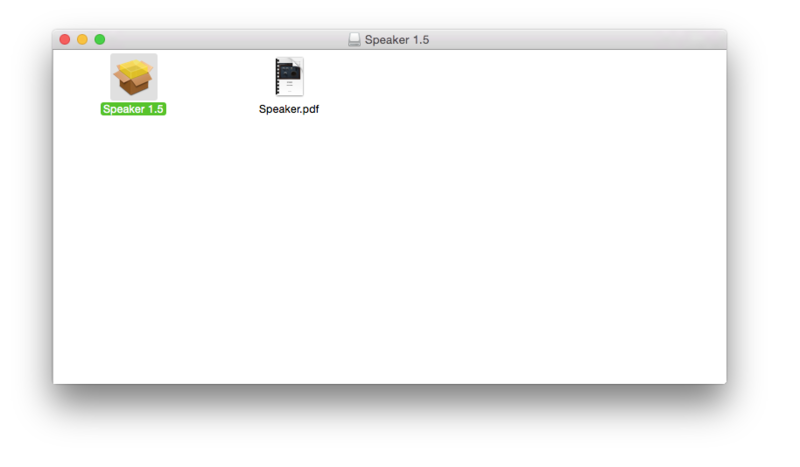
5. Double-click the .dmg file to open the installer window. 

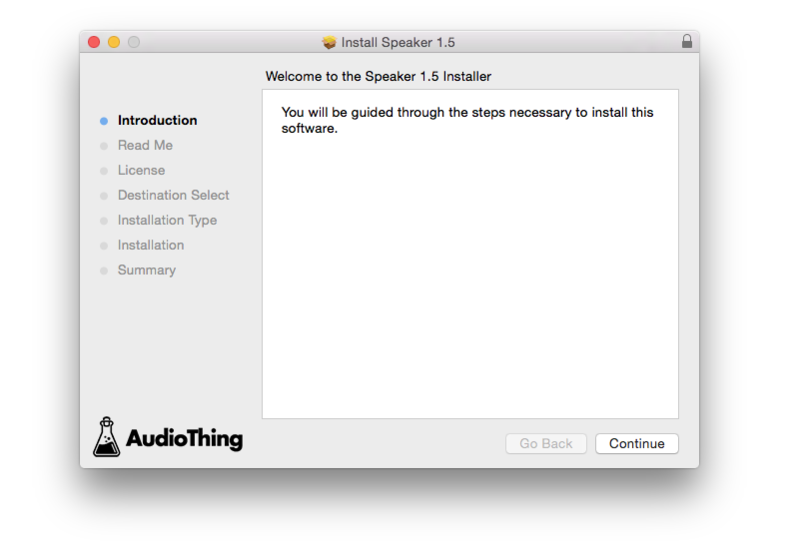
6. Double-click the installer icon to begin the installation process > click ‘Continue’.

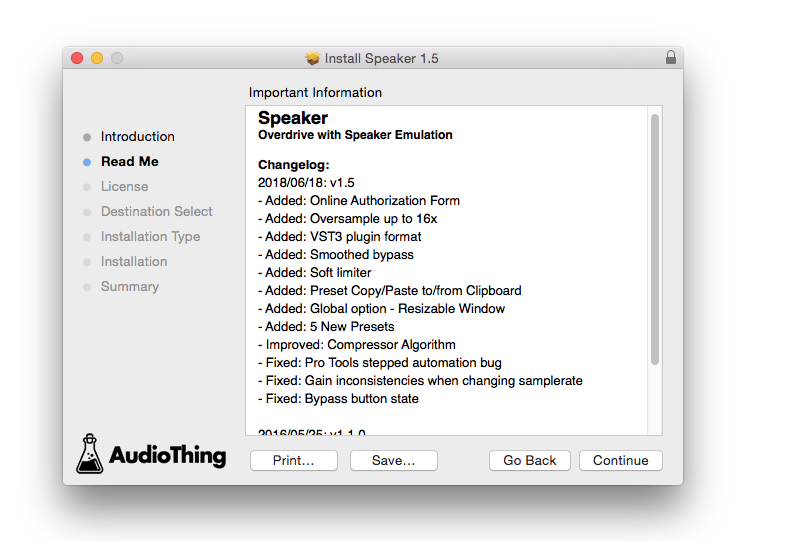
7. Read the info and click ‘Continue’.

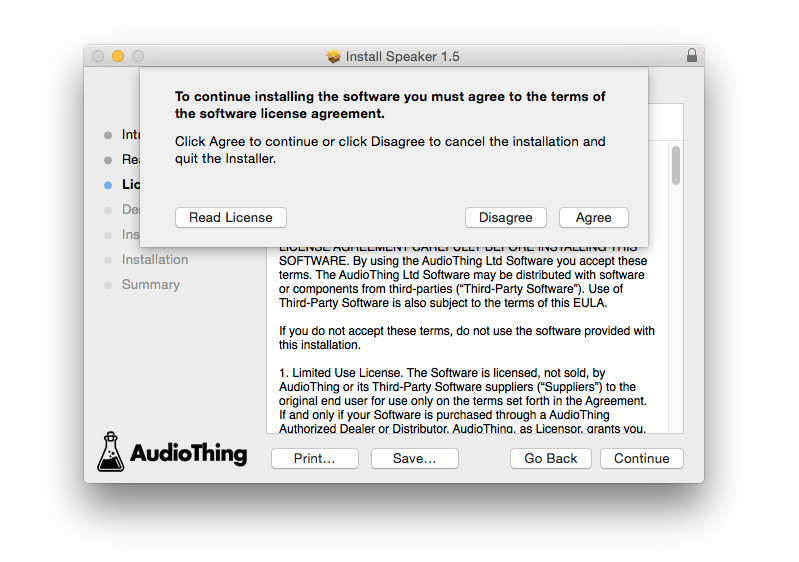
8. Read the Software License Agreement > click ‘Continue’ and then ‘Agree’.

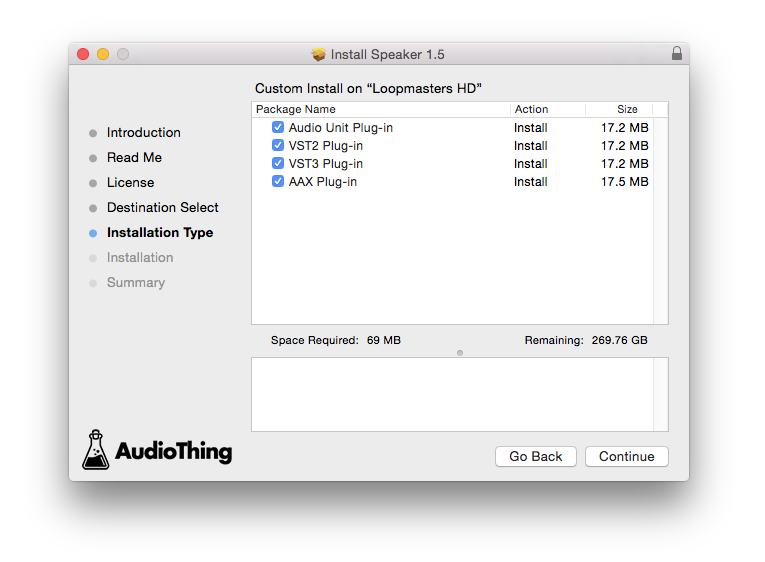
8. Select the component (s) that you wish to install to your computer, and click ‘Continue’. 

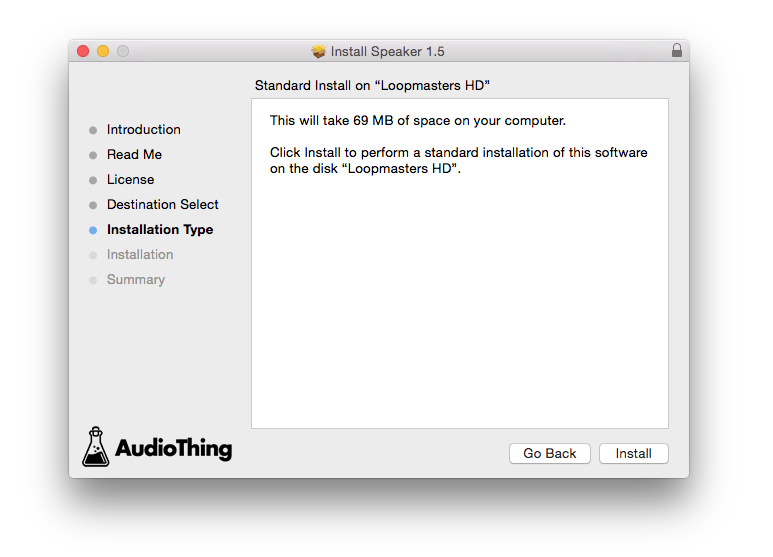
9. Review the installation and click ‘Install’.

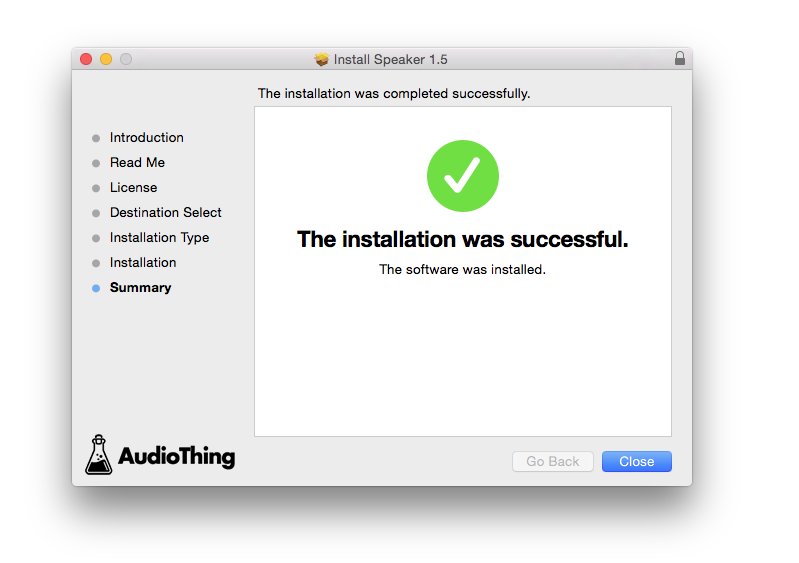
10. The installation of your software has successfully completed > click ‘Close’. 

Offline Activation

1. Restart your DAW, and rescan your plugin selection to show the new installation (in the event it fails to appear). 

2. Locate and open the plugin on an appropriate track. You will be greeted by the window shown below > click 'Offline'.

3. Load or drag and drop the downloaded Key License File into the box to activate your software. 

4. The software is now activated and ready for use within your DAW.

Online Activation

1. Restart your DAW, and rescan your plugin selection to show the new installation (in the event it fails to appear). 

2. Locate and open the plugin on an appropriate track. You will be greeted by the window shown below > click 'Online'.

3. Enter your registered account email and password details > click 'Log In'.

4. The software is now activated and ready for use within your DAW.

Plugin Boutique Rewards

Discover the most rewarding loyalty programme among all plugin retailers.

  • Free Loopmasters Samplepacks
  • Discounts on products and courses
  • Extra Virtual Cash claimed immediately at checkout
Find out more

Follow us:

X (Twitter) Facebook YouTube Instagram
Logo Logo

Plugin Boutique Limited, Part of the Beatport Group LLC.

Copyright © 2011-2025 Plugin Boutique. All rights reserved