Buy Jussi , get a free gift with purchase:
Vocal Synthesizer
A golden throat at your fingertips
Jussi emulates male voice vowels in a unique way. Thanks to a set of powerful parameters you can make Jussi sing anything from soft and airy choir-like vowels to hard and angry shouting. Formants are controlled by playing with different velocity, which makes it fun and easy to play using a MIDI keyboard.
Anatomy
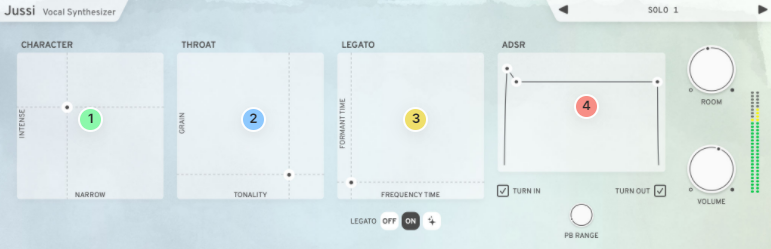
1. Character - Drag the XY pad to alter tone intensity. The ’intense’ axis controls the formant’s Q value and the ’narrow’ axis is the formant’s gain value.
2. Throat - This XY pad controls grain-factor (Y-axis) and the tonality/noise-factor (X-axis).
3. Three legato modes - Off: Like an ordinary polysynth. On: Normal legato mode (use XY pad to control). Hold: Smart polyphonic mode (see documentation for full info).
4. ADSR / Turn in & out - The ADSR controls the volume envelope of a triggered note with an option to slide the pitch (Turn in/out).
Features
- ADSR with ”Turn-in” and ”Turn-out” option (Turn-in and Turn-out affects the pitch and maps it to attack and release) Voice character XY pad (Intensity and Narrowness)
- Legato mode (glides between notes and velocity levels)
- Legato Hold mode (polyphonic legato when using a sustain controller, consult the documentation for more info) Throat emulation XY pad (Grain and Tonality)
- Built-in reverb
System Requirements
- macOS 10.15 or later (optimized for the M1-processor)
- Windows 10 or later
- AU, VST-2, VST-3, AAX
Important note: When accessing this software via a Rent to Own plan or the Beatport Studio membership, it's installed and run through the Beatport Access portal. An internet connection is required every 30 days to validate your license.
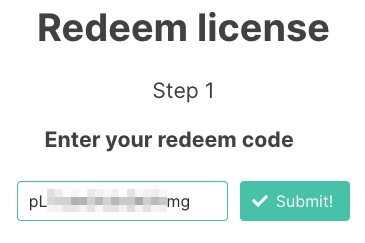
Please Note: Pana is used as the example:
Mac
License Redemption
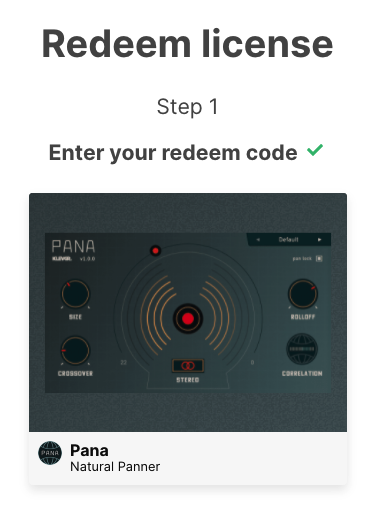
1. Navigate to https://klevgrand.com/redeem > Paste your 16 digit redemption code found in your Plugin Boutique User Account > Click 'Submit!'.
2. Your redemption code has been accepted > Scroll down to Step 2.
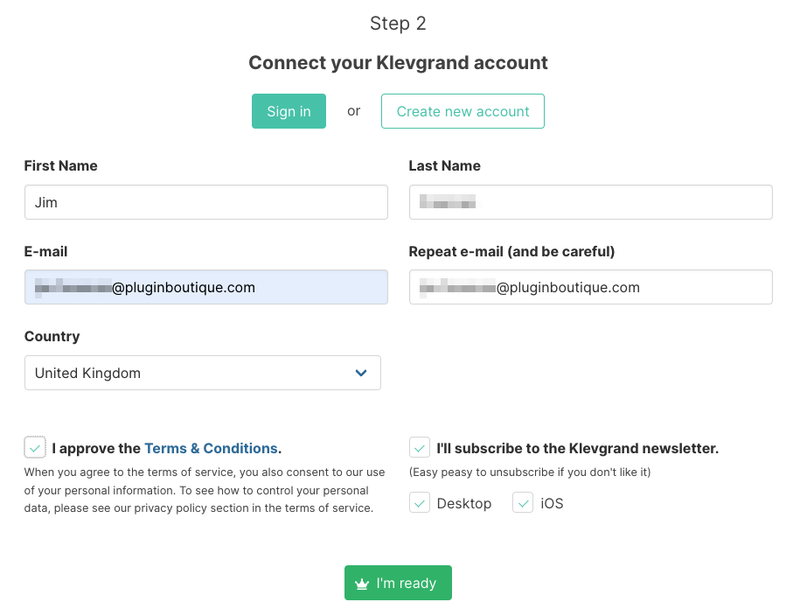
3. Click either 'Sign in' if you already have a Klevgrand account, or 'Create new account' if you do not > Fill in your personal details > Click 'I'm ready'.
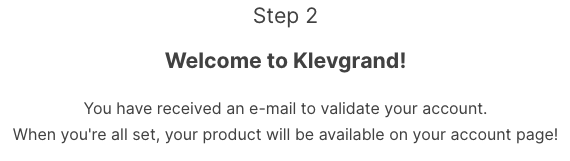
4. Your account has now been created.
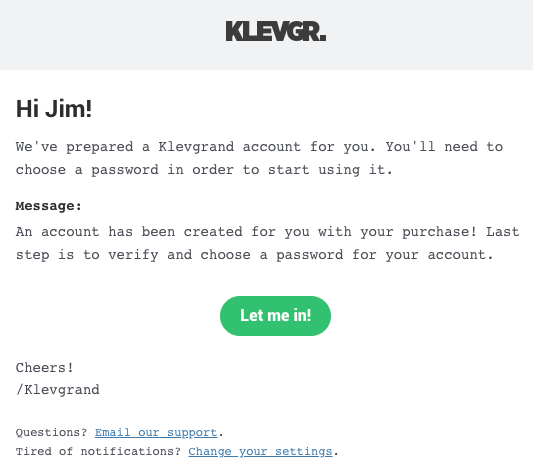
5. Navigate to your email inbox and locate the activation email that you should have received from Klevgrand > Click 'Let me in!' to activate your account.
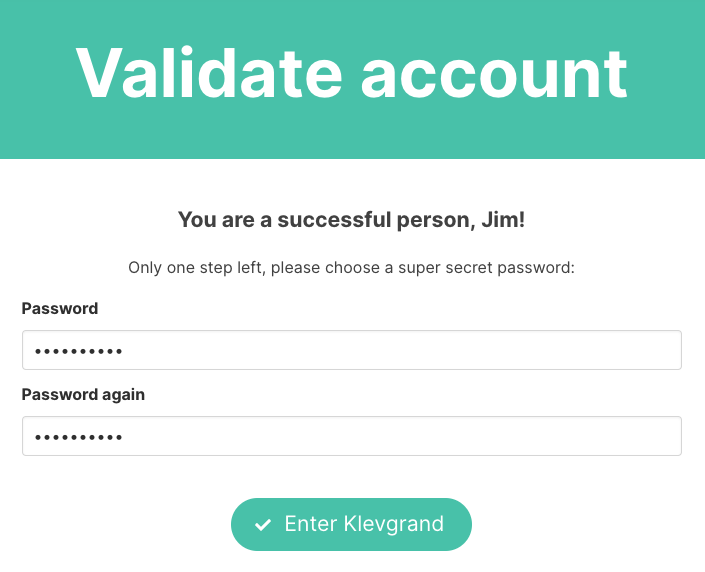
6. Create a password for your account > Click 'Enter Klevgrand'.
7. Your software and serial number is now available within your Klevgrand account > Click the Apple logo to download the installer file.
Installation
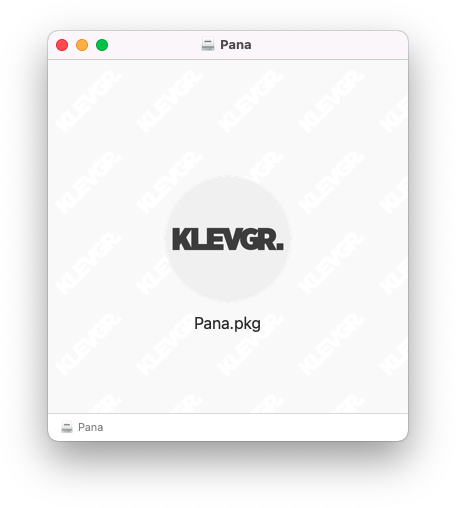
1. Launch the pana_x_x_x_macOS.dmg installer file.
2. Double click the KLEVGR. logo to launch the installer.
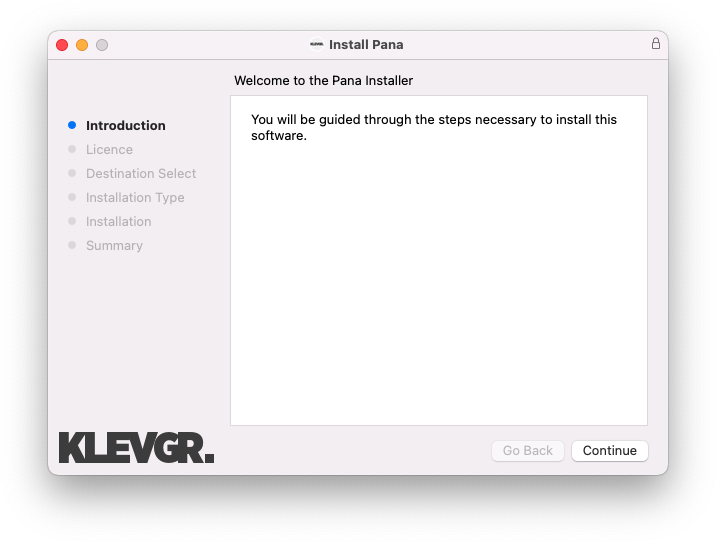
3. Click 'Continue'.
4. Click 'Continue'.
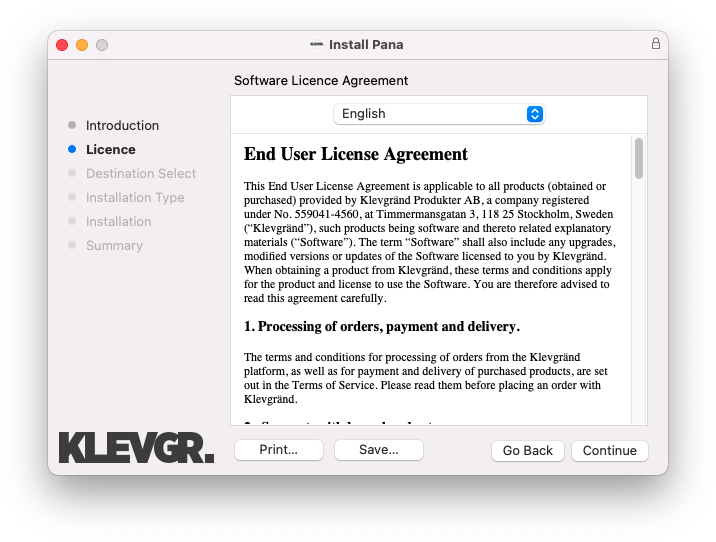
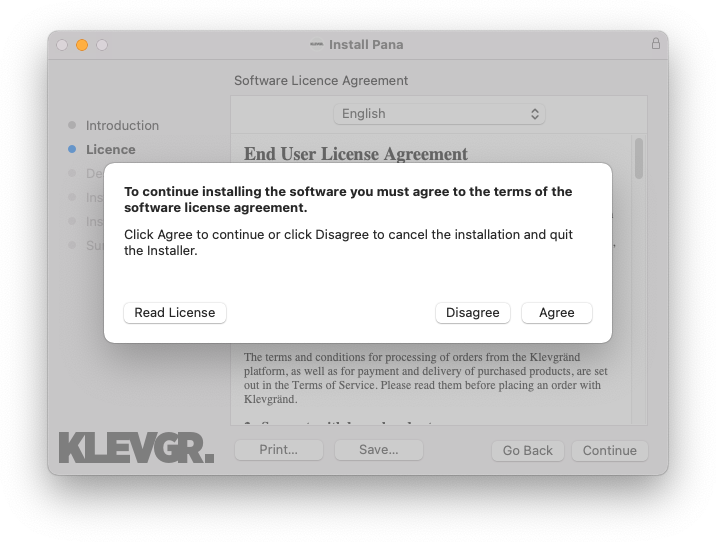
5. Click 'Agree'.
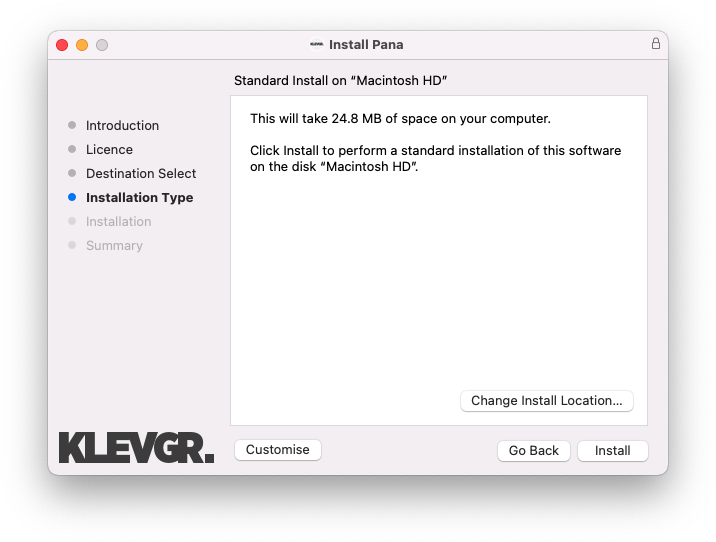
6. Click 'Install'.
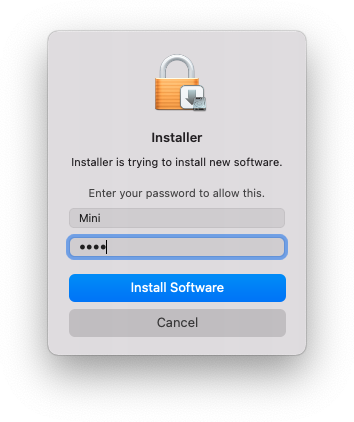
7. Enter your system password > Click 'Install Software'.
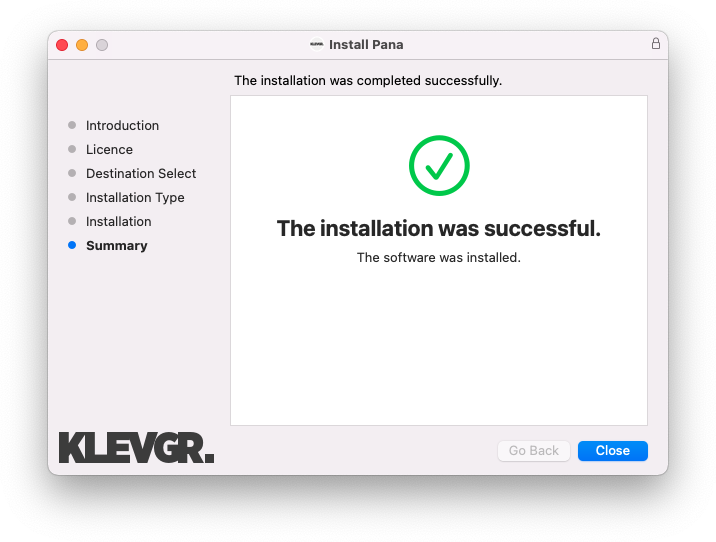
8. Click 'Close'.
9. Navigate back to your Klevgrand My Account page > Click on the serial number to copy it to your clipboard.
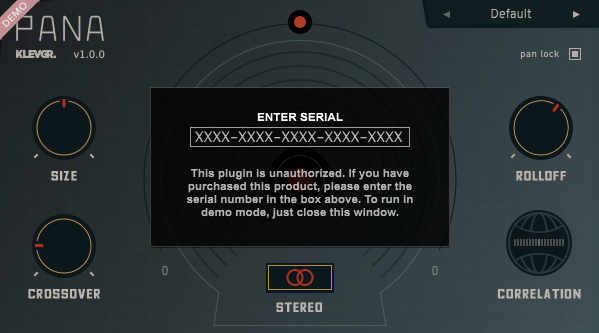
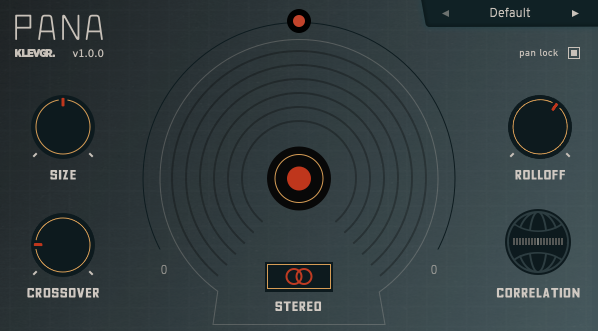
10. Launch your DAW > Create a new audio track > Insert Pana onto the channel > Paste your serial number into the box.
Your software is now activated and ready to use within your DAW
Windows
License Redemption
1. Navigate to https://klevgrand.com/redeem > Paste your 16 digit redemption code found in your Plugin Boutique User Account > Click 'Submit!'.
2. Your redemption code has been accepted > Scroll down to Step 2.
3. Click either 'Sign in' if you already have a Klevgrand account, or 'Create new account' if you do not > Fill in your personal details > Click 'I'm ready'.
4. Your account has now been created.
5. Navigate to your email inbox and locate the activation email that you should have received from Klevgrand > Click 'Let me in!' to activate your account.
6. Create a password for your account > Click 'Enter Klevgrand'.
7. Your software and serial number is now available within your Klevgrand account > Click the Windows logo to download the installer file.
Installation
1. Unpack the pana_x_x_x_win.zip installer file > Launch the pana_x_x_x_win.exe file.
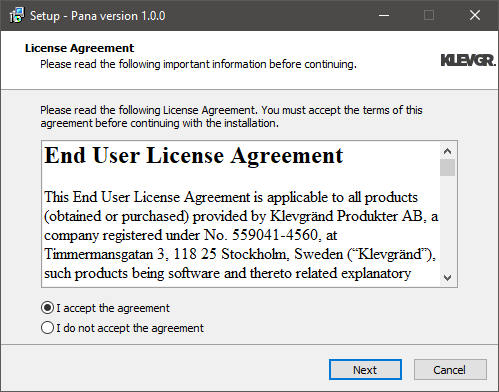
2. Click 'I accept the agreement' > Click 'Next'.
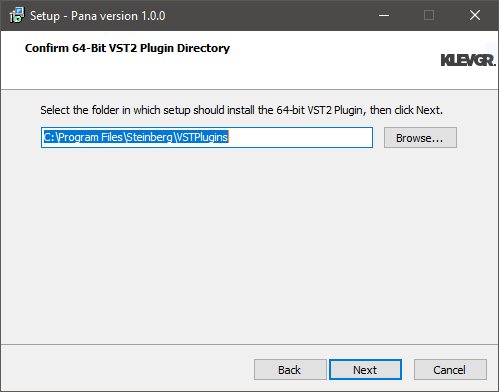
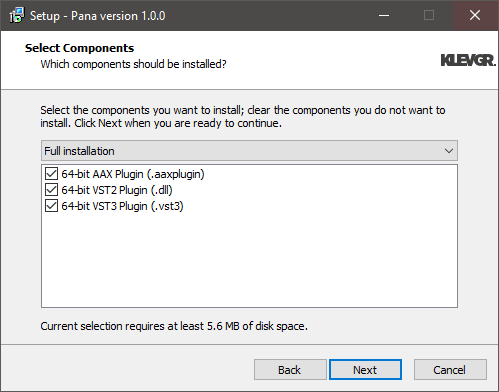
3. Click 'Next'.
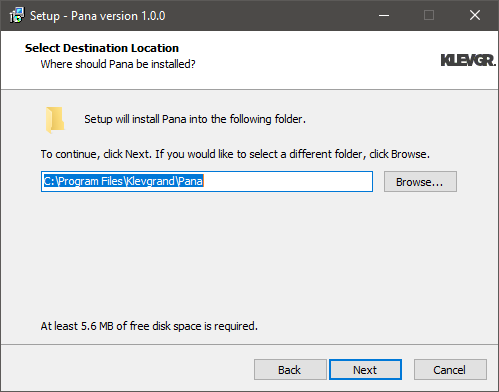
4. Click 'Next'.
5. Click 'Next'.
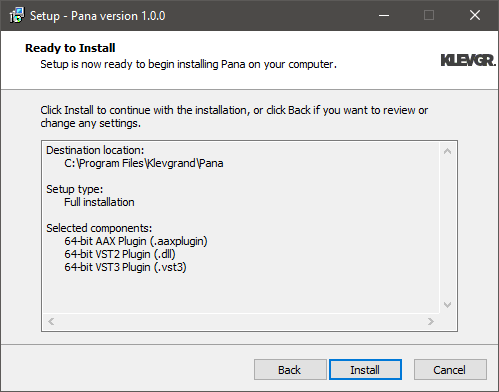
6. Click 'Install'.
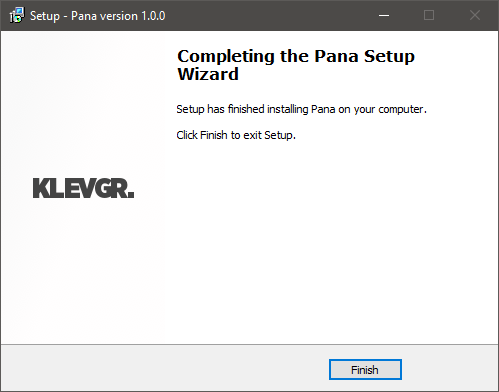
7. Click 'Finish'.
8. Navigate back to your Klevgrand My Account page > Click on the serial number to copy it to your clipboard.
9. Launch your DAW > Create a new audio track > Insert Pana onto the channel > Paste your serial number into the box.
Your software is now activated and ready to use within your DAW