/ Synth / KaoX
XILS Lab

KaoX

5.0 (13 Reviews)
$235.00
XILS Lab KaoX
XILS Lab KaoX
XILS Lab KaoX - XILS-lab presents KaoX gallery thumbnail
Buy Now
Product information

Inspired by a Legendary FM Synthesizer

Reinforced by Analog Oscillators and Filters and Sublimated by Chaotic Algorithms.

The Versatility and the Brilliance of the FM Synthesis
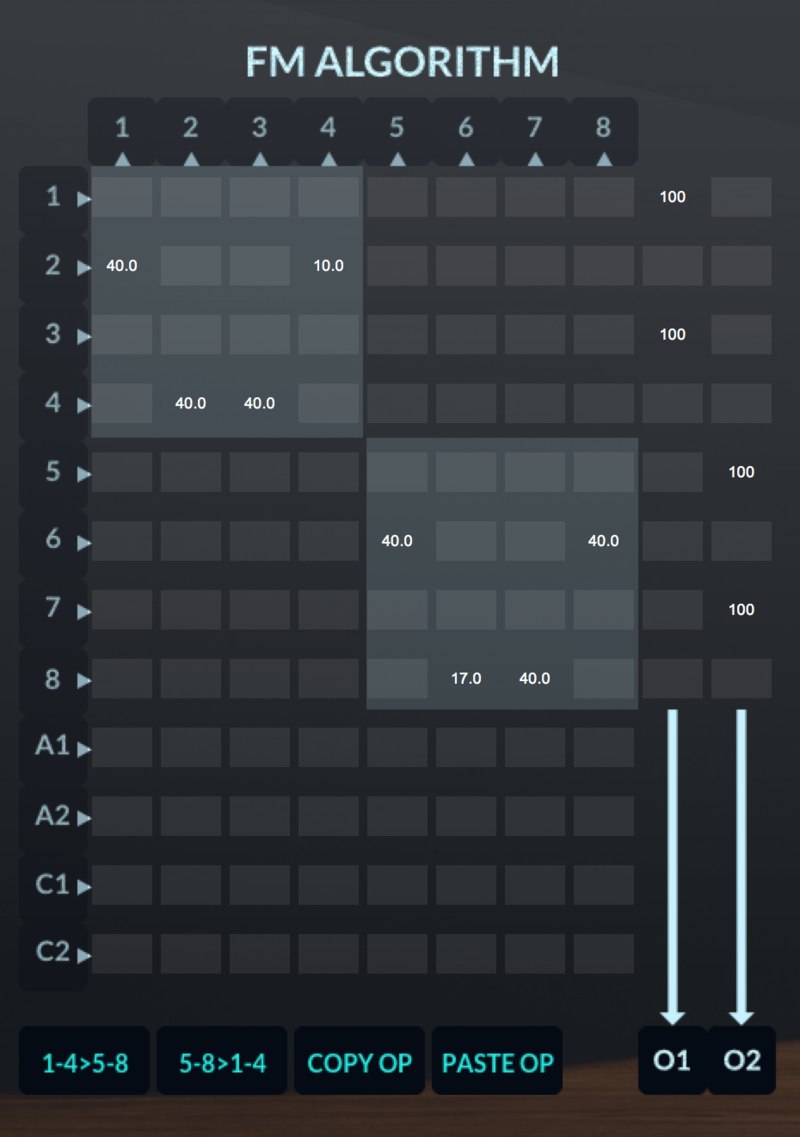
8 operators, 2 outputs, 2 banks with independent pitch, easy programming of the FM algorithms, XILS-lab worked hard at sublimating the FM synthesis to a new level.

A clear, brilliant and deep sound with a vibe that can be sourced from the other available Analog or Chaotic oscillators.

The Power and Warmth of the Analog Synthesis
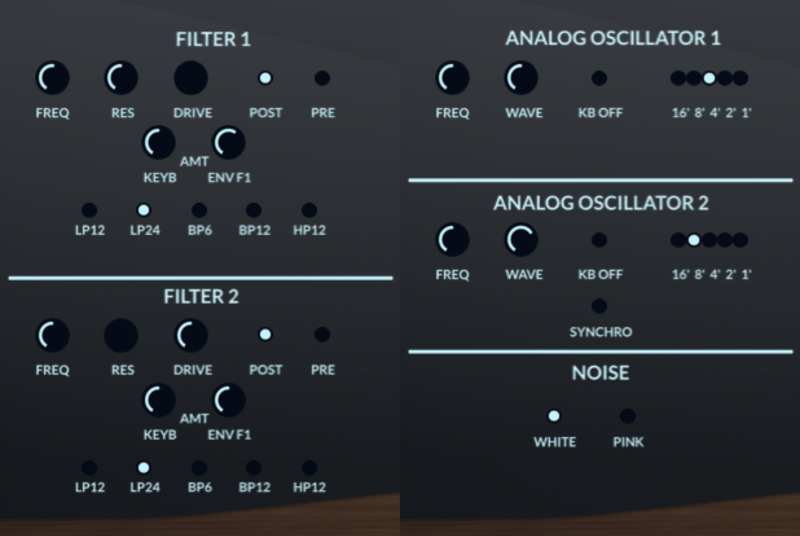
2 continuous waveform oscillators, 2 zero-delay like filters, drawing on the vast experience of XILS-lab.

A Deep, Warm and living sound.

The Organic Life of the Chaotic Algorithms
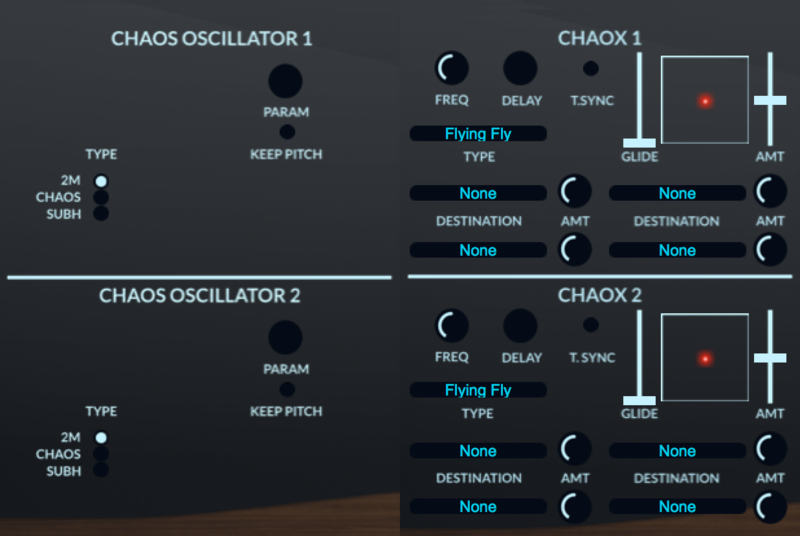
2 chaotic oscillators and 2 chaotic modulators

Create sounds that you had never thought possible.

The Easy Graphic Interface makes your preset faster to tweak
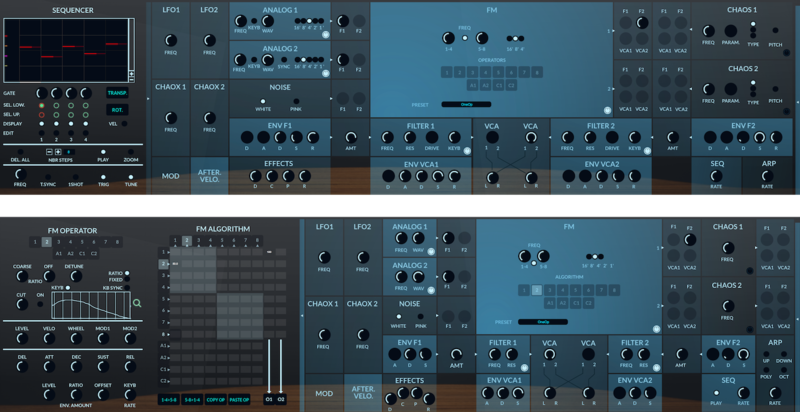
Advanced parameters, contextual help and global view with easy access to main parameters.

Audio path easily understood through the use of illuminated modules.

Features

Two layers, Four effects, Easy to tweak

  • The layers can be played Single, Double or Split.
  • Two independent Arpeggiators, Playing mode or Unison.
  • Easy access to Vibrato or Tremolo.
  • Four deep and warm effects with independent routing.

All main parameters at a glance

  • One Advanced Panel for tweaking the various modules.
  • FM Algorithm Matrix, always available when needed.
  • Contextual help windows.
  • Global view with active modules illuminated.

FM Synthesis

On each of the two available layers you will find:

  • 8 operators.
  • 2 outputs.
  • The 8 operators are grouped into 2 banks with independent pitch. This typical architecture is useful for creating chorus like FM sounds or punchy stereo presets.

Each operator features:

  • One LFO.
  • One envelope.
  • Wheel and Aftertouch access.
  • Two user define external modulators (to be assigned to any KaoX modulation sources).
  • Keyboard follower 2D pad.
  • Ratio or absolute frequency.
  • Low pass filter.

Analog Synthesis

On each of the two available layers, you will find:

  • 2 continuous waveform analog oscillators.
  • 2 zero-delay like analog filters.
  • 4 envelopes D-ADSR.
  • 4 outputs VCA.
  • For a Deep, Warm and living sound.

The Organic Life of the Chaotic Algorithms

  • 2 chaotic oscillators and 2 chaotic modulators.
  • Create sounds that you had never thought possible.

4 Tracks Sequencer

  • Each track can be assigned to the lower and/or upper layer.
  • Each track can have independent sustain/gating.
  • Each track can be used as a source of modulation.

Preset Manager

  • Single Window integrated Preset Manager: Find the right patch in seconds, manage presets, soundbanks and create your own tags.
  • More than 500 presets created by fantastic sound designers
  • Nori Ubukata, Soundsdivine, Tom Wolfe, Zensound, Mikael Adle, Xenos, Status, Yuli-Yolo and others....

System Requirements

Mac

  • Mac OSX 10.9 and later (64-bit only) (Compatible on macOS 11 Big Sur with Rosetta) (M1 Apple Silicon compatibility available soon)
  • VST, Audio Unit, AAX (Native)

Windows

  • Windows 7,8 and 10 (32 / 64-bit)
  • VST, AAX (Native)

Please Note:

  • KaoX is protected with iLok (PACE antipiracy system) allowing up to 2 independent locations: iLok 2 & 3 and soft (meaning without any hardware key)
  • KaoX is NOT a standalone application and requires a VST/AU/AAX compatible host DAW to function correctly.
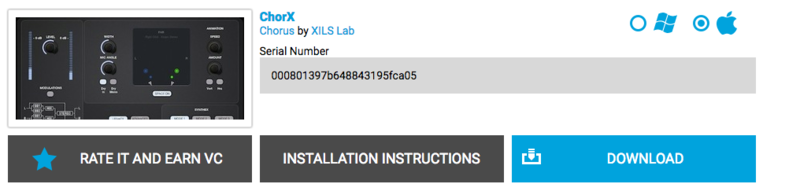
Installation Instructions

Registration / Installation

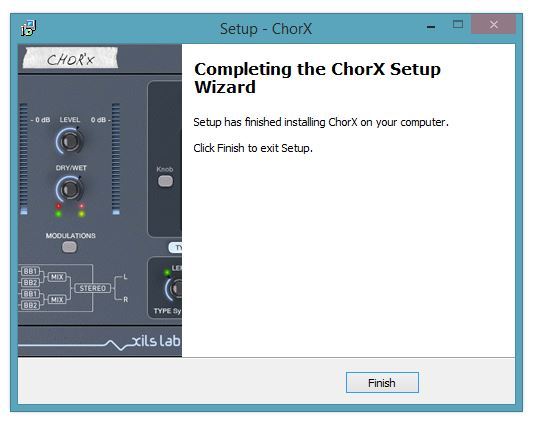
Please Note: ChorX is used as an example.

Mac:

1. Select the Apple icon from your User Account, and click the DOWNLOAD tab to obtain your Mac installer.

Note: You can also download and install the most recent version of your software from the XILS Lab Download Area.

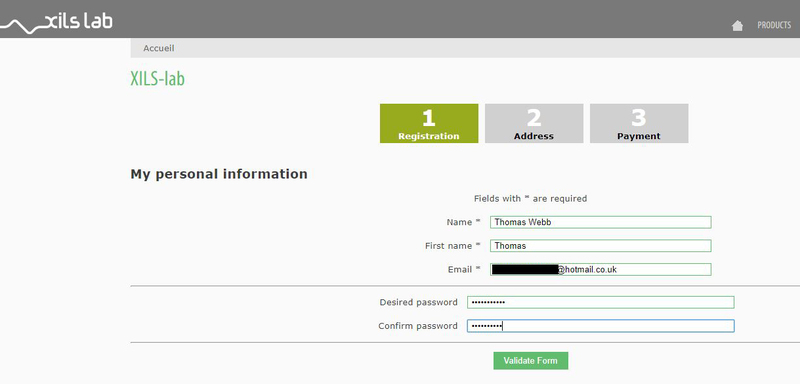
2. Visit XILS Lab to log into/create your user account > enter your email address and password when creating a new account, then click 'Validate Form.'

Note: If you already have an existing XILS Lab account, skip to step 4. 

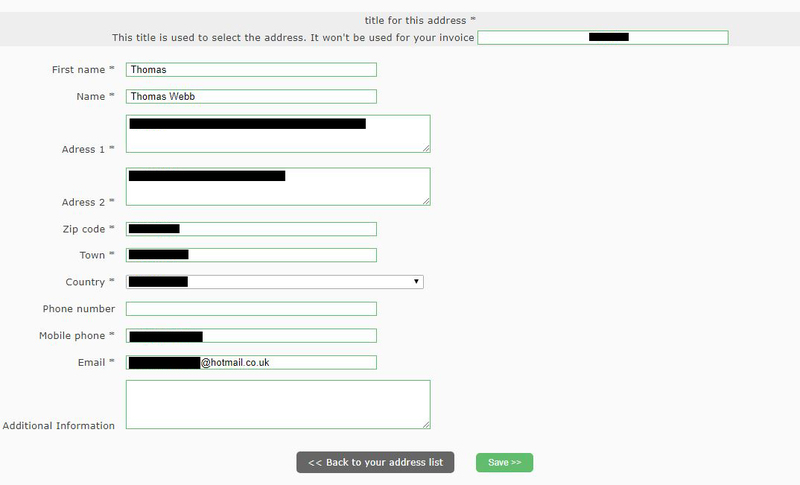
3. Enter your the required details that are marked with an asterix (*) symbol and click 'Save.'

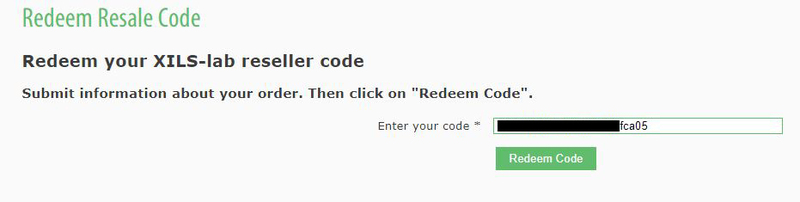
4. Visit the XILS Lab Redemption Page and copy and paste/manually enter the serial number that is provided within your User Account > click 'Redeem Code.'

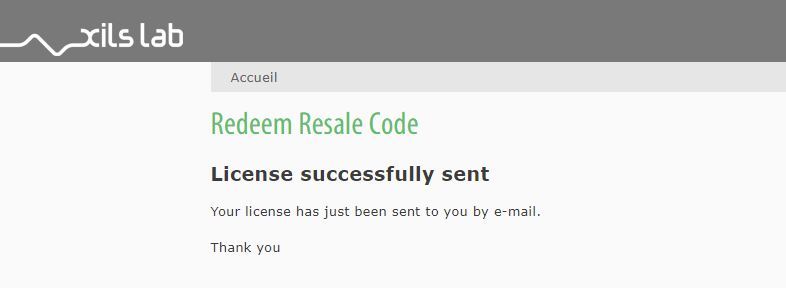
5. The serial number has successfully been redeemed, and the software licence (AC code) has been sent to the inbox of your registered XILS Lab email.

6. Log into your XILS Lab registered email inbox to locate the licence code, or alternatively find it within the 'My downloads, My Products' area of your XILS Lab account.

Note: If the message and licence fails to be delivered via email, check your junk/spam folders. 

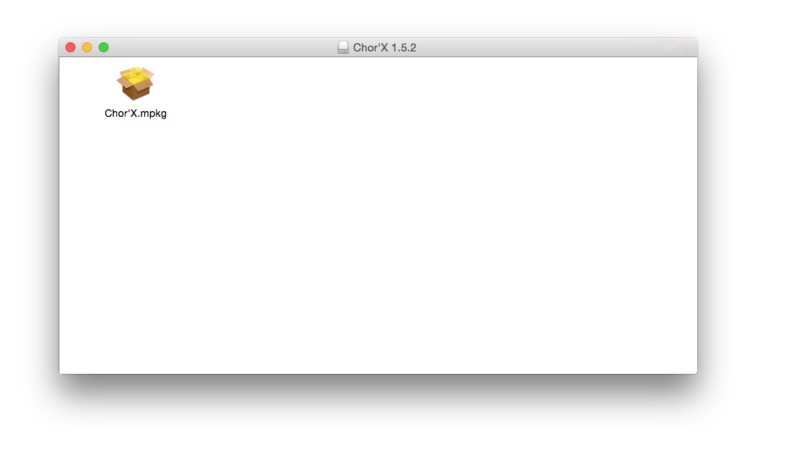
7. Locate the software .dmg installer file from the downloads section of your computer, and double-click it to launch the .mpkg installer application.

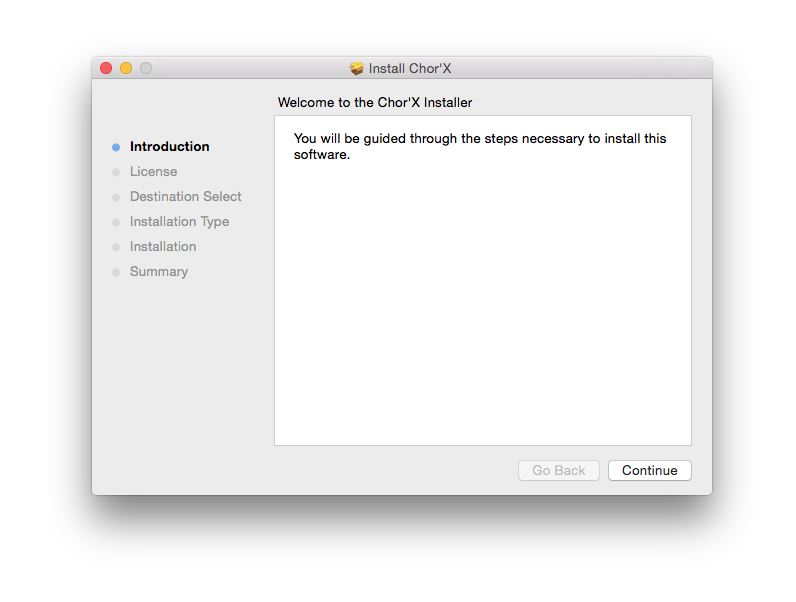
8. Double-click on the .mpkg file to begin the installation process > click 'Continue.'

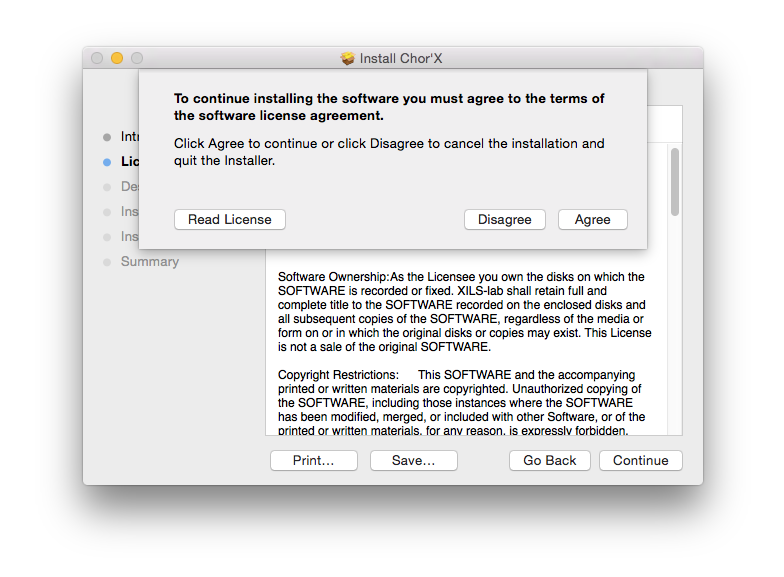
9. Read through the Terms & Conditions of the Licence Agreement > click 'Continue' > click 'Agree.'

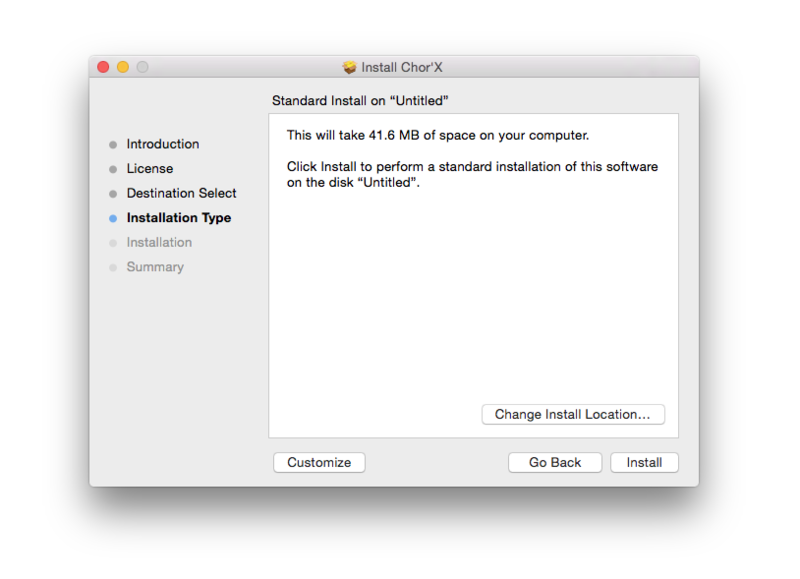
10. Review the installation and click 'Install.'

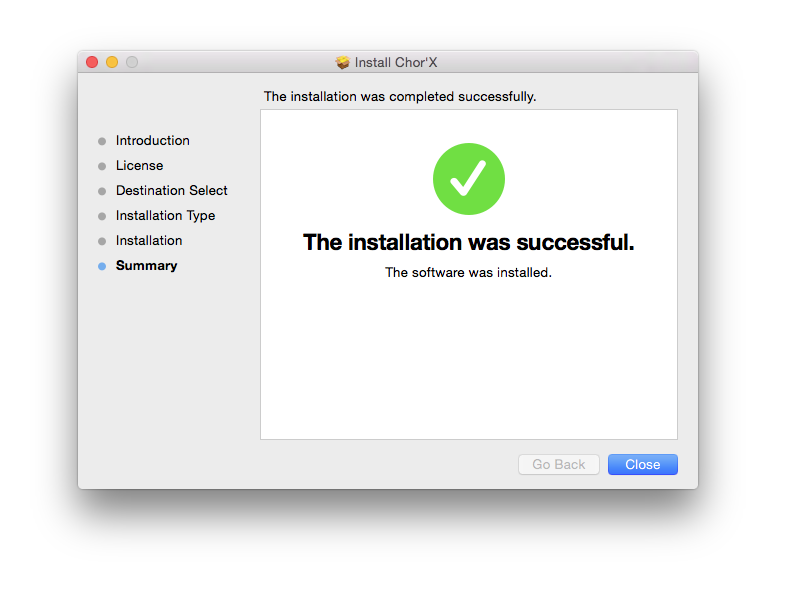
11. The installation of your software has successfully completed > click Close.

Activation

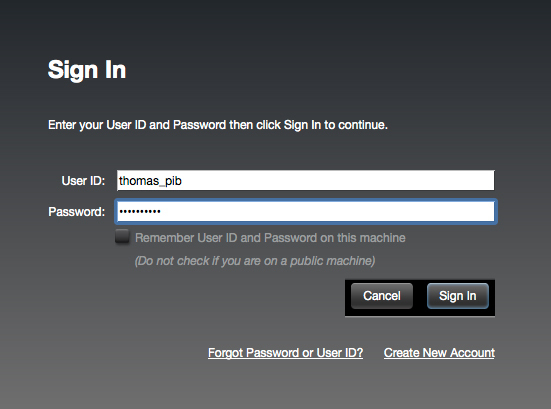
1. Open the iLok Licence Manager from your computer’s Start Menu (located at the bottom left corner of your desktop). Once the application is open, click ‘Sign In'.

2. Enter your User ID and password that you previously created on registration of your account > click ‘Sign In'.

3. Once you are signed in, click the ‘Redeem’ icon which is located at the top-right corner of the iLok Licence Manager’s interface.

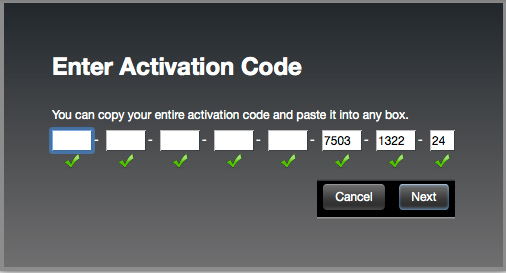
4. Copy and paste/manually enter the 30-digit code from your online Xils Lab account into the available Activation Code boxes, and then click ‘Next'.

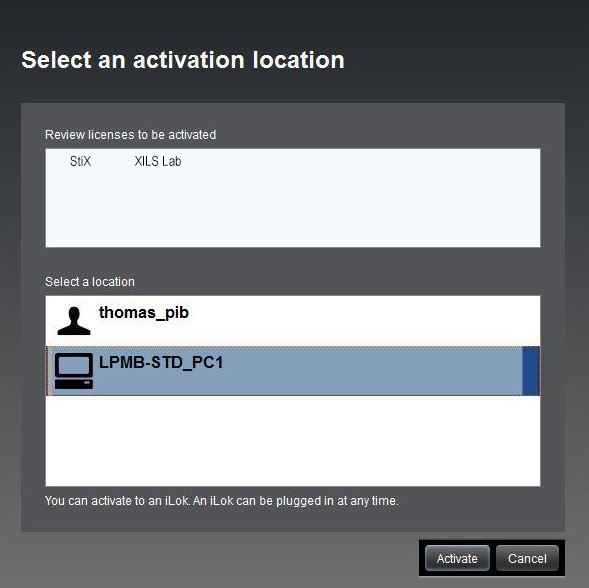
5. Select your computer as the activation location (or your iLok dongle) and then click ‘Activate'.


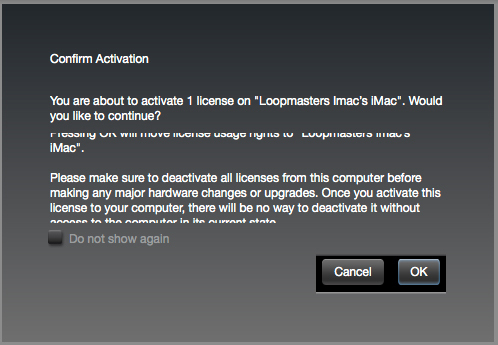
6. Confirm you are happy to activate your license > click ‘OK'.

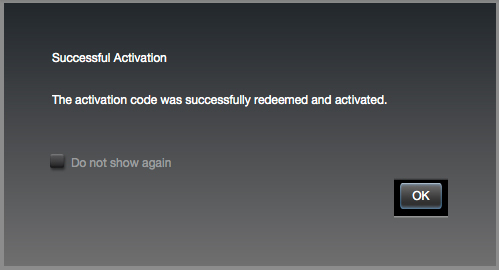
7. Click 'OK'.

8. Your product is now activated on your computer. You can proceed and close the iLok Licence Manager.

Registration/Installation

PC:

1. Select the Windows icon from your User Account, and click the DOWNLOAD tab to obtain your PC installer.

Note: You can also download and install the most recent version of your software from the XILS Lab Download Area.

2. Visit XILS Lab to log into/create your user account > enter your email address and password when creating a new account, then click 'Validate Form.'

Note: If you already have an existing XILS Lab account, skip to step 4. 

3. Enter your the required details that are marked with an asterix (*) symbol and click 'Save.'

4. Visit the XILS Lab Redemption Page and copy and paste/manually enter the serial number that is provided within your User Account > click 'Redeem Code.'

5. The serial number has successfully been redeemed, and the software licence (AC code) has been sent to the inbox of your registered XILS Lab email.

6. Log into your XILS Lab registered email inbox to locate the licence code, or alternatively find it within the 'My downloads, My Products' area of your XILS Lab account.

Note: If the message and licence fails to be delivered via email, check your junk/spam folders. 

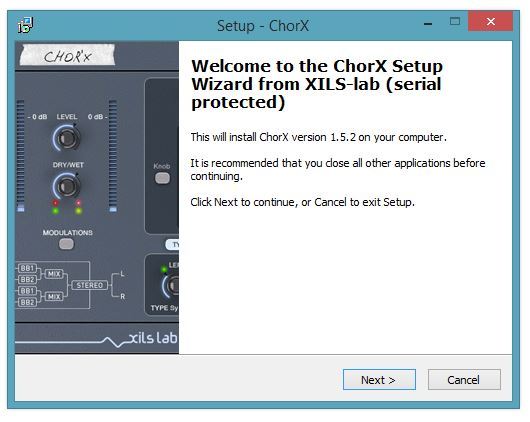
7. Locate the .exe software installer file from the downloads section of your computer and double-click it to begin the installation process > click 'Next.'

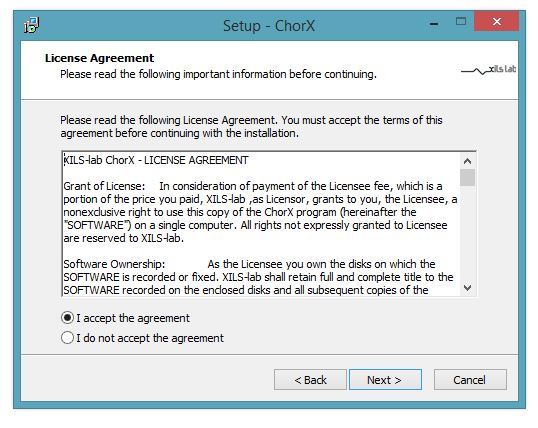
8. Read through the info and select 'I accept the agreement' > click 'Next.'

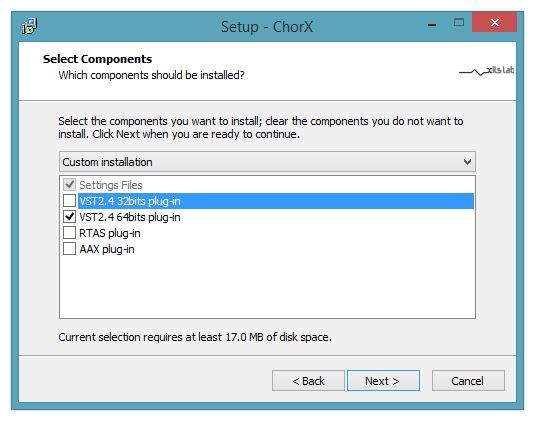
9. Select the software component (s) / compatible DAW format (s) that you wish to install, and click 'Next.'

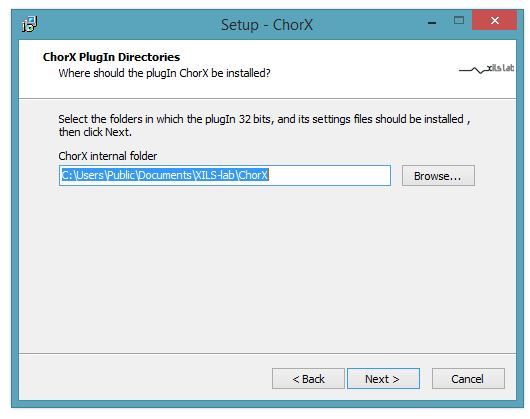
10. Select the folder in which to install the 32-bit version of your software to > click 'Next.

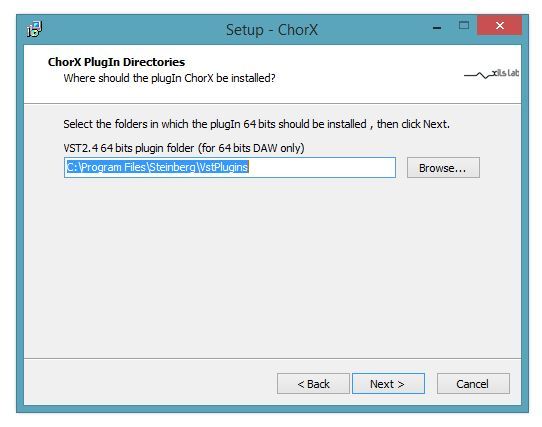
11. Select the folder in which to install the 64-bit version of your software to > click 'Next.

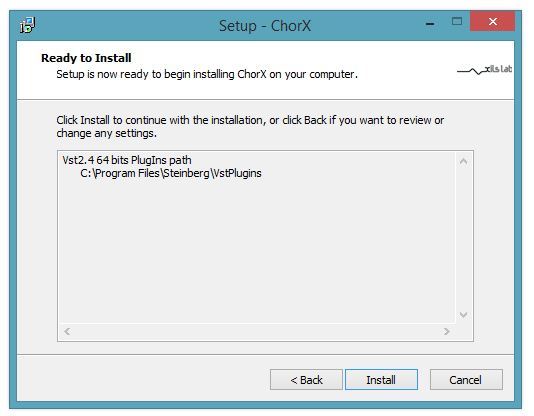
12. Review the installation and click 'Install.'

13. The installation of your software has successfully completed > click 'Finish.'

Activation

1. Open the iLok Licence Manager from your computer’s Start Menu (located at the bottom left corner of your desktop). Once the application is open, click ‘Sign In'.

2. Enter your User ID and password that you previously created on registration of your account > click ‘Sign In'.

3. Once you are signed in, click the ‘Redeem’ icon which is located at the top-right corner of the iLok Licence Manager’s interface.

4. Copy and paste/manually enter the 30-digit code from your online Xils Lab account into the available Activation Code boxes, and then click ‘Next'.

5. Select your computer as the activation location (or your iLok dongle) and then click ‘Activate'.


6. Confirm you are happy to activate your license > click ‘OK'.

7. Click 'OK'.

8. Your product is now activated on your computer. You can proceed and close the iLok Licence Manager.

Plugin Boutique Rewards

Discover the most rewarding loyalty programme among all plugin retailers.

  • Free Loopmasters Samplepacks
  • Discounts on products and courses
  • Extra Virtual Cash claimed immediately at checkout
Find out more

Follow us:

X (Twitter) Facebook YouTube Instagram
Logo Logo

Plugin Boutique Limited, Part of the Beatport Group LLC.

Copyright © 2011-2025 Plugin Boutique. All rights reserved