Buy TAL-J-8, get a free gift with purchase:
The TAL-J-8 is a very accurate emulation of the popular 80’s hardware synthesiser and calibrated after TAL's own Jupiter 8 device.
All sounds are generated in real-time without the use of any samples with the same endless modulation possibilities as the hardware as well as useful additional features like the calibration section that can make the filter scream.
Features
- Authentic emulation of the 80's hardware synthesizer.
- Use the calibration section for extreme resonance and filter overdrive.
- VCO-based UNISON with stereo spread option and a full stereo signal path.
- MPE support.
- Microtuning support (tun file import and MTS Client).
- More than 300 factory presets by solidtrax, emptyvessel, Electric Himalaya and others.
- Resizeable GUI
- MTS, MPE supported
- Supports MIDI Mapping
System Requirements
Mac
- Mac OS X 10.9 or higher (64-bit only)
- Universal Binary 2 with native Apple M1 support.
- VST, VST3, Audio Unit, AAX, CLAP
Windows
- Windows 7 or higher (64-bit only)
- VST, VST3, AAX, CLAP
Please Note: AAX Format requires Pro Tools 10.3.6 or higher.
Registration
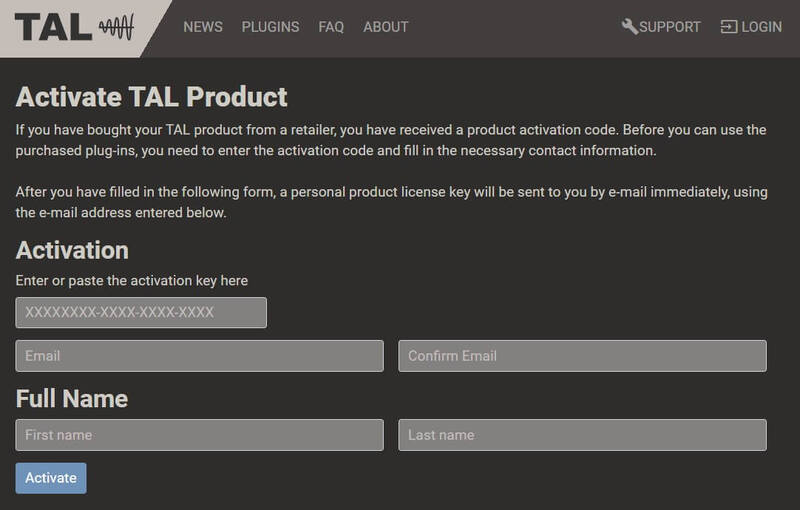
1. Click 'Download' in your Plugin Boutique account or go to https://tal-software.com/activate.
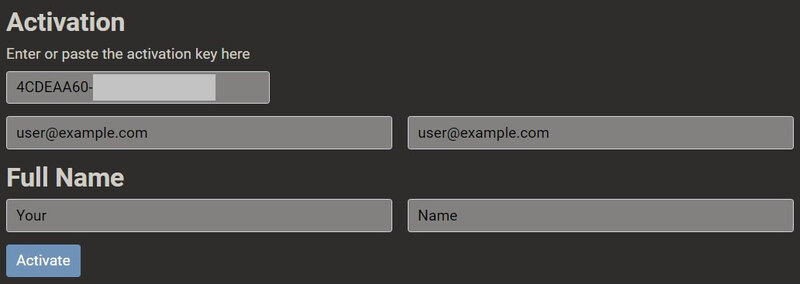
2. Enter the serial number/activation key and other details on the activation page > Click Activate.
3. Your activation code has now been registered.
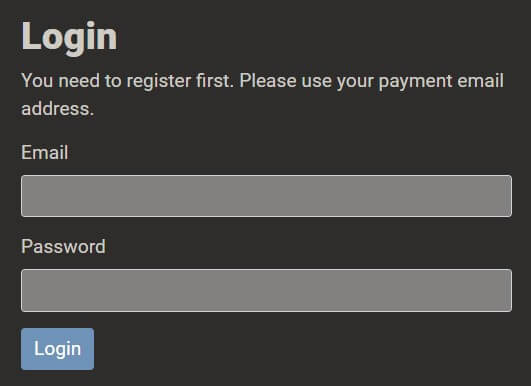
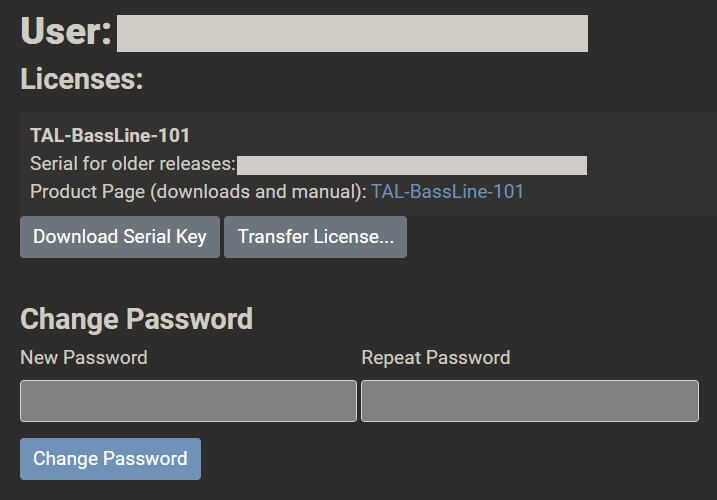
4. Copy the password that was sent to you via email > Go to https://tal-software.com/login.
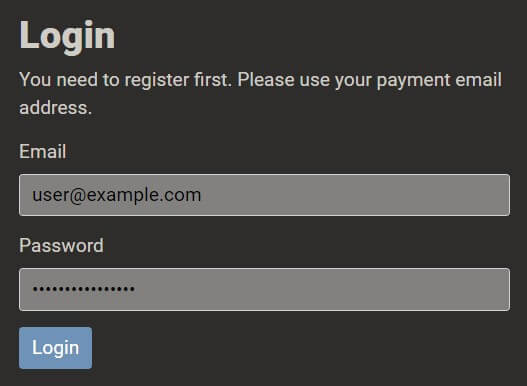
5. Enter your email address > Paste the password you were given > Click 'Login'.
6. Click 'Download Serial Key'. You can change your TAL account password here.
Windows Installation
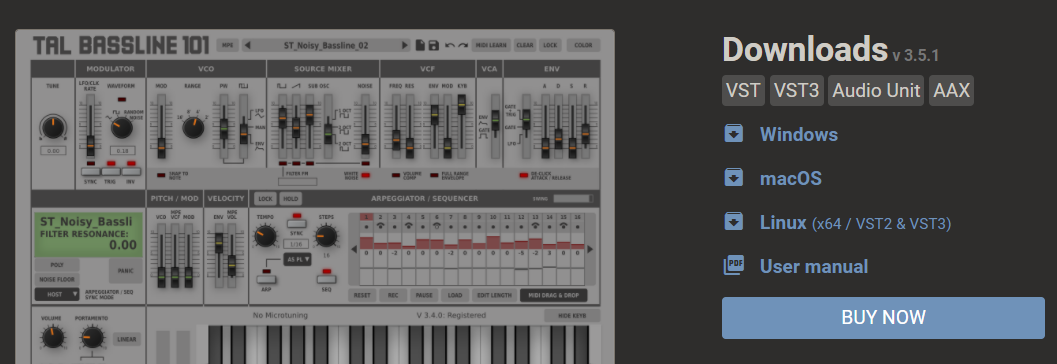
1. Click the blue hyperlink after 'Product Page (downloads and manual):' > Download the installer.
2. Open the zip folder you've just downloaded > Run the appropriate installer for your setup and if you're unable to use VST3/AAX in your DAW, please move the .dll file to your VST folder and rescan your plugins in your DAW/restart your computer.
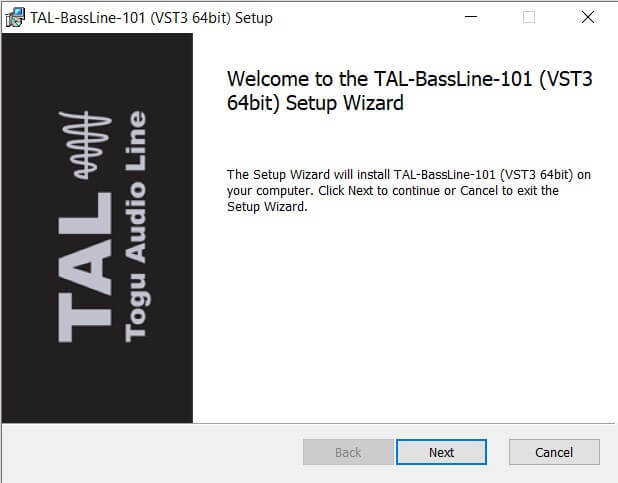
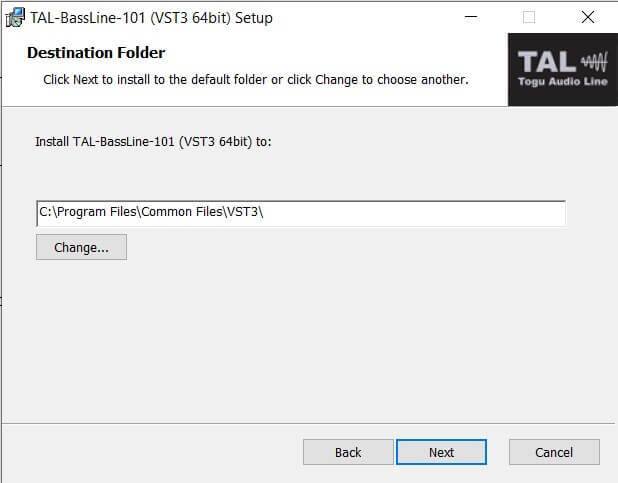
3. Click 'Next' to start the installation.
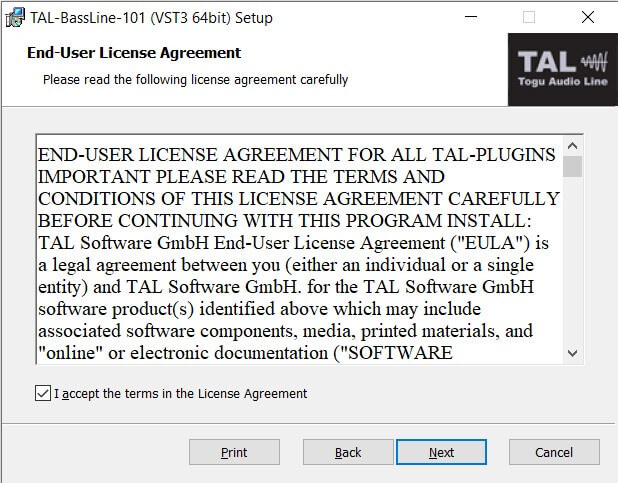
4. Read the End User License Agreement > Click 'Next'.
5. Click 'Next'.
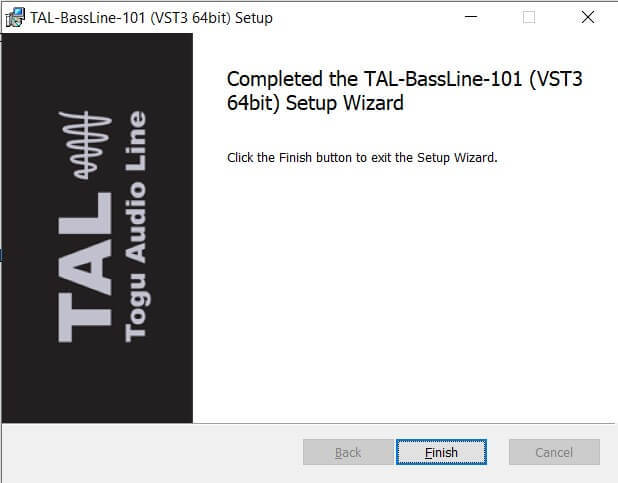
6. Click 'Finish' to complete the software installation.
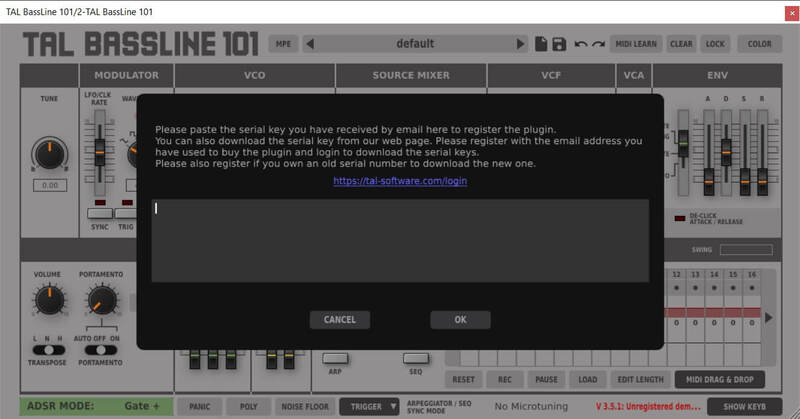
7. Your software is now installed > Open your DAW and load your new software > Copy and paste the serial key from the .txt file you downloaded earlier (available in the TAL User Area) > Click 'OK'.
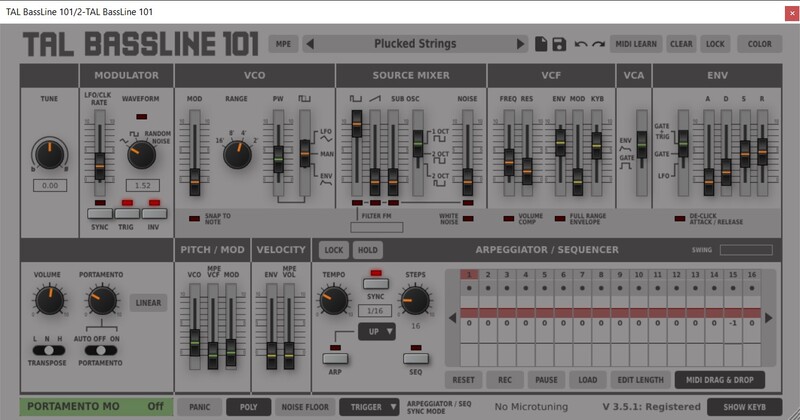
Your software is now activated and ready to use in your DAW.
macOS Installation
1. Click the blue hyperlink after 'Product Page (downloads and manual):' > Download the installer.
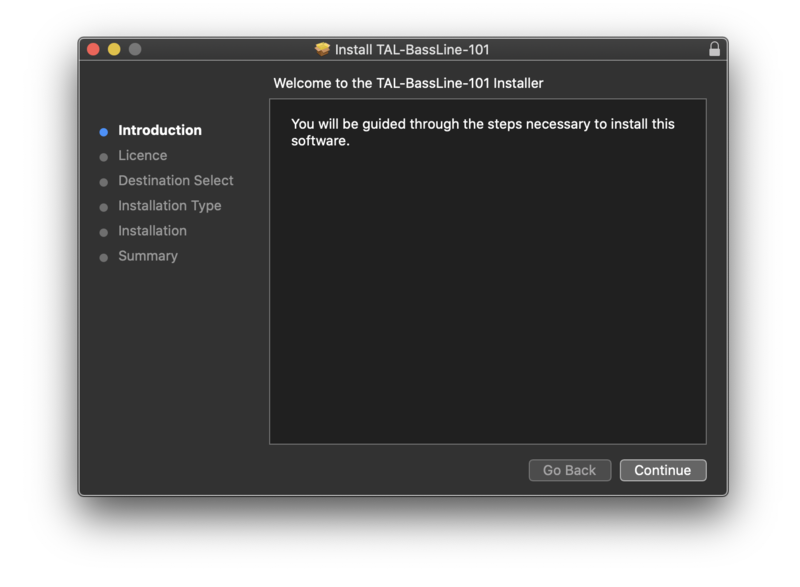
2. Open the .pkg folder you've just downloaded > Click 'Continue'.

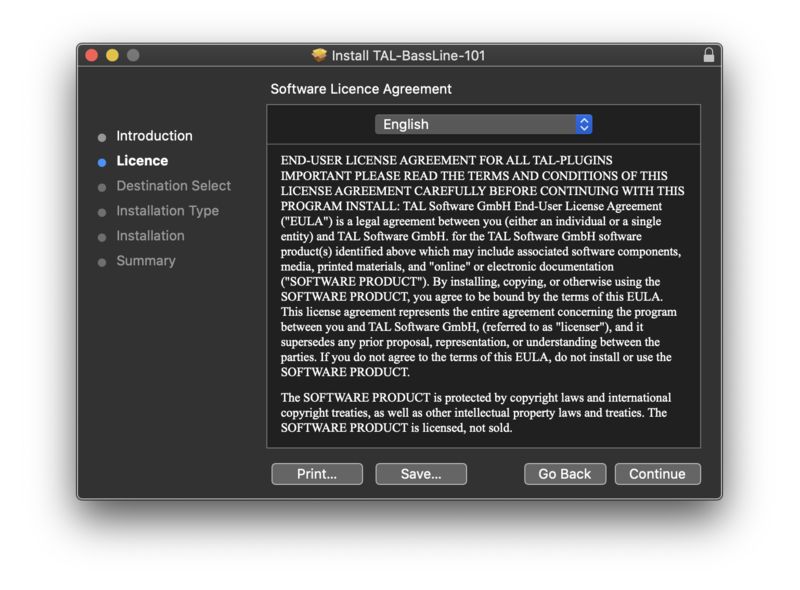
3. Click 'Continue'.

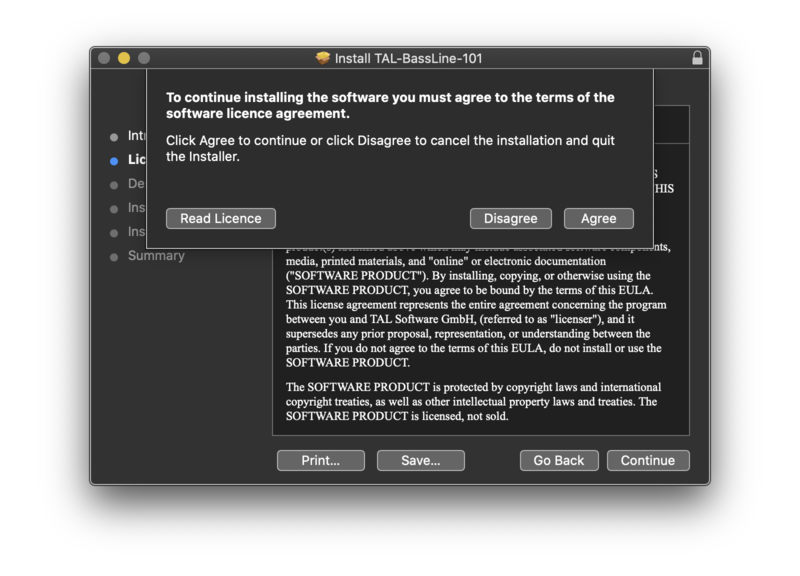
4. Click 'Agree'.

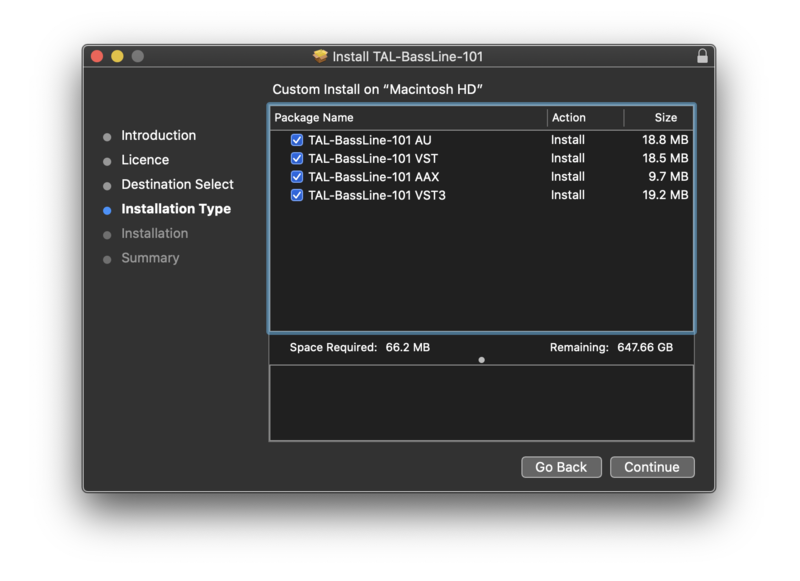
5. Click 'Continue'.

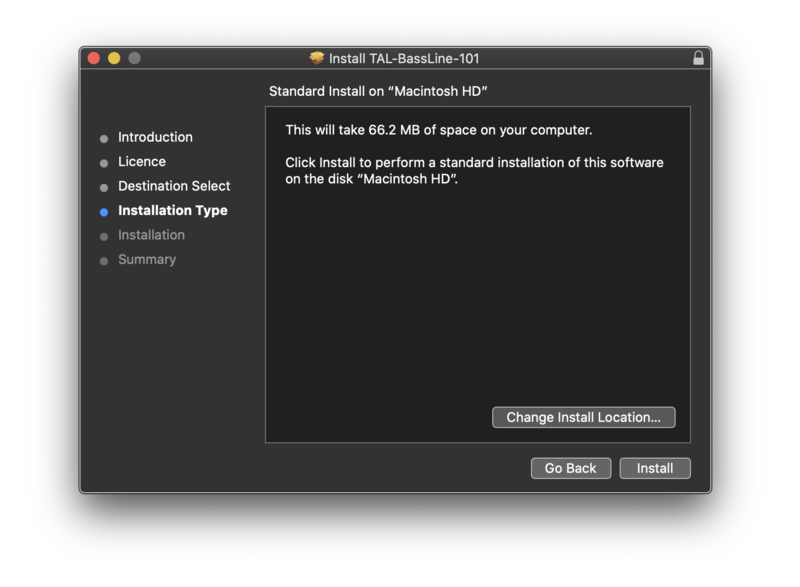
6. Click 'Install'.

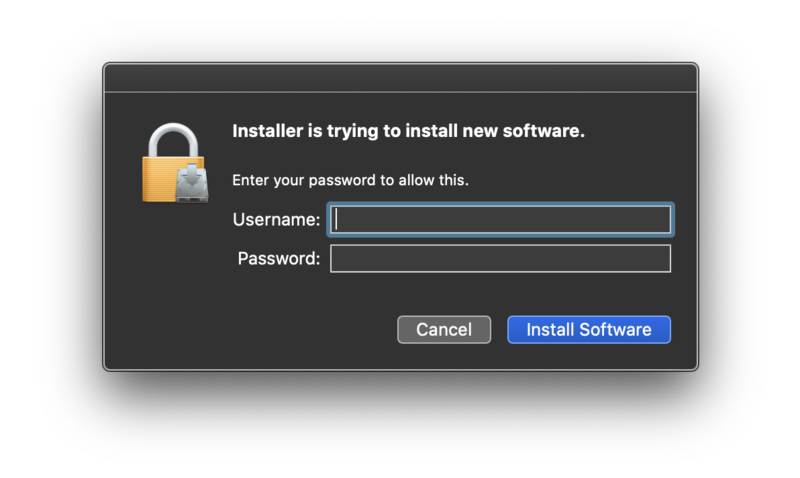
7. Enter your computer Username and Password > Click 'Install Software'.

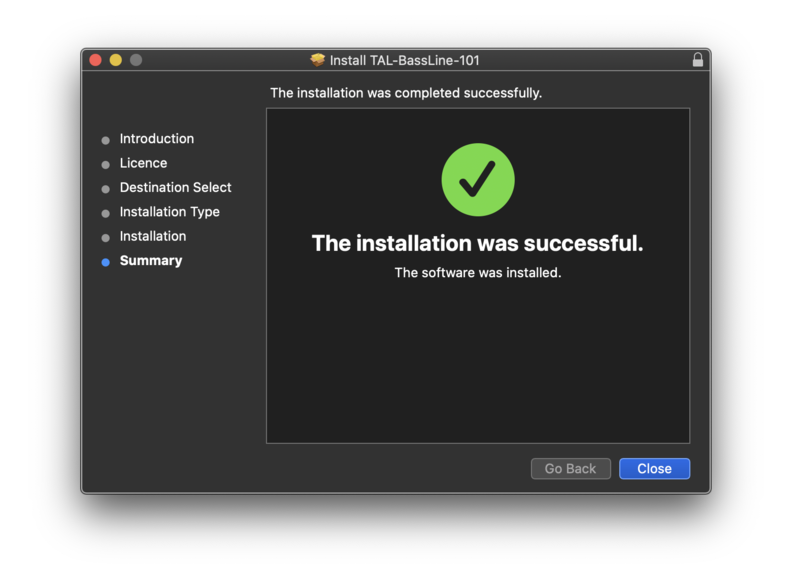
8. Click 'Close'.

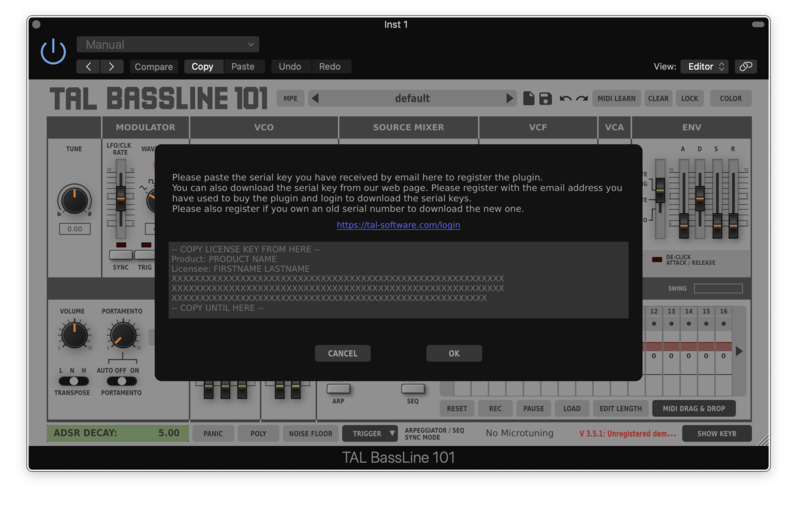
7. Your software is now installed > Open your DAW and load your new software > Copy and paste the serial key from the .txt file you downloaded earlier (available in the TAL User Area) > Click 'OK'.
Your software is now activated and ready to use in your DAW.