Buy Eternity, get a free gift with purchase:
Muze Eternity is a brand new recording of the classic and one of the most famous Steinway concert grand pianos Model D. The highest sound quality from ten microphones and a brand new grand piano design like no one has ever seen before. Recorded with fanatical attention to detail in a perfect dry studio using both modern and vintage microphones. Suitable for a wide range of music styles and purposes.
Interface
Fully customizable, discover the instrument and make it yours, thanks to the easy-to-use UI and to the wide variety of settings.
Features
- 7.74 GB (Lossless compression) library size
- 11288 Steinway D samples
- 12 velocity layers
- 10 Mic Positions
- 50 Hybrid Sources: Textures and Pads
- 14 Built-in Effects: Compressor, Delays, Reverb, Limiter, Cabinet, Gainer, Rotator, Stereo Panner, Chorus, Phaser, Flanger, 3 and 5-Band EQ & more
- Powerful Layering Engine with XY Pad Modulation
- Sampled with Analog & Digital equipment.
System Requirements
Mac
- Kontakt Retail Version: v.5.8 or newer
- Minimum – 8GB RAM / Mac OS X 10.7 or later / 7200 RPM or faster HDD.
- Recommended – 16GB RAM or more / Mac OS X 10.7 or later / SSD (Solid State Drive).
PC
- Kontakt Retail Version: v.5.8 or newer
- Minimum – 8GB RAM / Windows 7 or later / Sound card with ASIO drivers / 7200 RPM or faster HDD.
- Recommended – 16GB RAM / Windows 7 or later / Sound card with ASIO drivers / SSD (Solid State Drive).
Please Note: This product requires the FULL version of Kontakt and is NOT compatible with the free Kontakt Player.

![]()
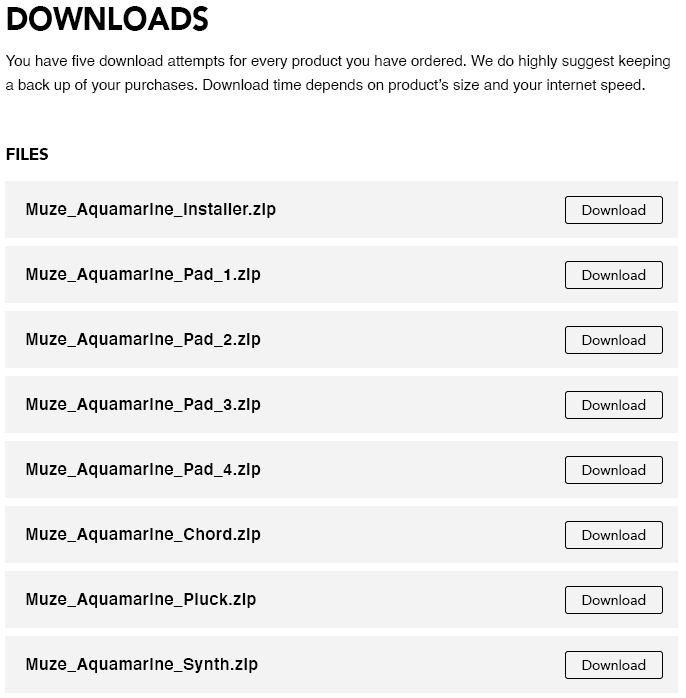
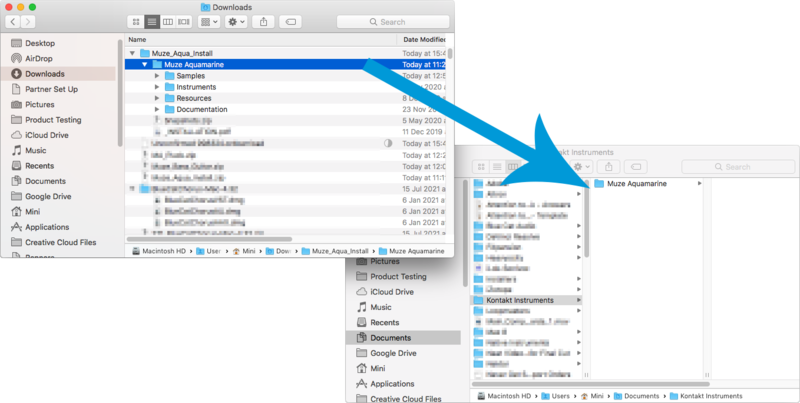
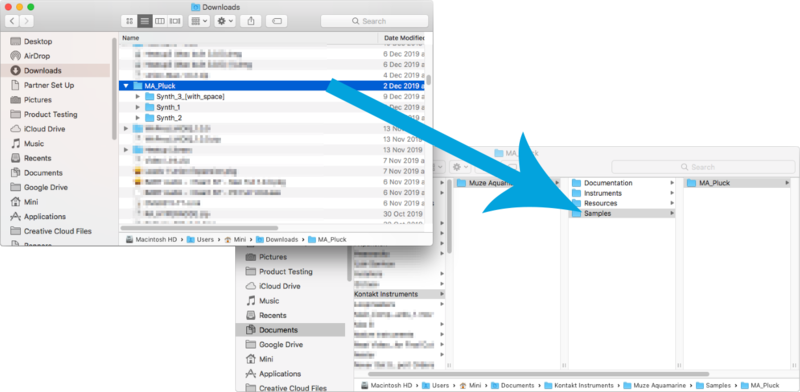
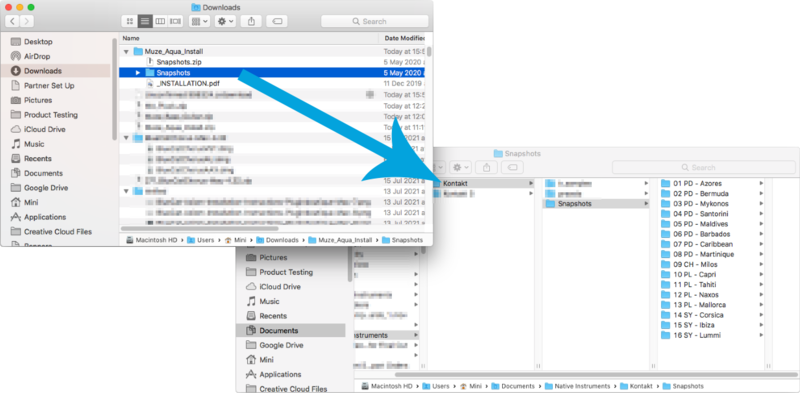
Please Note: Muze - Aquamarine is used as an example.
Important Note: This software requires the Full Version of Native Instruments Kontakt to be installed on your system.
Mac Installation
1. Click the blue 'Download' within your Plugin Boutique User Account > Click 'Download' on all of the folders from the Muze download page.
2. Once the downloads are complete, unzip all of the folders.
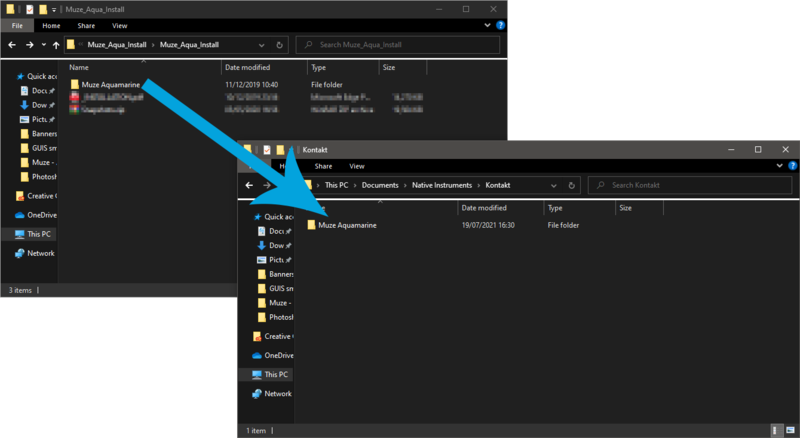
3. Move the 'Muze Aquamarine' folder (located within 'Muze_Aqua_Install') to where you store your Kontakt Instrument files.
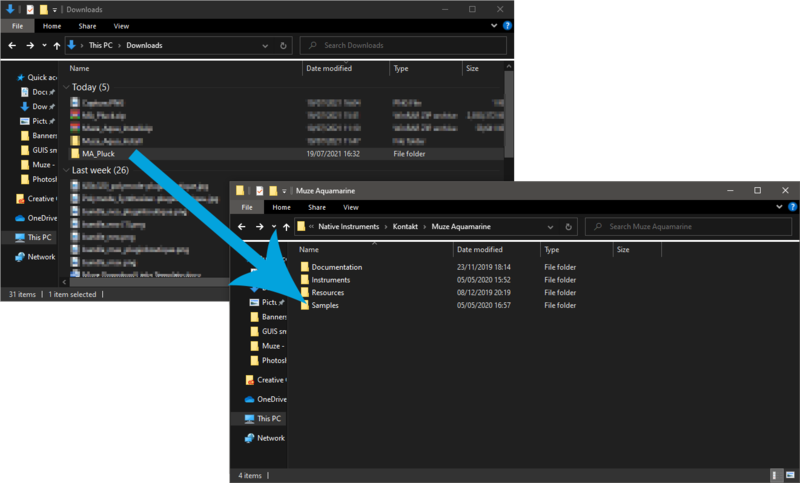
4. Move the unzipped instrument folders (located within all 'MA_xxxx' folders) to 'Muze Aquamarine/Samples'.
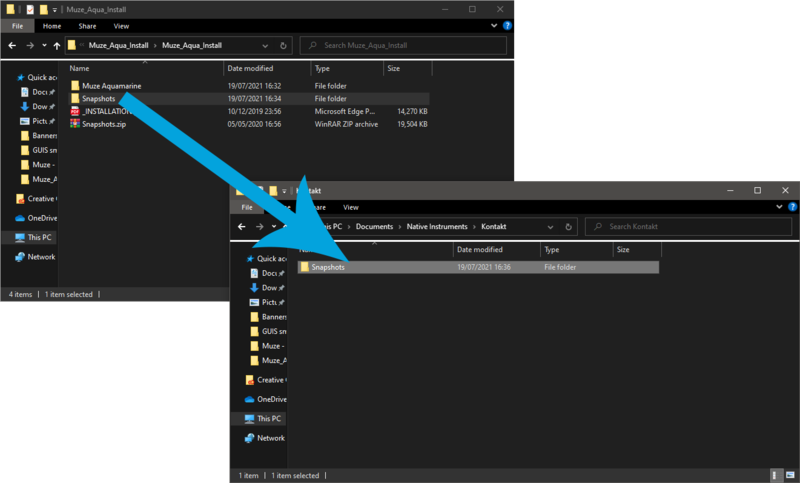
5. Unzip the 'Snapshots.zip' (located within 'Muze_Aqua_Install') file and move to, 'Users/*your username*/Documents/Native Instruments/Kontakt/'.
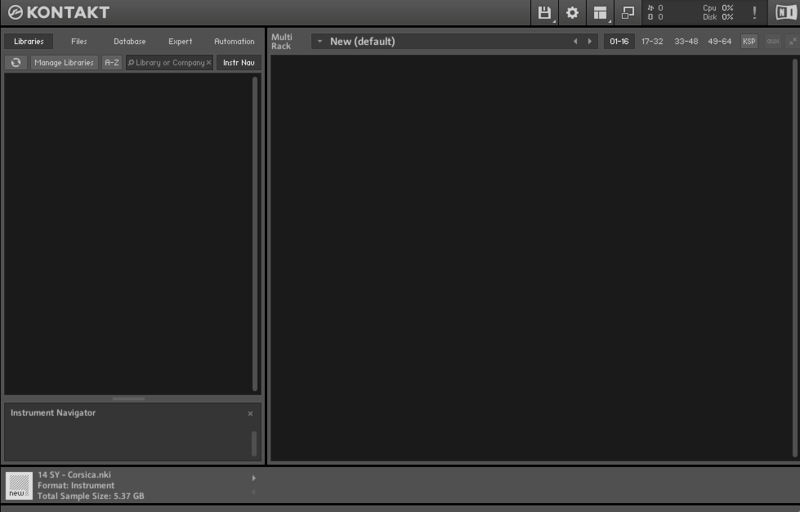
6. Open Kontakt, either as a standalone application or as a plugin within your DAW.
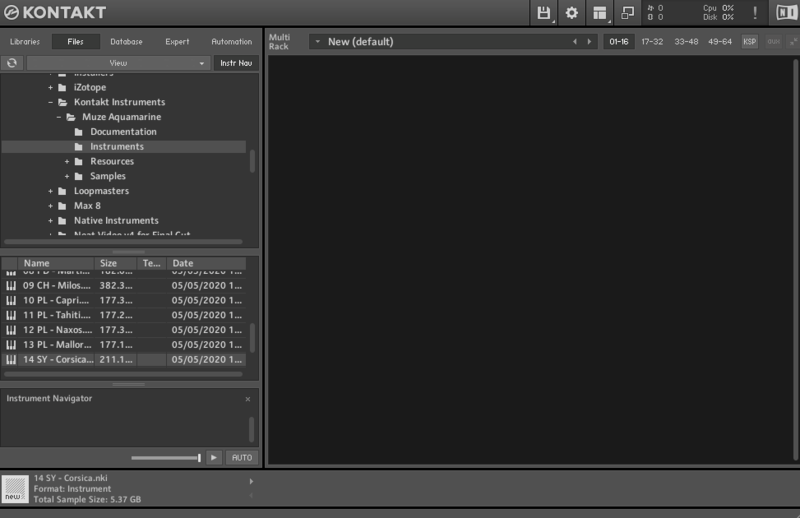
7. Click the 'Files' tab at the top of Kontakt > Navigate to the location of 'Muze Aquamarine' folder from step 2 of the installation instructions > Click 'Muze Aquamarine', followed by 'Instruments'.
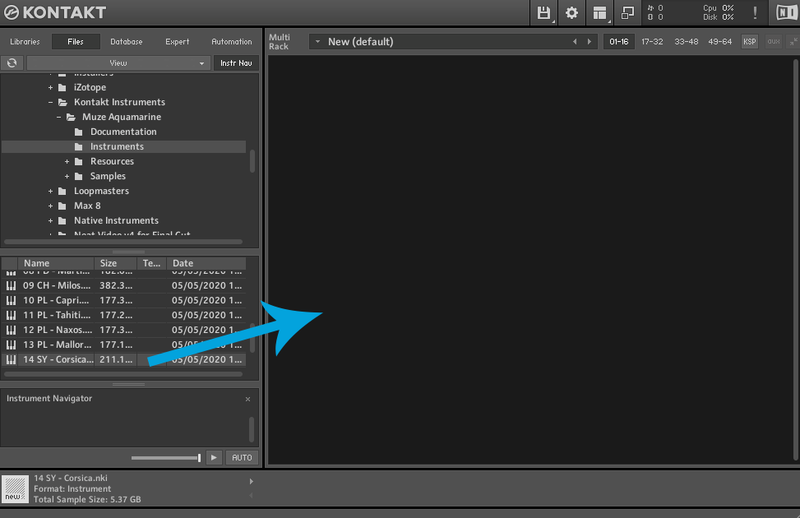
8. Click and drag any .nki file from the left-hand window of Kontakt into the main window of Kontakt to load up a patch.

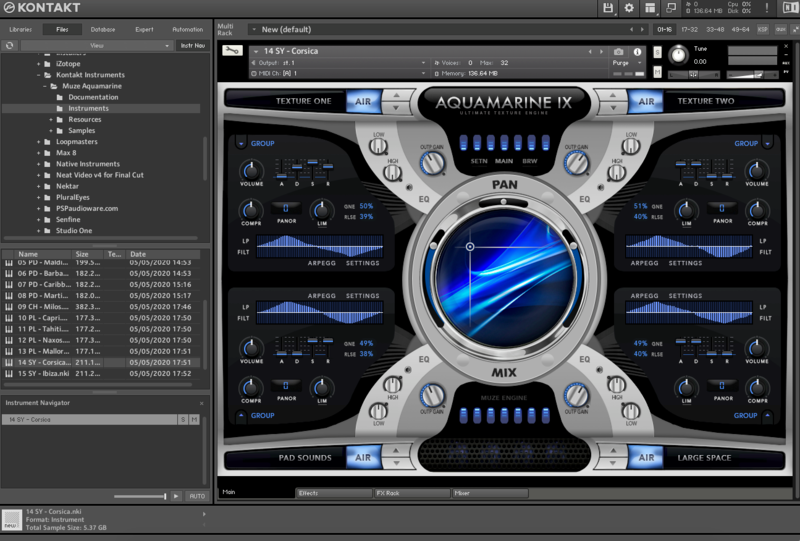
Your software is now installed and ready to use.

Windows Installation
1. Click the blue 'Download' within your Plugin Boutique User Account > Click 'Download' on all of the folders from the Muze download page.
2. Once the downloads are complete, unzip all of the folders.
3. Move the 'Muze Aquamarine' folder (located within 'Muze_Aqua_Install') to where you store your Kontakt Instrument files.
4. Move the unzipped instrument folders (located within all 'MA_xxxx' folders) to 'Muze Aquamarine/Samples'.
5. Unzip the 'Snapshots.zip' (located within 'Muze_Aqua_Install') file and move to, 'C:\Users\*your username*\Documents\Native Instruments\Kontakt'.
6. Open Kontakt, either as a standalone application or as a plugin within your DAW.
7. Click the 'Files' tab at the top of Kontakt > Navigate to the location of 'Muze Aquamarine' folder from step 2 of the installation instructions > Click 'Muze Aquamarine', followed by 'Instruments'.
8. Click and drag any .nki file from the left-hand window of Kontakt into the main window of Kontakt to load up a patch.
Your software is now installed and ready to use.