Log In

Free gifts available with your purchase
Expanded range for the Horn

What is the Descant Horn?
The Descant Horn and French Horn have a similar structure. The Descant Horn does not have the low F side of a regular horn, but it does have the high F side. Specifically, the tubes are only 6 feet long rather than 12 feet long as on a standard French horn. So, the harmonic series is offset by an octave above the normal F2 on a standard horn.
What is the range difference between the Descant Horn and French Horn?
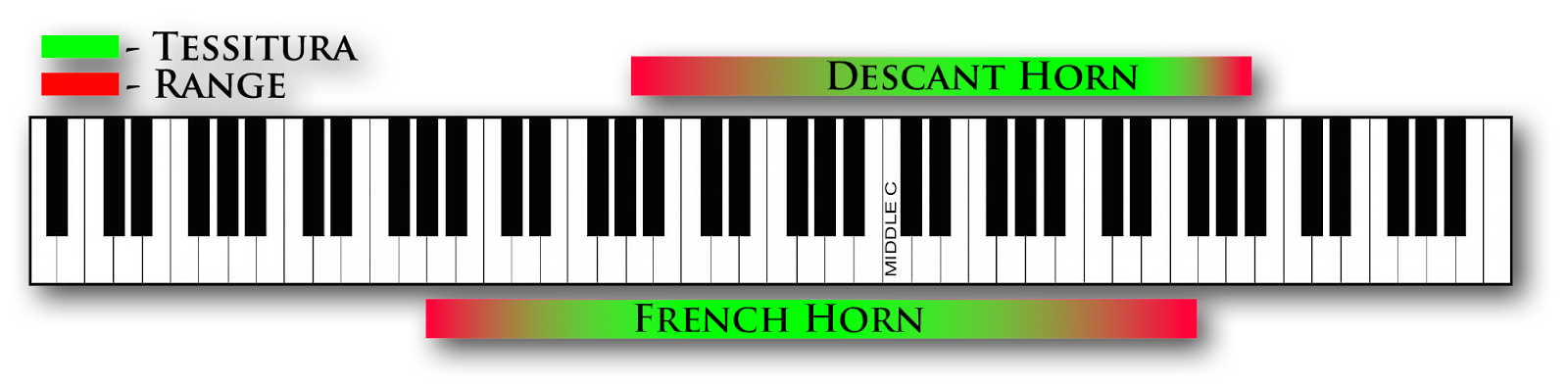
The ranges of the horns are basically the same, although you can extend the Descant Horn to an A or Ab rather than stopping at an F on a regular horn. So, although the Descant Horn doesn't necessarily go higher, the timbre of the higher register is offset by an octave allowing more agility in the upper register.
(Extreme ranges can differ depending on player and instrument)
What is unique about this Descant Horn?
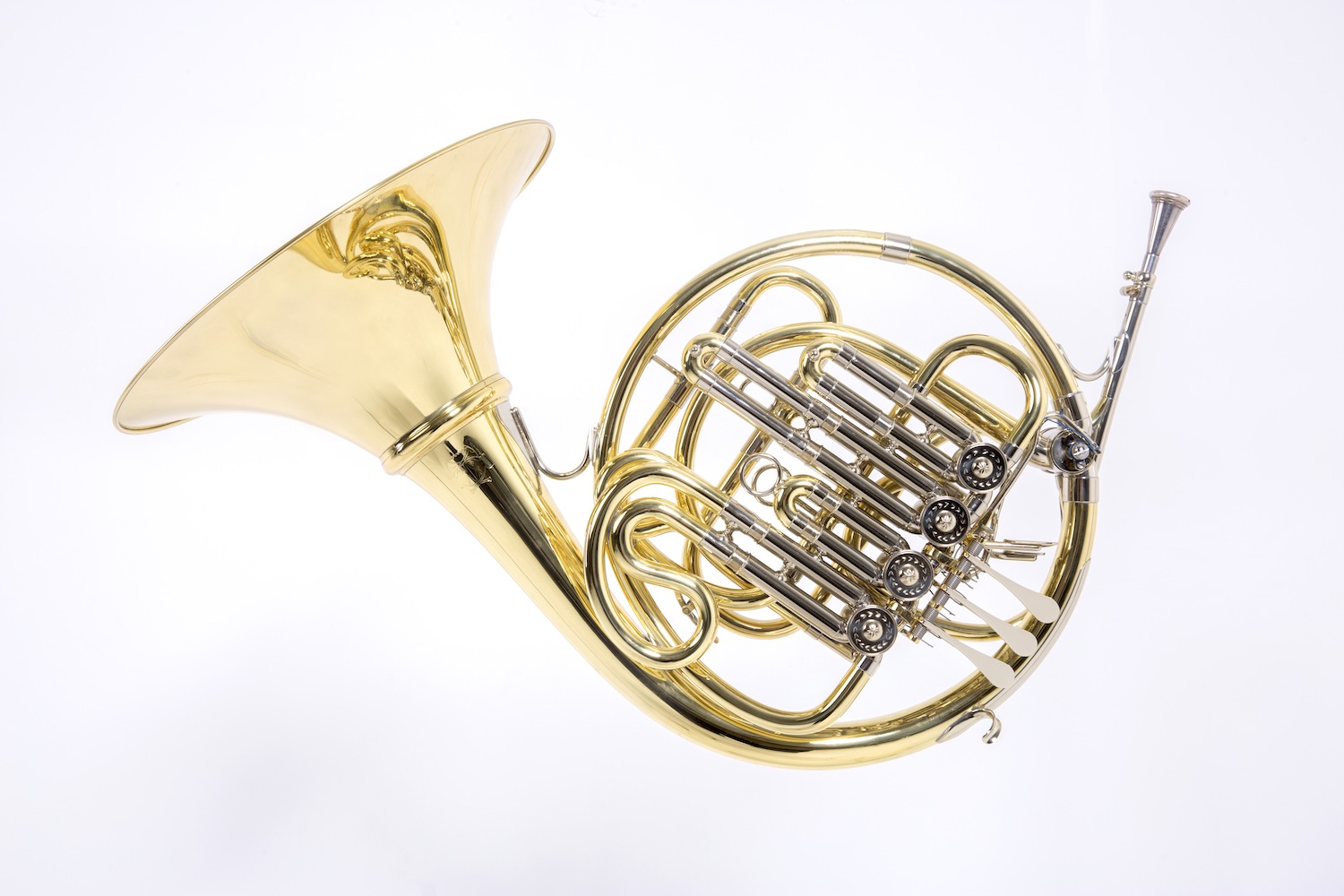
The horn Cinesamples sampled is a dual-bore Bb/High F. Therefore, moving between the bore for the Bb side to the high F is sonically seamless. The difference in size between the Descant Horn we sampled and other single bore Descant Horns is substantial, accounting for the double bore. It also allows the performer increased agility while switching between the sides.
For this reason, a single-bore Descant Horn doesn't sound as good as a double-bore from about middle C down. Even middle C to a high C above middle C would sound more shallow and it wouldn’t have the rich royal sound of the dual-bore Descant Horn.
How does the Descant Horn sound compared to a French Horn?
The upper register is more strident on a regular horn, whereas the upper register sounds easier and lighter on the Descant Horn. An analogy would be the comparison between a regular trumpet vs. a piccolo trumpet. Since the two instruments have basically the same range, the biggest difference is in the upper register. The piccolo trumpet has a less strident sound than a traditional trumpet.
Also, the Descant Horn is not going to be quite as deep - it's a little more shallow and delicate compared to the Low F of a French horn. But ideally, you wouldn't use a Descant Horn for its lower register since that’s not its sweet spot.
What is the advantage of the Descant Horn for the player?
When a passage is too high and required to be soft and delicate, the player can switch to the Descant Horn in order to reach those pitches more easily without having to pound so hard. From a player’s perspective, it makes upper register passages much easier to play and much more accurate.
What is the advantage of the Descant Horn for the composer?
Composers can achieve a greater amount of delicacy and accuracy in the upper register of the Descant Horn. Of course, if a composer is looking for a super powerful high register sound, that would be better suited for a regular French horn. But for delicate solos, especially over strings and woodwinds, using the descant horn is very useful.
The Patches
- 01 Horn Solo Descant Articulations
- Sustains (2x RR) and Legato (mp through f ), Short Staccato (3x RR), Staccato (3x RR)
- 02 Horn Solo Descant Legato
- Sustains (2x RR) and Legato (mp through f )
- 02a Horn Solo Descant Legato (F).nki
- Sustains (2x RR) and Legato (f )
- 02b Horn Solo Descant Legato (MP).nki
- Sustains (2x RR) and Legato (mp)
- 03 Horn Solo Descant Staccato.nki
- Staccato (3x RR)
- 04 Horn Solo Descant Short Staccato.nki
- Short Staccato (3x RR)
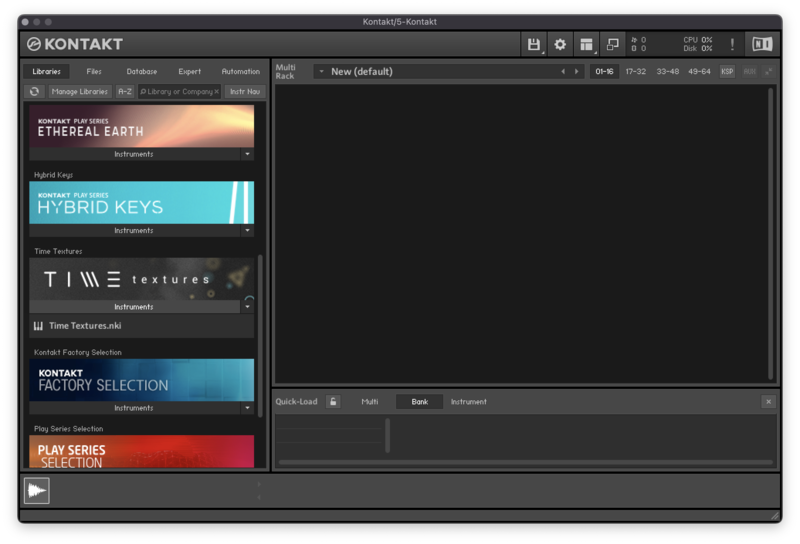
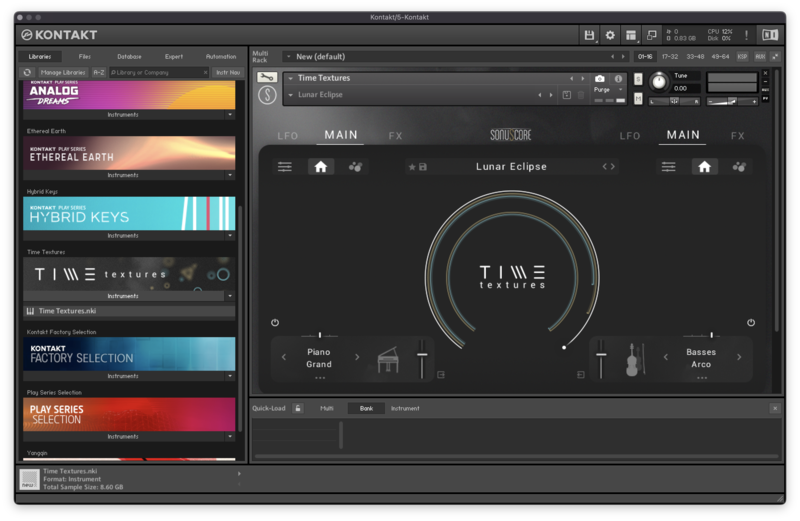
Compatible with the Free Kontakt Player
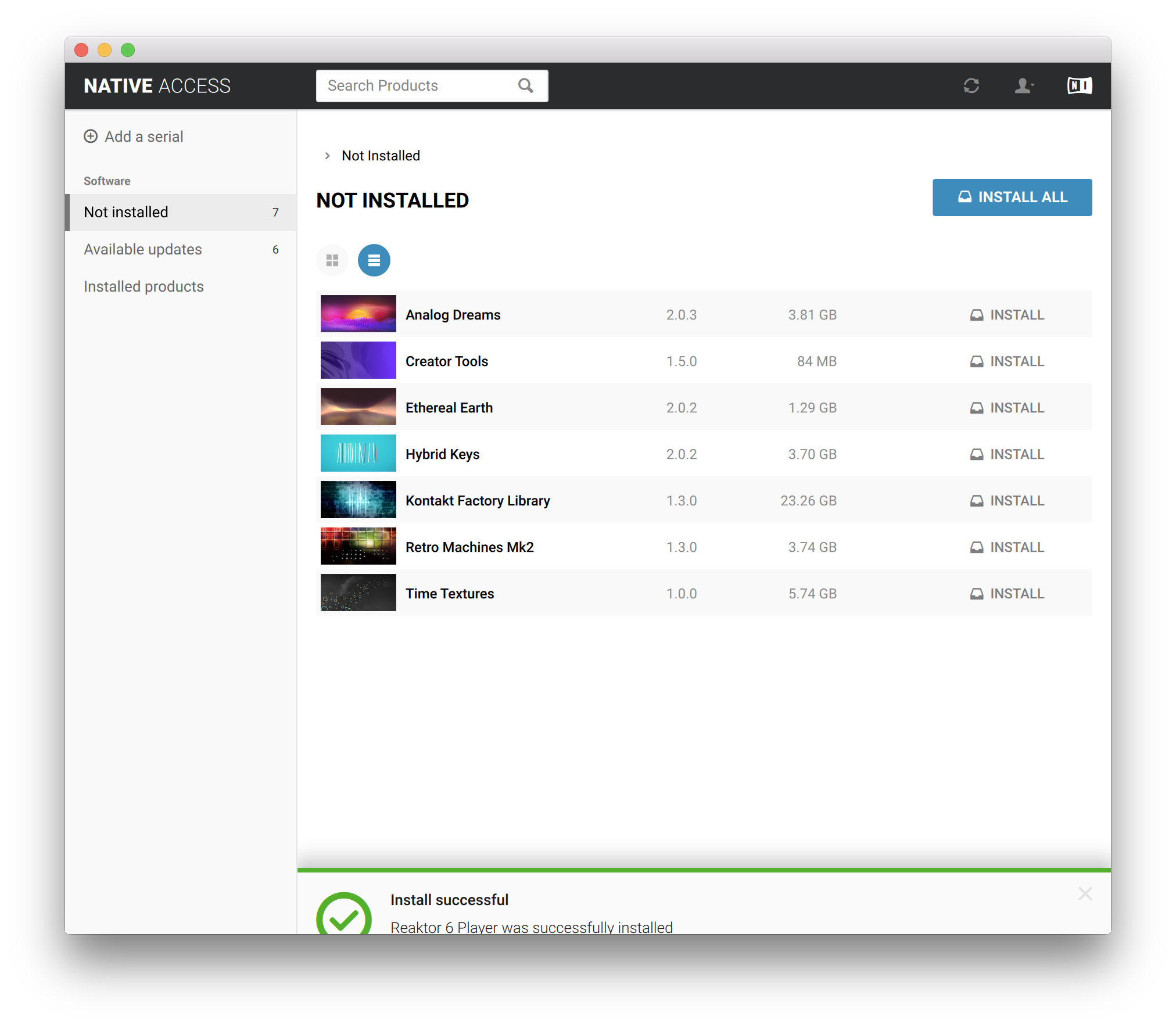
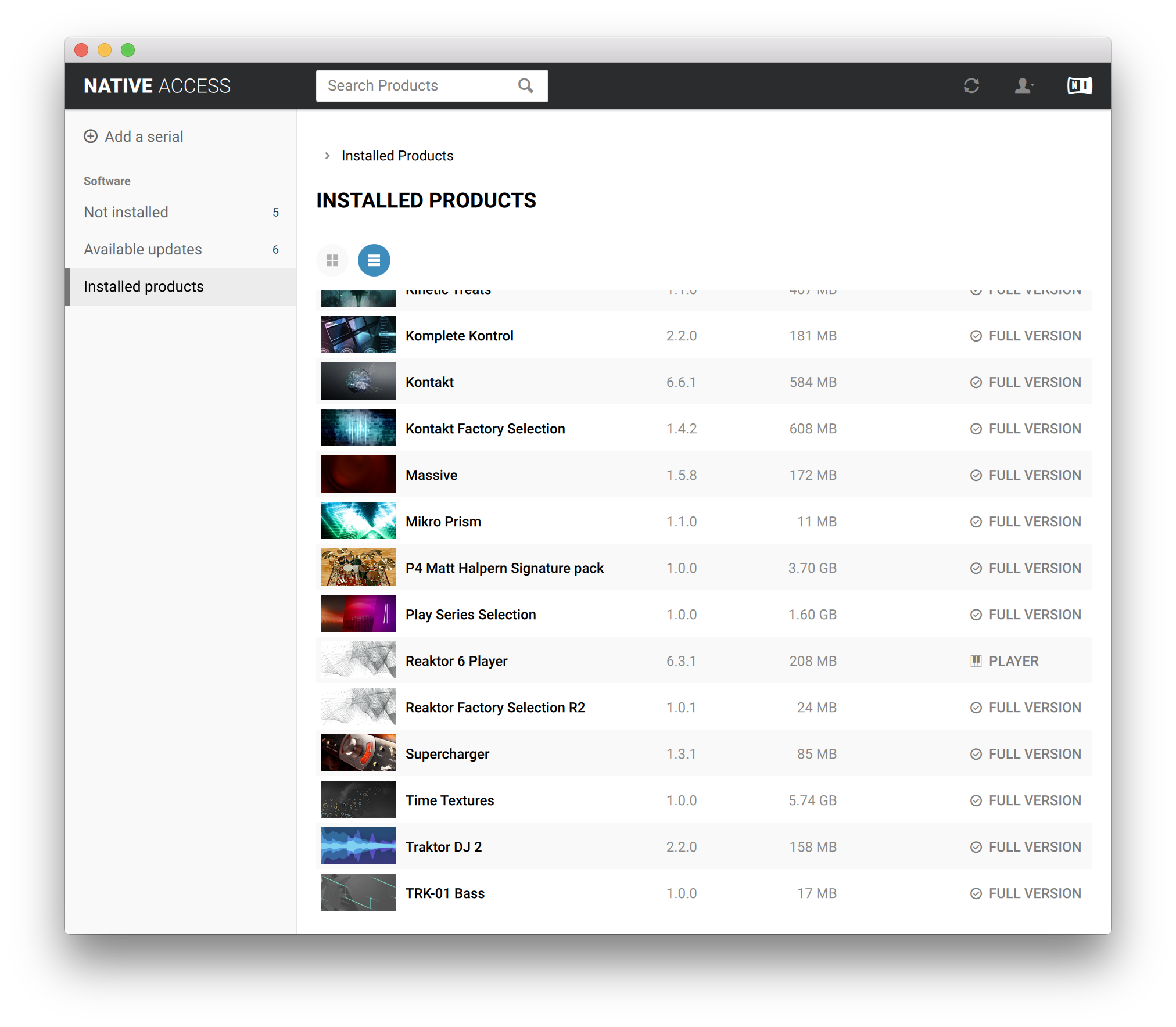
CineBrass Descant Horn does not require you to purchase any additional sample playback software, and is licensed to work with Native Instrument’s free Kontakt Player.
System Requirements
- All versions of Kontakt v5.5.0 and above
- Native 64-bit support for stand-alone and plug-in versions on both Mac & PC
- Compatible with all major DAWs and with music notation software, using the Kontakt Engine
- PC: Vista® / Windows 7® (32/64 Bit), Intel®Core Duo 2GHZ or AMD Athlon 64, 4 GB RAM
- Mac: OS X 10.8 or higher, Intel® Core Duo 2 GHz, 4 GB RAM
- To load the main articulations patch with the full mix position it is recommended to have at least 350 MB of FREE RAM available.
- Minimum of 5.1 GB of free Hard drive Space (11 GB required during installation)
This instrument requires the FREE or FULL version of Kontakt 5.5.0+