Buy Cattaneo Electric Piano, get a free gift with purchase:
CATTANEO Electric Piano is an authentic dreamlike experience. Sampled directly from Cattaneo’s custom-modified and “augmented” Classic Electric Piano-type piano, it is nothing like any other electric piano you may have heard. With its HUMAN layer and press/release noises of the sustain pedal responding to your midi pedal, you’ll feel like you were playing the real instrument. Additionally you can engage 2 sound design layers to add swells, granular polyphony and an extra color layer, created by sampling tuned crystal glasses. Use them combined or solo to achieve unique, surprising results.
Engage the cassette tape noises and wobble FX to enter a lo-fi world, add rhythm and movement with the arpeggiator, top-class reverb algorithms, delay, and 3 built-in pedal FX with 6 different FX types to choose. All you need to create beautiful piano music and beyond.
Features
- 647 samples (NCW format)
5 mixable channels:
- PIANO: main sound
- HUMAN: it captures the sound of the hands while hitting the keys
- SWELL: sound designed swells
- GRAINS: granular sound design layer
- COLOR: tuned crystal glasses
FX and controls:
- ATTACK: customize the attack to your taste
- REVERB: choose between 6 top-class algorithms
- DELAY chose your delay type (Normal/Ping-Pong), time subdivision menu and level.
- SUSTAIN PEDAL Volume: if you engage it, it reacts to your midi sustain pedal sounding like a real one.
- TAPE SECTION: turn your electric piano into a lo-fi gem
- Tape Noises: choose between 6 samples cassette tape hiss types
- Wobble: add wobbling to get those typical, random detuning effects
- ARPEGGIATOR
- 3 FX PEDALS with 6 FX types each to choose between Eq, Compression, Saturation, Chorus, Phaser and Leslie
System Requirements
- Requires Kontakt Full Version 6.6.1+ (not compatible with the free Kontakt Player)
- Size (Uncompressed): 2,23 GB
Note: Nordisk Kontrabass is used as the example.
Mac
Installation
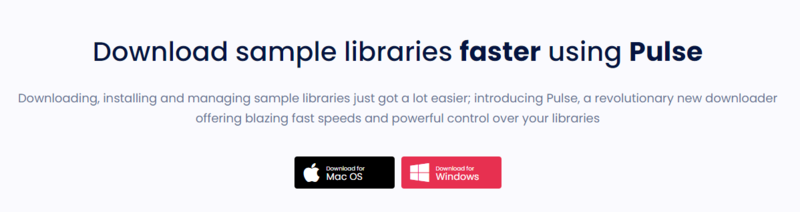
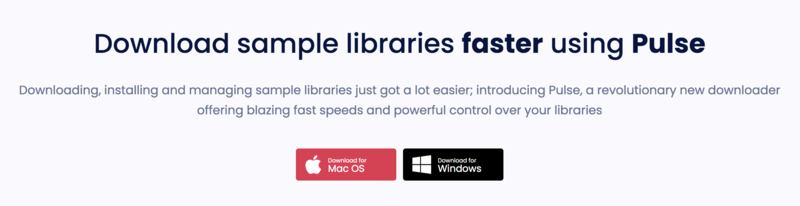
1. Go to https://pulsedownloader.com/ > Click 'Download for Mac OS' to download the Pulse application installer.

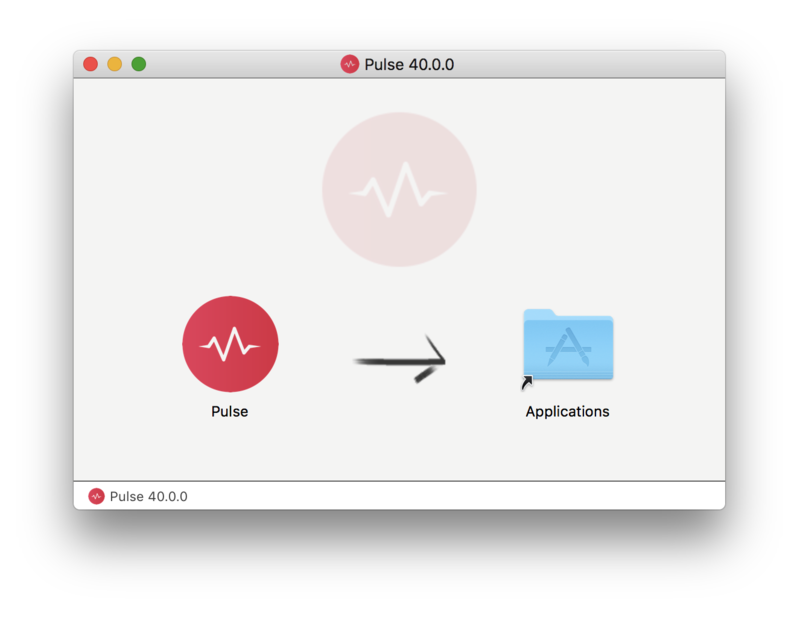
2. Open the .dmg file > Click and drag the application icon into the applications folder.

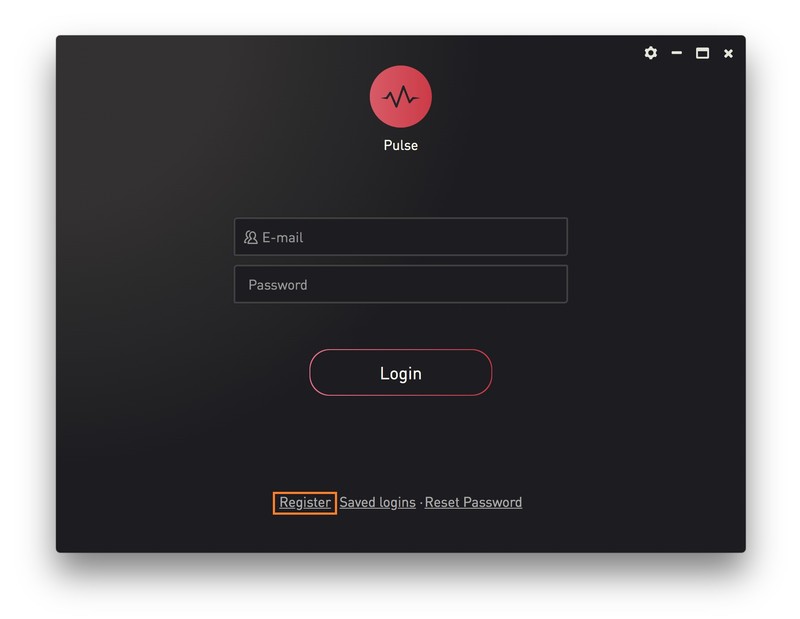
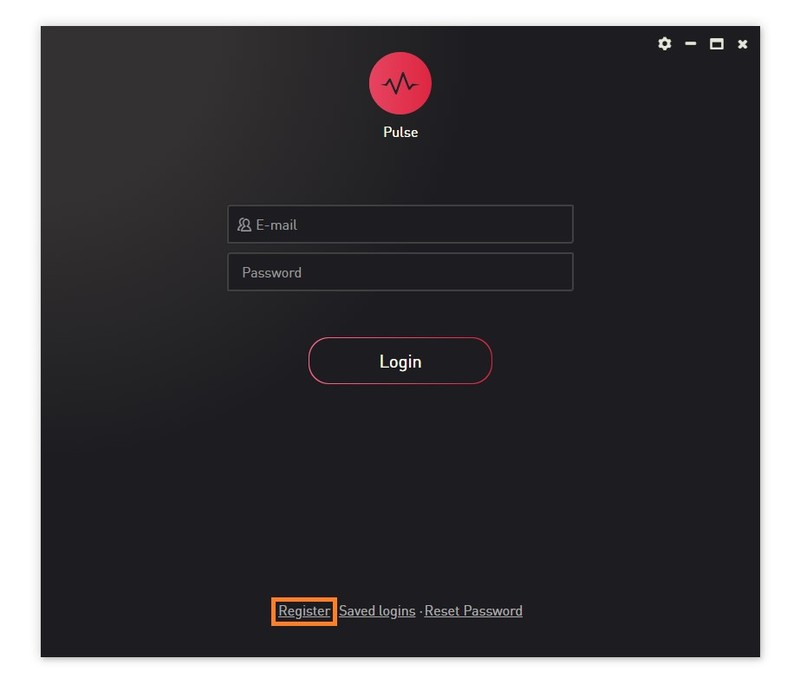
3. Open the Pulse application > Click 'Register'

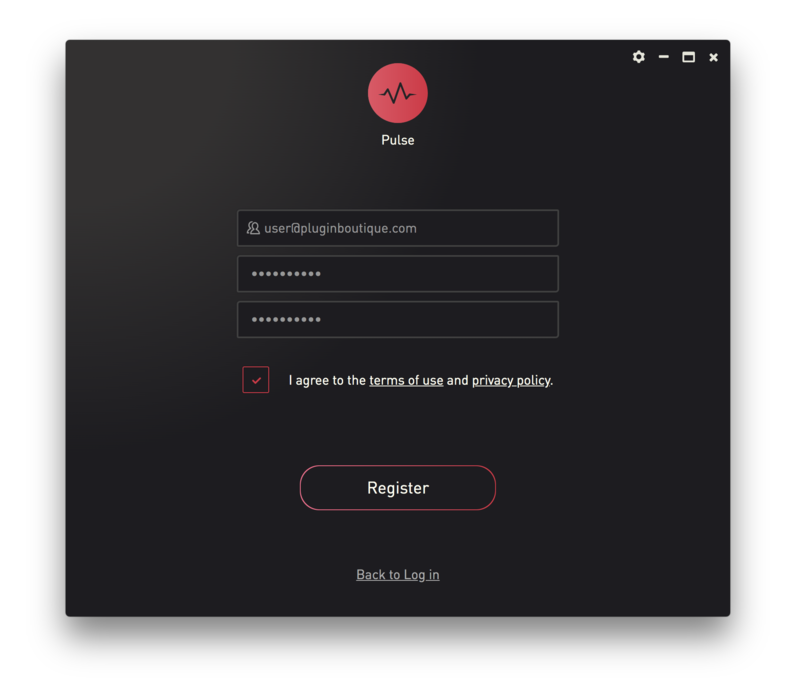
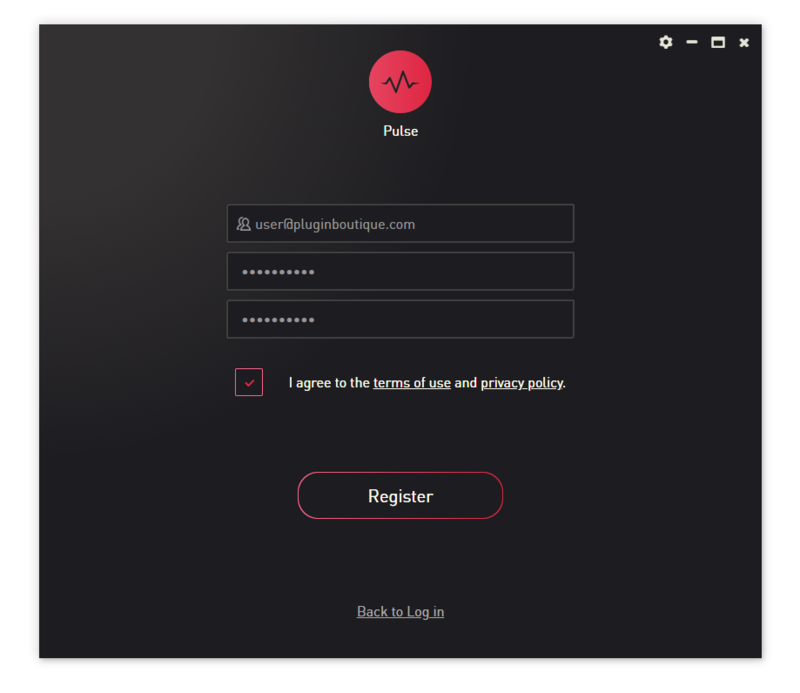
4. Enter your Email Address and Password > Check the box that states 'I agree to the terms of use and privacy policy' > Click 'Register'.

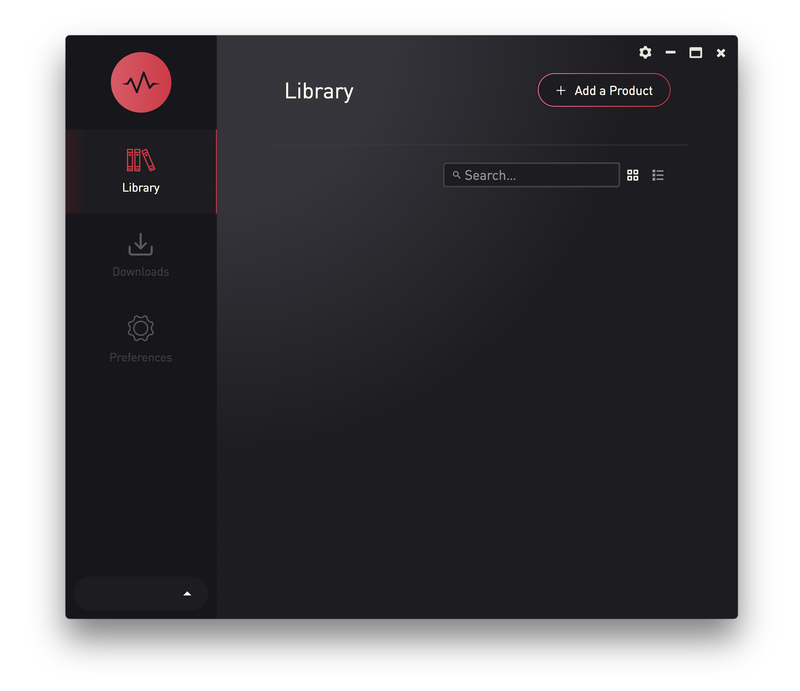
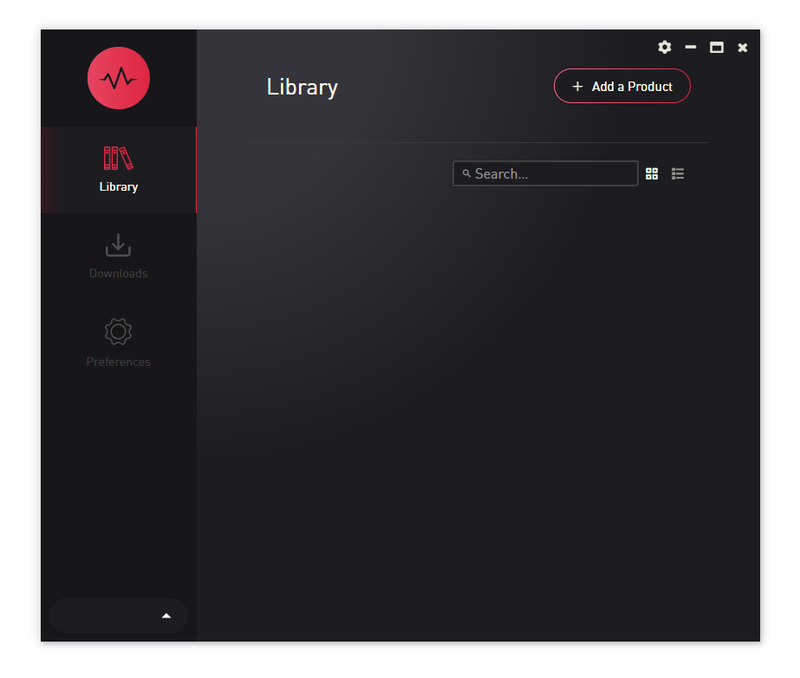
5. Click 'Add a Product'.

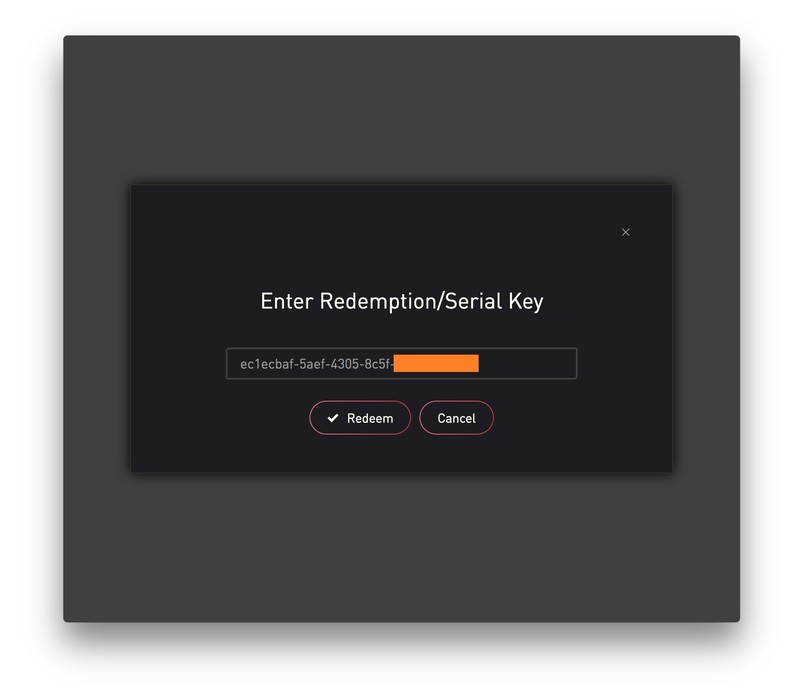
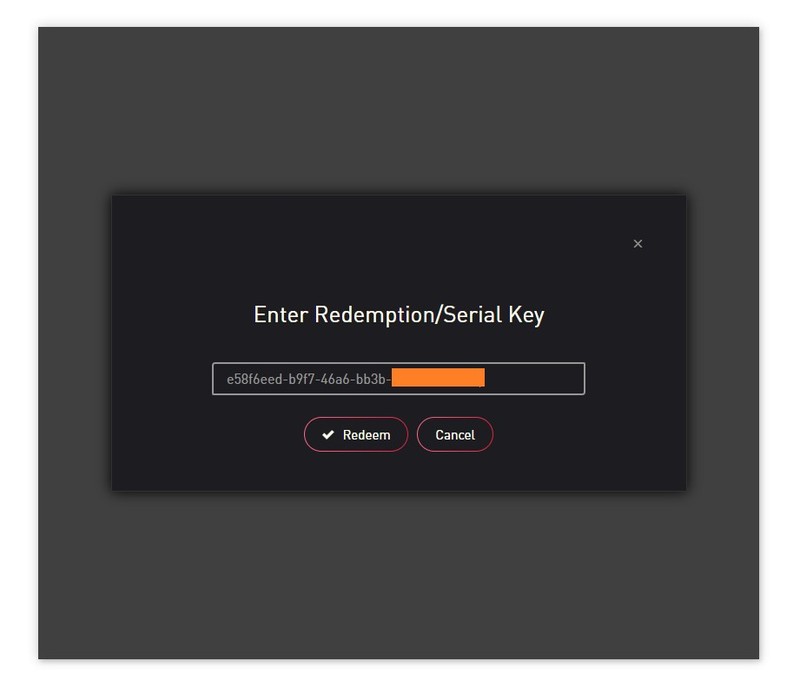
6. Enter your 32-digit serial key, found within the serial number section of your Plugin Boutique User Account > Click 'Redeem'.

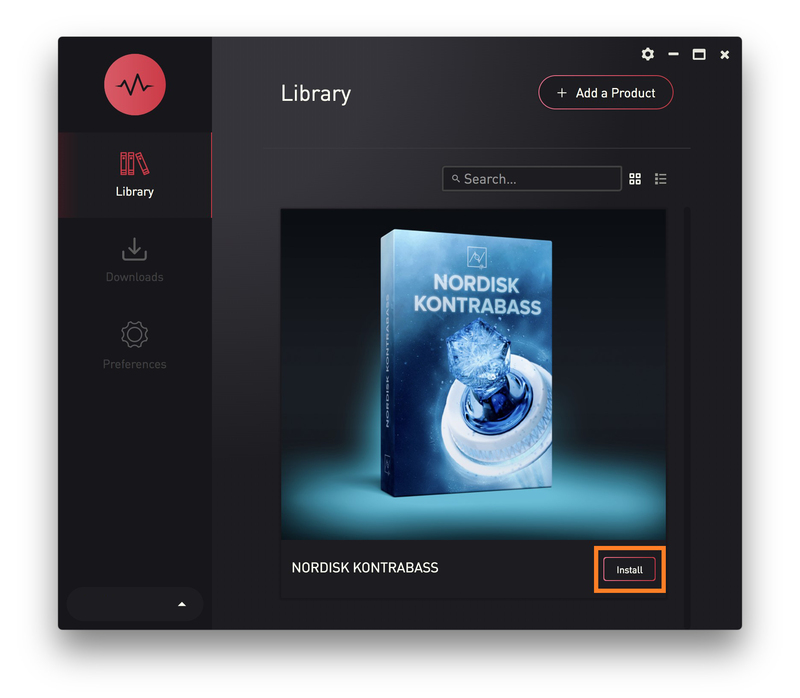
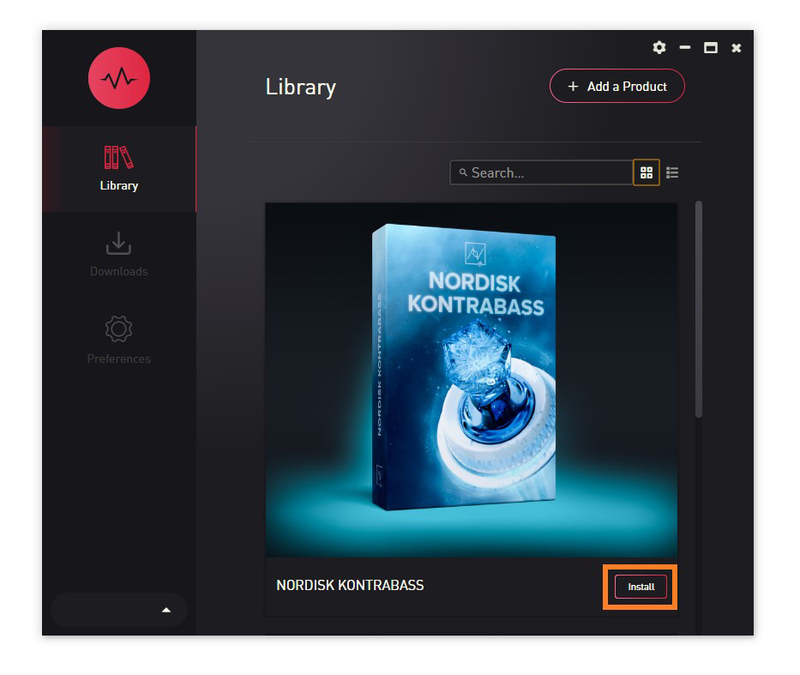
7. Click 'Install'.

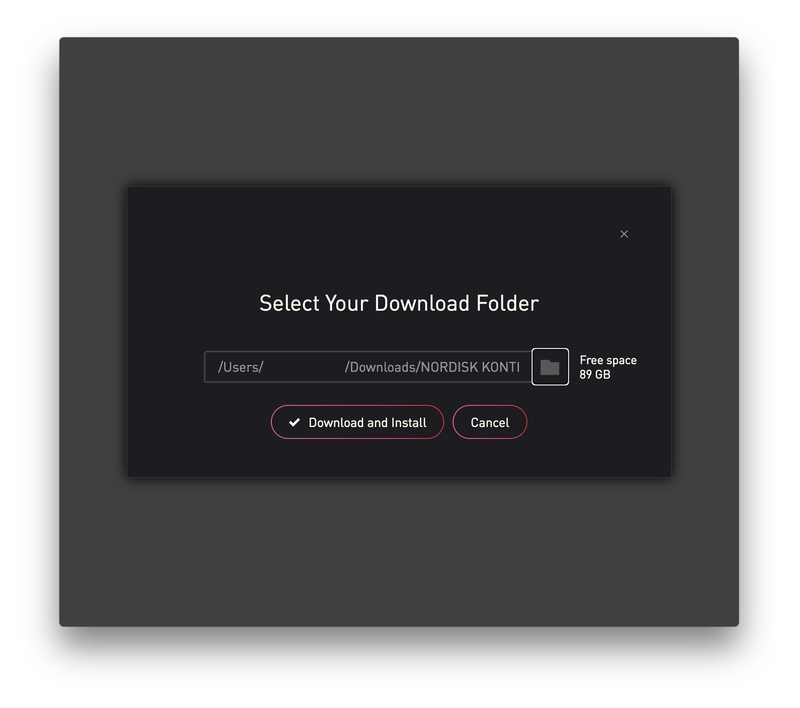
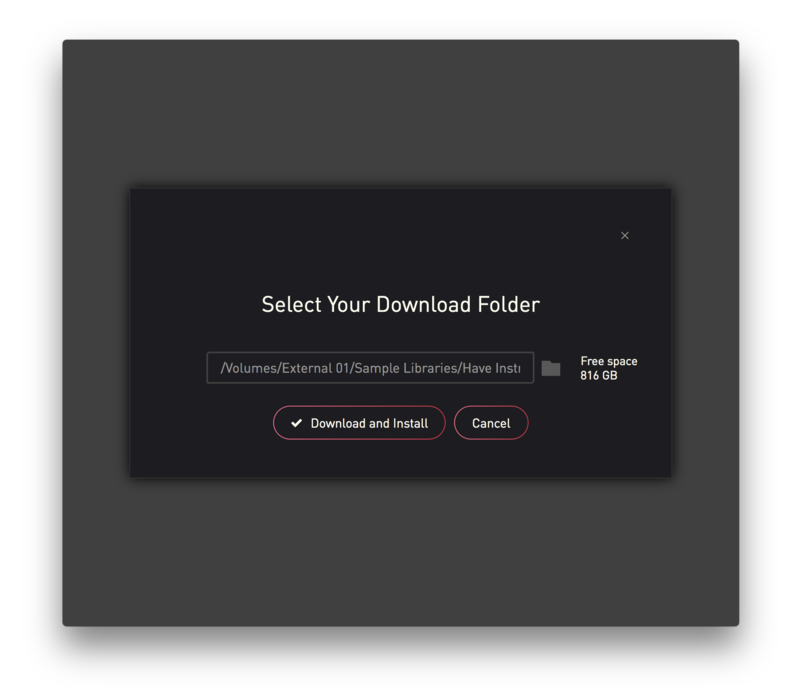
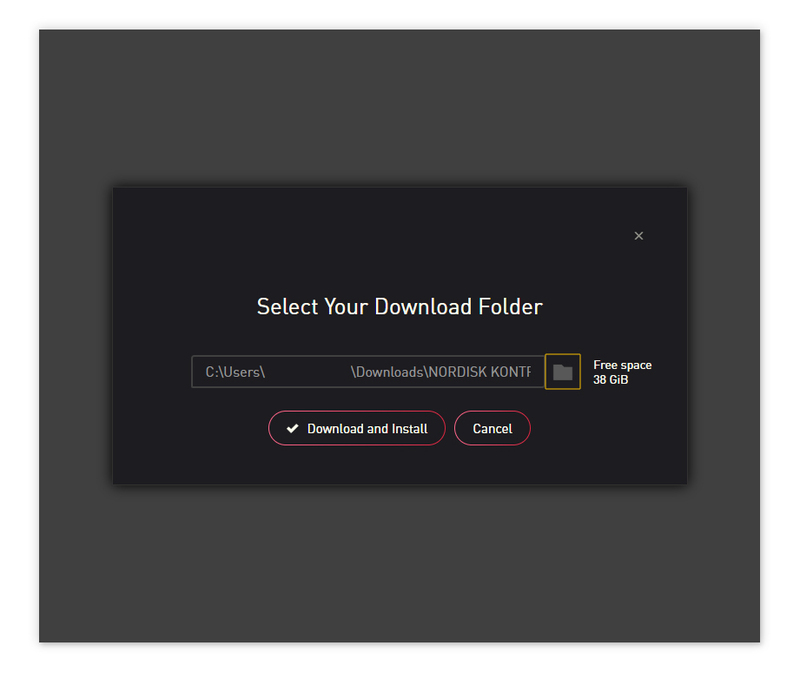
8. Click the folder icon to select the installation location for your library.

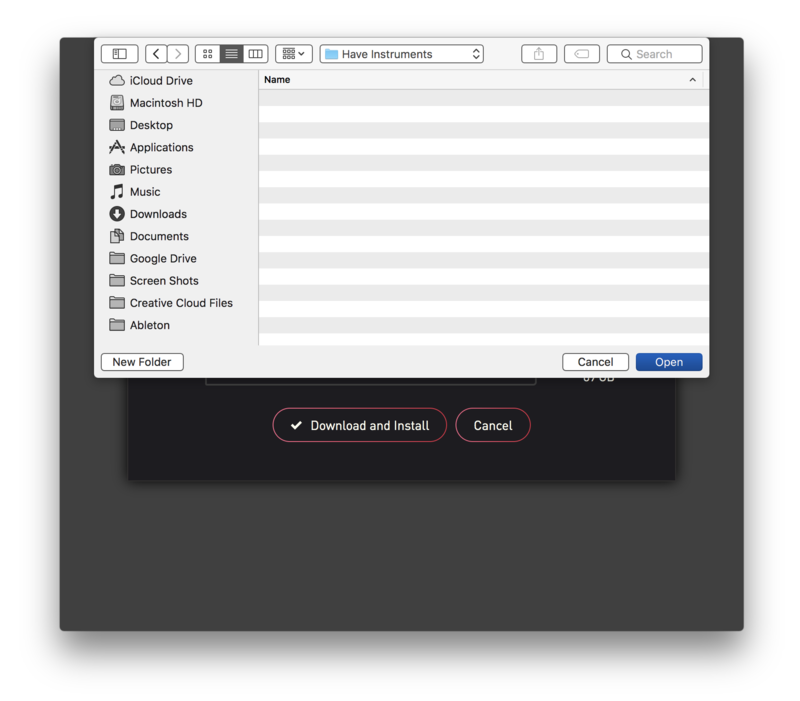
9. Choose your installation location > Click 'Open'.

10. Click 'Download and Install'.

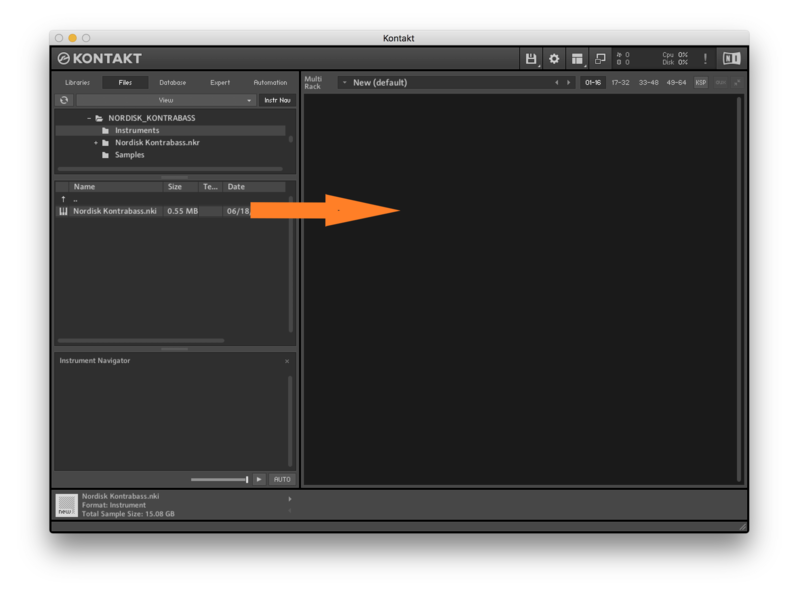
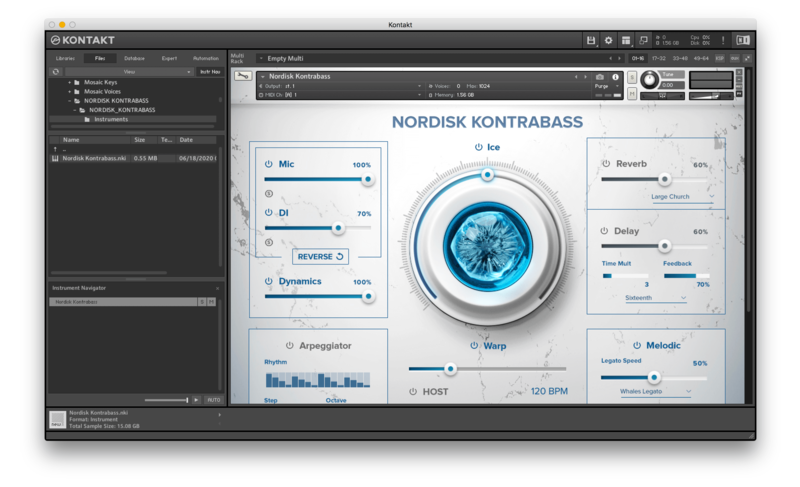
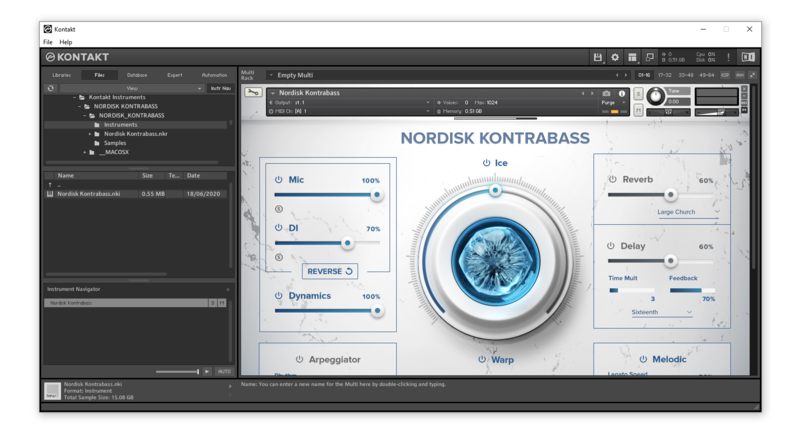
11. Open Kontakt > Select the 'Files' tab and navigate to your installed Kontakt library > Click and drag the .nki file into the empty window.

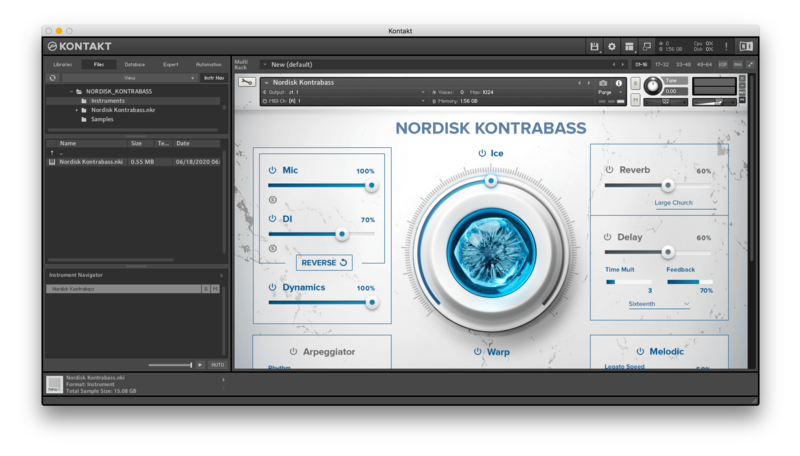
Your Kontakt Instrument is now installed and ready to use.

Batch Re-save Instructions
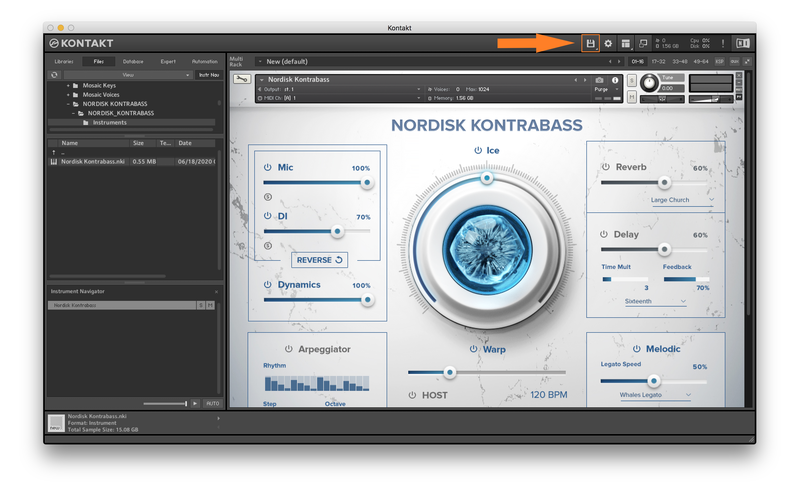
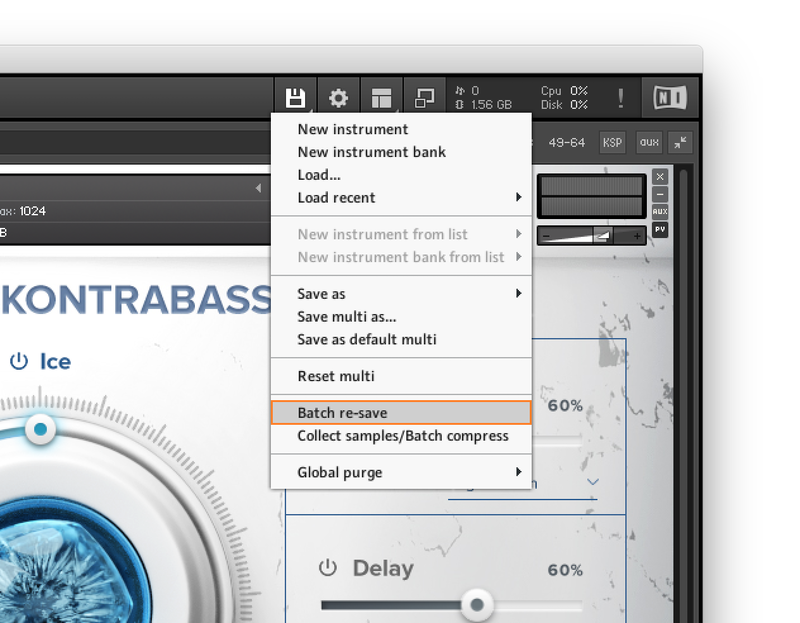
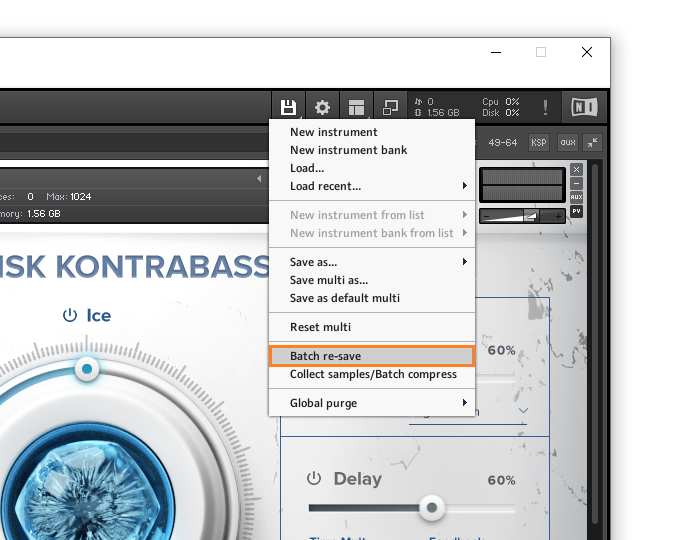
1. Within Kontakt, click the floppy disk icon.

2. From the drop-down menu, click 'Batch re-save'.

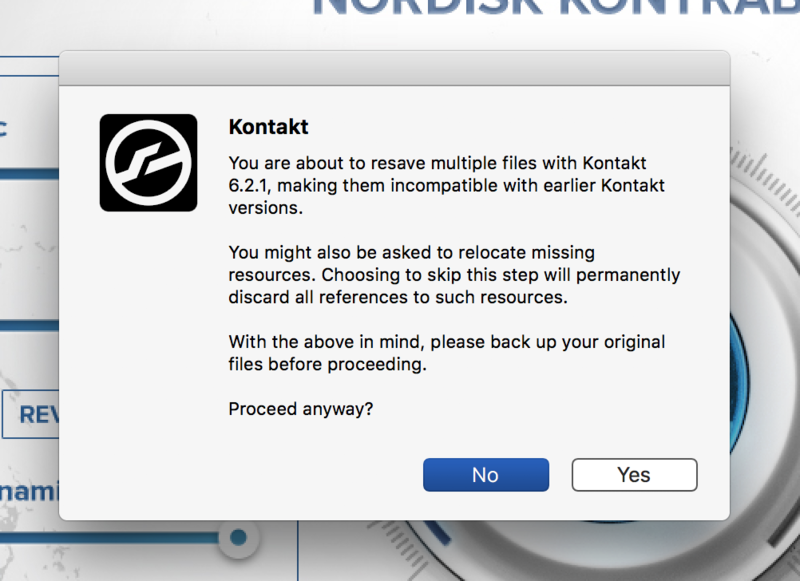
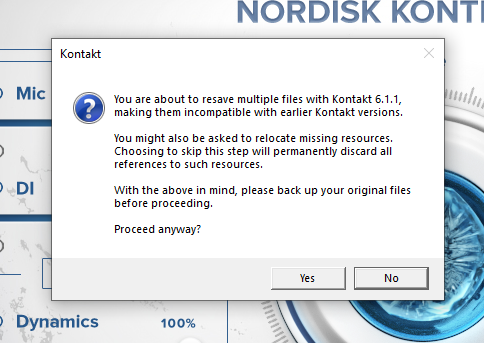
3. Click 'Yes'.

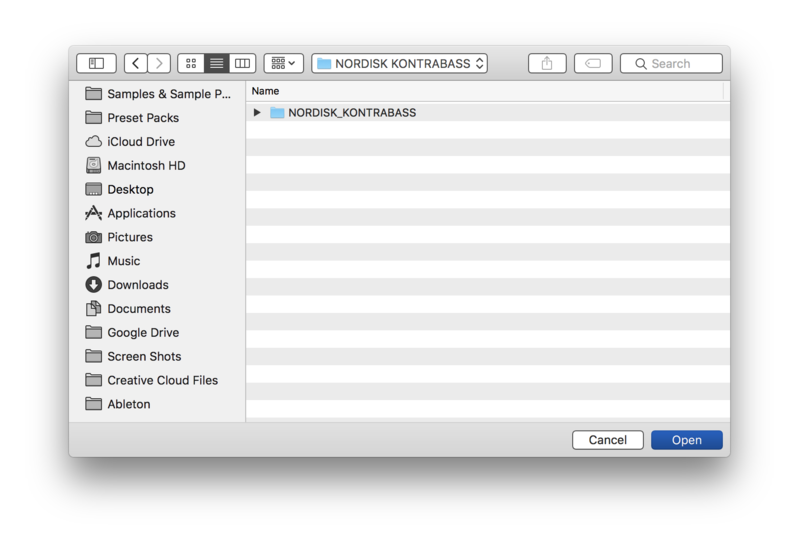
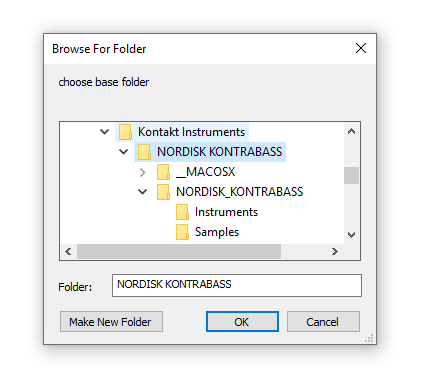
4. Navigate to the installation location for your Kontakt library > Click 'Open'.

Batch re-save is now complete and you can expect to see quicker loading times for your Kontakt Instrument.

Windows
Installation
1. Go to https://pulsedownloader.com/ > Click 'Download for Windows' to download the Pulse application installer.

2. Open the .exe file to install the Pulse application > Open Pulse and click 'Register'.

3. Enter your Email Address and Password > Check the box that states 'I agree to the terms of use and privacy policy' > Click 'Register'.

4. Click 'Add a Product'.

5. Enter your 32-digit serial key, found within the serial number section of your Plugin Boutique User Account > Click 'Redeem'.

6. Click 'Install'.

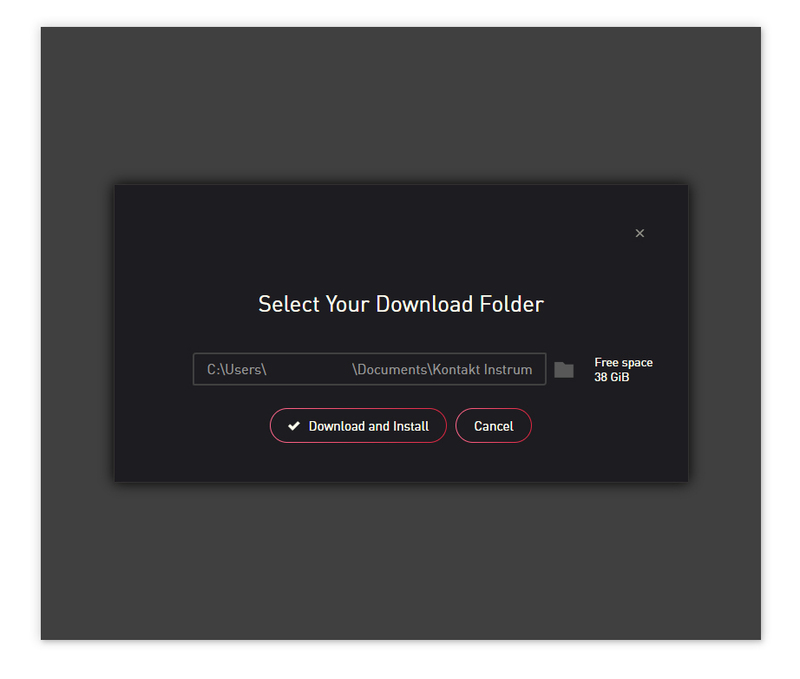
7. Click the folder icon to select the installation location for your library.

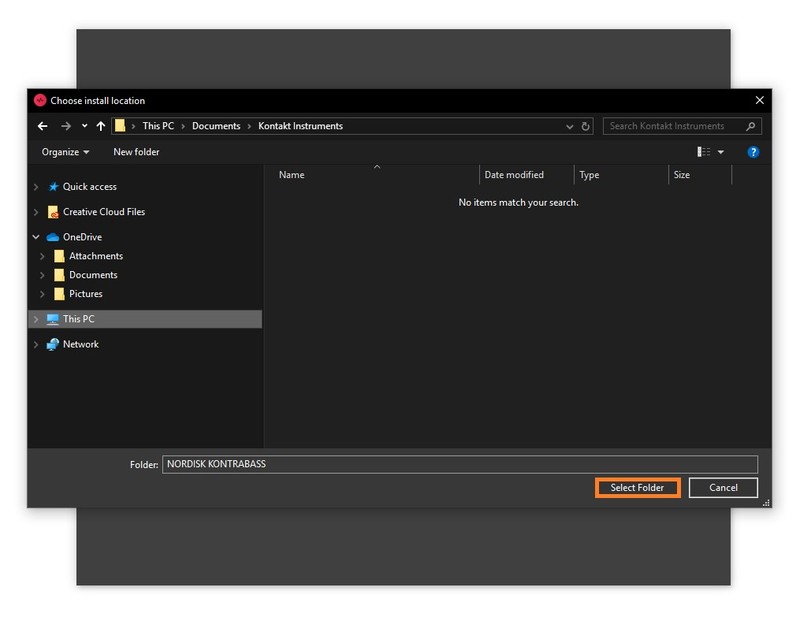
8. Choose your installation location > Click 'Select Folder'.

9. Click 'Download and Install'.

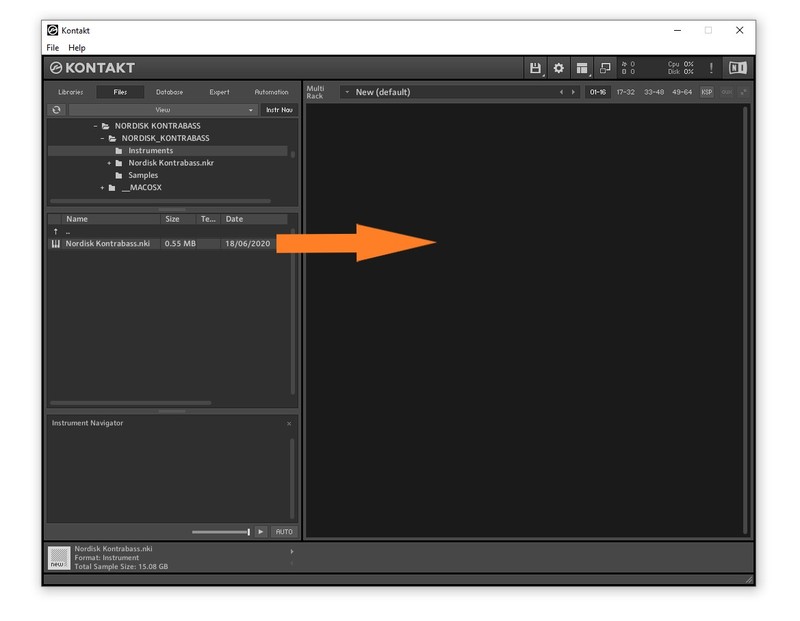
10. Open Kontakt > Select the 'Files' tab and navigate to your installed Kontakt library > Click and drag the .nki file into the empty window.

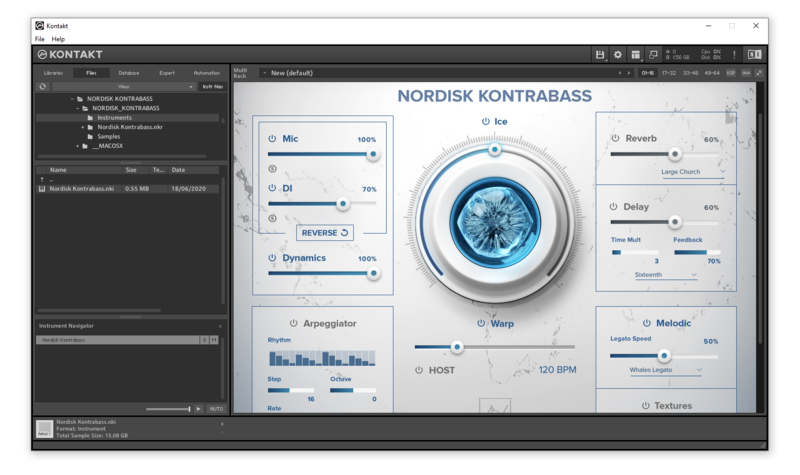
Your Kontakt Instrument is now installed and ready to use.

Batch Re-save Instructions
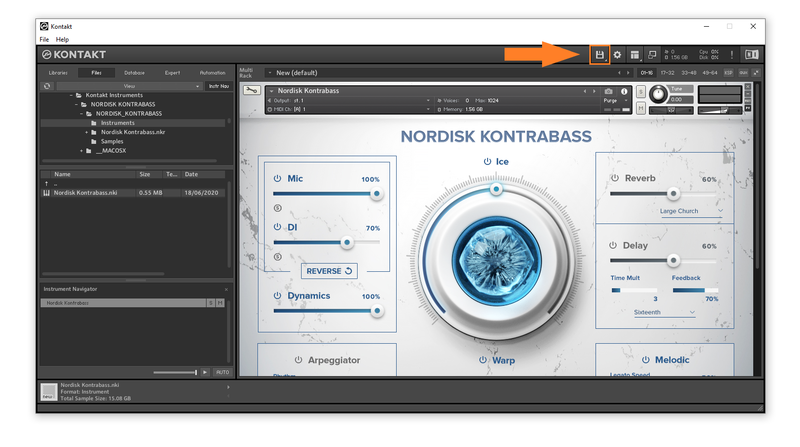
1. Within Kontakt, click the floppy disk icon.

2. From the drop-down menu, click 'Batch re-save'.

3. Click 'Yes'.

4. Navigate to the installation location for your Kontakt library > Click 'Ok'.

Batch re-save is now complete and you can expect to see quicker loading times for your Kontakt Instrument.