Buy NASTRO VHS, get a free gift with purchase:
Important note: This product requires a FULL version of Native Instruments' KONTAKT 6.5.2. The free Kontakt Player is not sufficient.
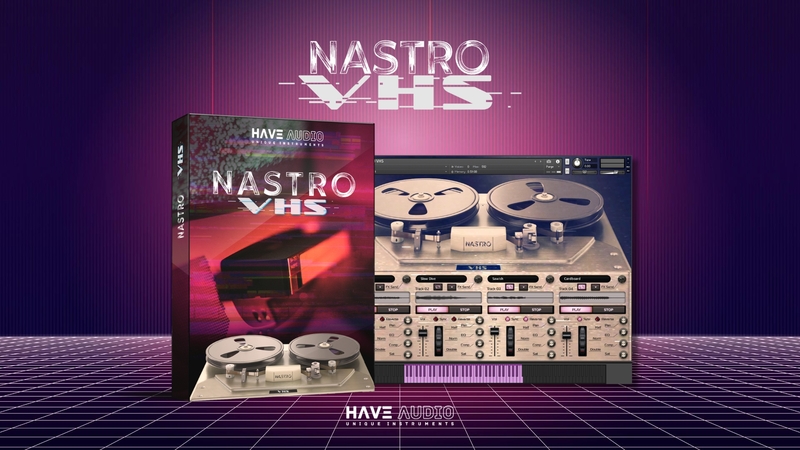
NASTRO is a powerful time machine, your ticket to the realm of lo-fi devices from reel to reel tape recorders, cassette players, walkmans up to Super8, VHS & Betamax recorders.
After Soundscapes, here comes the second release of the series: NASTRO VHS!
You won’t need any DeLorean to travel back to the 80s and its quirky sound and visuals: shaky, glitchy, wobbling, full of beautiful imperfections and fluctuations, and with abundance of static noise.
NASTRO VHS contains lots of playable synthtones, loops and textures created with some of the best analog synths out there and re-processed through real VHS recorders to add dirt, static noise and detuning effects.
It requires Kontakt Full Version 6.6.1+ (not compatible with the Free Kontakt Player).
You don’t need NASTRO Soundscapes in order to use NASTRO VHS but all NASTRO instruments are designed to beautifully blend together and help you create analog beauty in a fun and easy way.
Features
- 52 Sound Sources/Patches:
- 21 Long Synthtones (10 Analog Synths + 11 Hybrid Synths patches)
- 14 Short Synthtones (10 Analog Synths + 9 Hybrid Synths patches)
- 3 Tempo-based loop patches
- 3 Textures and FXs patches
- 6 VHS Static Noises patches
- 4 Channels/Tracks
- 4 Playback modes: Normal / Reverse / Normal Loop / Reverse Loop
- 20 New IR Effects
- 3 Playback Speeds for each channel in Sync Mode: half speed / normal speed / double speed
- You can manually control speed in the Free Mode
- Built-in FX Macros: Pan / EQ / Compression / Saturation
System Requirements
- For Kontakt Full Version 6.5.2+
- Library uncompressed size: 5,47 GB
- 1705 Samples in .ncw format
Please note: this product will not work in Kontakt Player

![]()
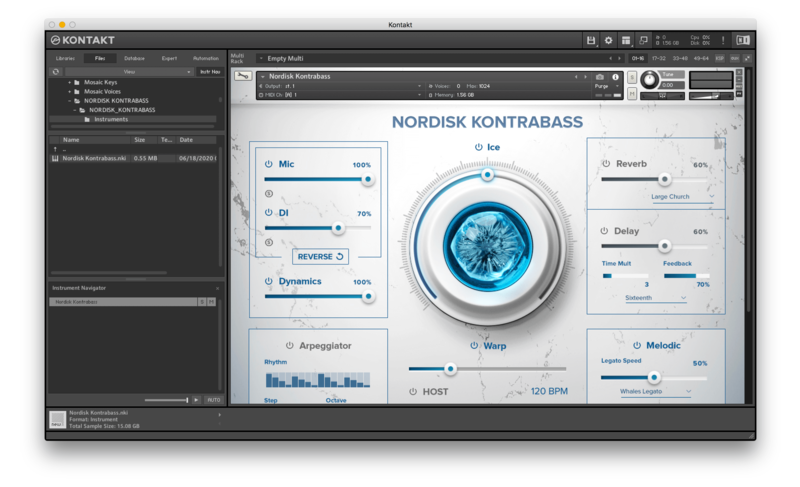
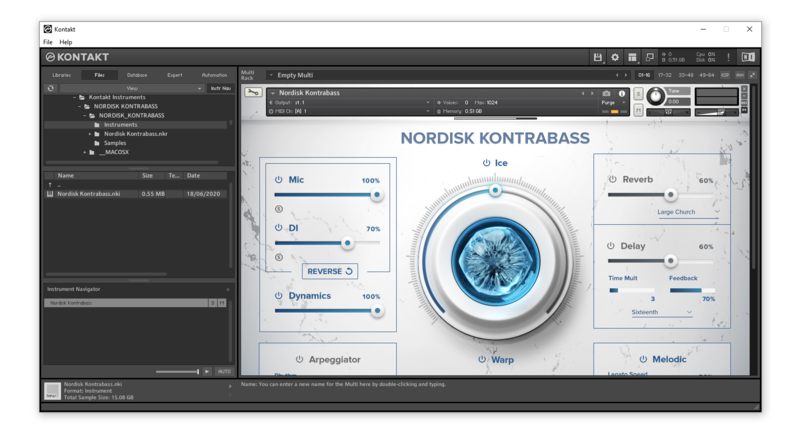
Please note: Nordisk Kontrabass is used as an example as the installation process is the same for all Have products.
Mac
Installation
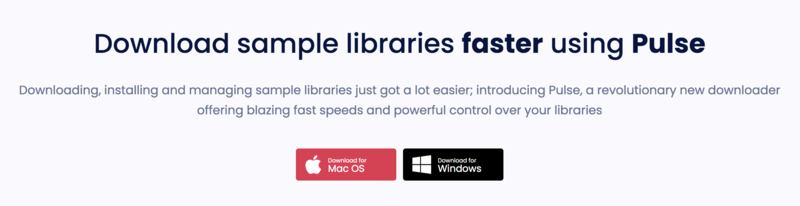
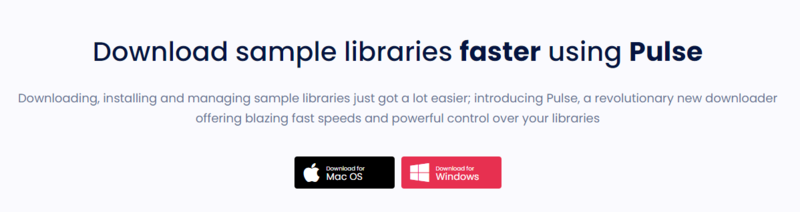
1. Go to https://pulsedownloader.com/ > Click 'Download for Mac OS' to download the Pulse application installer.

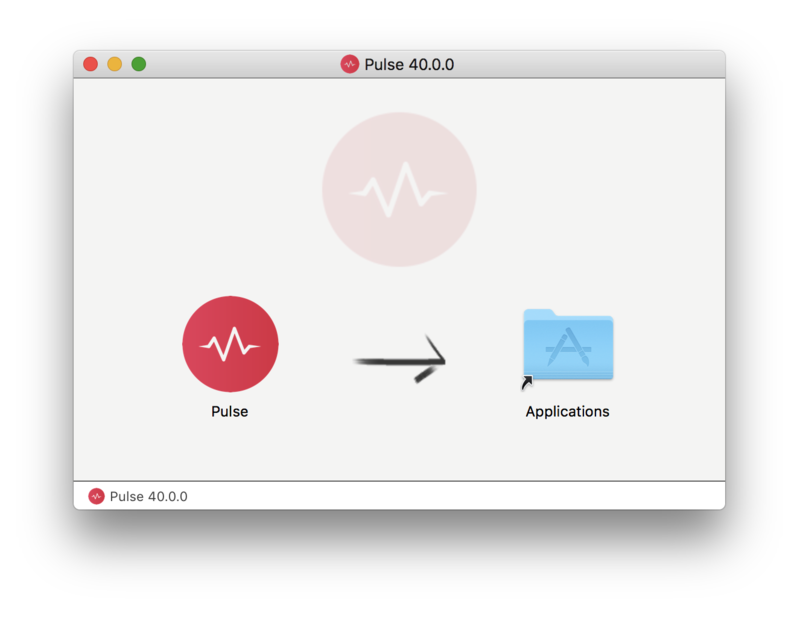
2. Open the .dmg file > Click and drag the application icon into the applications folder.

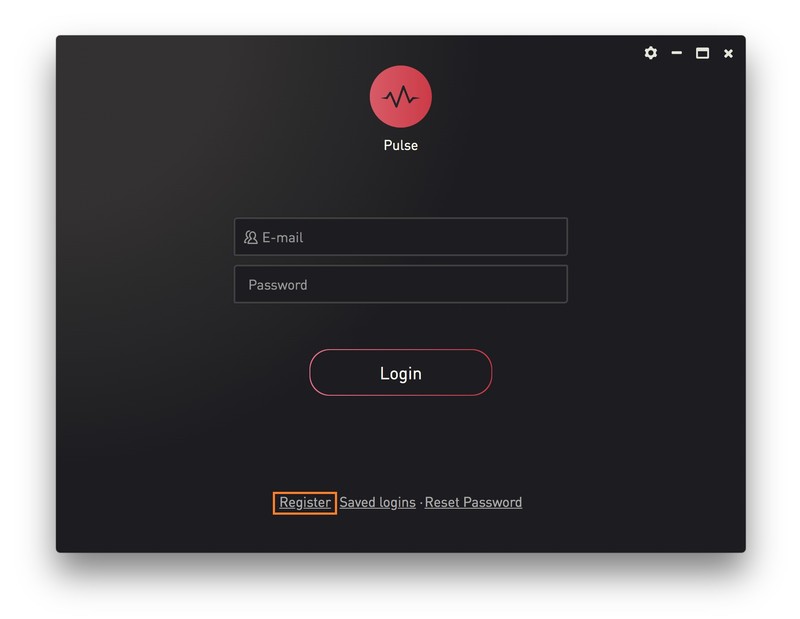
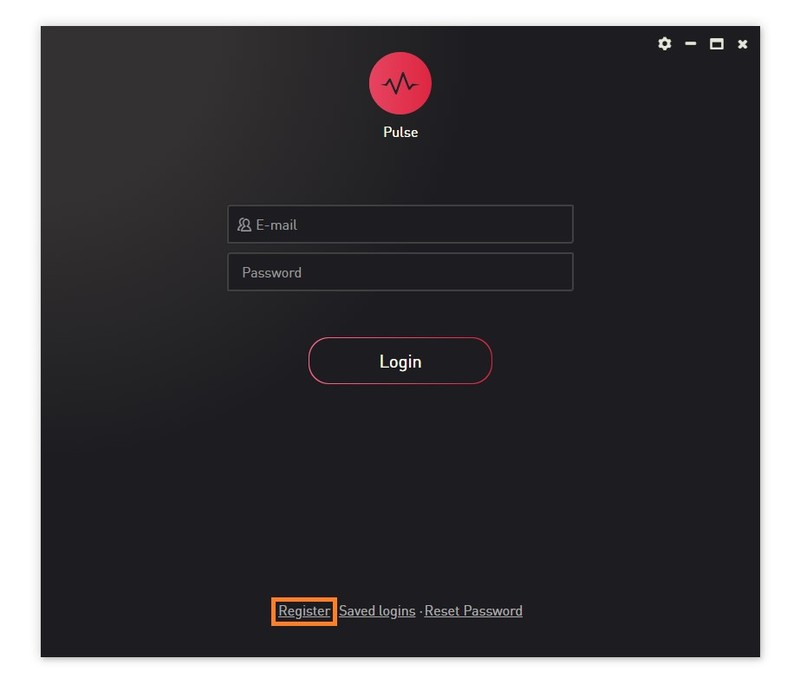
3. Open the Pulse application > Click 'Register'

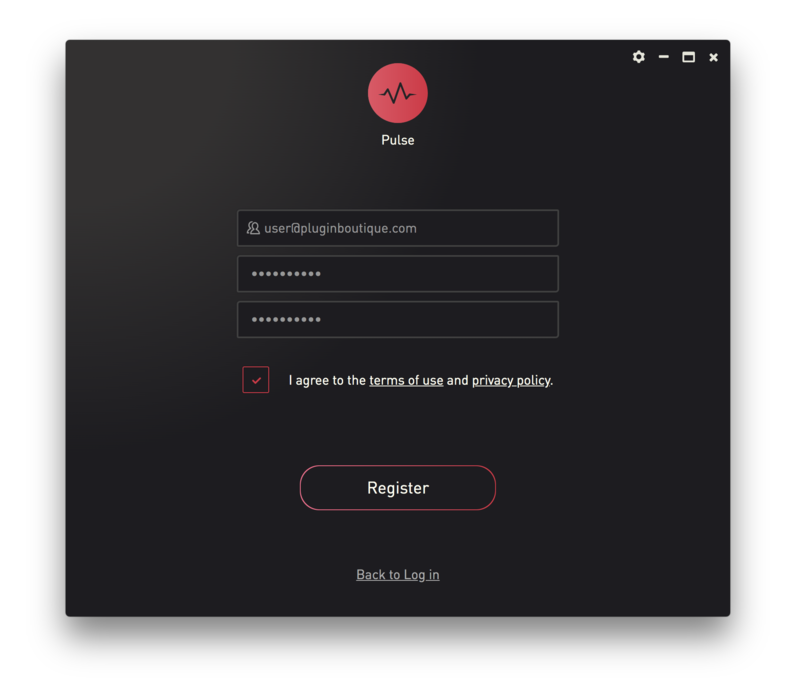
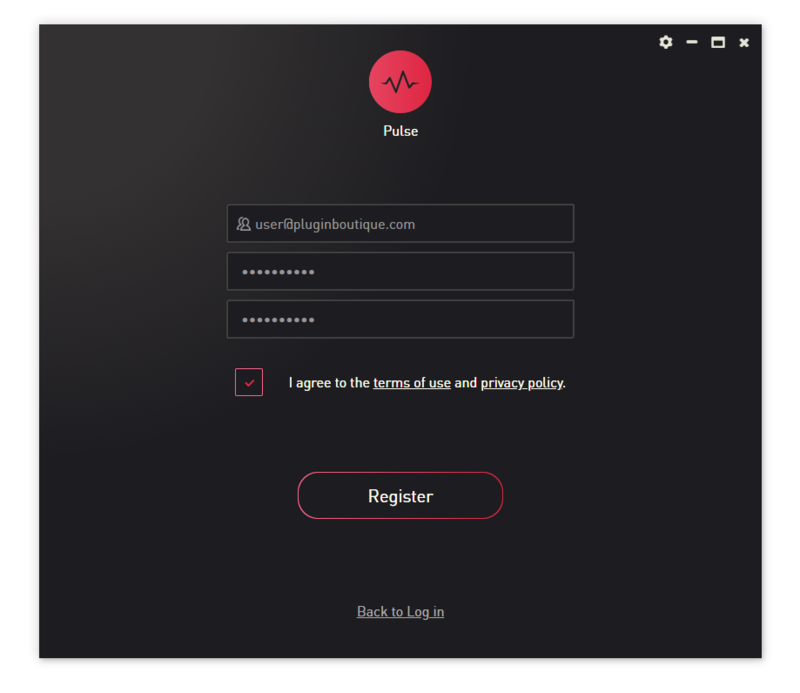
4. Enter your Email Address and Password > Check the box that states 'I agree to the terms of use and privacy policy' > Click 'Register'.

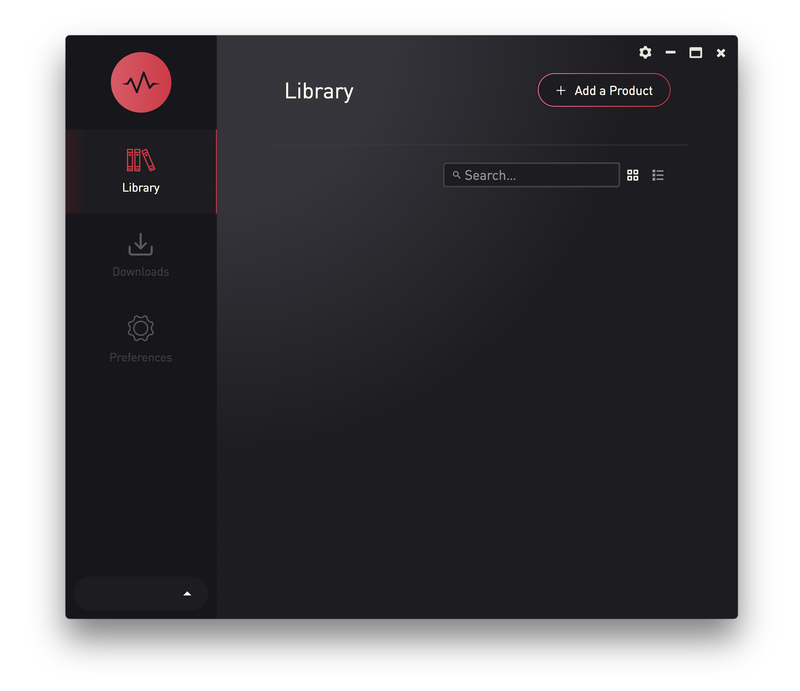
5. Click 'Add a Product'.

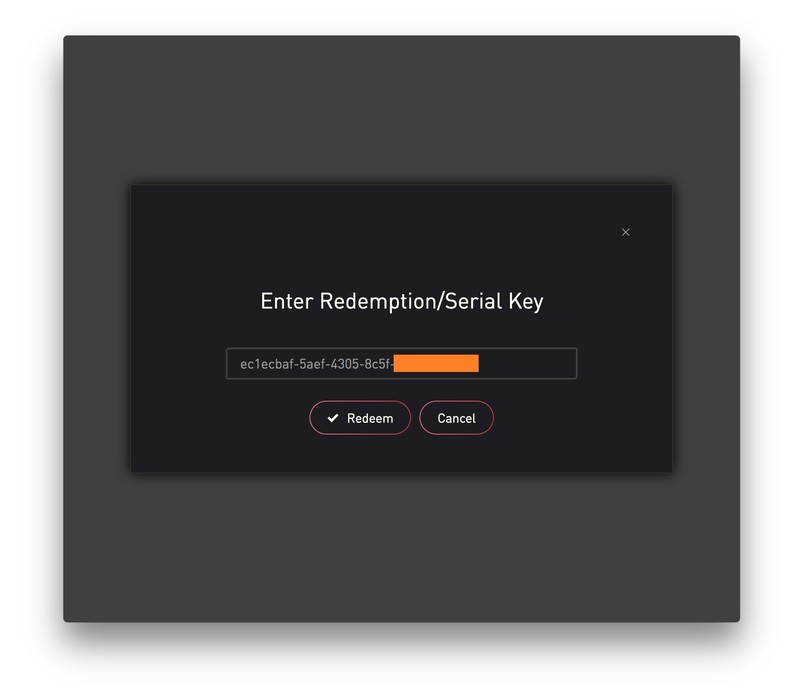
6. Enter your 32-digit serial key, found within the serial number section of your Plugin Boutique User Account > Click 'Redeem'.

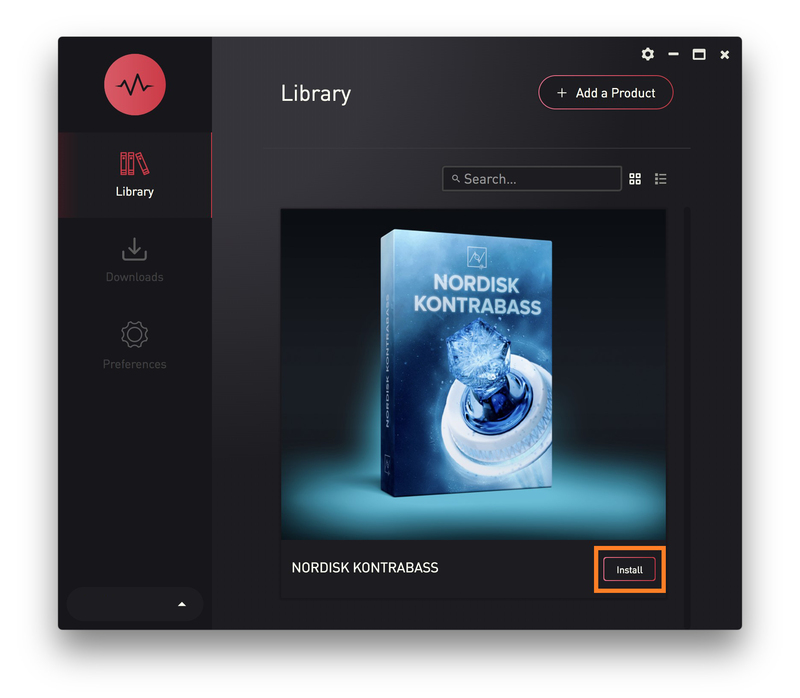
7. Click 'Install'.

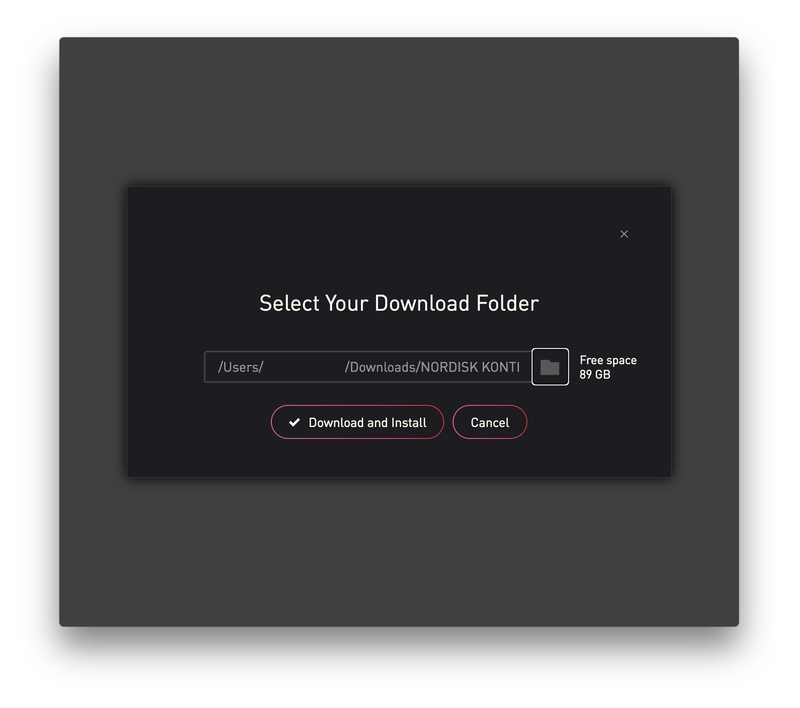
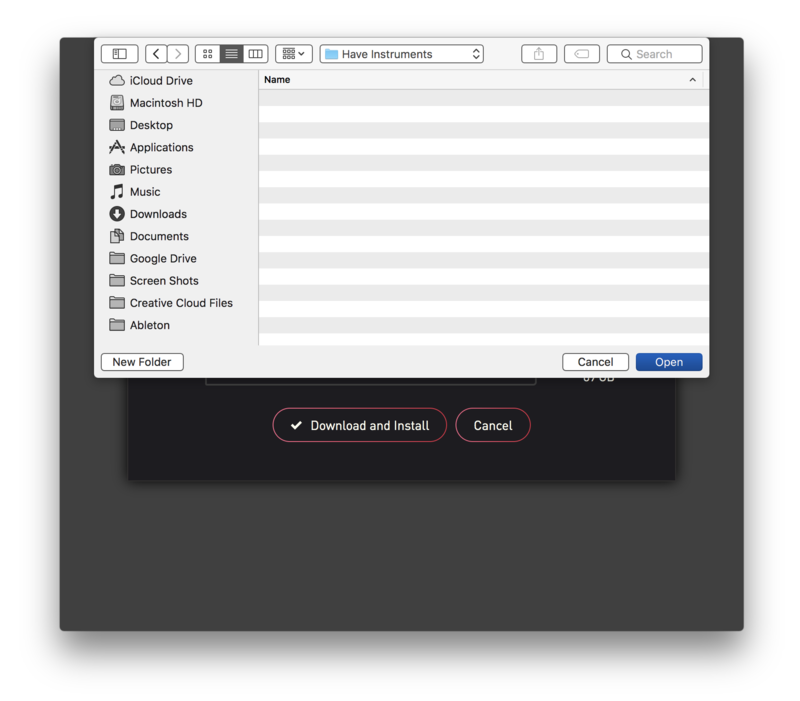
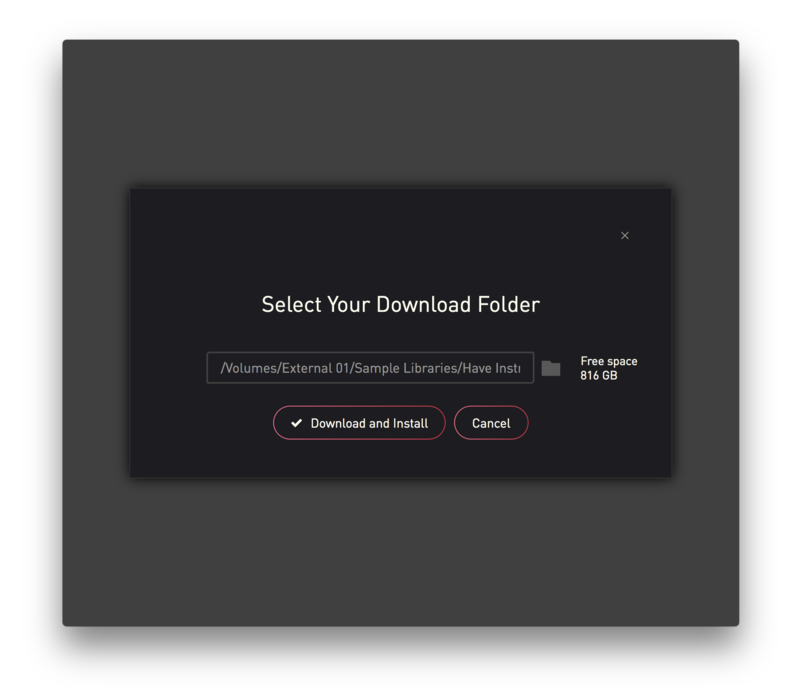
8. Click the folder icon to select the installation location for your library.

9. Choose your installation location > Click 'Open'.

10. Click 'Download and Install'.

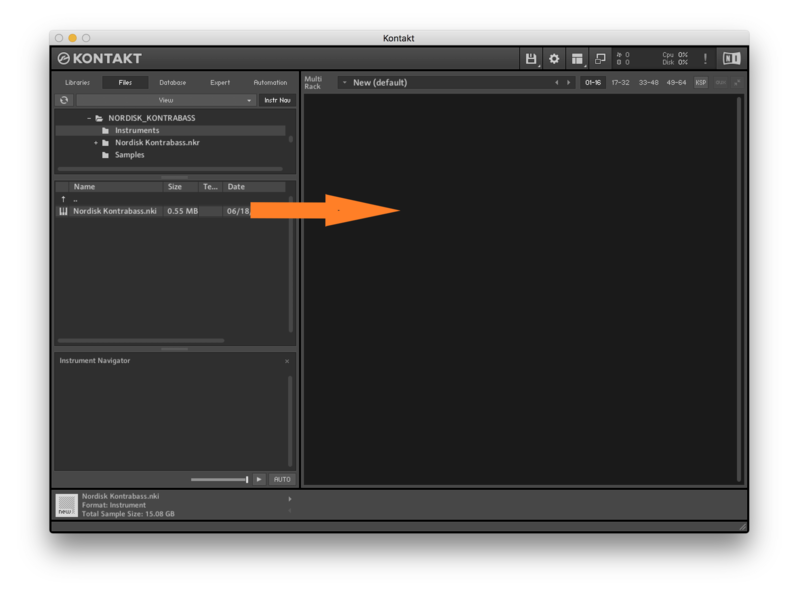
11. Open Kontakt > Select the 'Files' tab and navigate to your installed Kontakt library > Click and drag the .nki file into the empty window.

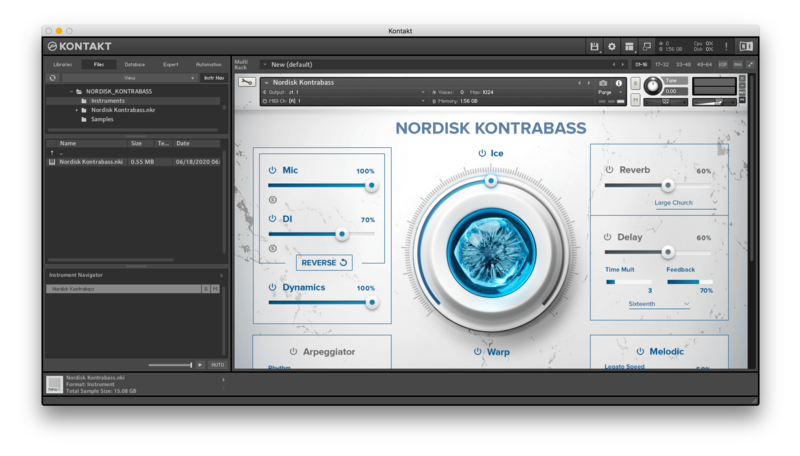
Your Kontakt Instrument is now installed and ready to use.

Batch Re-save Instructions
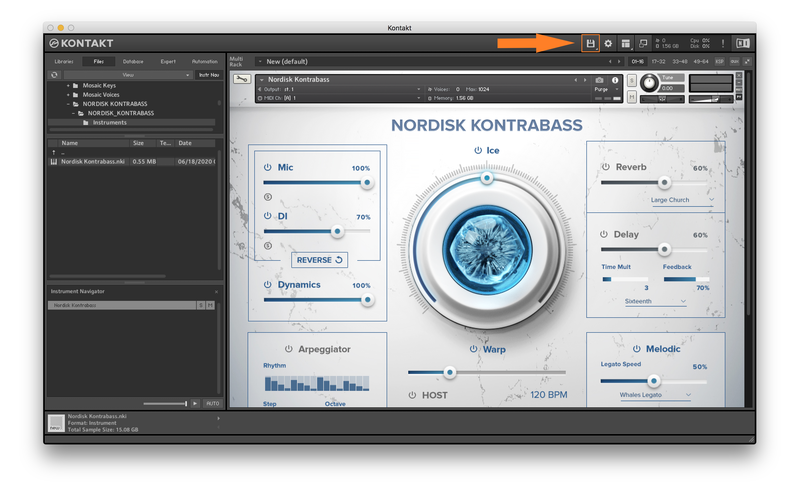
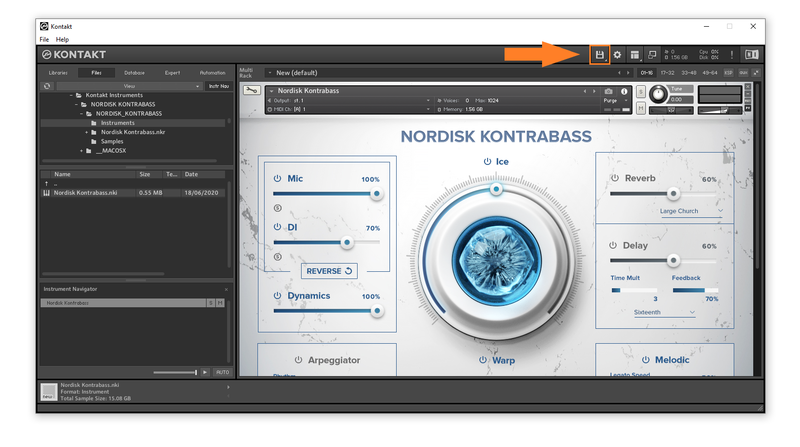
1. Within Kontakt, click the floppy disk icon.

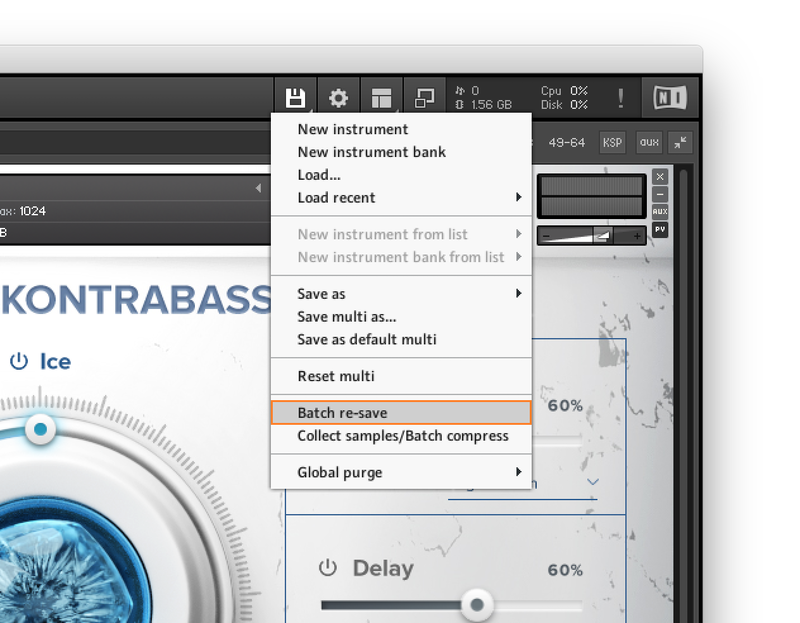
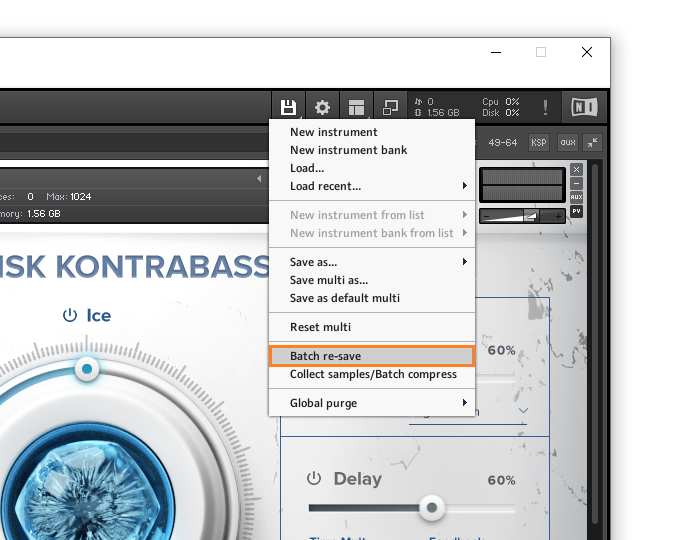
2. From the drop-down menu, click 'Batch re-save'.

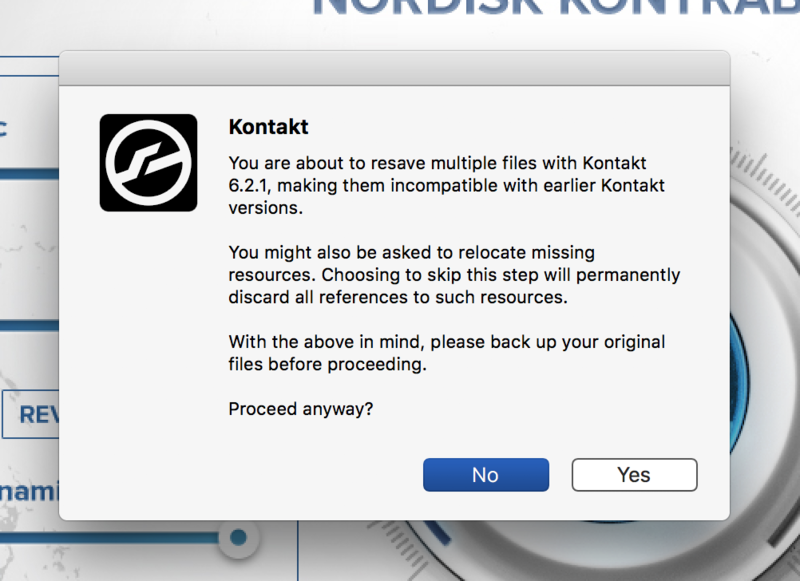
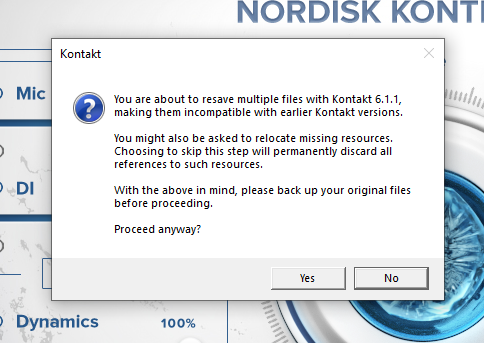
3. Click 'Yes'.

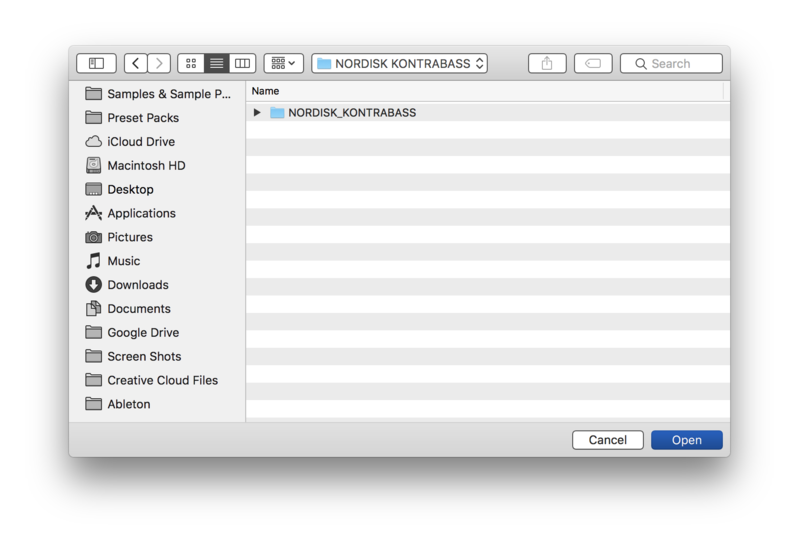
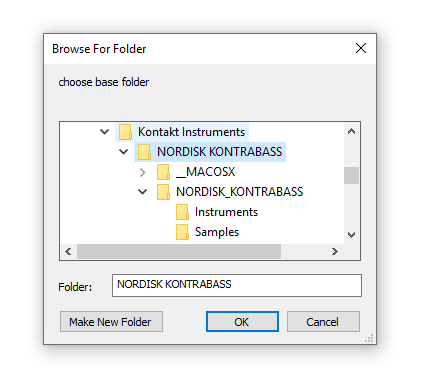
4. Navigate to the installation location for your Kontakt library > Click 'Open'.

Batch re-save is now complete and you can expect to see quicker loading times for your Kontakt Instrument.

Windows
Installation
1. Go to https://pulsedownloader.com/ > Click 'Download for Windows' to download the Pulse application installer.

2. Open the .exe file to install the Pulse application > Open Pulse and click 'Register'.

3. Enter your Email Address and Password > Check the box that states 'I agree to the terms of use and privacy policy' > Click 'Register'.

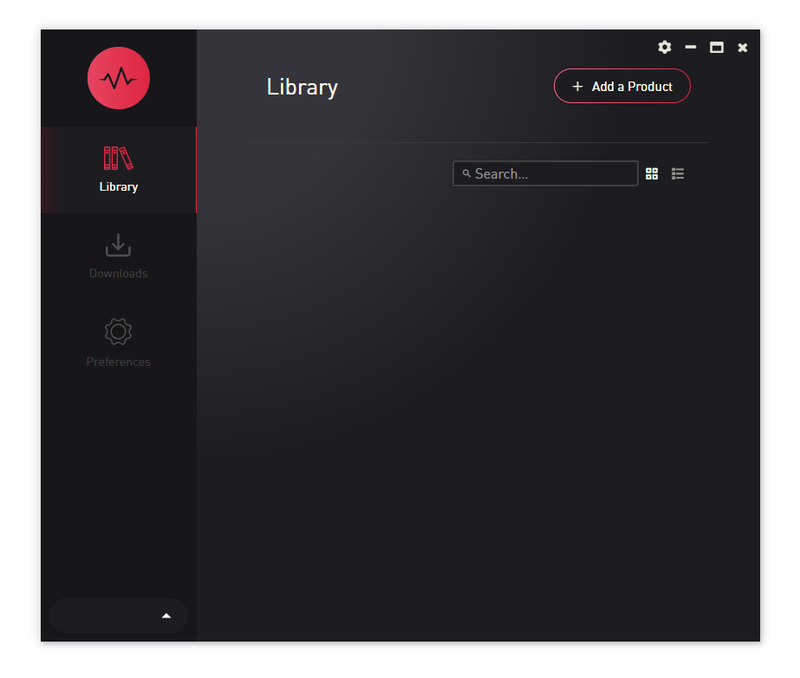
4. Click 'Add a Product'.

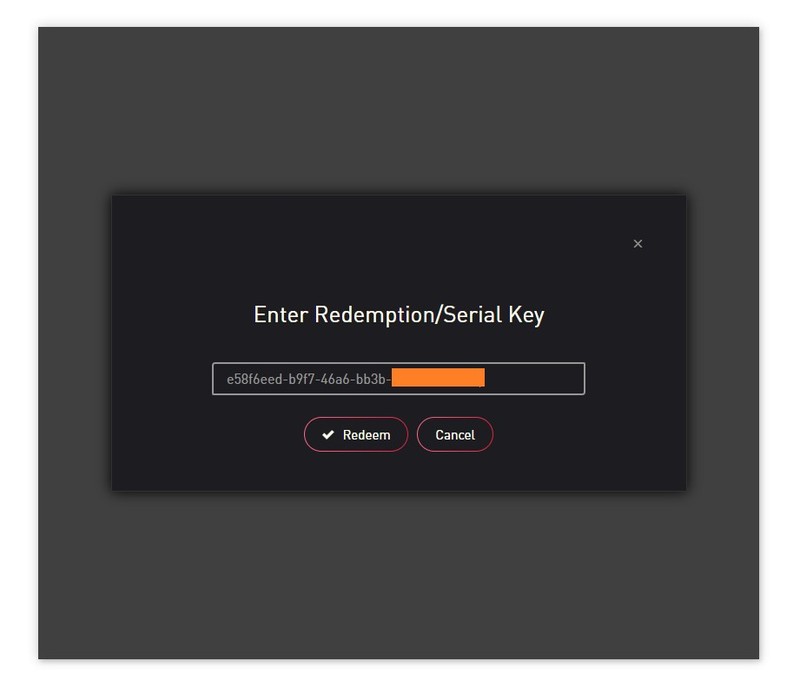
5. Enter your 32-digit serial key, found within the serial number section of your Plugin Boutique User Account > Click 'Redeem'.

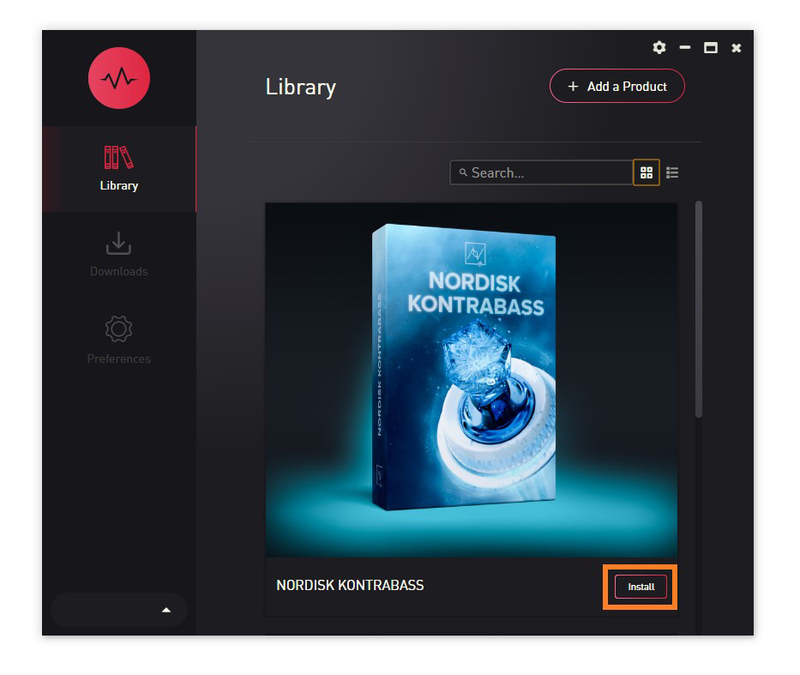
6. Click 'Install'.

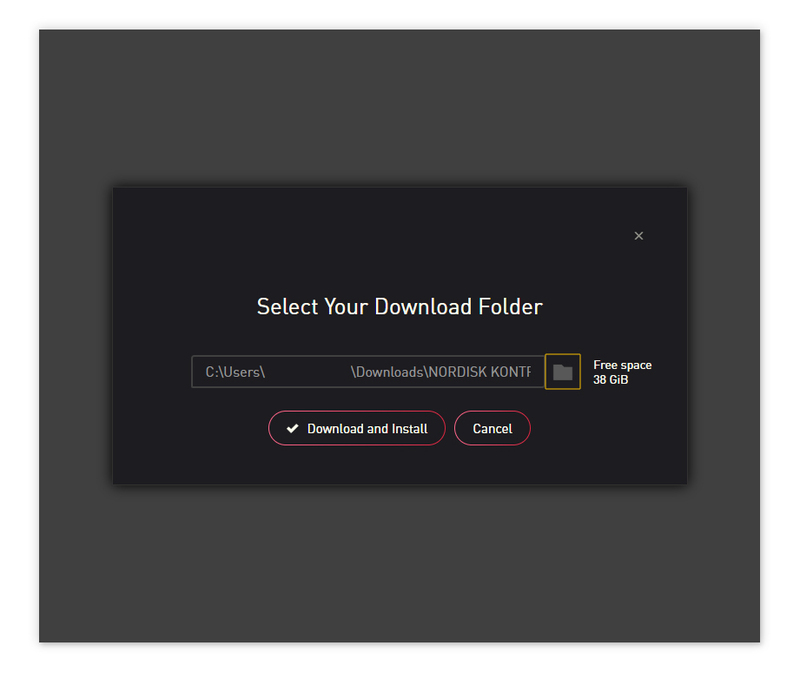
7. Click the folder icon to select the installation location for your library.

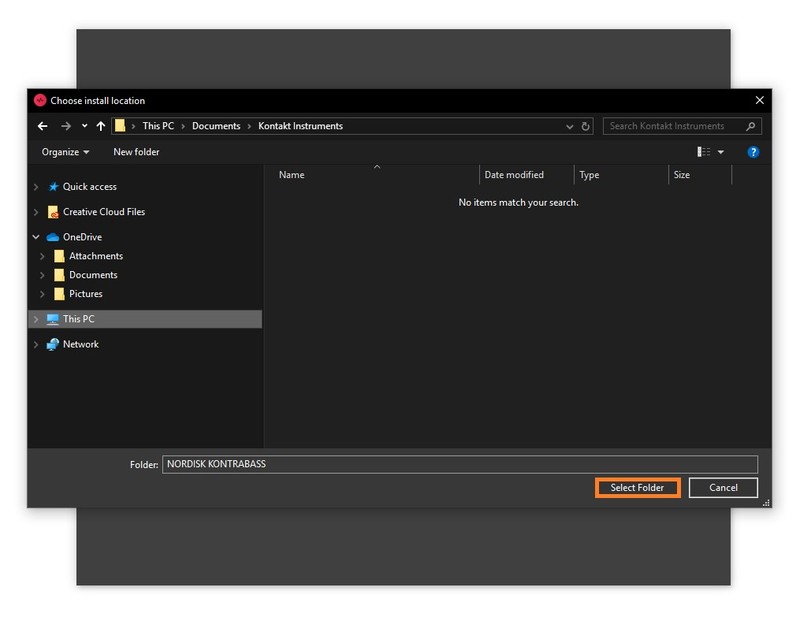
8. Choose your installation location > Click 'Select Folder'.

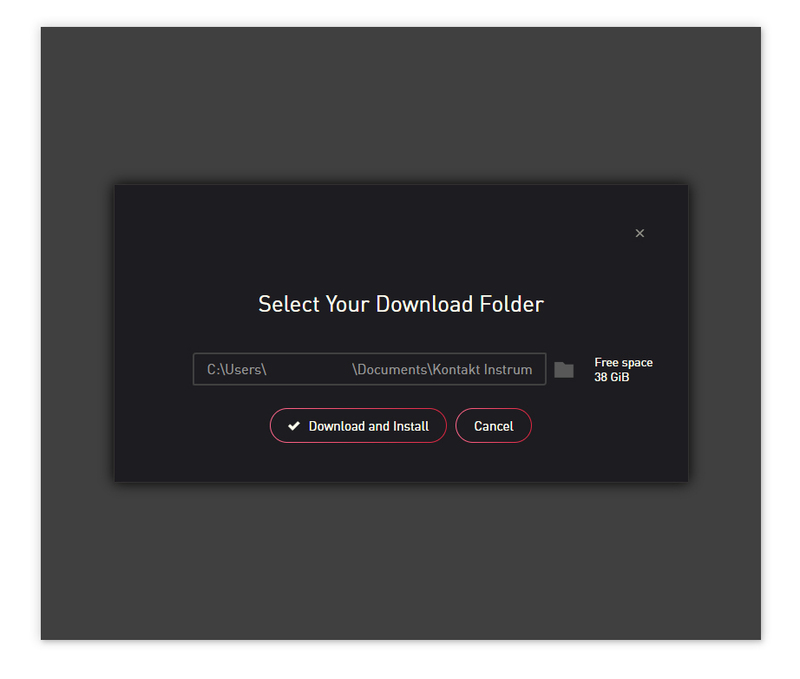
9. Click 'Download and Install'.

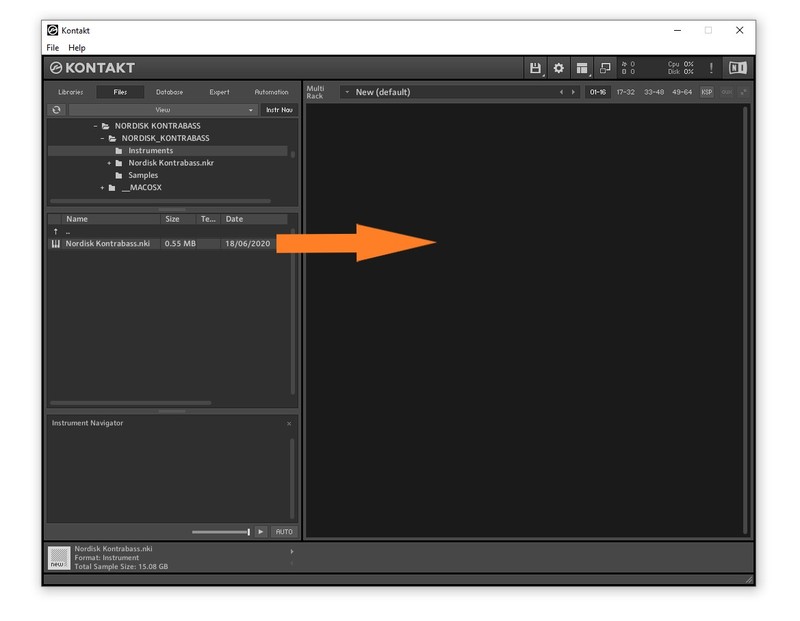
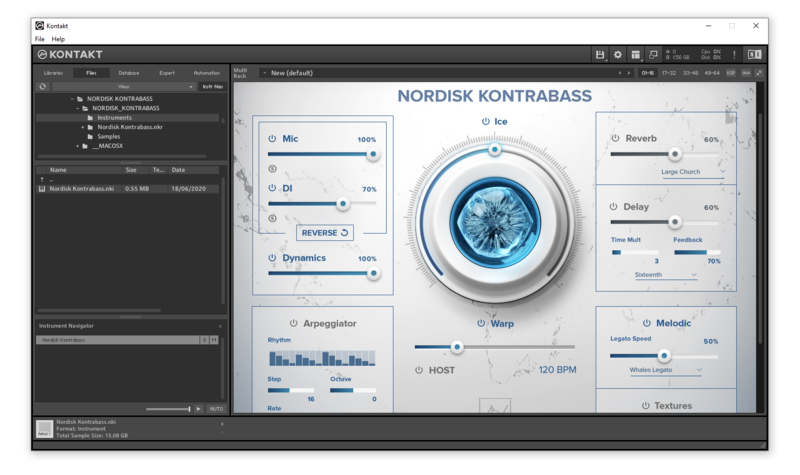
10. Open Kontakt > Select the 'Files' tab and navigate to your installed Kontakt library > Click and drag the .nki file into the empty window.

Your Kontakt Instrument is now installed and ready to use.

Batch Re-save Instructions
1. Within Kontakt, click the floppy disk icon.

2. From the drop-down menu, click 'Batch re-save'.

3. Click 'Yes'.

4. Navigate to the installation location for your Kontakt library > Click 'Ok'.

Batch re-save is now complete and you can expect to see quicker loading times for your Kontakt Instrument.