/ Kontakt Instrument / NOVO Solo Textures
Heavyocity

NOVO Solo Textures

4.5 (2 Reviews)
$74.50 $149.00

50% off until Dec 12

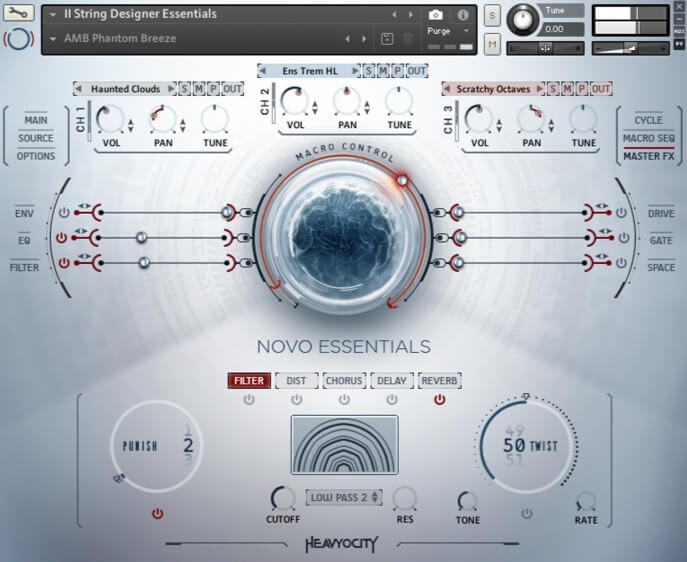
NOVO Solo Textures - GUI
NOVO Solo Textures - UI 2
NOVO Solo Textures - UI 3
Buy Now
Product information

Solo Textures invites you into the heart of delicate solo violin, viola, and cello performances, meticulously captured at  Heavyocity Studios in NYC. Featuring over 14 GB of unique, rhythmic elements, recorded with multiple dynamic layers, and multi-sampled for stunning realism and emotional depth, this virtual instrument captures the intricate nuances and dynamic range of solo string performances. With over 220 meticulously crafted snapshot presets, Solo Textures provides a diverse range of inspiring starting points that magnify the authentic voice of these exquisite instruments.


Composers can effortlessly build custom ensembles, unlocking the soulful resonance of these lush instruments. The solo performances capture the essence of clean, lyrical sound while showcasing the unique articulations crafted by the Heavyocity team. Inspired by the sound of modern chamber strings, these unique arrangements and textures expand the possibilities of what a solo performer can achieve. Each note resonates with rich movement and texture, making Solo Textures an ideal addition to your scoring toolkit.

System Requirements

  • Mac: OS X 10.10 or higher, Intel Core 2 Duo, 4 GB RAM
  • PC: Windows 7 or higher (latest Service Pack, 32/64 Bit, Intel Core Duo or AMD Athlon 64 X2, 4GB RAM)
  • Powered by the Kontakt 5 Engine
  • Kontakt 5 (Player) ver 5.6.6 or later
  • Komplete Kontrol integrated (NKS-ready)

Note: This software requires the Kontakt 5 Engine (full) or free Kontakt 5 Player (ver 5.6.6 or later).

Installation Instructions

Notes: 

  • This product requires a Native Instruments Account and a free copy of Native Instruments Kontakt Player, which you can download here.
  • NOVO Essentials is used as the example.

Mac

Registration

1. Visit https://heavyocity.com/my-account/  and fill out the account registration form > Click 'Register'.

Installation

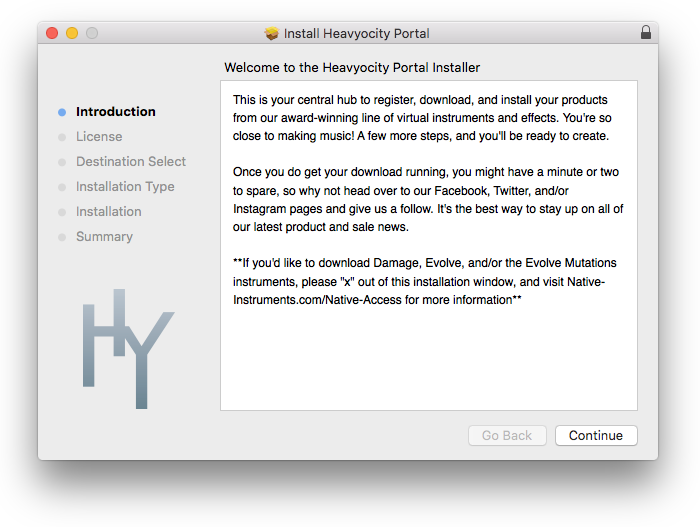
1. Download the Heavyocity Product Portal Installer from within your Plugin Boutique User Account

2. Double-click the .pkg file to begin the installation > Click 'Continue'.

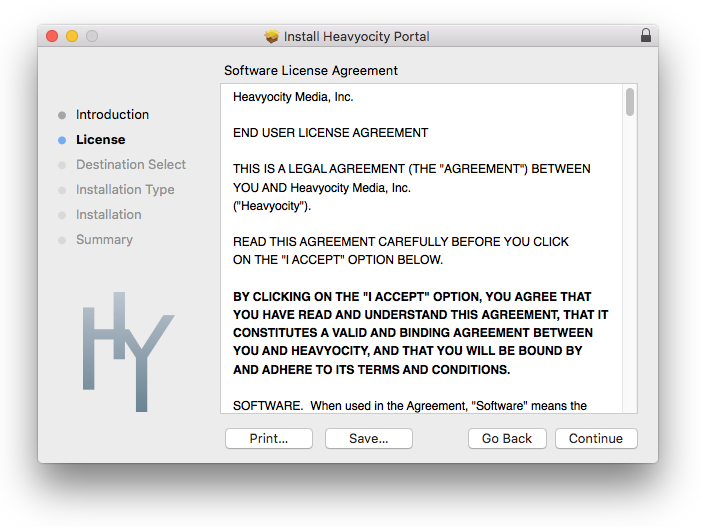
3. Click 'Continue'.

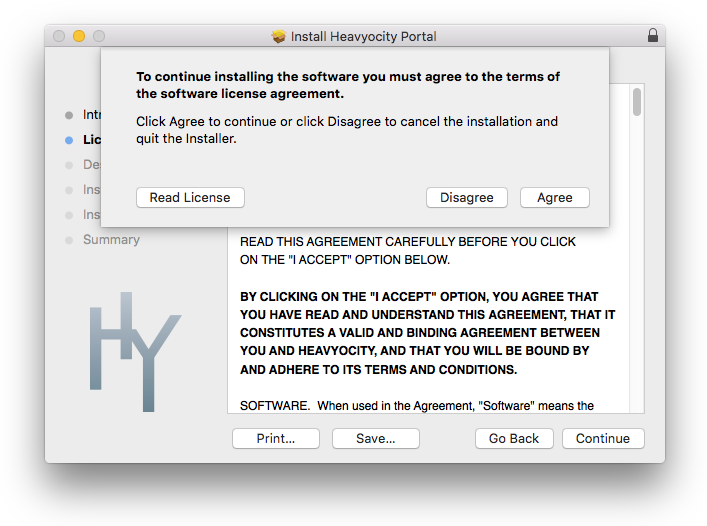
4. Click 'Agree'.

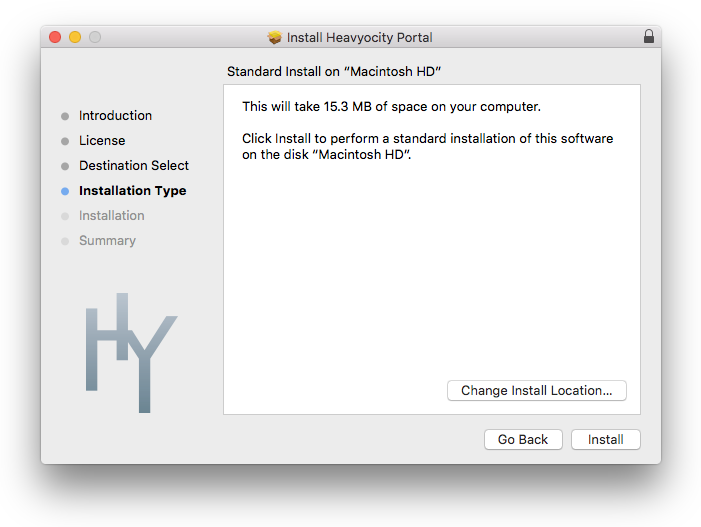
5. Click 'Install'.

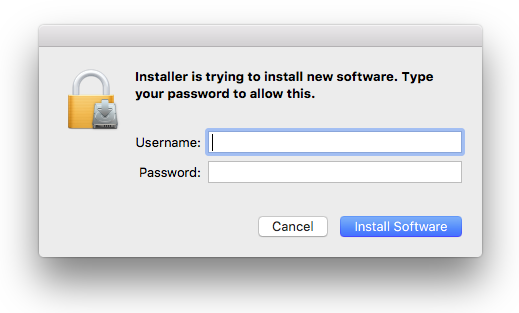
6. Enter your computer Username and Password > Click 'Install Software'.

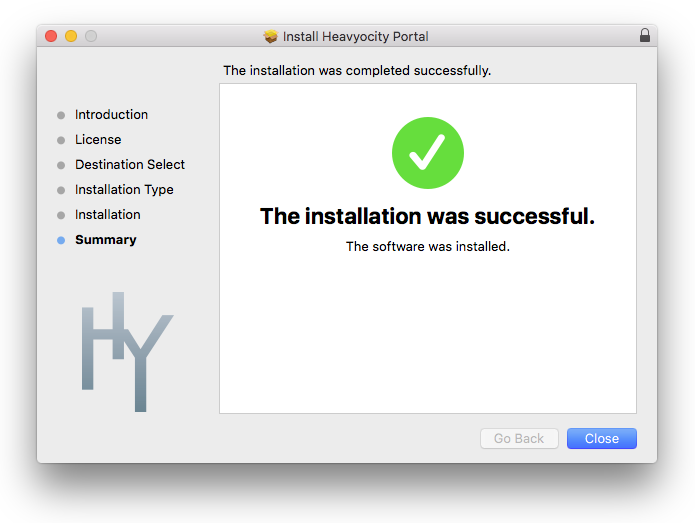
7. Click 'Close'.

8. Open the Heavyocity Portal and enter your Heavyocity-registered Username (Email Address) and Password > Click 'Login'.

9. Click 'Register Now', located at the bottom of the Product Portal.

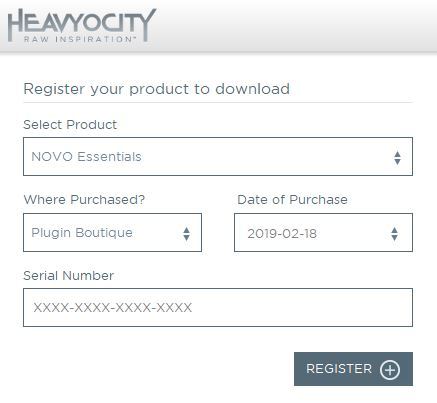
10. Complete the form and enter the serial number found in your Plugin Boutique User Account > Click 'Register'.

11. Click 'Install' on the far right of the portal.

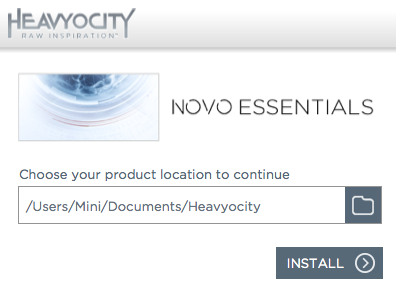
12. Select an installation location for your Heavyocity product > Click 'Install'.

Activation

1. Log in to Native Access.

2. Click 'Add a serial' in the top left corner of Native Access.

3. Enter the serial number found in your Plugin Boutique User Account > Click 'Add Serial'.

4. Click 'Close'.

5. Click the 'Not Installed' tab on the left-hand side of Native Access.

6. Locate NOVO Essentials > Click 'Add Library'.

7. Click 'browse' and locate the recently installed product > Click 'Install'.

Your product is now activated and ready to use.

Windows

Registration

1. Visit https://heavyocity.com/my-account/  and fill out the account registration form > Click 'Register'.

Installation

1. Download the Heavyocity Product Portal Installer from within your Plugin Boutique User Account > Double-click the .zip file to extract the contents.

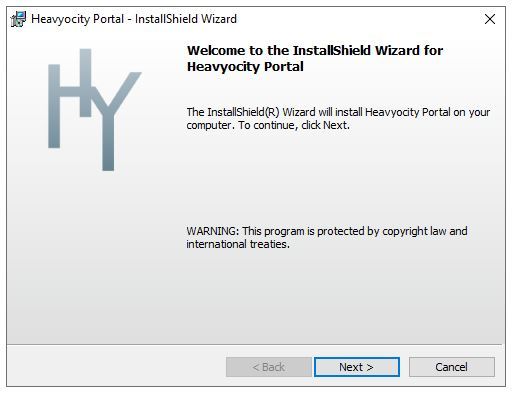
2. Double-click the .exe file to begin the installation > Click 'Next'.

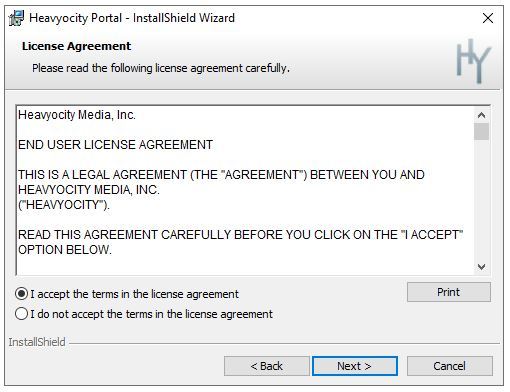
3. Select 'I accept the terms in the license agreement' > Click 'Next'.

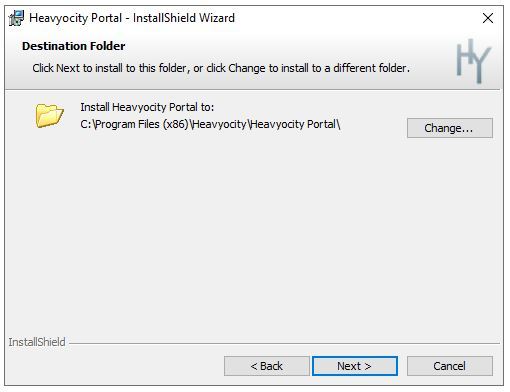
4. Click 'Next'.

5. Click 'Install'.

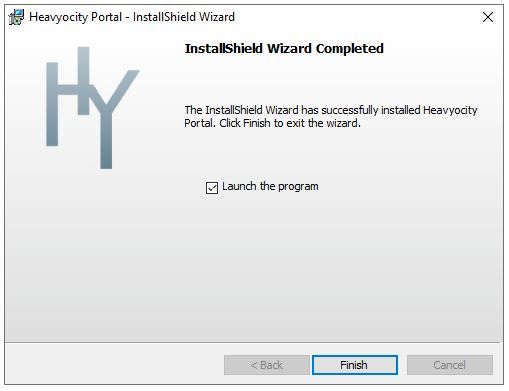
6. Click 'Finish'.

7. Enter your Heavyocity-registered Username (Email Address) and Password > Click 'Login'.

8. Click 'Register Now', located at the bottom of the Product Portal.

9. Complete the form and enter the serial number found in your Plugin Boutique User Account > Click 'Register'.

10. Click 'Install' on the far right of the portal.

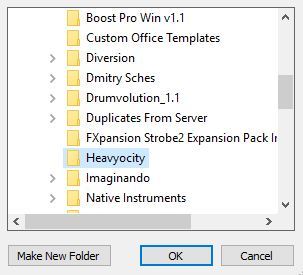
11. Select the installation location for your Heavyocity product > Click 'Ok'.

12. Click 'Install'.

Activation

1. Log in to Native Access.

2. Click 'Add a serial' in the top left corner of Native Access.

3. Enter the serial number found in your Plugin Boutique User Account > Click 'Add Serial'.

4. Click 'Close'.

5. Click the 'Not Installed' tab on the left-hand side of Native Access.

6. Locate NOVO Essentials > Click 'Add Library'.

7. Click 'browse' and locate the recently installed product > Click 'Install'.

Your product is now activated and ready to use.

Plugin Boutique Rewards

Discover the most rewarding loyalty programme among all plugin retailers.

  • Free Loopmasters Samplepacks
  • Discounts on products and courses
  • Extra Virtual Cash claimed immediately at checkout
Find out more

Follow us:

X (Twitter) Facebook YouTube Instagram
Logo Logo

Plugin Boutique Limited, Part of the Beatport Group LLC.

Copyright © 2011-2025 Plugin Boutique. All rights reserved