Buy Electric Keys - Phoenix, get a free gift with purchase:
Classic Retro Keys
Electric Keys – Phoenix captures the sound of a true icon – one of the world’s most influential and recognised electric pianos. With a vast spectrum of sounds, from melodious, bell-like textures to rich, warming harmonies and even distorted, barking tones, Phoenix perfectly delivers diverse retro timbres that will make your productions glow with vintage charm.
Features
- A faithful, versatile recreation of treasured electric piano sounds
- Pure, authentic tones ranging from warm and mellow to bright and barking
- Customize your sound with a classic array of controls, preamps, and creative effects
System Requirements
- FREE Kontakt 6.2.2 Player or Kontakt 6.2.2 or higher is required to use this instrument
- Download size: 3.64 GB
Mac
- macOS 13, 14 or 15 (latest update)
- Intel Core i5/equivalent CPU or Apple Silicon
- 4 GB RAM (6 GB recommended)
- Supports Core Audio
- Graphics hardware support for Direct 3D 11.1 (Feature Level 11_0) or higher
Windows
- Windows 10 or 11 (64-bit, latest Service Pack) or Windows 11 (latest Service Pack)
- Intel Core i5 or equivalent CPU
- 4 GB RAM (6 GB recommended)
- Supports ASIO and WASAPI
- Graphics hardware support for Direct 3D 11.1 (Feature Level 11_0) or higher
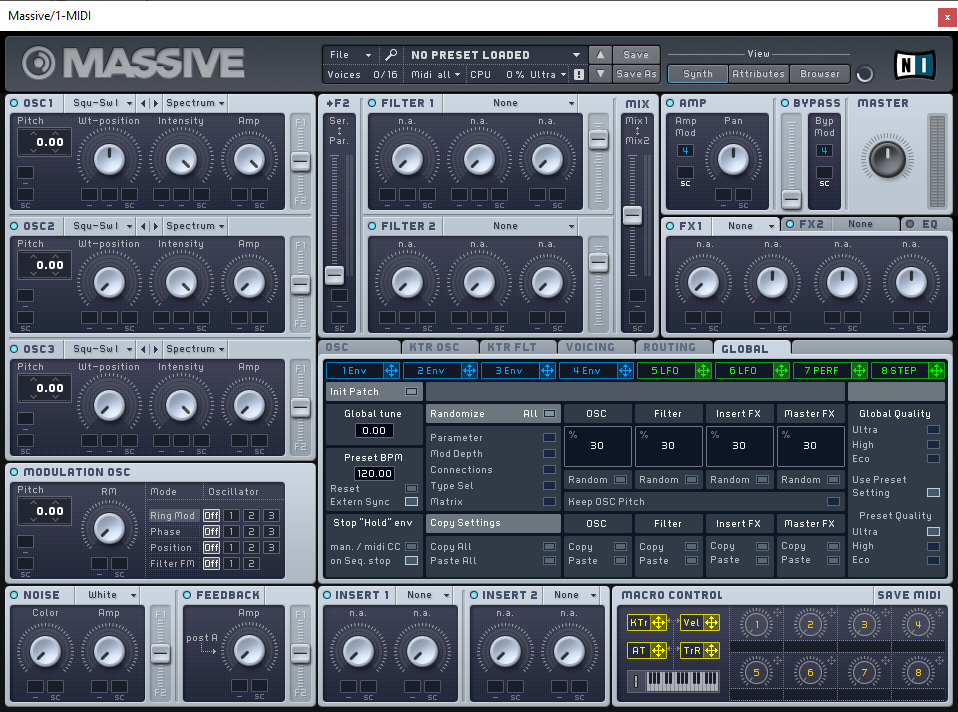
Note: Massive is used as an example.
Windows
1. Download the .zip installer file from your Plugin Boutique User Account.
2. Double-click the extracted .exe file to begin the installation process > click ‘Run’.
3. Read the welcome message > click 'Next'.

4. Click 'Next' to begin the installation.

5. Native Access has now been installed > Click 'Finish'.

6. Open Native Access > Create a new Native ID if you do not have one already. If you do, skip ahead to step 8.

7. You will then receive an email with a confirmation link > Open the email and click 'CONFIRM EMAIL'.

8. Log in to Native Access with your Native ID.

9. Click 'Add a serial'.

10. Enter your Serial Number found in your Plugin Boutique User Account > Click 'ADD SERIAL'.

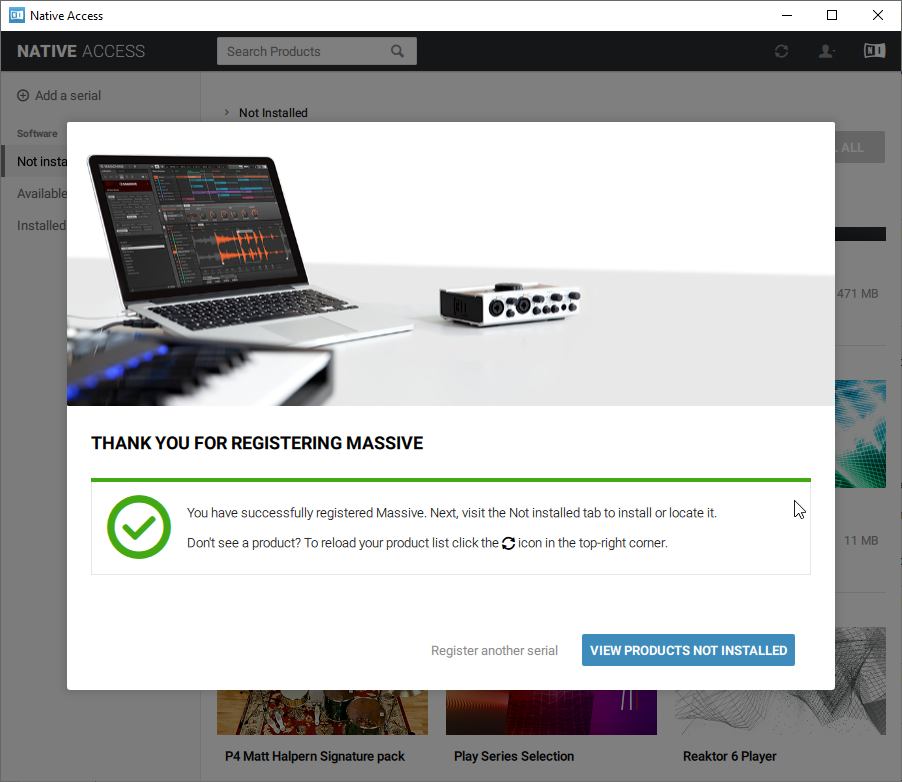
11. Once your serial has been registered, click 'VIEW PRODUCTS NOT INSTALLED'.
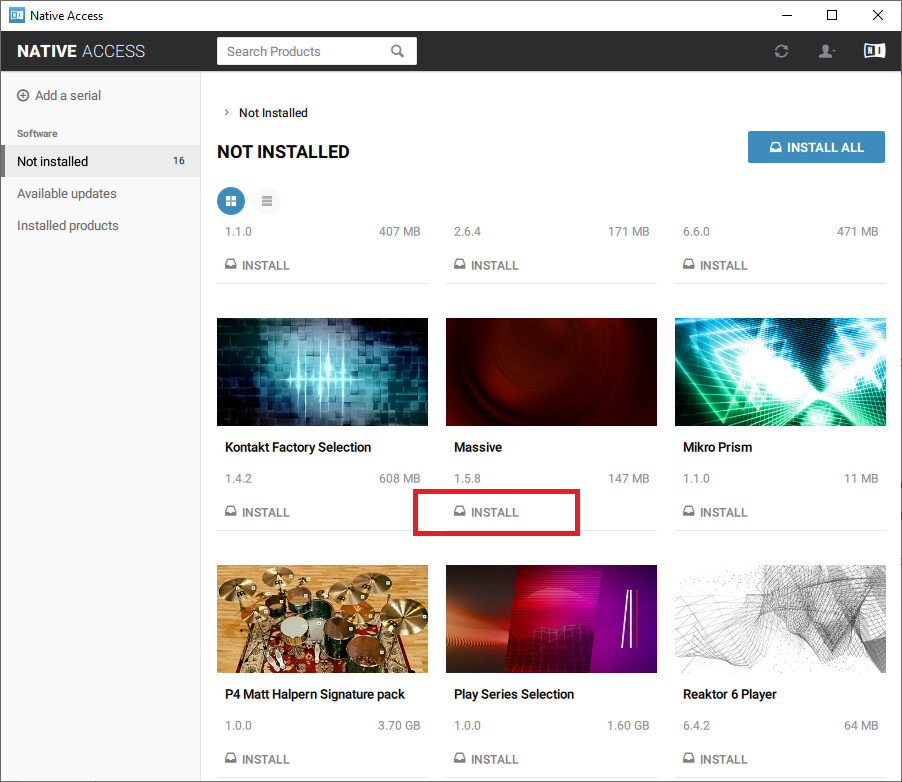
12. Click the 'Not installed' tab > Locate Massive > Click 'INSTALL'.
For Super 8 installation, please download and install the free Reaktor 6 Player available from this link - https://www.native-instruments.com/en/products/komplete/synths/reaktor-6-player/free-download/ - once installed, open Reaktor within your DAW and locate Super 8.
Your software is now activated and ready for use within your DAW.
Mac
1. Download the .dmg installer file from your Plugin Boutique User Account.
2. Double-click the .dmg file to install Native Access.
3. Open Native Acces > Create a new Native ID if you do not have one already. If you do, skip ahead to step 5.

4. You will then receive an email with a confirmation link > Open the email and click 'CONFIRM EMAIL'.
5. Log in to Native Access with your Native ID.

6. Click 'Add a serial'

7. Enter your Serial Number found in your Plugin Boutique User Account > Click 'ADD SERIAL'.

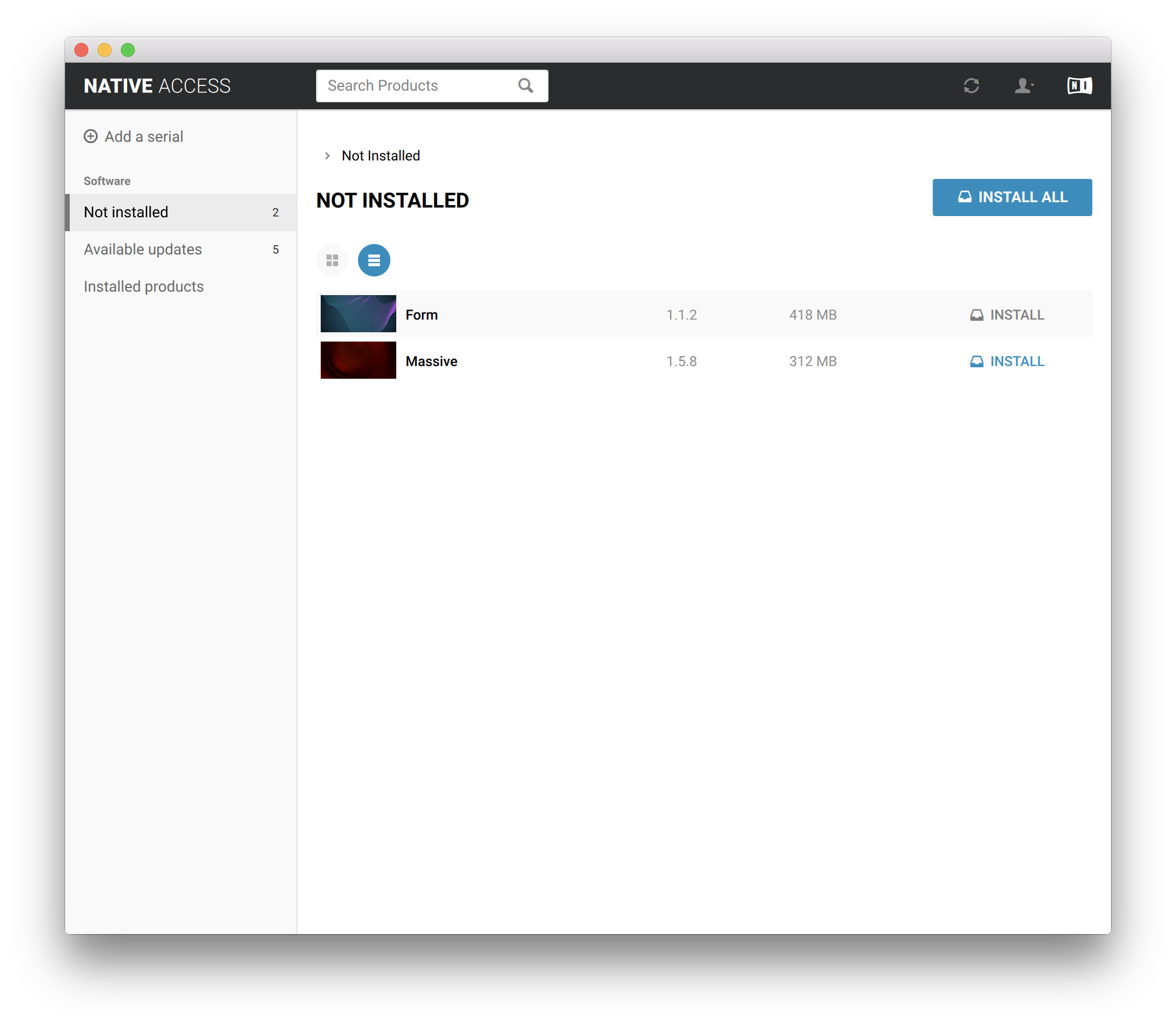
8. Click the 'Not installed' tab > Locate Massive > Click 'INSTALL'.
For Super 8 installation, please download and install the free Reaktor 6 Player available from this link - https://www.native-instruments.com/en/products/komplete/synths/reaktor-6-player/free-download/ - once installed, open Reaktor within your DAW and locate Super 8.
Your software is now activated and ready for use within your DAW.