Log In

Free gifts available with your purchase
Glitch Sequencer
Important Note: This is a software instrument designed for the full version of the NI Kontakt engine, and is not a physical product!
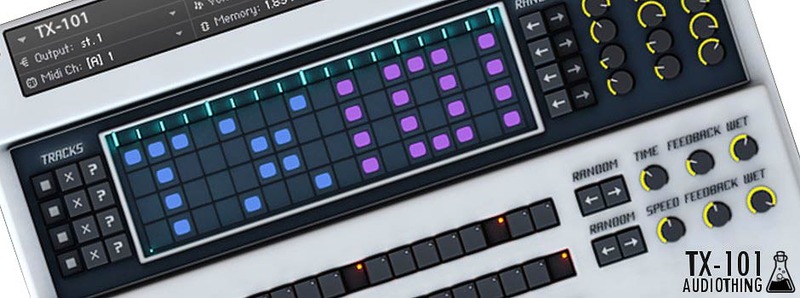
TX-101 is a 4-tracks sequencer designed for the creation of evolving rhythm patterns. Each track has 4 different samples (for a total of 16 samples), including organic glitches and metal hits. It is possible to store eight presets that can be joined and looped together to build a 128 steps sequence (16×8). It is also possible to sequence Delay and Flanger effects as two additional tracks.
Both parameters (cutoff, resonance, effects) and steps can be randomized separately. There are 6 different variations (.nki instruments) of TX-101 for different mood/styles: master, ambient, hard, leslie, modulations, talking. The modulation wheel is also assigned to a different set of parameters for each instrument. You can watch the tutorial video or download the documentation to learn more about TX-101.
Features
- Sequencer: 4 Tracks and 16 Steps + tracks for Delay and Flanger
- 8 Patterns presets
- 6 Kontakt Instruments (.nki) presets: Master, ambient, hard, Leslie, modulations, talking
- Mod. Wheel assigned to different parameters for each preset
- Size: 16 MB
- Formats: Kontakt and WAV
System Requirements
- The full version of Kontakt 4.2.4 or higher is required to run this instrument
Important note: The full version of Kontakt 4.2.4 or higher is required to run this software.