


 Log In

Free gifts available with your purchase
Product information
The classic E Pianos & brand new hybrid sounds
Muze Gemini is a virtual electric piano that combines two legendary electric pianos into one powerful instrument. Based on the Classic MK I and MK II Stage Pianos, Gemini accurately emulates the sound quality and nuances of each original instrument.
Gemini brings the world's most inspiring and interesting electric pianos into the studios of producers and music makers.
Features
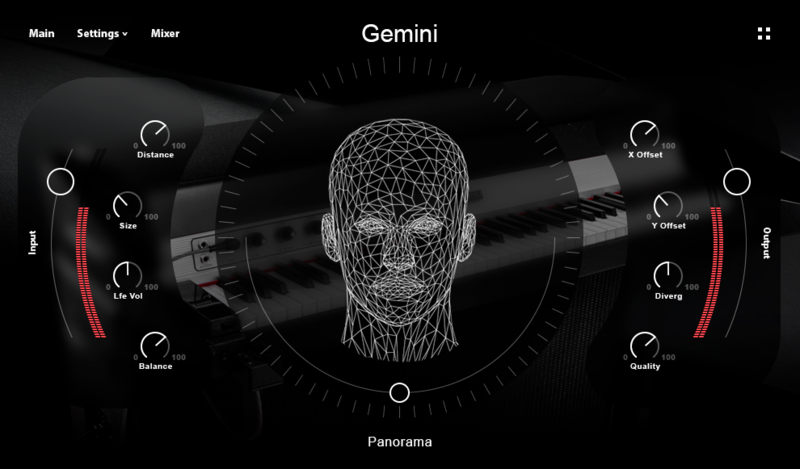
- A flexible user interface that allows you to control all aspects of the sound.
- A virtual electronic piano instrument with built-in effects that capture the character and response of two legendary instruments.
- Electric Piano samples: main and release (10 velocity layers).
- 12 Built-in effects: compressor, delays, reverb, limiter, cabinet, gainer, rotator, stereo panner, 3-band equalizer & more.
- 45 Sources
- Each preset has 45 layers with the ability to mix from 2 to 45 sounds simultaneously.
- 3958 Samples (compressed).
- 4.2 GB size on disk.
System Requirements
Mac
- Minimum – 8GB RAM / Mac OS X 10.7 or later / 7200 RPM or faster HDD.
- Recommended – 16GB RAM or more / Mac OS X 10.7 or later / SSD (Solid State Drive).
PC
- Minimum – 8GB RAM / Windows 7 or later / Sound card with ASIO drivers / 7200 RPM or faster HDD.
- Recommended – 16GB RAM / Windows 7 or later / Sound card with ASIO drivers / SSD (Solid State Drive).
Please Note: This product requires the FULL version of Kontakt and is NOT compatible with the free Kontakt Player.

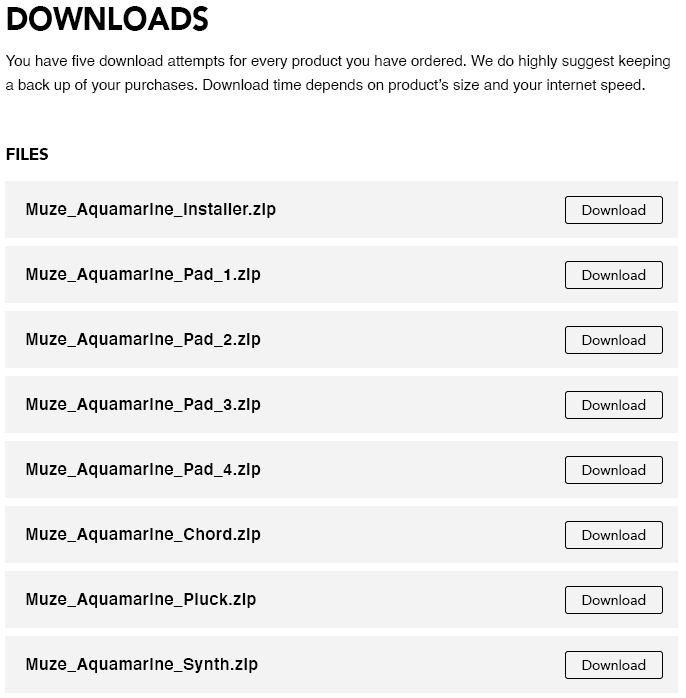
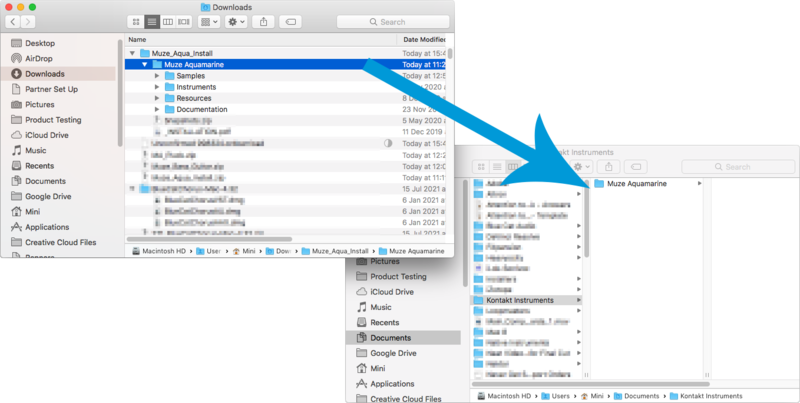
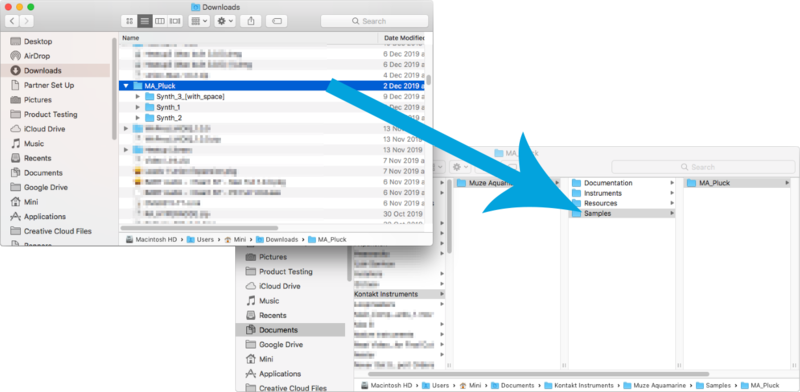
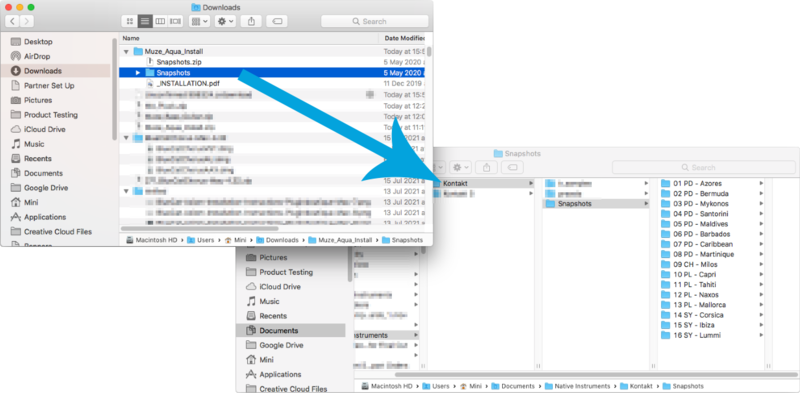
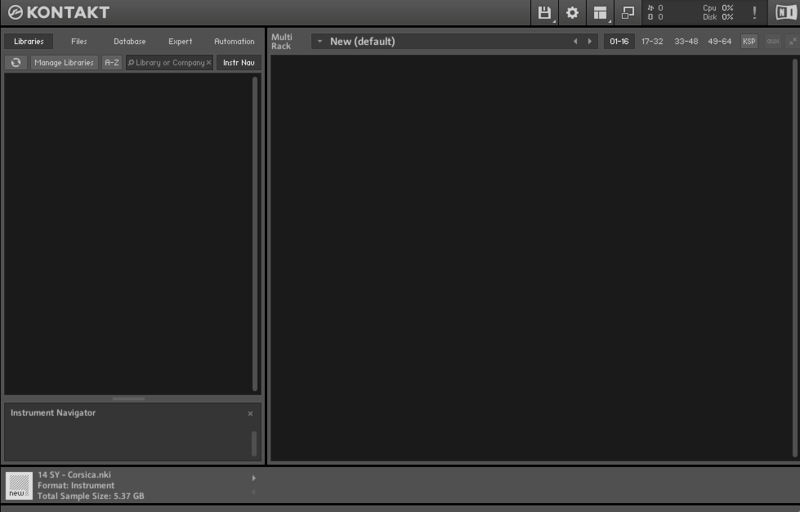
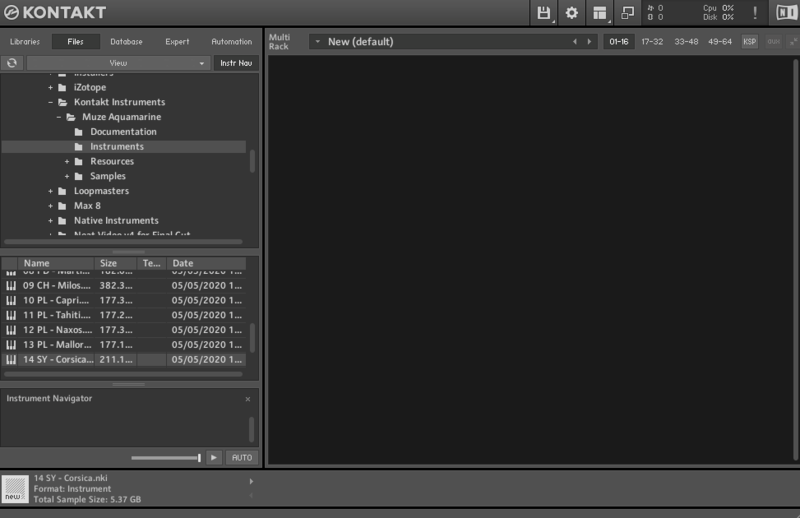
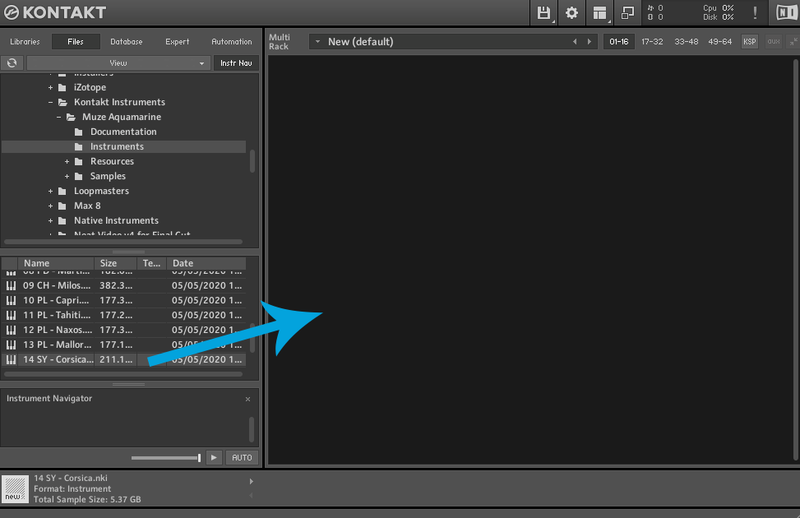
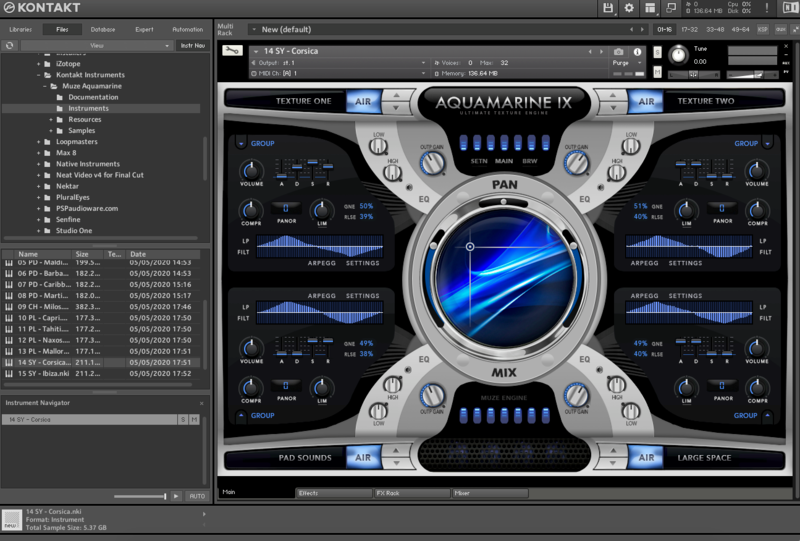
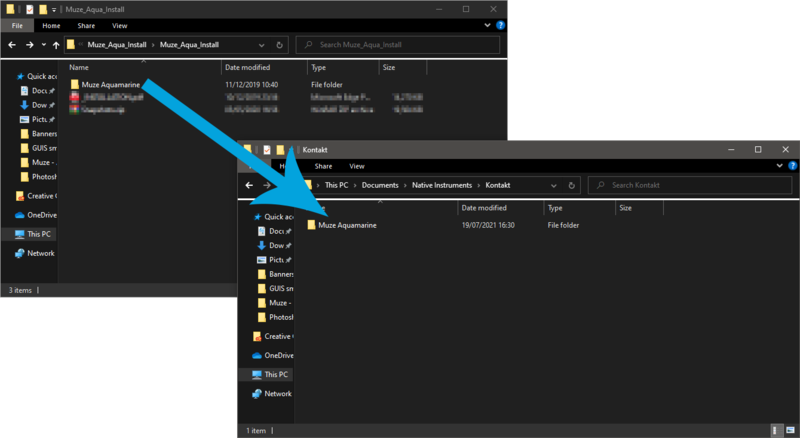
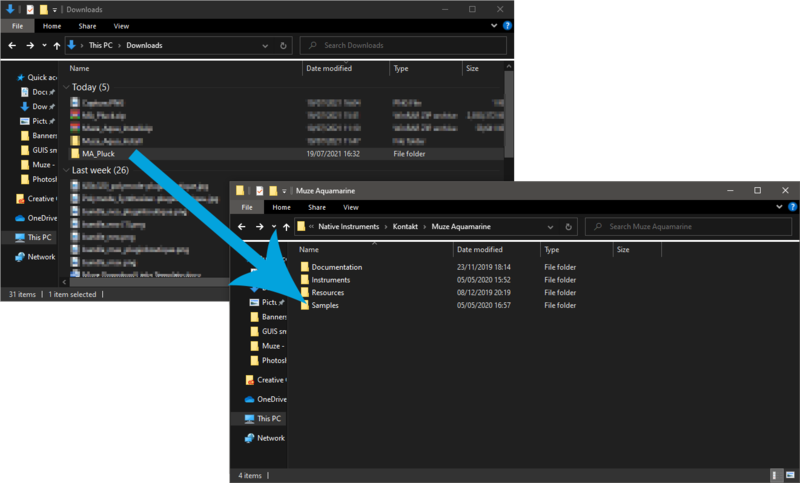
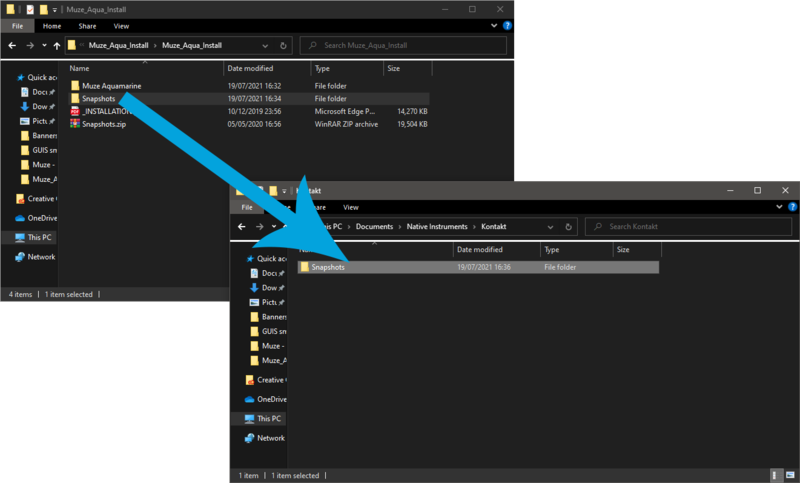
Installation Instructions
Customer Reviews
(5)
Reviews Summary
This AI-generated summary is based on an analysis of verified customer reviews. It identifies recurring themes, strengths, and potential considerations mentioned by users.
While it aims to provide a helpful overview, it may not capture every perspective or detail. We encourage you to read individual reviews to make an informed decision.
While it aims to provide a helpful overview, it may not capture every perspective or detail. We encourage you to read individual reviews to make an informed decision.
Customers universally praise this plugin for its high quality, intuitive interface, and smooth workflow, noting that it is effective, reliable, and highly recommended.


