Log In

Mirage blends the performance of master Dhrupad vocalist Chintan Upadhyay with an 1800s Church bass; a rare, richly balanced instrument with a deeper and more resonant sound than a cello, performed by MNTRA founder Brian D’Oliveira and used in several award-winning video game and film titles. Unique sacred sounds from these two different lineages are beautifullymelded together in this unique freebie offering.
“When I first met Chintan 6 years ago, learning from him completely changed my entire approach to music. He is still my teacher, and our friendship has evolved into a collaboration where he brings in the depth of the ancient tradition of Dhrupad and I bring in the technology of today. Mirage is an embodiment of our friendship: his voice and my church bass meet through the commonalities that we have learned from each other and shared.” Brian D’Oliveira - Creative Director and Performer
Dhrupad singer Chintan Upadhyay’s overtone rich voice, drenched in ancient tradition, deconstructs and renews the ‘Aa’ sound. This is the original sacred syllable ‘Om’ that forms the basis of the ancient dhrupad tradition. In the Hindu canon, the sound OM is claimed to be the source of all creation. Dhrupad is the oldest surviving Hindustani vocal musical tradition from North India. The nature of dhrupad is spiritual and has its origins in the chanting of the samvedas which can be dated from around 1200 BCE. Born in Gujarat, India, Chintan Upadhyay started his training in singing from his parents at a very early age. He is a Dhrupad vocalist from the Dagar Baani tradition, and a disciple of Pt. Uday Bhawalkar.
Brian D’Oliveira, prolific composer, deep multi-instrumentalist, and creative director of MNTRA, matches Chintan’s ‘Om’ with a rare church bass. This instrument has a drastically contrasting history to the venerable and ancient dhrupad lineage. In North American churches, congregations of settler pilgrims had a hard time keeping up with the singing. Their way of life was not conducive to literacy and musical skills. A carpenter started making sturdy, box-like versions of an instrument between a cello and an upright bass specifically to aid a congregation to keep some idea of pitch. This grew in popularity from Revolutionary War times (1775–1783) until around the 1840s. As time went by, makers refined their skills and the instruments improved. Our church bass is a gorgeous, richly balanced instrument with a deeper and more resonant sound than a cello, made by the luthier Abraham Prescott, C 1830. It is one of the main instruments featured in Brian D’Oliveira’s soundtrack of The Shadow of the Tomb Raider. The voice and church bass are performed in a way that works effortlessly within the context of today’s soundtracks. These sounds are perfect for drones, and textures, and will add a haunting and ethereal element to your sonic landscapes.
Features
- Dhrupad - Om: Dhrupad style vocals performed by Indian classical music virtuoso Chintan Uphadhyay.
- Dhrupad - Aa: Dhrupad style vocals performed by Indian classical music virtuoso Chintan Uphadhyay.
- Church bass - Straight: rich, deep sounds of Cello bass dating from the early 19th century performed by award winning composer Brian D’Oliveira.
- Church bass - Tremolo: rich, deep sounds of Cello bass dating from the early 19th century performed by award winning composer Brian D’Oliveira.
- 16 Presets
- 4 Instrument Sample Maps
- One octave, 13 notes, 182 samples recorded at 24-bit 88.2 kHz
System Requirements
- 64-bit VST3/AU/AAX plugin for Windows & Mac OS (10.11+) including full M1 Chip support
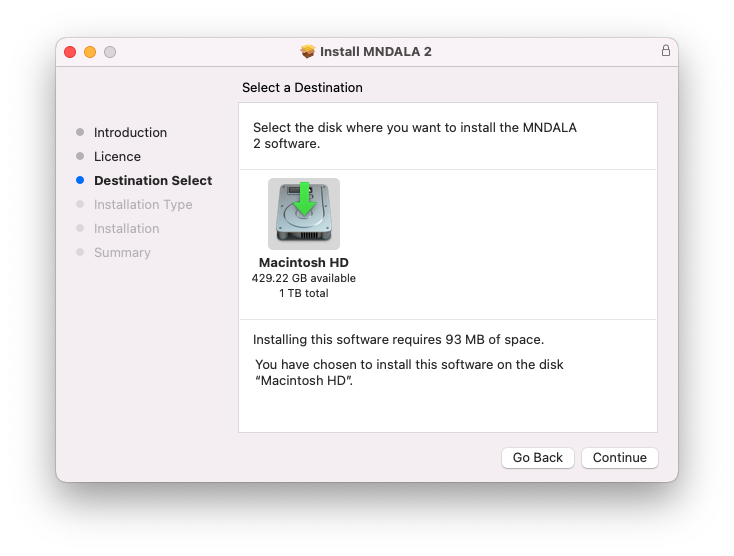
- 880 MB installed, 2 GB recommended for setup
- Minimum 8GB of RAM and an i5 or better CPU required
- SSD drive recommended
- Supported by all popular VST/AU/AAX compatible DAW
Takeshi Furukawa
The Last Guardian, Star Wars: The Clone Wars
“Brian and the MNTRA team have created truly unique instruments. The recording quality, the musicality of the samples, ease of use of the plug-in, everything is top-notch.”
Nemanja Rancic
aka 'Kortiko', Senke nad Balkanom, Juzni vetar
“I find all the MNTRA instruments to be organic, yet perfectly capable of blending with synths. They feel timeless to me, because I can use them in any project I work on.”
Ryan Elder
Rick and Morty, The Boss Baby: Back in Business
“In a sea of virtual instruments and sound libraries MNTRA's Instruments really stand out as creative and inspirational tools.”