Log In
.jpg)
Free gifts available with your purchase

Explore the Dark Sounds of Aztec Death Whistles
Ultrasonic Death Whistle (UDW) was designed as an introduction to MNTRA's powerful MNDALA Sound Sculpture Engine. The combination of these two opens the door for unparalleled creative possibilities with MNTRA's leading-edge ultrasonic quality sampling.
Performed by MNTRA's Founder - Composer & Multi-instrumentalist Brian D’Oliveira, UDW offers a window into their collection of rare pre-Columbian death whistles that were found during their research and development. Some of them were even handcrafted in their studio to expand creative sound possibilities, and many of these death whistles were featured in the production of multiple Award Winning AAA Video Game soundtracks.
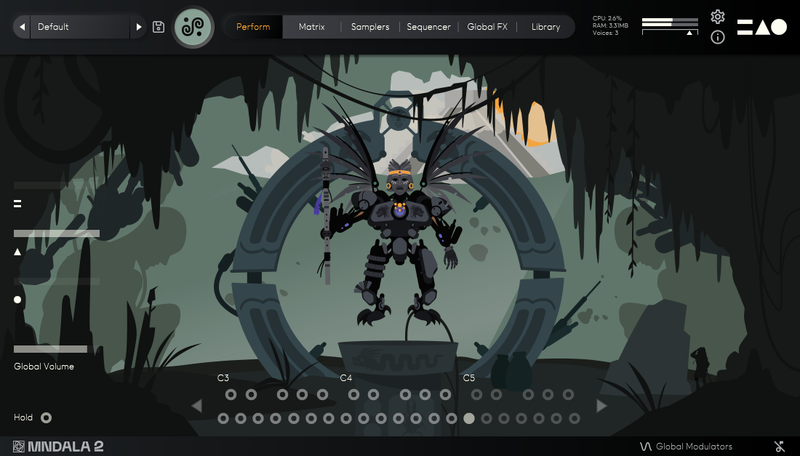
UDW’s video-game audio-inspired interactive scene allows for non-linear multidimensional control and patch creation for intuitive yet seamless musical expression.
Each Death Whistle is named to represent its characters. Having been sculpted by hand, their sounds are recognizably unique, each sample map representing a different Death Whistle.
- Proprietary Engine - VST/AU Plugin included. No additional software required
- 3-Axis Universal Controls - Simply map your favourite controller once for all plugin instances
- Intuitive Performance GUI - Custom animation-driven performance interface & mouse hover interactions
- Industry Leading Audio Quality - 384khz/32-bit extended ultrasonic range sample sources
Instrument Sample Maps
All of the following instruments are different death whistles
- Yuuali (Night)
- Yuualtotome (NightBird)
- Ehecatl (Wind)
- Tlilcoatl (Viper)
- Ixehua (Ghost)
- Coyochoca (Coyote)
- nIzhuayo (Forest)
- nIxpoctic (Vision)
- Cuaxicalli (Skull)
- Ozomatl (Monkey)
- Tecuyoa (Howl)
- Huentlalia (Altar)
- Tzatzllia (WarCry)
Features
- 13 Instrument Sample Maps
- Up To 31 Round Robbins
- Recorded at industry-leading 32-bit/384kHz resolution
- Extreme resolution CPU efficient in-DAW playback & blazingly fast preset loading
- Plugin app and samples watermarked to you
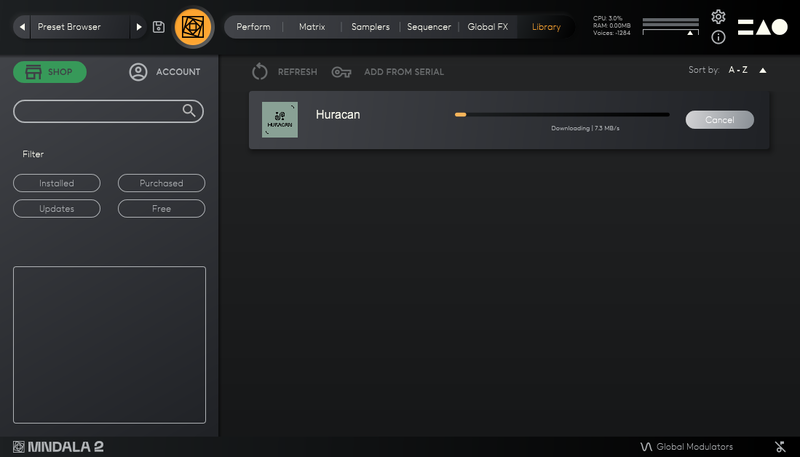
- Easy downloads and updates via Pulse Downloader
- 4 GB installed
System Requirements
- 5 GB hard drive space required for setup
- VST / AU / AAX plugin for Windows & Mac OS (10.11+) Including M1 Chip
- Minimum 8GB of RAM and an i5 or better CPU required
- Supported by all VST/AU/AAX compatible DAWs
Takeshi Furukawa
The Last Guardian, Star Wars: The Clone Wars
“Brian and the MNTRA team have created truly unique instruments. The recording quality, the musicality of the samples, ease of use of the plug-in, everything is top-notch."
Nemanja Rancic
aka 'Kortiko', Senke nad Balkanom, Juzni vetar
“I find all the MNTRA instruments to be organic, yet perfectly capable of blending with synths. They feel timeless to me, because I can use them in any project I work on.”
Ryan Elder
Rick and Morty, The Boss Baby: Back in Business
“In a sea of virtual instruments and sound libraries MNTRA's Instruments really stand out as creative and inspirational tools.”