/ Expansion Packs / BFD Player Expansion: Metal Essentials
BFD

BFD Player Expansion: Metal Essentials

4.6 (14 Reviews)
$9.00 $29.00

68% off until Dec 07

BFD Player Expansion: Metal Essentials
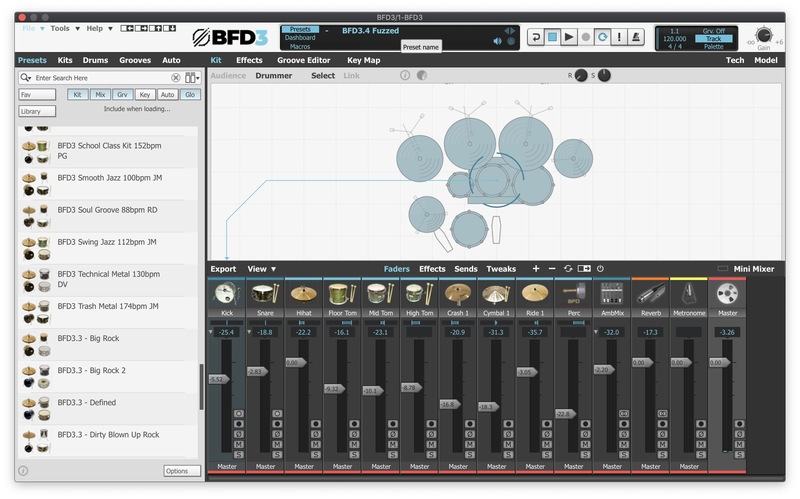
BFD Player Expansion: Metal Essentials - Mixer UI
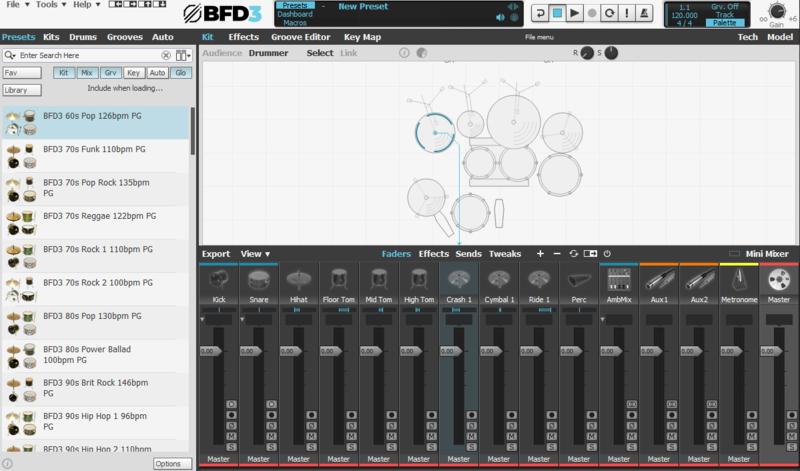
BFD Player Expansion: Metal Essentials - Kit UI
BFD Player Expansion: Metal Essentials - Grooves UI
Buy Now
Product information

Introducing BFD Player - Metal Essentials. Your next thunderous drumkit for metal and rock.

Dive into the heart-pounding beats of BFD's latest creation: BFD Player - Metal Essentials. Derived from the legendary BFD Oblivion expansion pack, this collection is a relentless powerhouse crafted for the most audacious drummers and producers.

Experience the huge signature sound of a Mapex Orion kit, complete with a complement of Paiste and Zildjian cymbals and a cracking Mapex Brass Master snare.

In Your Face, Unapologetic Sound: Get ready for a sonic onslaught. BFD Player - Metal Essentials delivers a sound that's as aggressive as it is defined, ensuring every hit is felt, not just heard.

Tailored for Heavy Genres: Whether you're into metal, rock, or crave the weight of heavier genres, these drums pack the unrelenting power and precision to drive your music to its maximum potential.

Unleash a sonic storm with Metal Essentials – the definitive drum sample pack for those who thrive on the unyielding intensity of heavy music. Elevate your sound, dominate the stage, and conquer your audience with drums that roar like never before.

Get your hands on Metal Essentials today and experience the raw power that awaits within each beat!

Features

  • 22x18” Mapex Orion Kick
  • 16x16” Mapex Orion Floor Tom
  • 12x9” Mapex Orion Mid Tom
  • 10x8” Mapex Orion High Tom

Snare:

  • 14x6.5” Mapex ‘Brass Master’ Snare

Cymbals:

  • 21” Zildjian A-Rock Ride
  • 16” Zildjian Z-Custom Crash 18” Paiste 2002 Crash
  • 20” Bosphorus China
  • 14” Paiste 2002 Heavy Hihat

System Requirements

Windows

  • Windows 10 version 1909 and above
  • 2GB free disk space (10.5 GB for all content recommended)    
  • 4GB RAM (8GB recommended)    
  • Dual-core 2.5GHz CPU    
  • BFD Player 1.1.0 required    
  • Not compatible with BFD3    

Mac

  • macOS 10.13 to macOS 13 Ventura (Apple Silicon compatible)
  • 2GB free disk space (10.5 GB for all content)
  • 4GB RAM (8GB recommended)
  • Dual-core 2.5GHz CPU
  • BFD Player 1.1.0 required
  • Not compatible with BFD3
     
Installation Instructions

Note: BFD3 is used as an example.
Registration

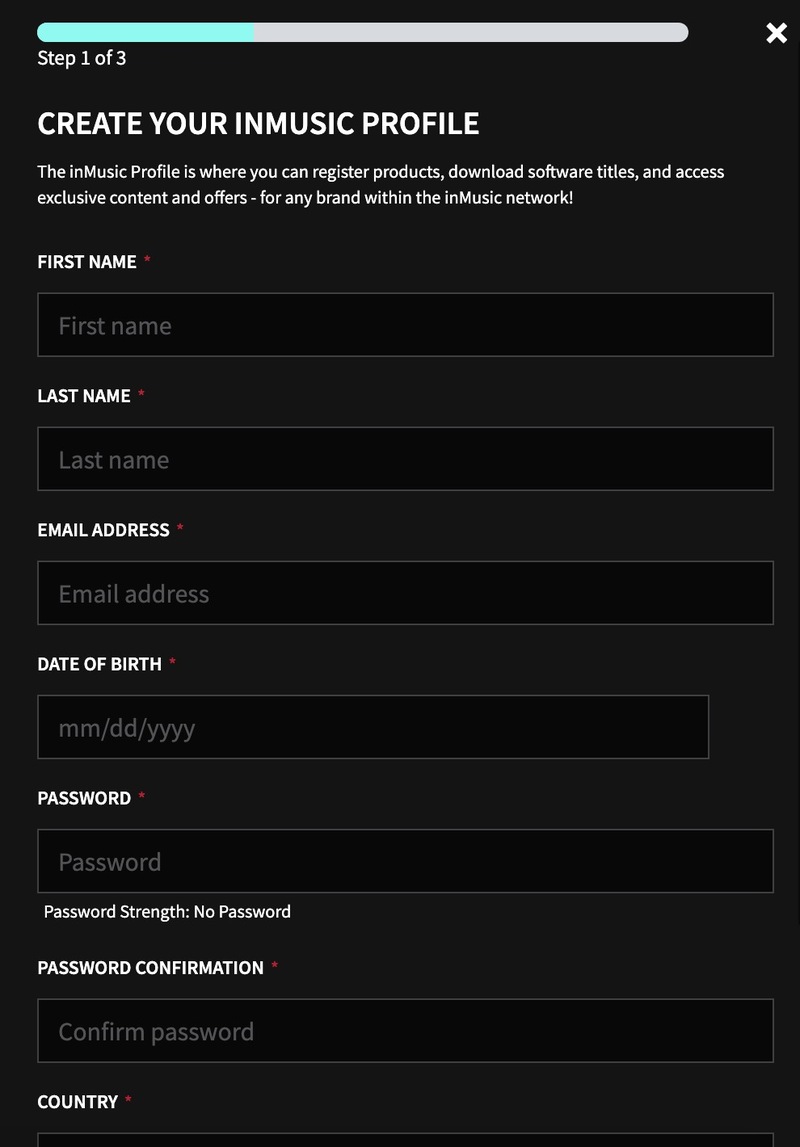
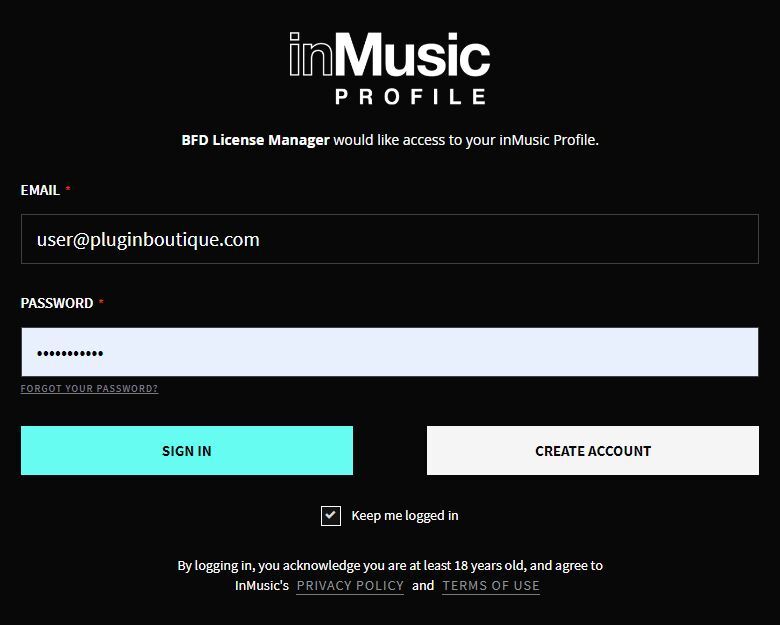
1. Go to https://profile.inmusicbrands.com/customer/account/login/ > Enter your email address and password > Click 'Create Account'.

2. Enter your details > Click 'NEXT STEP'.

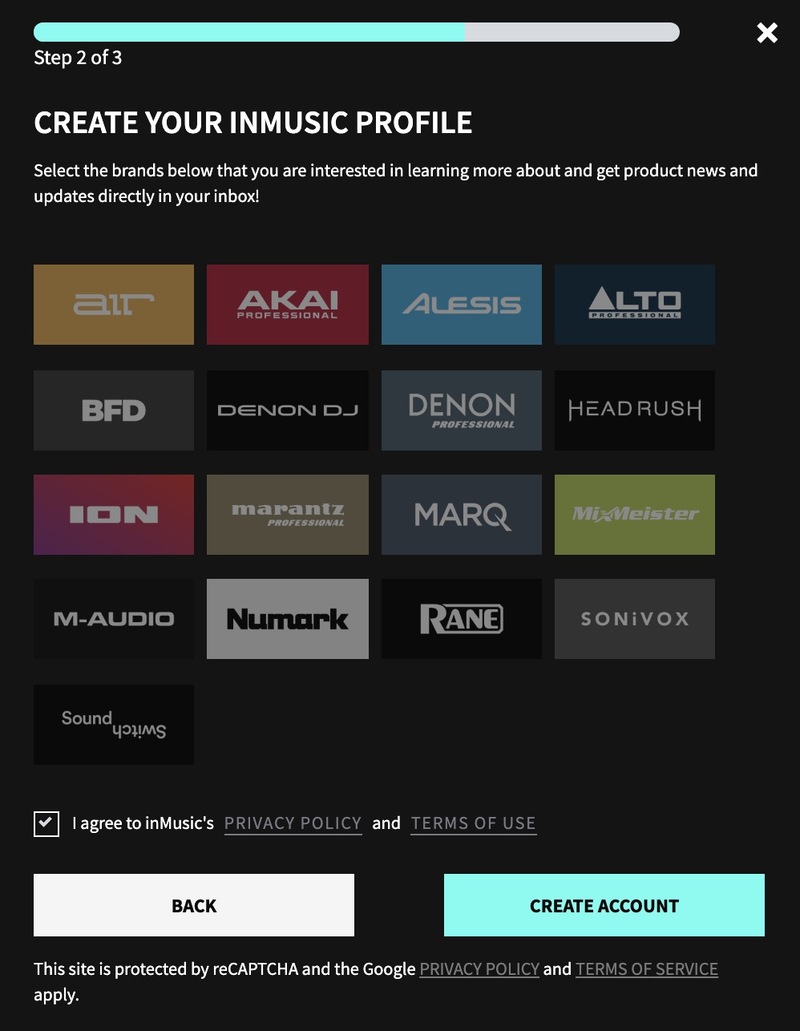
3. Select brands you're interested in > Click 'I agree to inMusic's PRIVACY POLICY and TERMS OF USE' > Click 'CREATE ACCOUNT'./

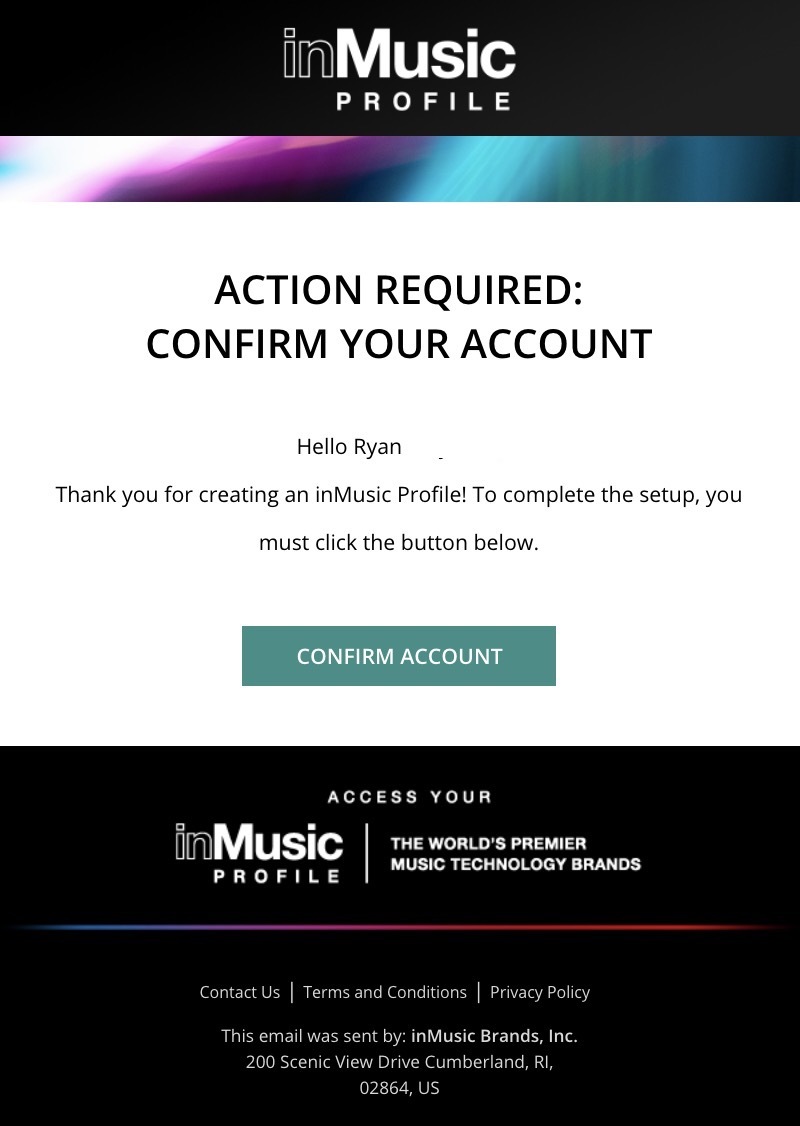
4. You have just created an inMusic account. You will now be sent a confirmation email.

5. Locate the account confirmation email > Click 'CONFIRM ACCOUNT'.

Your account is now confirmed!

Mac Installation

1. Download the BFD License Manager from your Plugin Boutique account.

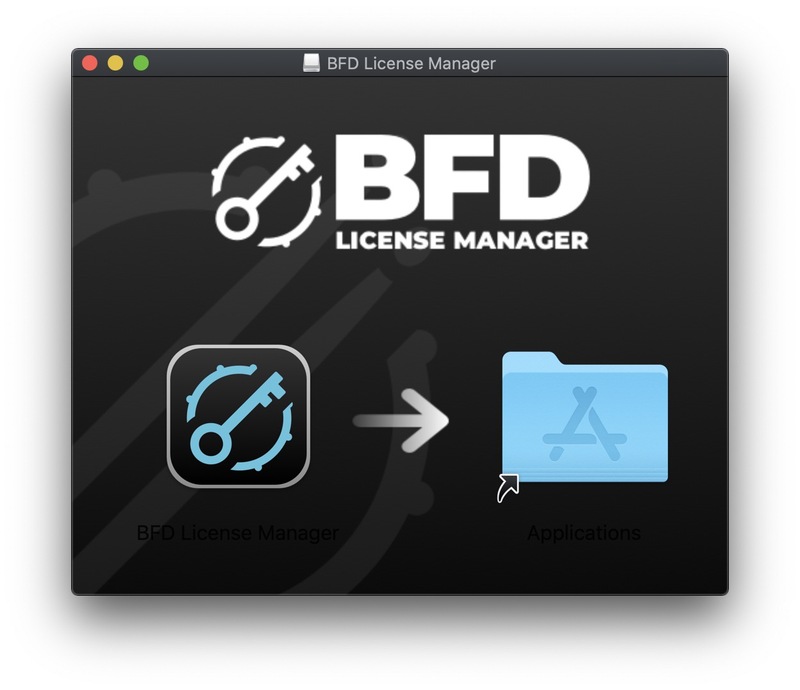
2. Run the BFD License Manager installer > Drag the BFD License Manager icon over to your Applications folder.

3. Open the BFD License Manager when it has installed > Click 'Login via browser'.

4. Enter your details and log into your account.

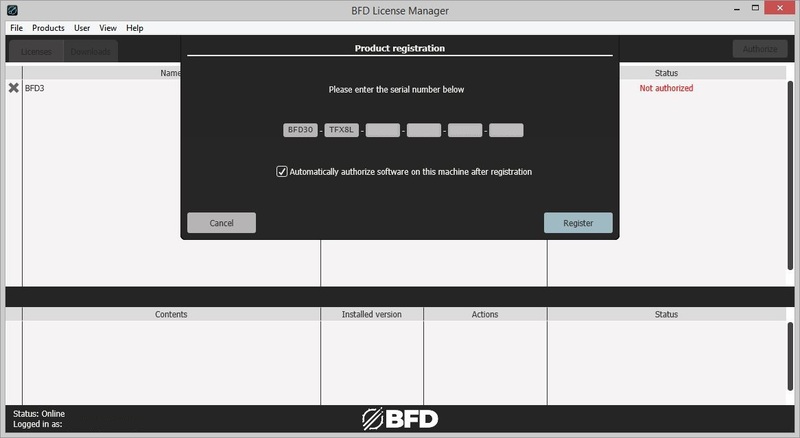
5. Go back to the BFD License Manager > Click 'Products' on the toolbar > Select 'Register Product Serial'.

6. Enter the serial number found in your Plugin Boutique account > Click 'Register'.

7. Your serial is now registered > Click 'OK'.

8. Click 'Authorize'.

9. Your product is now authorised > Click 'OK'.

Core Library Installation

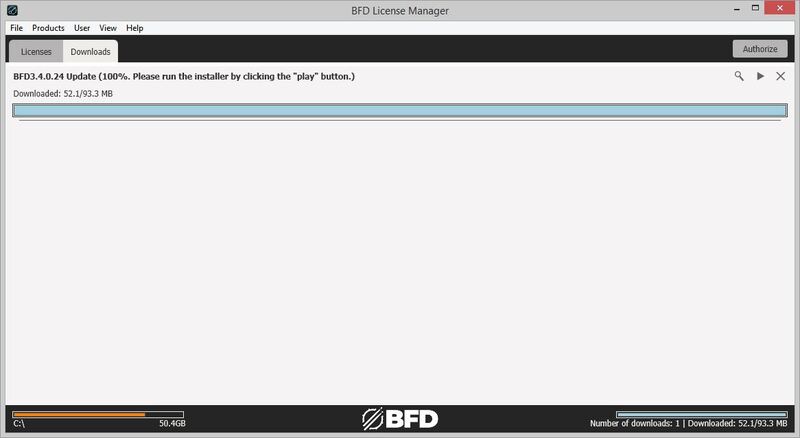
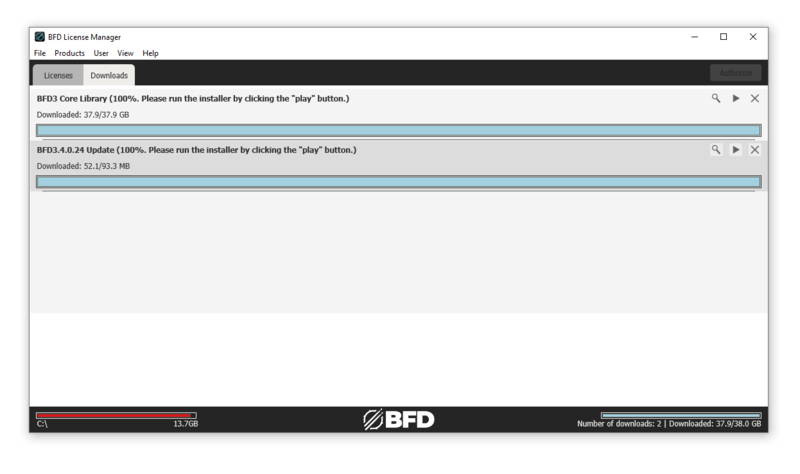
1. Go back to the BFD License Manager > Click on BFD3 > Click the download button by 'BFD Content Installer'. You will now download the BFD3 Core Library (this is a large download and may take a while).
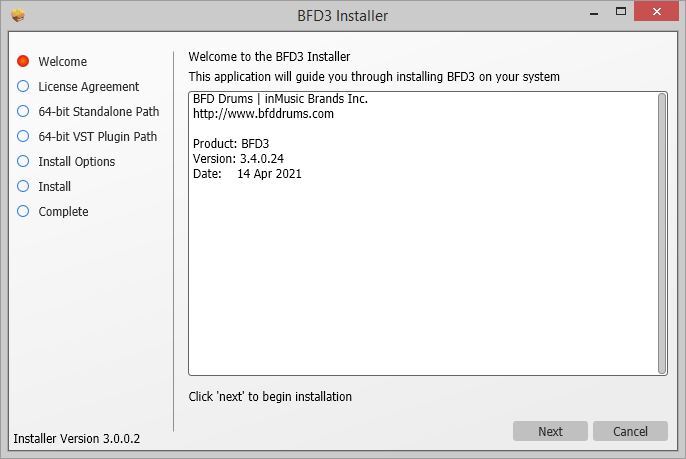
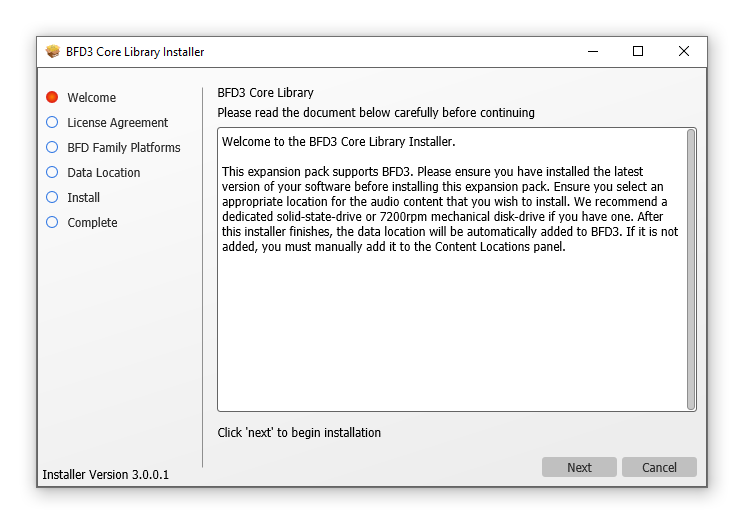
2. Click the 'play' button when the download has finished to install the core library > Click 'Next'.

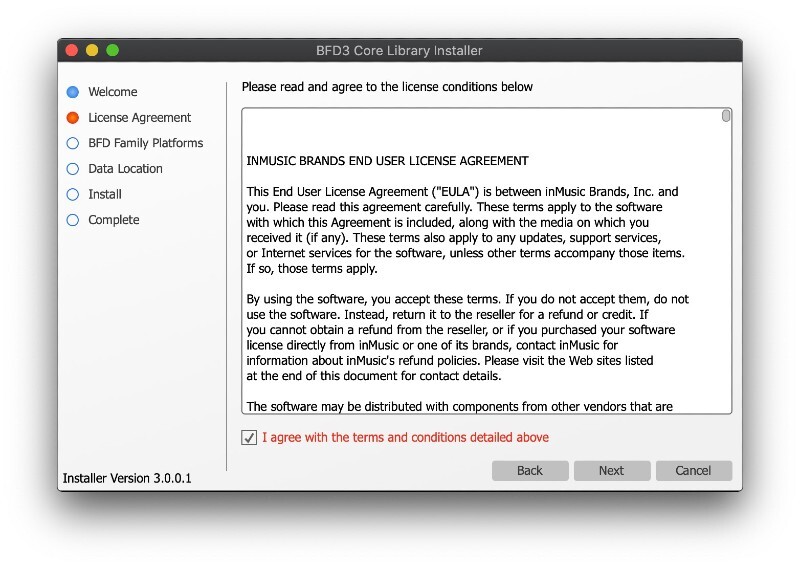
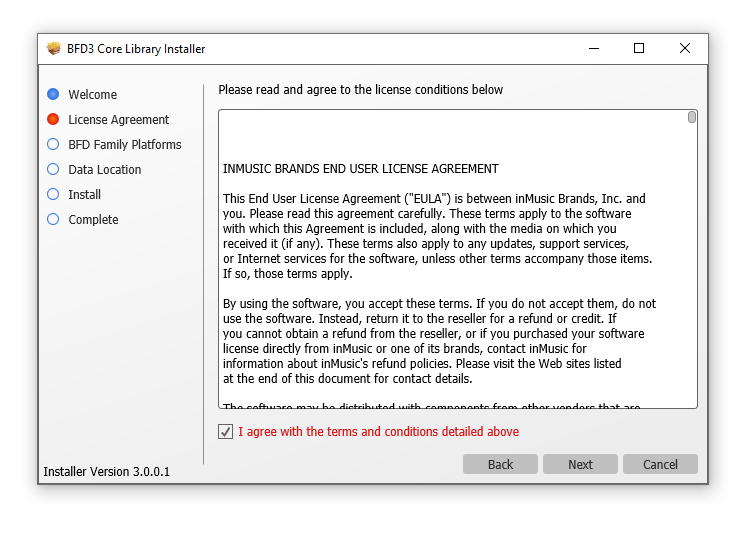
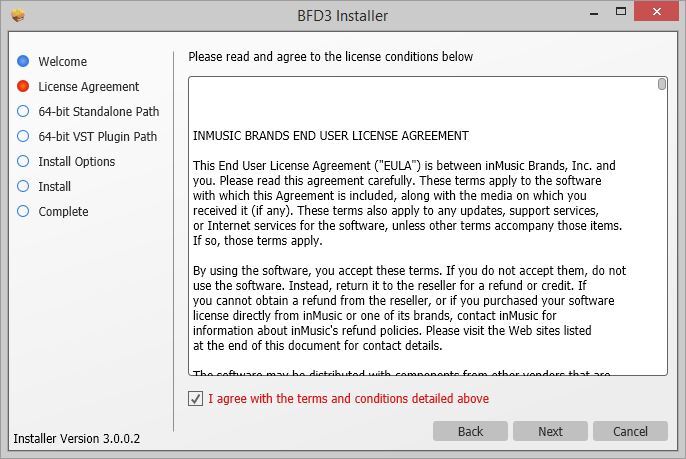
3. Read the License Agreement > Click 'I agree with the terms and conditions detailed above' > Click 'Next'.

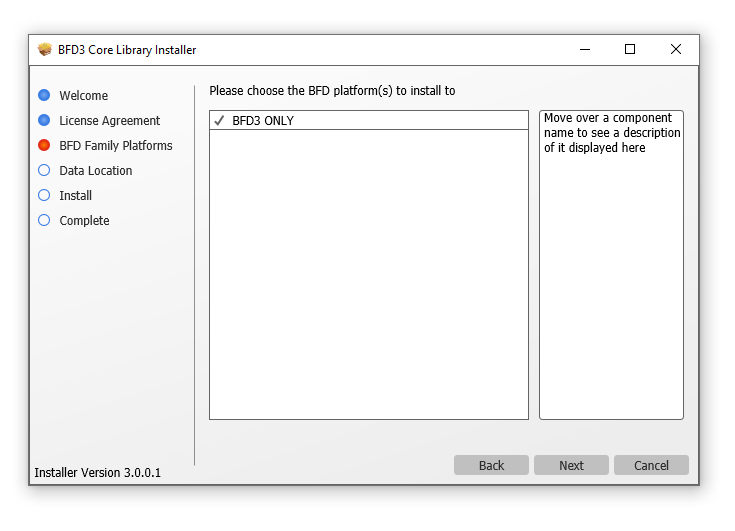
4.  Click 'BFD3 ONLY' > Click 'Next'.
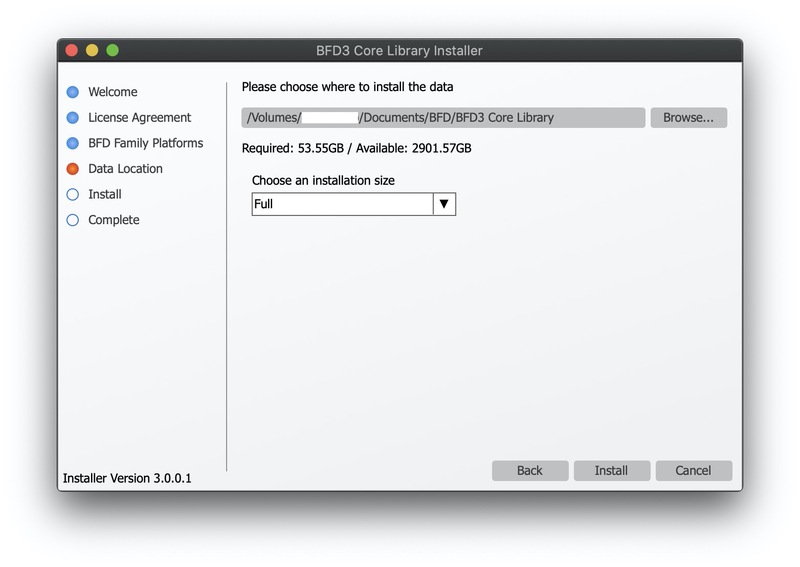
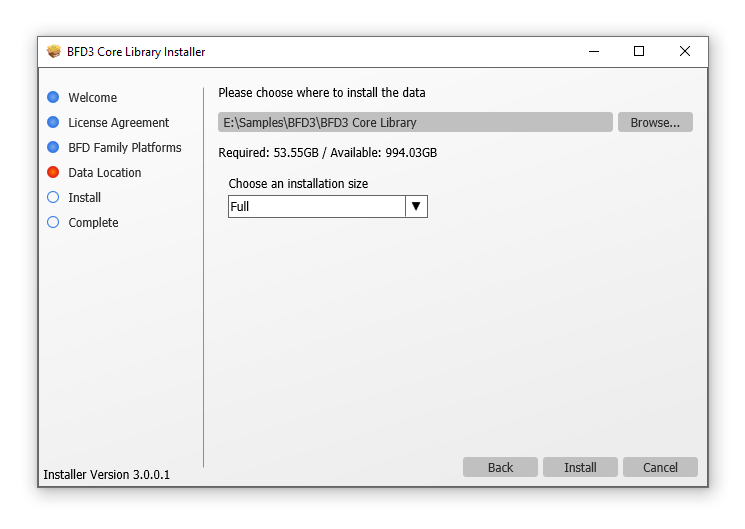
5. Choose where you want to install the library (if you have enough space, leave this as the default and install it on your main drive) > Select the installation size > Click 'Install'.

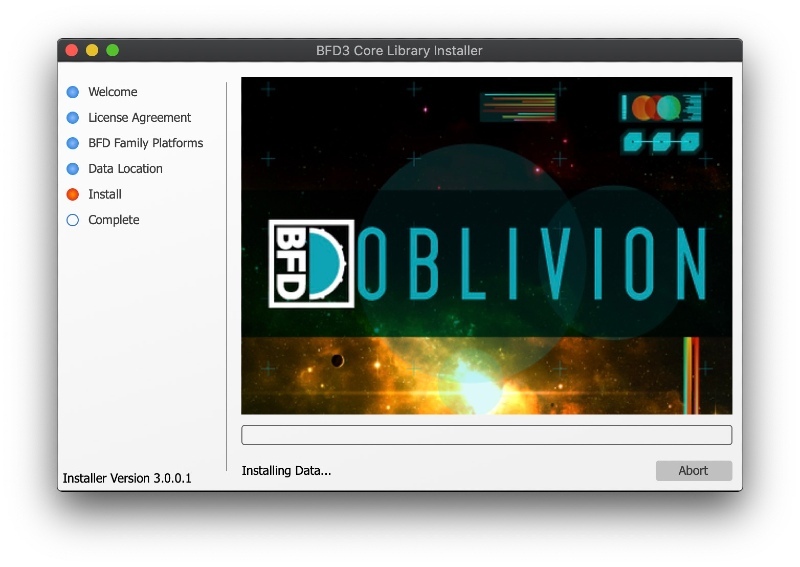
6. Please wait for the Core Library to install.

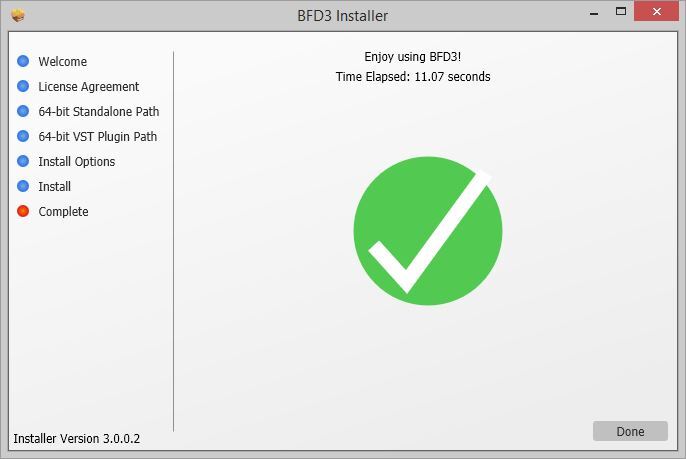
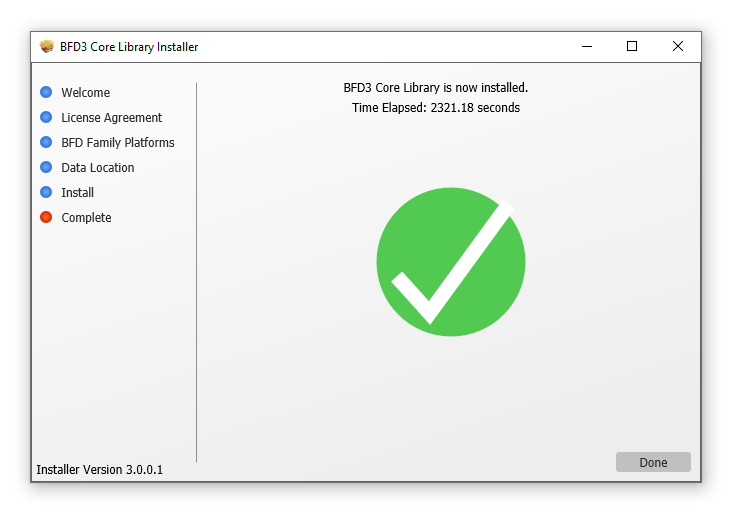
7. The BFD3 Core Library is now installed > Click 'Done'.
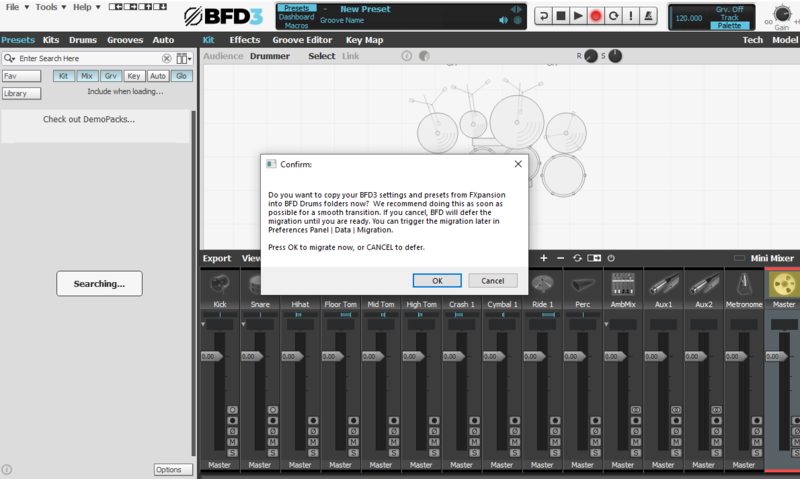
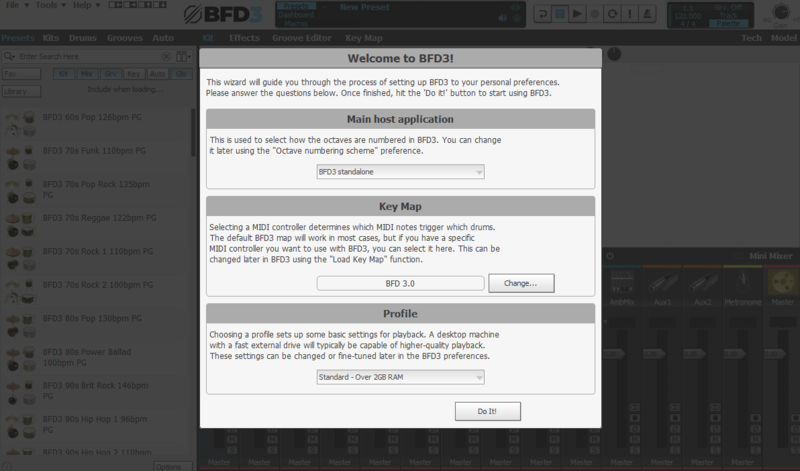
8. Open BFD3 in your DAW > Choose your preferences > Click 'Do It!'.

BFD3 is now installed, activated and ready to use in your DAW!

Windows Installation

1. Download the BFD License Manager from your Plugin Boutique account.

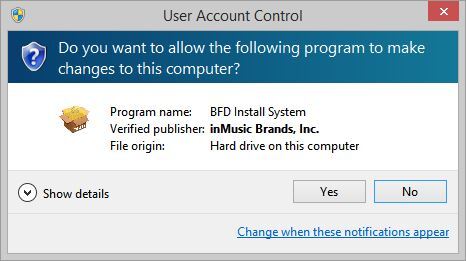
2. Run the BFD License Manager installer (you may need to find it in your download folder in Windows Explorer and open it from there) > click 'Yes'.

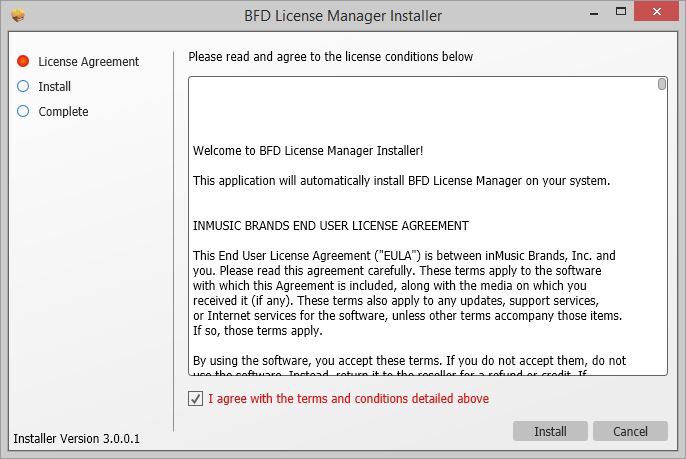
3. Read the License Agreement > Click 'I agree with the terms and conditions detailed above' > Click 'Install'.

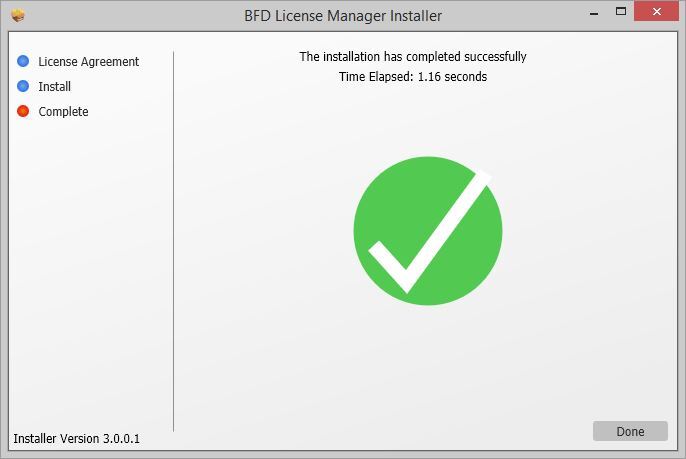
4. The BFD License Manager is now installed > Click 'Done'.

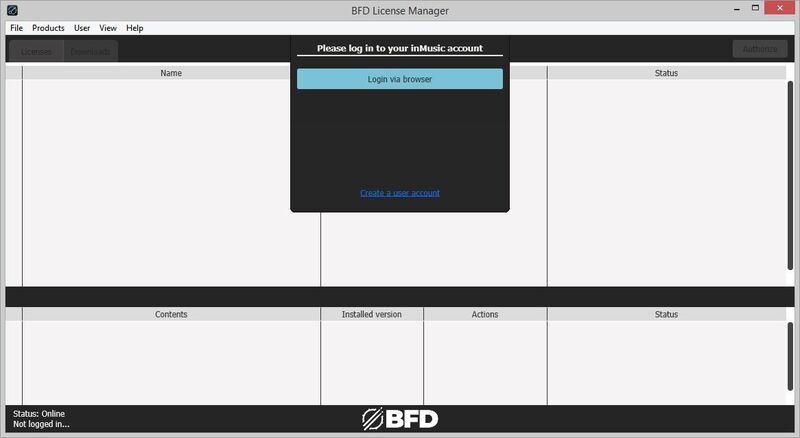
5. Open the BFD License Manager > Click 'Login via Browser'.

6. Your browser will now open a new tab > Log in with your details.

7. Go back to the BFD License Manager > Click 'Products' in the toolbar > Select 'Register Product Serial...'.

8. Enter the serial number found in your Plugin Boutique account > Click 'Register'.

9. Click on your license > Click 'Authorize'.

10. Click 'Authorize' again.

11. Click the download button next to 'BFD3 Software Installer' to download the BFD3 installer.

12. Wait for the download to finish > Click the 'play' button.

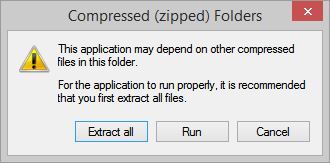
13. Extract the contents of the ZIP folder.

14. Click 'Next'.

15. Read the License Agreement > Click 'I agree with the terms and conditions detailed above' > Click 'Next'.

16. Click 'Next'. 

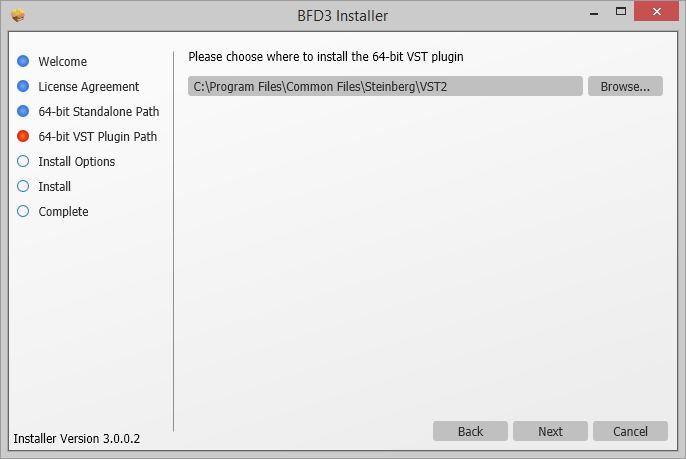
17. Click 'Browse...' > Select the VST folder that your DAW uses > Click 'Next'.

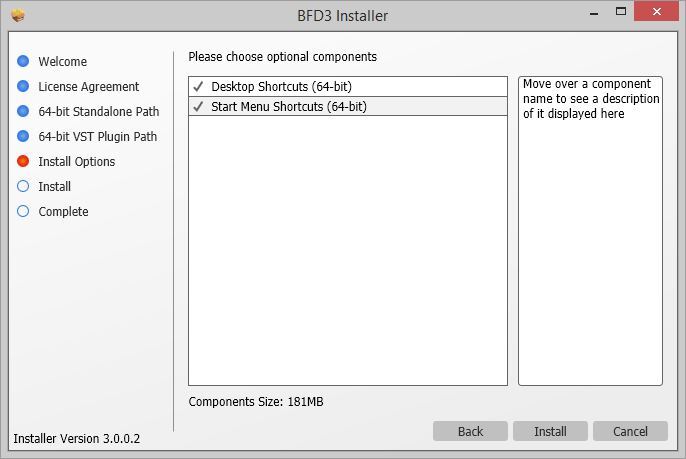
18. Click 'Install'.

BFD3 is now installed on your system.

Factory Content Installation

1. Click the download button next to 'BFD3 Content Installer'

2. Wait for the download to finish > Click the 'play' button for the 'BFD3 Core Library'.

3. Click 'Next'.

4. Select 'I agree with the terms and conditions detailed above' > Click 'Next'.

5. Select 'BFD3 ONLY' > Click 'Next'.

6. Click 'Install'.

7. Wait for the Core Libary to install > Click 'Done'.

8. Open BFD3 in your DAW > Choose your preferences > Click 'OK'.

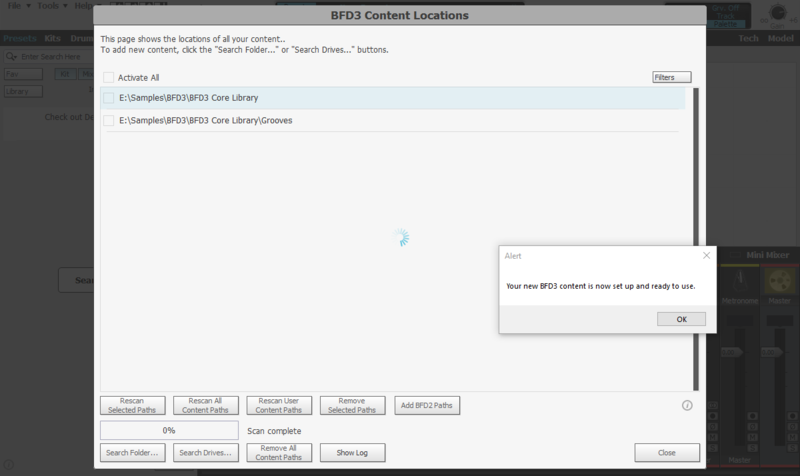
9. Click 'OK'

10. Select your preferences > Click 'Do It!'

BFD3 is now installed, activated and ready to use in your DAW!

Plugin Boutique Rewards

Discover the most rewarding loyalty programme among all plugin retailers.

  • Free Loopmasters Samplepacks
  • Discounts on products and courses
  • Extra Virtual Cash claimed immediately at checkout
Find out more

Follow us:

X (Twitter) Facebook YouTube Instagram
Logo Logo

Plugin Boutique Limited, Part of the Beatport Group LLC.

Copyright © 2011-2025 Plugin Boutique. All rights reserved