Note: Sunshine State/Digital Nostalgia are used as the examples.
Windows (VST3)
Note: The built in preset browser supports the VST3 .vstpreset format, so if you are in doubt this is the type of preset to use!
1. Download the.zip folder from within your User Account and double-click it to reveal its contents.
2. Launch VirtualCZ within your DAW and click the ‘FILE’ option from the drop-down menu > select ‘Reveal User .vstpreset folder’.
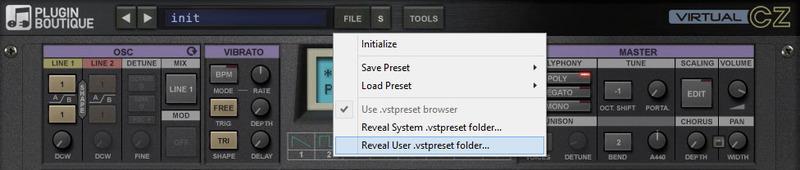
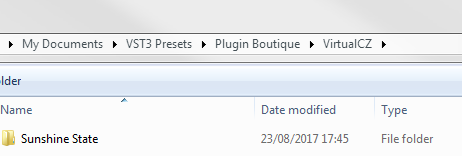
2. Once the folder has opened, create a new folder within the existing VirtualCZ ‘VST Presets’ directory.
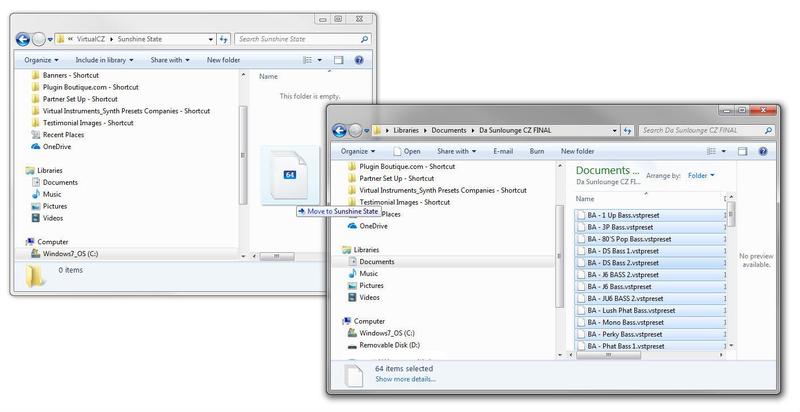
3. Drag and drop/copy the .vstpreset files to the folder that you have created.
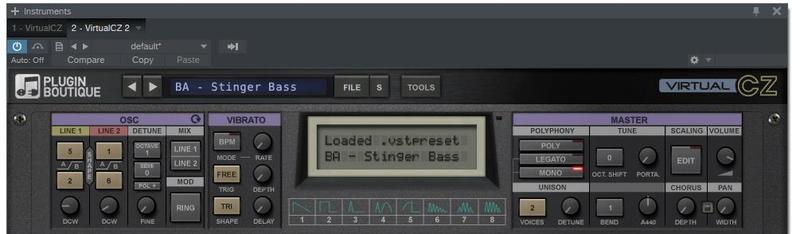
4. Close and restart VirtualCZ > select the ‘init’ tab and click ‘User’ from the drop-down menu. Select the preset name that you wish to upload and use e.g ‘BA Stinger Bass’.
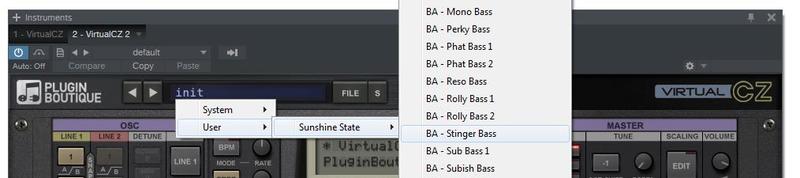
The Expansion Pack/Preset is now Ready for Use Within VirtualCZ
Mac (VST3)
Note: The built in preset browser supports the VST3 .vstpreset format, so if you are in doubt this is the type of preset to use!
1. Download the.zip folder from within your User Account and double-click it to reveal its contents.
2. Launch VirtualCZ within your DAW and click the ‘FILE’ option from the drop-down menu > select ‘Reveal User .vstpreset folder’.
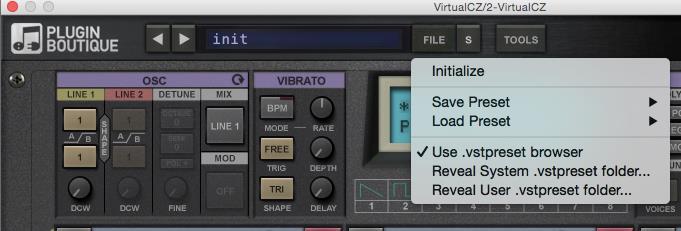
3. Once the folder has opened, create a new folder within the existing VirtualCZ ‘VST Presets’ directory.
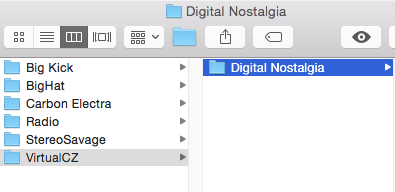
4. Drag and drop/copy the .vstpreset files to the folder that you have created.
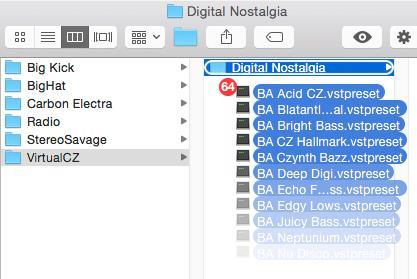
5. Close and restart VirtualCZ > select the ‘init’ tab and click ‘User’ from the drop-down menu. Select the preset name that you wish to upload and use.
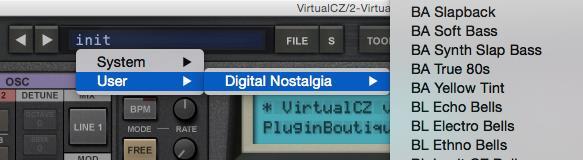
The Expansion Pack/Preset is now Ready for Use Within VirtualCZ
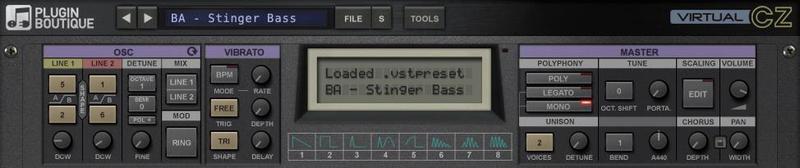
VST2, Audio Unit (AU) & ProTools Format Presets
VST2 Format Presets
These preset file names end with the extension ‘.fxp’ (for individual presets), and ‘.fxb’ (for banks).
There is no fixed location, so you can place the preset files to a computer desintation of choice. Banks or individual presets can be loaded via the VirtualCZ ‘File’ option/menu, or via your VST2 host. When using the VST2 version of VirtualCZ, disable the .vstpreset browser, to load the VST2 banks.
AudioUnit Format Presets (.aupreset)
These preset file names end with the extension ‘.aupreset’. They only work in Audio Unit (AU) compatible (Ableton & Logic) hosts on Mac stations. The locations to copy/save them to are shown below:
System Presets folder:
- /Library/Audio/Audio/Presets/Plugin Boutique/VirtualCZ
User Presets folder:
- ~/Library/Audio/Audio/Presets/Plugin Boutique/VirtualCZ
ProTools Format Presets (.tfx)
These preset file names end with the extension ‘.tfx’. ProTools presets are usually located in the following folders:
Mac:
- ~/Documents/Pro Tools/Plug-In Settings/VirtualCZ
Windows:
- %UserProfile%\Documents\Pro Tools\Plug-In Settings\VirtualC


 Log In


