Buy Vital Vocals Collection, get a free gift with purchase:
Niche Audio are back with another must have sample collection for the creative producer. They are proud to present Vital Vocals an exceptionally useful collection of one shot vocal hits for your music productions, regardless of genre.
We all know the most difficult part of finishing a track is that last 5% ingredient - the icing on the cake. Top producers all know exactly what that ingredient is, particularly when it comes to electronic based music. Its the Organic Element - something real the human brain can instantly connect with, that often helps propel your track into another league.
Consider some of the best Electronic music ever made and often there will be an organic element - whether it be a piano, strings, a guitar, or a vocal. Just a hint of organic vibe is all thats needed to connect your song with the listener. Vocals are undoubtedly one of the best organic elements you can add to any of your songs.
Vital Vocals contains 256 one shot vocals compiled from almost every Niche Audio pack released to date. Whilst the pack isn't genre specific like most of their packs, they're confident that regardless of your style, you will always be able to find a vocal in this pack to fit your songs.
Niche Audio goes much further than supplying a folder of one shot wavs. The packs vocal one shots have been chosen, named and organised in to 16 individual kits for Maschine 2, Ableton Live Drum racks and Logic EXS24 sampler patches.
The range, sound, and style of vocal hits in the pack is wide coming from many sources and producers so unlike a full acappella pack with the same vocalist you don't get that often frustrating experience where the style doesn’t fit the vibe of your track. Regardless if you produce Reggae, Deep House, Techno, DNB, Dubstep or straight up House you will always find something you can use. Don’t expect all super clean samples though - as per usual Niche Audio is about authenticity and vibe and you have that here in abundance.
We are 100% confident that you will use this pack as a constant in your productions for years to come. It’s always there when you just need that extra something, the icing on the cake - the elusive 5% - the organic element. Vital Vocals really is a must for anyone creating electronic music regardless of genre.
Note: Be aware, if you already own one or more Niche Audio packs you will already have some of these vocal samples.
Free Classic DMX Drum Machine Pack Included
The Oberheim DMX drum machine may not have the fame of the Roland 808 and 909 drum machines but it never the less packs a serious punch via its superb crunchy 12 bit audio engine and its now famous and unique snare, clap, and hats. Put them together with its deceivingly punchy kick, percussion and tom elements and one can really hear how unique and powerful this 80’s drum machine really is. The Oberheim DMX has been used non stop since the early 80’s by a diverse group of artists from pop to experimental to club and indie rock. Modern artists who have used the DMX to great effect include Justice (Cross) and Rustie (Glass Swords). Both artists showcase how powerful the DMX is on their respective albums from in your face Indie Dance via Justice and the very deep and warm Glass Swords album via Rustie.
Niche Audio were highly motivated to bring you a small but very powerful package of 5 high quality DMX drum kits for Maschine 2 and Ableton Live. If your looking for quality samples of the DMX drum machine, from a respected source then look no further. Be assured these samples are not downloaded from some random internet site. They were sampled via the actual hardware drum machine. These samples are the real deal - you know where they came from, and can be 100% confident the quality is high!
Niche audio took great care when sampling, making sure that they captured the sound faithfully and directly in to their convertor. DMX Kits low, Med and Hi have no processing except for the smallest amount of EQ on a couple of the sounds just to tidy them up. The default sound and settings of the drum machine is the DMX Mid kit. The Low and Hi kits were set to the most common pitches used in artists recordings. They did this because pitching inside the DMX reveals a subtle but slightly different sound to pitching inside your DAW, which is probably that crusty 12 bit conversion and slightly off tunings. If you want to process and EQ the DMX kit yourself, it would be best to use the mid kit or combinations of the first three kits. DMX Kits, Edit and Layers were carefully processed using various EQ’s and compressors. The layered kit is a combination of all DMX sounds and various unique drums sounds Niche Audio created, and layered with the original sounds, to keep the original vibe of the DMX sound.
Features
Ableton Live 9+:
- 256 24 bit 44.1 Vocal One Shots
- 16 Drum Racks each containing 16 samples
Logic Pro X:
- 256 24 bit 44.1 Vocal One Shot
- 16 EXS24 Sampler Patches
Maschine 2.4+:
- 256 24 bit 44.1 Vocal One Shots
- 16 Groups/Kits each containing 16 samples
- Fully Tagged Files
System Requirements
- The full version of Maschine 2.4+, Ableton Live 9.6+ and Logic Pro X are required to run the full contents of this software.
Important note: The full version of Maschine 2.4+, Ableton Live 9.6+ and Logic Pro X are required to run the full contents of this software!
Notes:
- House Arrest is used as the example.
- Pop-up windows must be allowed within your web browser's Settings area to allow the opening of the hyperlinks provided beow, which enable you to watch the tutorial videos.
Maschine has a slightly different install process depending on the version you have. Please follow the guidelines below and see the additional notes if you are experiencing difficulties.
Maschine 2.0 Video Installation Guide
1. Download the purchased Niche Audio software .zip folder provided within your User Account, to your computer.
2. Double-click the .zip folder to open and reveal its contents > save it to a computer location of choice, e.g documents or your external hard drive.
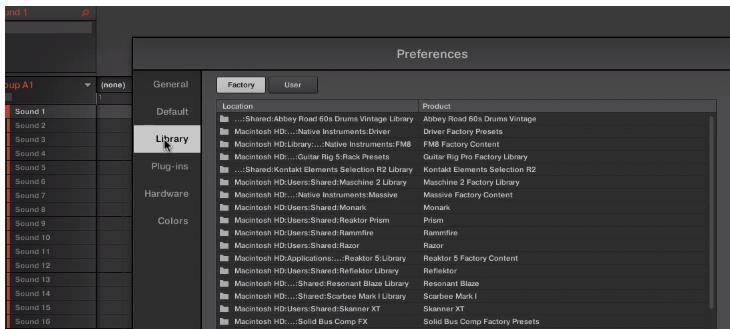
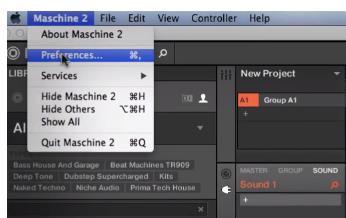
3. Launch Maschine and select the ‘Preferences’ tab via the drop-down selection, which is located via the ‘Maschine 2’ option at the top left toolbar.

4. Select ‘Library’.

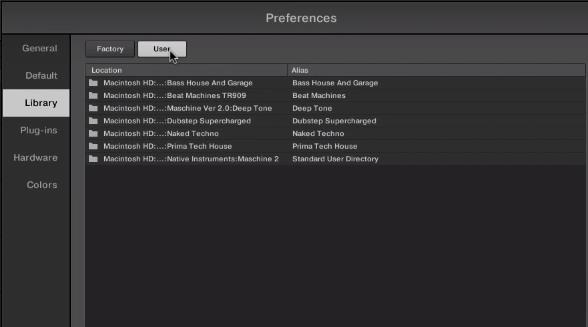
5. Click the ‘User’ tab.

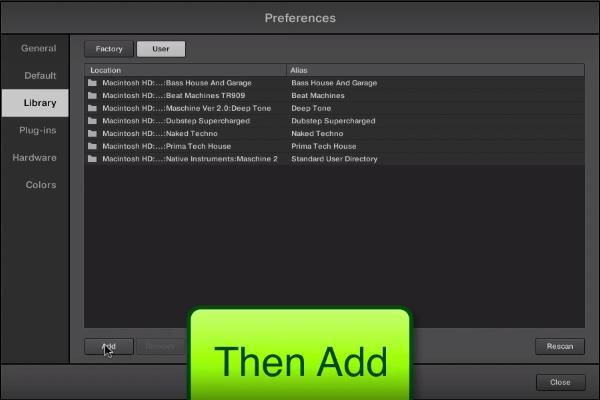
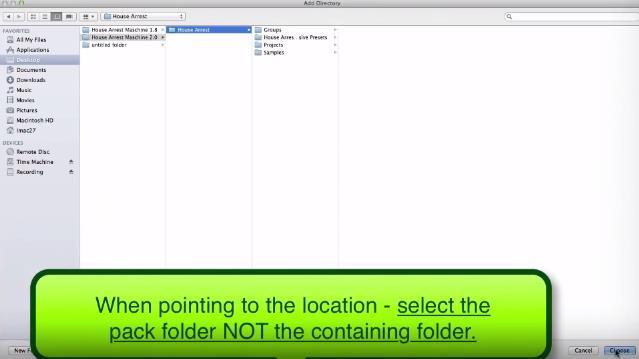
6. Click ‘Add’ to open the file browser, and then locate the pack’s main folder which contains sub-folders entitled ‘Groups’, ‘Massive Patches’, ‘Projects’, and ‘Samples’.

7. Be sure to select the main pack folder, which in this instance is ‘House Arrest’ > once performed, click the ‘Choose/Open’ option that is located at the bottom right-hand corner of the Mac - Finder/Windows - Library window.

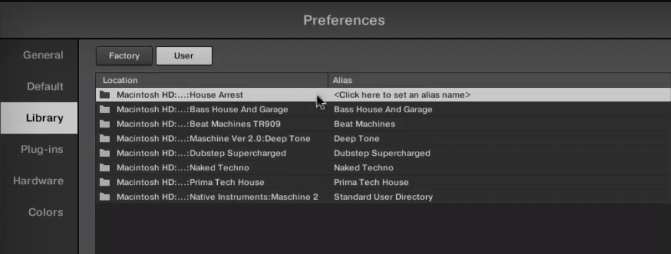
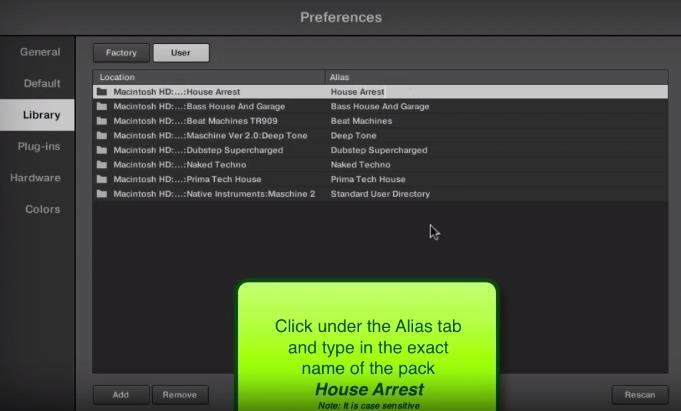
8. After the folder has been located, you will then need to enter and add an alias name for the pack e.g ‘House Arrest’ > double-click underneath the ‘Alias’ tab (where it reads ‘Click here to set an alias name’) and type the exact name of the pack, including numbers, capitals and symbols.


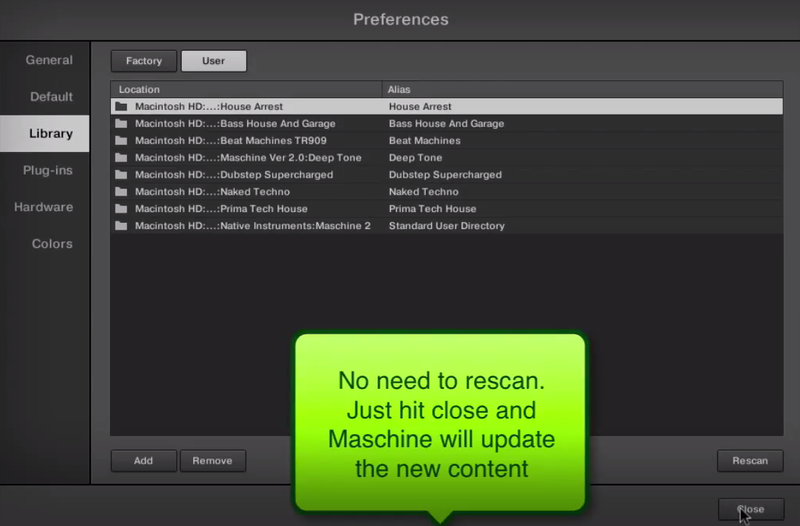
9. Once this has been performed, select ‘Close’ and the Niche Audio pack content will automatically upload to Maschine.

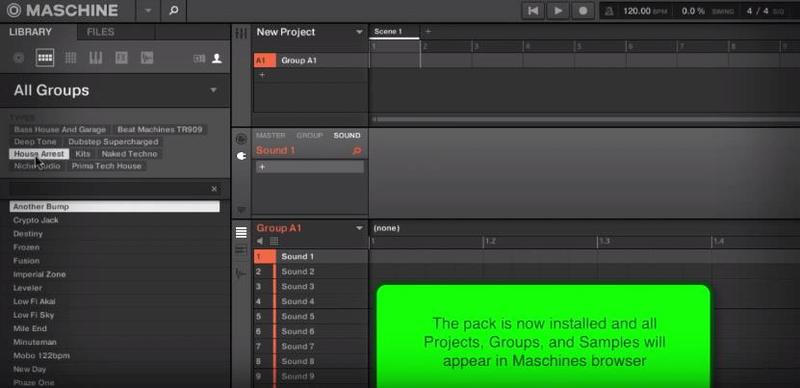
10. Select ‘Close’ once again to exit the preferences window, and you will then see the pack’s content within your user library!
The Pack is now Installed and Ready for Use Within Maschine!

Maschine 1.8 Video Installation Guide
(Note: Skip to 2.02 mins)
1. Download the purchased Niche Audio software .zip folder provided within your User Account, to your computer.
2. Double-click the .zip folder to open and reveal its contents > save it to a computer location of choice, e.g documents or your external hard drive.
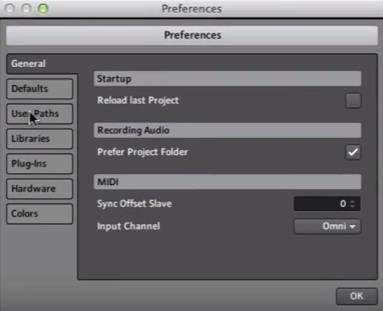
3. Launch Maschine and select the ‘Preferences’ tab via the drop-down selection, which is located via the ‘Maschine’ option at the top left toolbar.

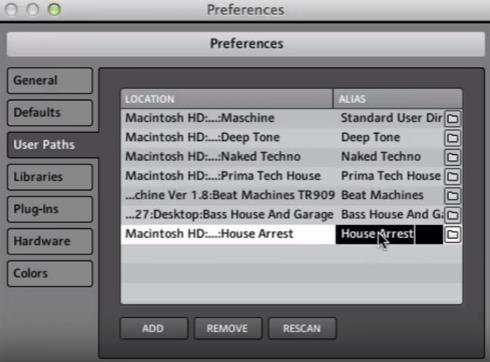
4. Click ‘User Paths’.

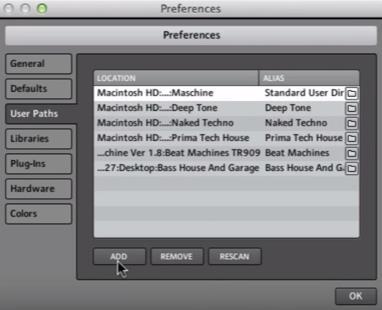
5. Click ‘Add’.

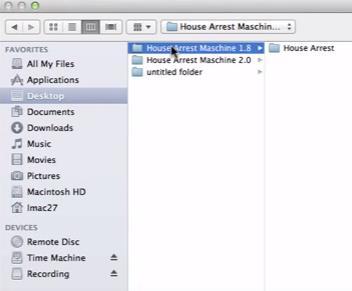
6. Locate the main Niche Audio 1.8 folder, which in this instance is entitled ‘House Arrest Maschine 1.8’.

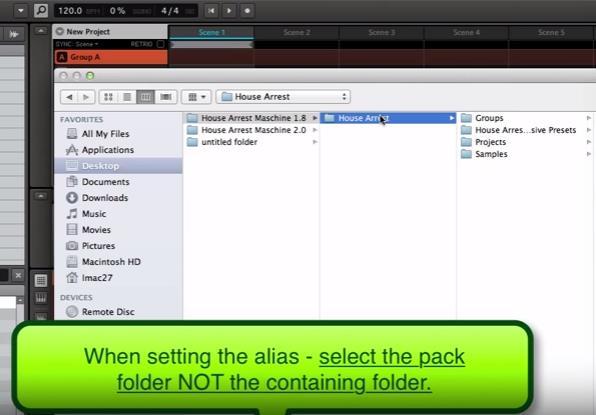
7. Be sure to select the main pack folder, which in this instance is ‘House Arrest’ > once selected, click the ‘Choose/Open’ option that is located at the bottom right-hand corner of the Mac - Finder/Windows - Library window.

8. After the folder has been located, you will then need to enter and add an alias name for the pack e.g ‘House Arrest’ > double-click underneath the ‘Alias’ tab (where it reads ‘Click here to set an alias name’) and type the exact name of the pack, including numbers, capitals and symbols.

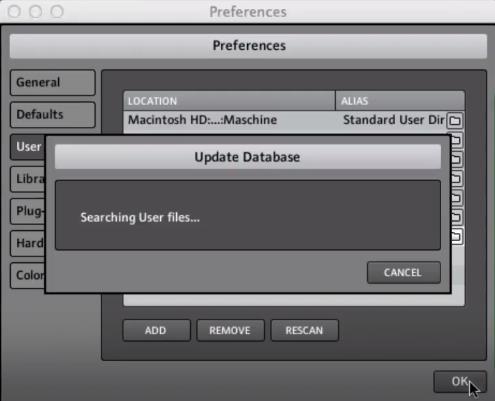
9. Once this has been performed, select ‘OK’ and the Niche Audio pack content will automatically upload to Maschine.

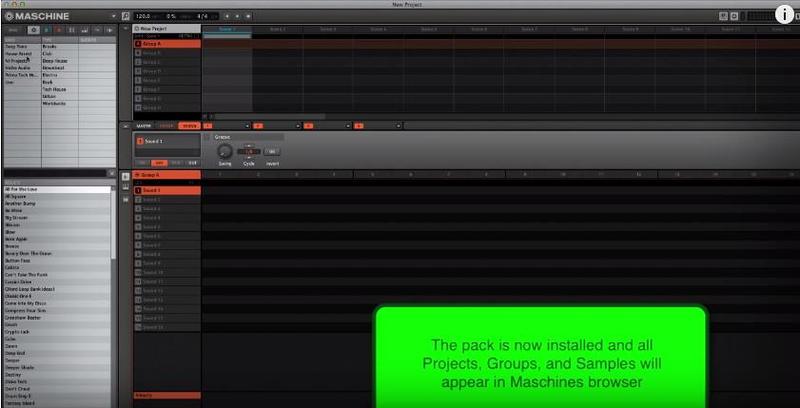
10. Select ‘OK’ once again to exit the preferences window, and you will then see the pack’s content within your user library!
The Pack is now Installed and Ready for Use Within Maschine!

Install Problem?
- If you have previously installed a Maschine Pack and the groups or projects are not loading, please ensure that you have installed the correct pack for your version of Maschine
- Also check that you have created an alias to the sample pack, so that Maschine can locate the projects: For example, the alias should be written as ‘House Arrest’
Note: The alias should not be written as ‘house arrest’
- If you do not type the exact name of the pack, it will not install correctly
- If you encounter any issues when attempting to install your purchased Niche Audio pack, it is advisable to uninstall the pack entirely from Maschine before re-installing it, to prevent any further cross-referencing problems
Uninstalling the Pack
1. Go to Maschine’s ‘Preferences’ tab, which is located at the top-left toolbar.
2. Select the ‘Library’ tab, followed by the ‘User’ option.
3. Remove any previous location path to the Niche Audio packs, and then close/quit Maschine.
4. Reopen Maschine and create a new project - this is necessary to clear the software history.
5. Quit Maschine, reopen it and follow the instructions from step 1 of the installation process.
Ableton Live Pack Installation Guide
(Note: Post Dubstep & Future Garage is used as the example).
1. Download the .zip folder provided within your User Account, and double-click it to extract its contents > save it to a computer location of choice, e.g documents or to your external hard drive.
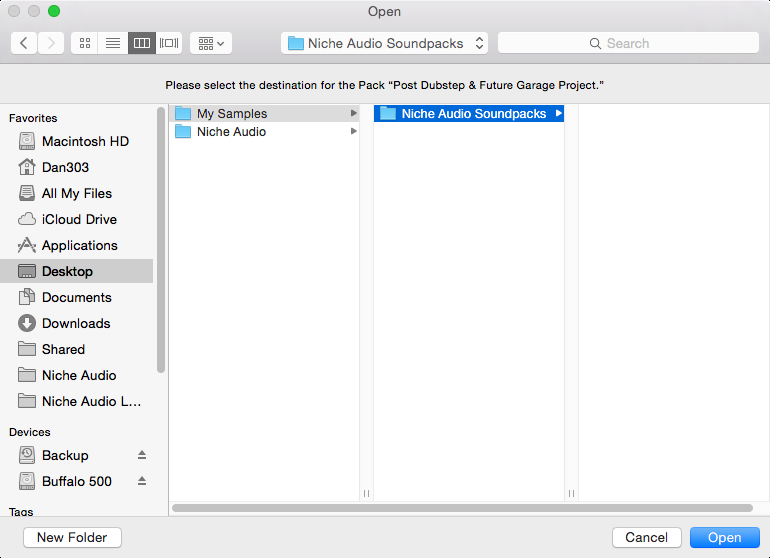
2. Locate the .alp file and double-click it > Live will automatically open and ask where you would like to install the project folder.
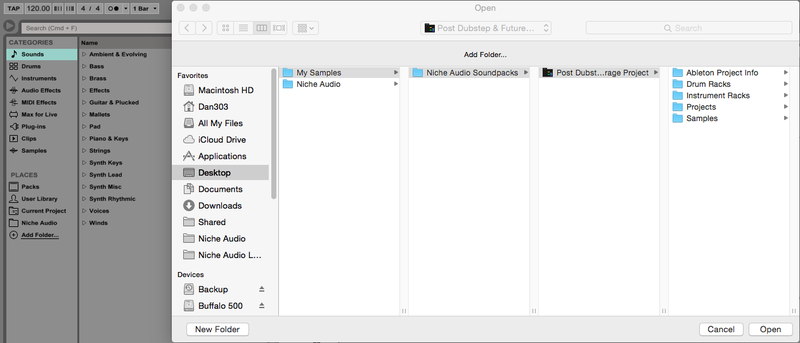
3. Locate the main extracted folder from the computer location that you saved it in (in step 1. of the installation process) > click 'Open' and Live will begin the unpacking process.

4. Once the unpacking process is finished you will need to tell Ableton Live where the pack is.
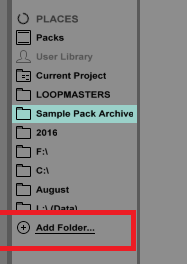
5. Within Ableton’s browser, select the ‘Add Folder’ option and then the project folder that you have installed.

6. Click 'Open' and Ableton will add the pack to the browser for easy access.

7. The Ableton Live Pack is now ready for use within the DAW.
EXS24 Installation Guide
1. Download the .zip folder provided within your User Account, and double-click it to extract the main folder.
2. Copy/save the sample pack folder to the 'Sampler Instruments' folder within Logic > this folder is located via the folder path below:
- username/Library/Application Support/Logic/Sampler Instruments
3. The sample pack is now ready for use within EXS24.