/ Delay / Echobode
Sonic Charge

Echobode

4.8 (179 Reviews)
$44.00
Echobode User Interface
TMT | Reverse Delay Lines for Vocals Tutorial with Echobode by Sonic Charge gallery thumbnail
Echobode AU / VST Demonstration gallery thumbnail
Sonic Charge Echobode delay VST/AU plugin in action gallery thumbnail
Buy Now
Product information

Echobode is a delay effect with a frequency shifter placed inside the feedback loop. The frequency shifter algorithm is inspired by the classic Bode Frequency Shifter (named after its inventor Harald Bode).

The difference between a frequency shifter and a pitch shifter is that it shifts the audio spectrum linearly. E.g. an overtone series of 100, 200, 300 Hz can be shifted by 50 Hz to 150, 250, 350 Hz, making the overtones inharmonic. This effect in itself is great for creating metallic bell timbres, but putting it inside a delayed feedback loop opens up many other possibilities.

System Requirements

Windows

  • Windows 7 or later
  • 2GHz Pentium IV processor or equivalent
  • A host that supports 32-bit or 64-bit VST 2.4 plugins
  • 30MB free disk space
  • Formats: VST 2.4

macOS

  • macOS 10.13 High Sierra or later
  • Intel or Apple Silicon processor
  • A host application that supports 64-bit VST 2.4 or AudioUnit 2 plugins
  • 30MB free disk space
  • Formats: AU, VST 2.4
Installation Instructions
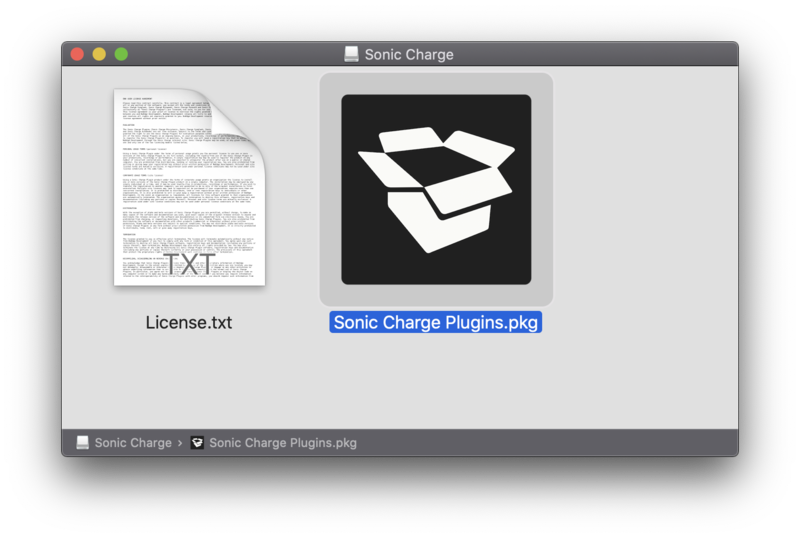
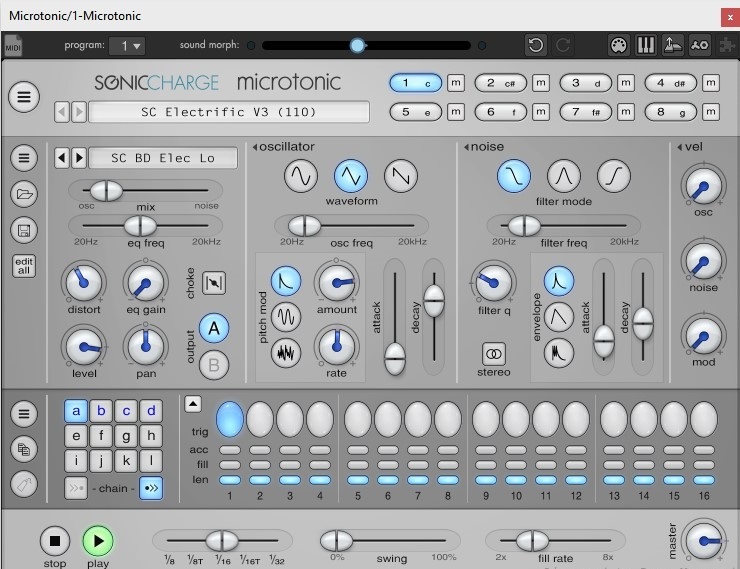
Please note: Microtonic is used as an example.

Mac

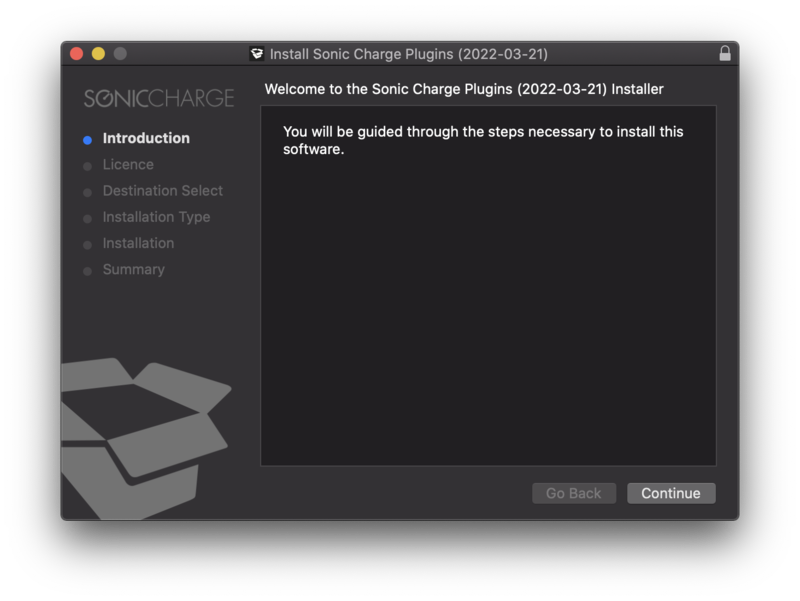
1. Download the Sonic Charge Plugins installer from your Plugin Boutique account > Double click the PKG file.

2. Click 'Continue'.

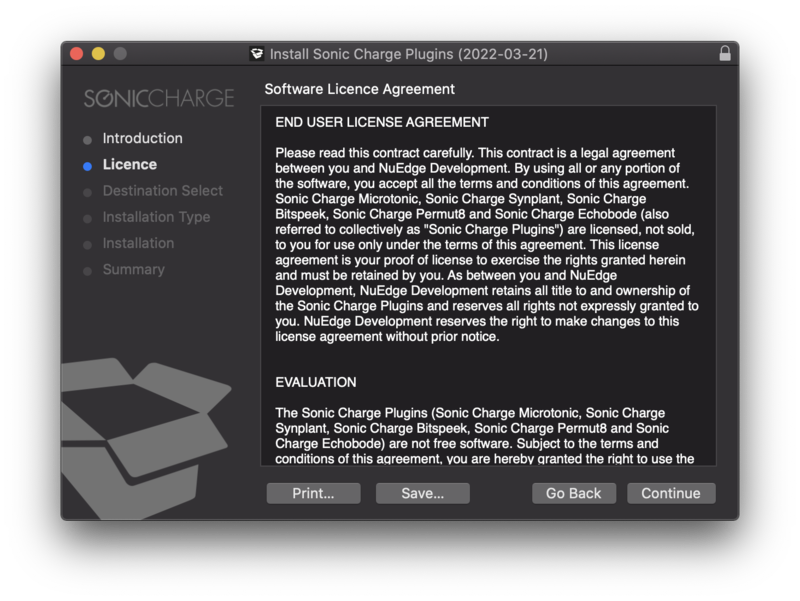
3. Read the Software License Agreement > Click 'Continue'.

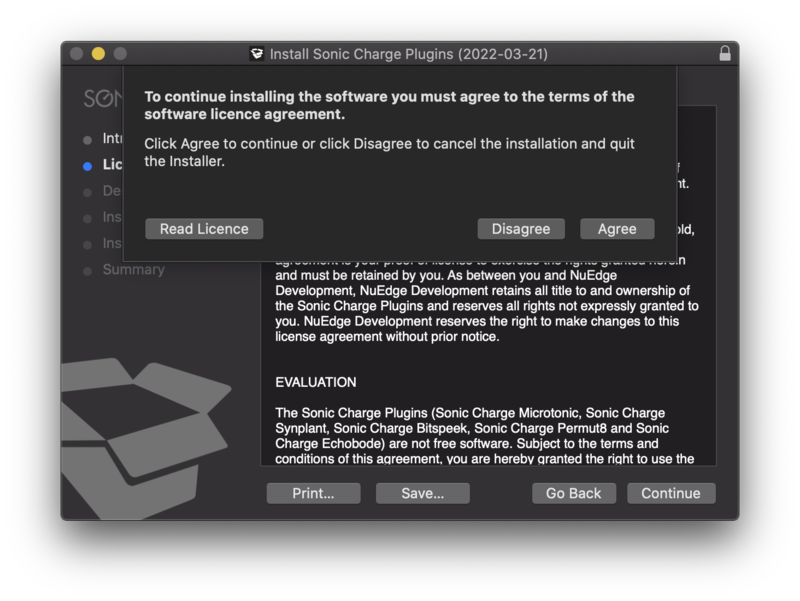
4. Click 'Agree'.

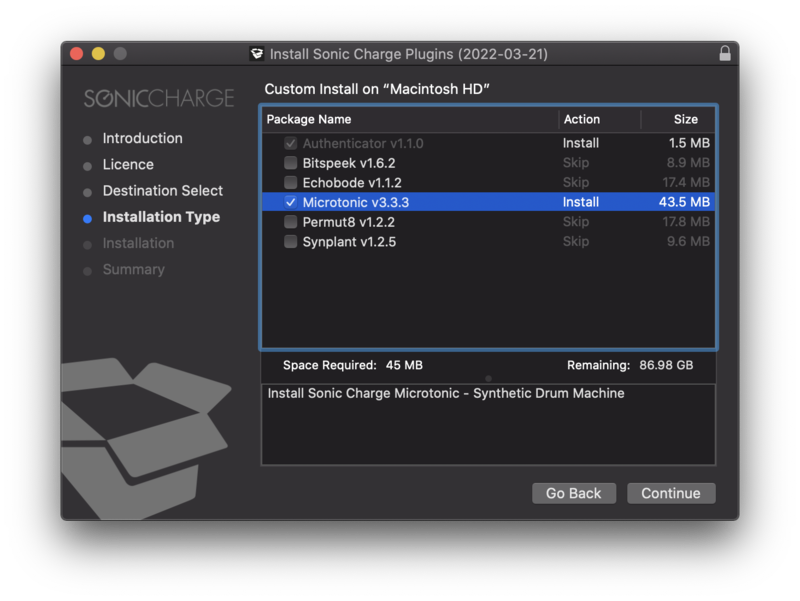
5. Select the plugin you wish to install > Click 'Continue'.

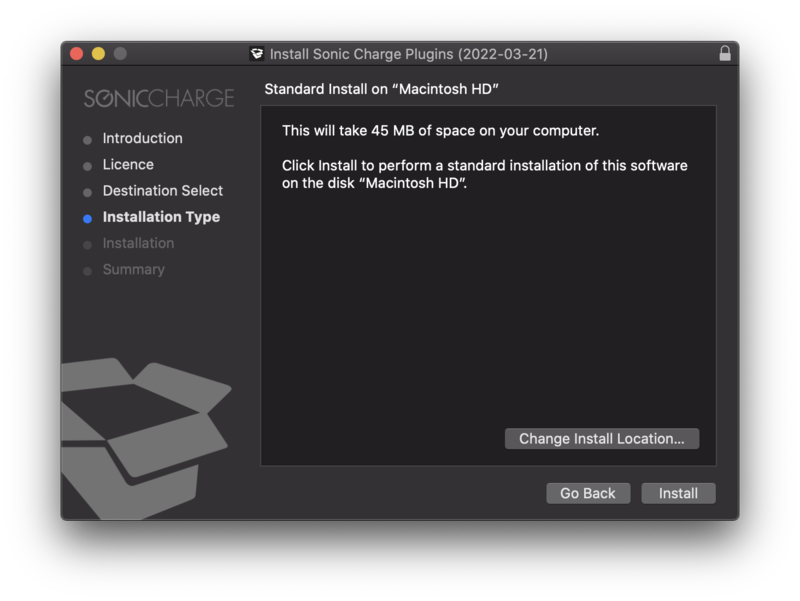
6. Click 'Install' (or change install location if you have a customer plugin folder).

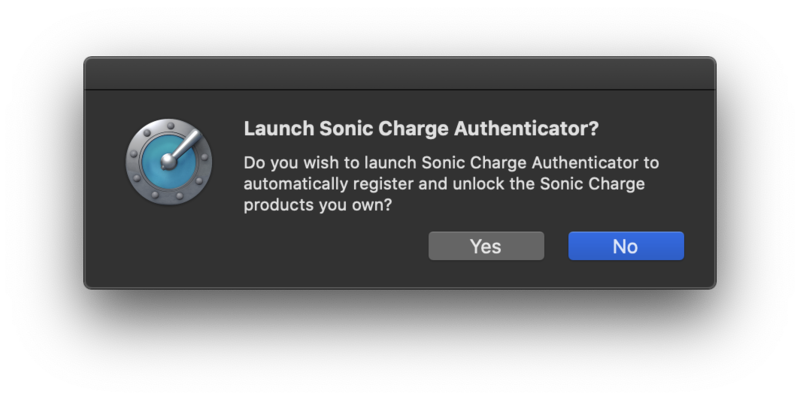
7. Launch the Sonic Charge Authenticator by clicking 'Yes'. 

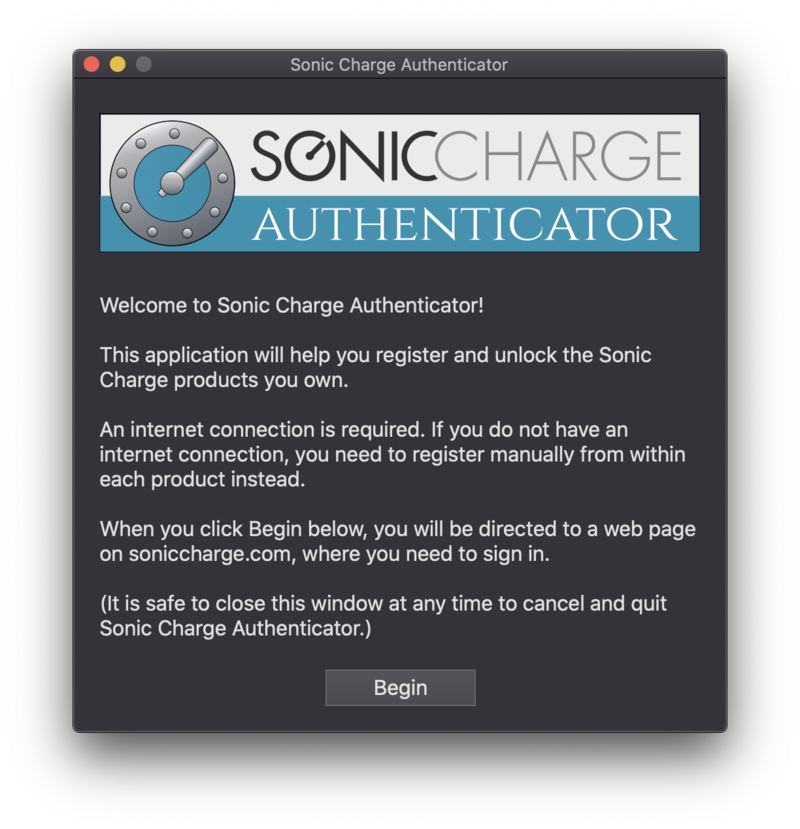
8. Click 'Begin' > You will be redirected to the Sonic Charge website.

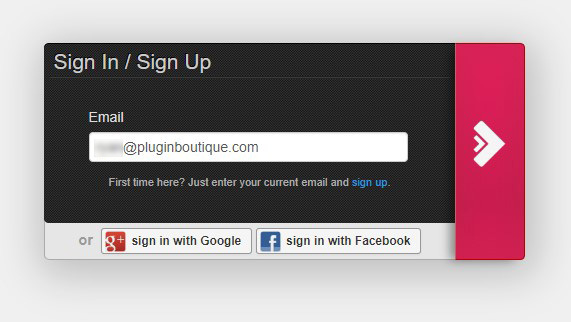
9. On the webpage you have been sent to, enter your email address and click 'Sign up'.

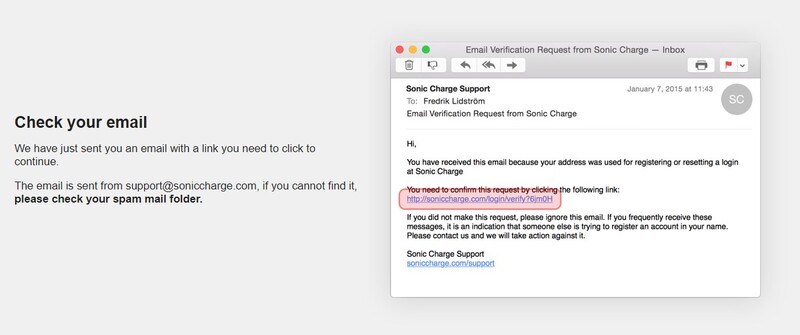
10. Check your emails for the verification link and click it.

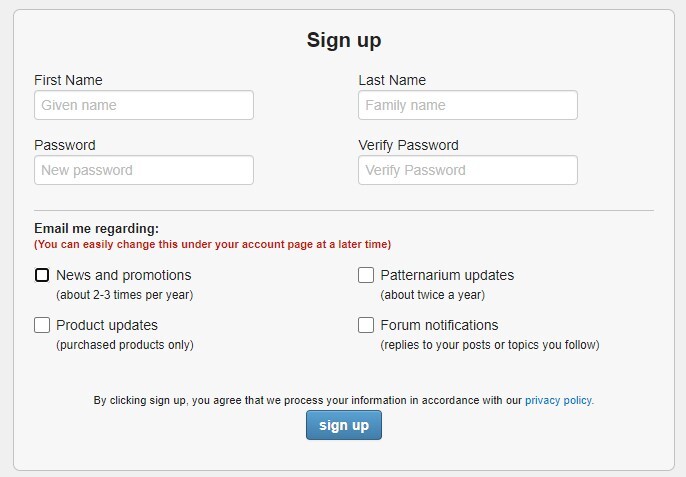
11. Enter your details > Click 'Sign up'.

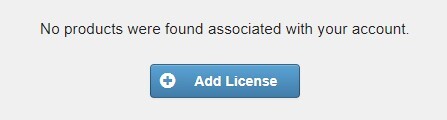
12. Once logged in, go to My Account > Click 'Add License'.

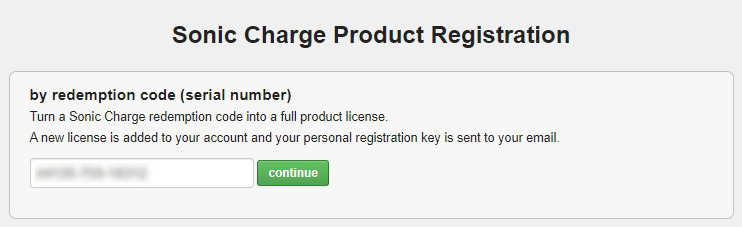
13. Enter the serial number found in your Plugin Boutique account > Click 'Continue'.

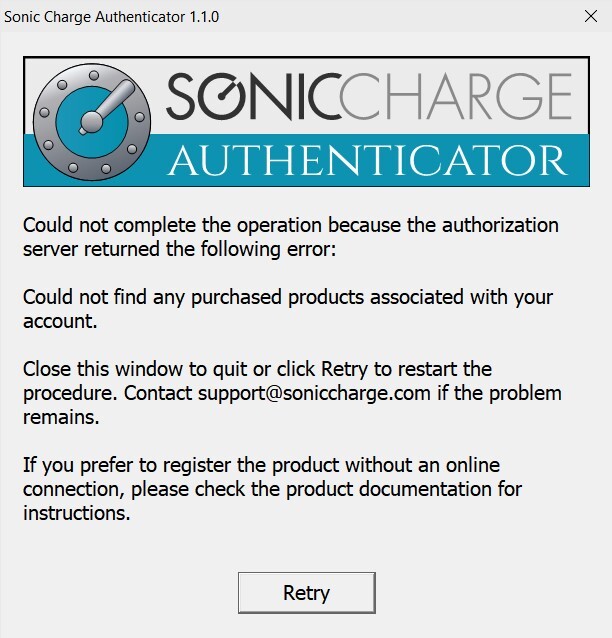
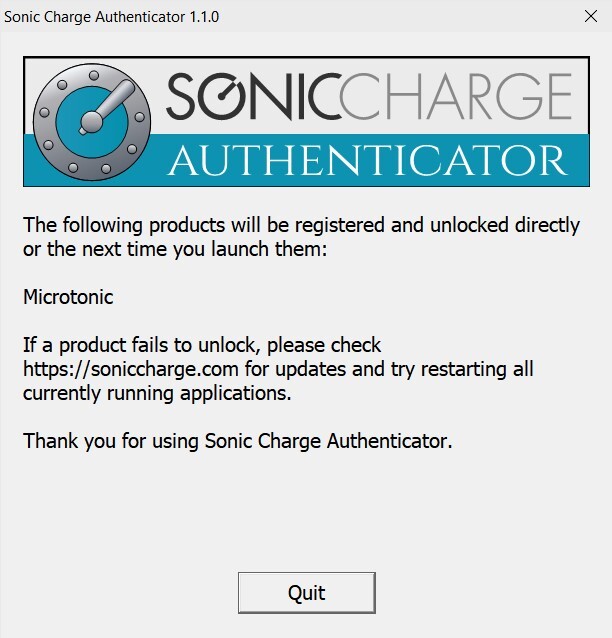
14. Go back to the Authenicator > Click 'Retry' > Your software is now activated and ready to use in your DAW. 

Windows

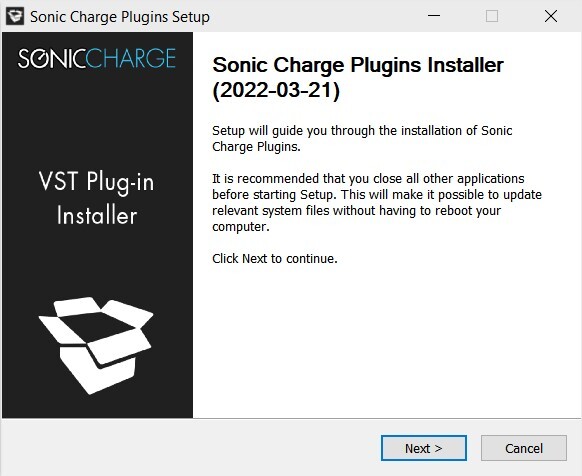
1. Download the Sonic Charge Plugins installer from your Plugin Boutique account > Run the installer > Click 'Next >'. 

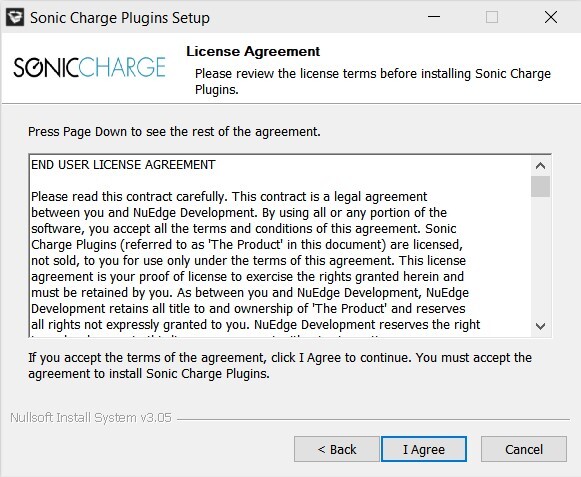
2. Read the License Agreement > Click 'I agree'.

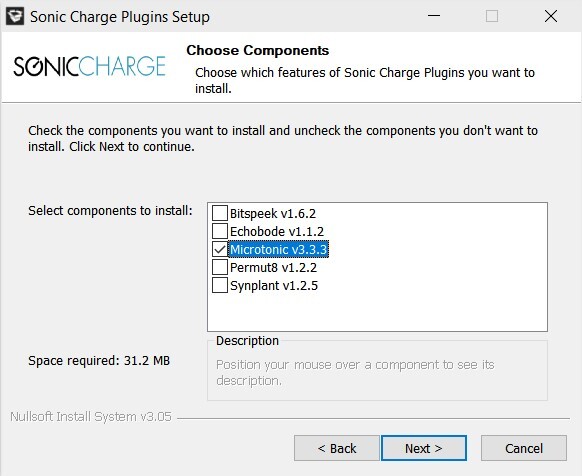
3. Select the plugin you wish to install > Click 'Next >'.

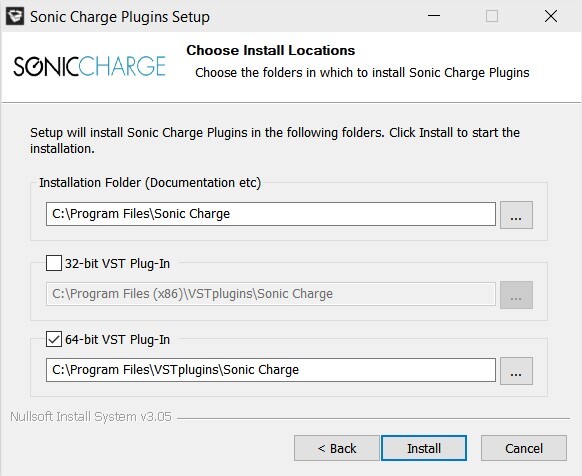
4. Ensure the correct location for your plugins is selected > Click 'Install'. 

Note: Select the 32-bit option if you are using a 32-bit PC/DAW.

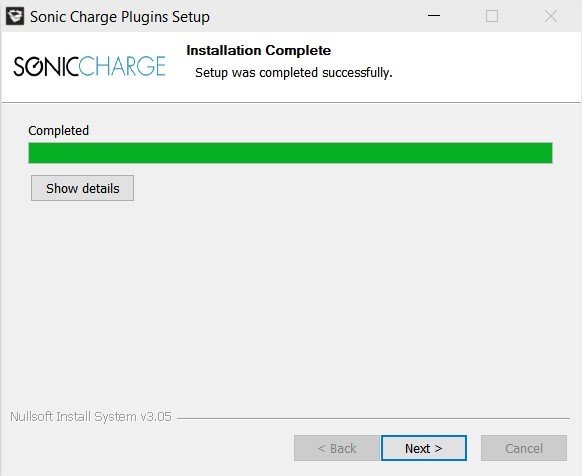
5. Your download is now complete > Click 'Next >'.

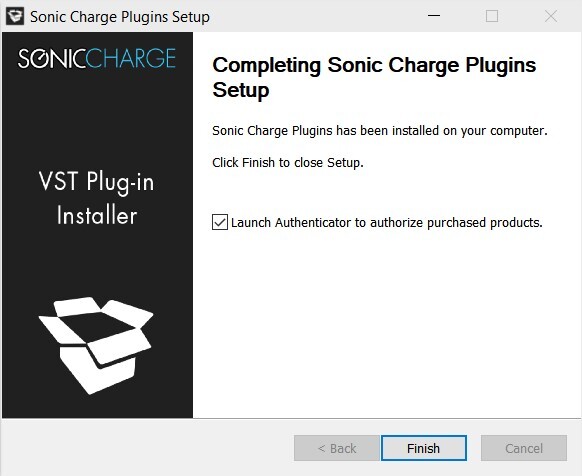
6. Select 'Launch Authenticator to authorize purchased products.' > Click 'Finish'.

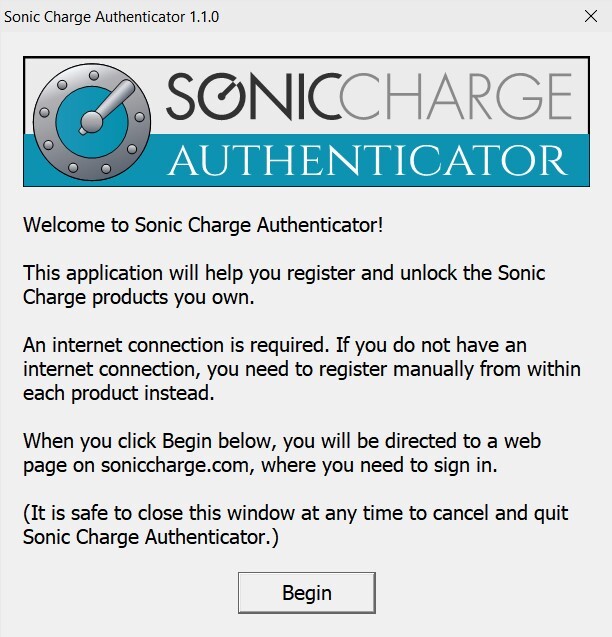
7. Click 'Begin'.

8. On the webpage you have been sent to, enter your email address and click 'Sign up'.

9. Check your emails for the verification link and click it.

10. Enter your details > Click 'Sign up'.

11. Once logged in, go to My Account > Click 'Add License'.

12. Enter the serial number found in your Plugin Boutique account > Click 'Continue'.

13. Go back to the Sonic Charge Authenticator Application > Click 'Retry'.

14. Your software will now be activated. 

Your software is now ready to use in your DAW!

Plugin Boutique Rewards

Discover the most rewarding loyalty programme among all plugin retailers.

  • Free Loopmasters Samplepacks
  • Discounts on products and courses
  • Extra Virtual Cash claimed immediately at checkout
Find out more

Follow us:

X (Twitter) Facebook YouTube Instagram
Logo Logo

Plugin Boutique Limited, Part of the Beatport Group LLC.

Copyright © 2011-2025 Plugin Boutique. All rights reserved