Buy Brigade Chorus Pedal, get a free gift with purchase:
Add '70s Analog Movement And Vibrato To Anything
Now compatible with any soundcard on Mac and PC
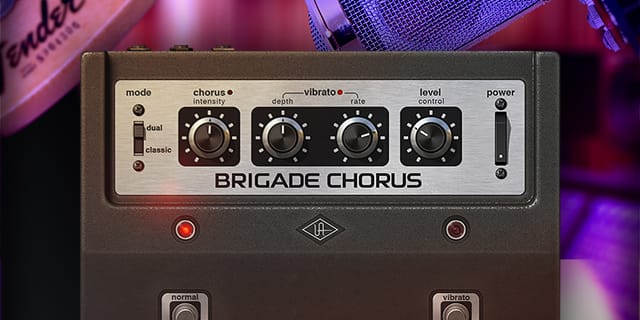
The Brigade Chorus plug‑in emulates every inch of the legendary BOSS CE‑1 Chorus Ensemble* pedal introduced in 1976, giving you rich analog chorus and chewy vibrato that flatters your guitars, vocals, and synths with luxuriant, dreamy textures.
Get the Perfect Chorus for Any Source
Use the Brigade Chorus to subtly enhance or transform anything you run through it. Get wider vocals or add a gentle shimmer to drum overheads. On electric guitar and bass, the Brigade Chorus gives you the fat, unmistakable guitar sound of late ’70s Rush and the electric bass textures of the Cure and New Order. Or you can put Brigade on an e-piano patch à la Herbie Hancock.
Add Maximum Width and Depth
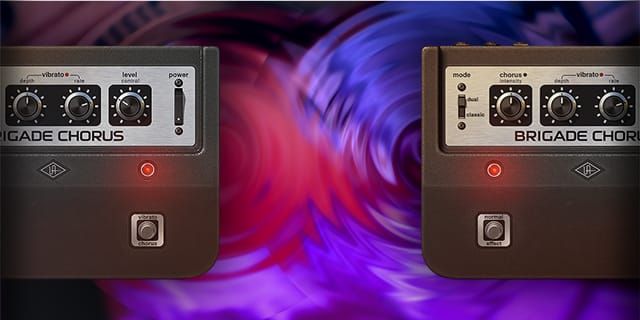
Whereas some chorus units sound unnatural and “tacked on,” the Brigade Chorus gets inside your sources with high‑caloric chorus thick enough to spoon out of your speakers. On stereo tracks and buses, Brigade’s classic mode can be used exactly as the original — left side dry, right side affected. But with the “plug‑in only” dual mode, Brigade acts as if two pedals are patched in — giving you an immersive left/right spread that must be heard to be believed.
Features
- Use any audio interface, with both UAD Native and Apollo Realtime/UAD-2 versions included
- Give instruments 3D movement with legendary analog chorus
- Add thickness and shimmer to vocals, drums, pianos, and more
- Create subtle detuned textures or all out warble with unmatched vibrato circuit
- Get legendary, milkshake-thick chorus on electric guitar and bass tracks
Versions Included with your Purchase
- UAD Native: Runs on your Mac or PC without any UA hardware
- Apollo Realtime & UAD-2: Runs accelerated on Apollo interfaces and UAD-2 hardware
System Requirements
- macOS 10.15 Catalina, 11 Big Sur, 12 Monterey, 13 Ventura
- Windows 10 or Windows 11 (64-bit only Editions)
- Intel, AMD, or Apple silicon processor
- Internet connection to download software and authorize UADx plug-ins
- Free iLok account with iLok Cloud or iLok USB (2nd generation or higher)
- A physical iLok dongle is NOT required to activate this product
DAW Compatibility
- Pro Tools 2022 (AAX)
- Logic Pro (Audio Units)
- Ableton Live 11 (VST 3, Audio Units)
- Cubase 12 (VST 3)
- Studio One 5 (VST 3)
- LUNA Recording System
You can activate this software on an online system (using iLok Cloud) or an offline system (using an iLok USB):
-
Online: an active internet connection and a FREE iLok account are required to authorise UAD Plug-ins using iLok Cloud
-
Offline: you will need a physical iLok USB (2nd generation or higher) to authorise this software
Important note: UAD plugins do not work in Apple's Garageband DAW
Registration
1. Click the Download button in your Plugin Boutique account or go to https://www.uaudio.com/my/account/redeem/.
2. Enter your email and the serial code found in your Plugin Boutique User Account > Click 'Get my Plug-in'.

3. Enter the details required to create your Universal Audio account > Click 'Create Account'.

4. Download UA Connect by clicking either 'macOS' or 'Windows' depending on the system you are using.

Windows Installation
1. Once the download is complete, extract and open the ZIP folder you just downloaded > Open the PC folder > Double-click the UA Connect.exe installer file.
2. Read the terms of agreement > Click 'I Agree'.

3. The installation of PACE License Support will now begin > Click 'Next >'.

4. Read the license agreement > Click 'Yes'.

5. Click 'Install'.

6. Click 'Finish'.

7. Locate and open UA Connect > Enter the email address and password of your Universal Audio account.

8. Click 'GET STARTED'.

9. Select the option that is relevant to you - either 'I Already Have an iLok Account' or 'Create an iLok Account For Me'.

10. Enter your iLok account User ID then click 'LINK ACCOUNT'
.
11. Enter the password for you iLok account and click 'Authorize'.

12. Locate the plugin you wish to install > Click 'DOWNLOAD'.

13. Once the plugin has been installed, open your DAW and then the newly installed plugin.
Your software is now activated and ready to use in your DAW!

Mac Installation
1. Once the download is complete, double-click the UA Connect.dmg installer file.
2. Drag UA Connect into your Applications folder.

3. Locate and open UA Connect > Enter the email address and password of your Universal Audio account.

4. Click 'GET STARTED'.

5. Select the option that is relevant to you - either 'I Already Have an iLok Account' or 'Create an iLok Account For Me'.

6. Enter your iLok account User ID then click 'LINK ACCOUNT'
.
7. Enter the password for you iLok account and click 'Authorize'.

8. Locate the plugin you wish to install > Click 'DOWNLOAD'.

9. Once the plugin has been installed, open your DAW and then the newly installed plugin.
Your software is now activated and ready to use in your DAW!


