Log In

Free gifts available with your purchase
With so many chorus effect plugins on the market, finding one capable of delivering a truly authentic analogue sound is easier said than done.
With that in mind, D16 Group set out to create the ultimate analogue chorus emulation, inspired by the revered effects found in classic synthesizers such as the Solina String Ensemble, Elka Synthex and Roland Juno-106. This fruit of their labour is Syntorus 2, the newest addition to the Silver Line series of plugins.
Syntorus 2’s unique analogue sound enriches any instrument routed into it, bringing life and movement to synth basses and leads, and adding depth and lushness to guitars and other electric/acoustic instruments.
Download the demo and try Syntorus 2 for yourself. No matter what kind of music you make, this is the analogue chorus plugin you’ve been looking for!
Now for the science…
Chorus with Real Analog Feel
The classic chorus effect is created by mixing an audio signal with one or more delayed and pitch-modulated copies of itself. It stands to reason, then, that the delay line module is the most important part of any chorus unit. For Syntorus 2, D16 Group constructed an extremely precise model of a high-quality BBD (bucket brigade device) analogue delay line in the digital domain – the resulting emulation has an incredibly warm, musical sound with no unwanted digital artefacts.
Three BBD Delay Lines
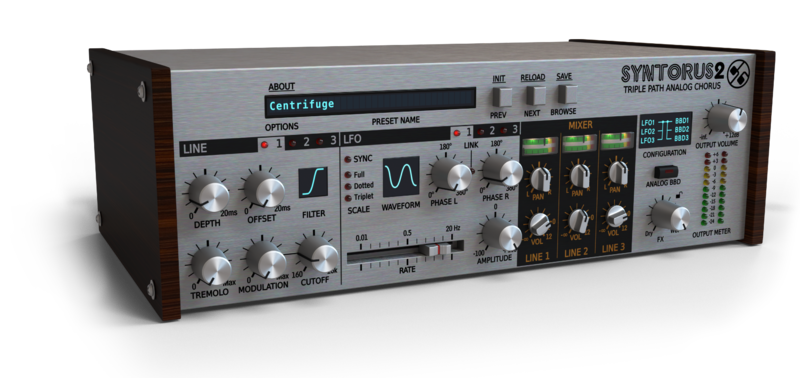
Most chorus effect units use just a single delay, but Syntorus 2 deploys three analogue delay lines to conjure a richer, fuller, deeper chorus sound. It also gives you a choice of two BBD delay line models: by default, the chorus effect is exceptionally clean and pristine, but activating Analog BBD Emulation adds even more analogue warmth and character to the signal. And needless to say, full control is granted over every delay line parameter, giving you absolute freedom in sculpting your sound.
Configurable Modulation
Syntorus 2’s three LFO generators serve as flexible modulation sources, routed to the delay lines in a number of switchable topologies. Timeline-locked host sync and independent adjustment of left/right phase offset broaden the spectrum of creative possibilities further still.
Filter and Tremolo
Each delay line has a multimode filter and a tremolo effect built-in, both governed by the same modulation sources as the delay time. The filter is ideal for cooking up convincing Leslie sounds, especially when delay modulation is used to simulate the directional characteristic and Doppler effect of a rotating speaker. The tremolo can be employed on its own or added to the modulated delay line for the crafting of even more dynamic sounds – it’s particularly effective on keyboards and guitars.
Complete Synchronisation
Each LFO can be independently synchronized to the host DAW, enabling the rate to be set in musical note values at the project tempo. That in itself will come as no surprise, of course, but with Syntorus 2, the phase is also perfectly synchronised to the play head position within your project, ensuring that your chorus always sounds exactly as it should at any point on the timeline.
Key Features
- High-quality analogue BBD delay line emulation
-
New - 3 delay lines, each one featuring:
- NEW Multimode filter
- Tremolo effect
- NEW Panning
-
New - 3 LFO generators, each one featuring:
- 6 waveforms
- Timeline-locked tempo sync
- NEW Independent phase shift controls for left and right channels with link option
- NEW Amplitude control with invert option
- New - 3 LFO-to-delay-line routing configurations
- New - Tag-based preset browser
- New - Three GUI scaling options
- New - MIDI-learn functionality throughout
- 64-bit internal processing
- Over 100 presets
System Requirements
Windows
- Windows 7 - 10 (32 or 64-bit)
- CPU - Single-core 2.5 GHz SSE (Multi-core 2.8 GHz SSE recommended)
- RAM - 8 GB (16 GB Recommended)
- Plugin Formats - VST2, VST3, AAX
Mac
- macOS 10.9 - macOS 12 Monterey (64-bit only)
- CPU - Intel 2.5 GHz / Apple M1 (Intel 2.8 GHz / Apple M1 recommended)
- RAM - 8 GB (16 GB Recommended)
- Plugin Formats - VST2, VST3, AU, AAX
Please Note: This is not a standalone program - a host application (DAW) is required to use it.
Awards