


 Log In
Free gifts available with your purchase
Classic Chorusing for the Modern Producer
TriceraChorus is inspired by the classic tri-choruses and stompbox choruses of the 1970s and early 1980s, particularly the Dyno-My-Piano. It pairs rich BBD style tri-chorusing with another signature Eventide effect: micro-pitch detuning. This effect can be used to thicken the sound and widen the stereo field by detuning the left and right signals and pan them opposite directions.
The combination of these effects makes it easy to create syrupy, smooth, and deep modulations on synths, strings, vocals, guitar, bass, and more. TriceraChorus is a great way to add richness and spatial depth to your sounds.
Explore the Depth
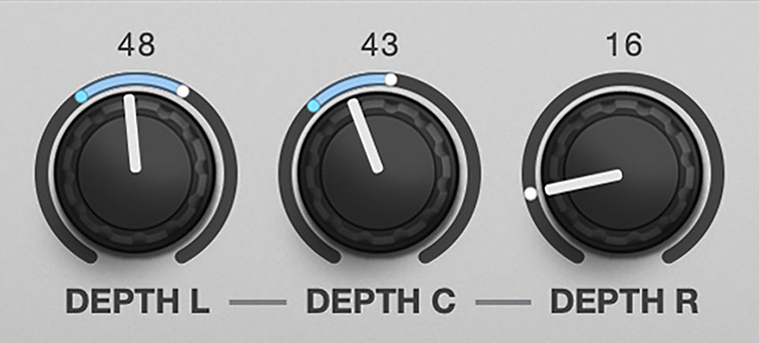
TriceraChorus has three chorus voices: Left, Center, and Right. A three-phase LFO modulates the delay times for these voices. This relation ensures that your modulation sounds always have interesting and pleasing movement across the stereo field.
For a classic chorus stompbox sound, set TriceraChorus to “Chorus" mode. If you need something with more complexity and depth, “Chorale” produces lush, swirling choruses inspired by classic rackmount tri-chorus units. For a more psychedelic aesthetic try out “Swirl."
Performance Ready
TriceraChorus is designed for real time parameter manipulation, resulting in seamless and glitch-free parameter automation of any parameter. Use RIBBON to play or automate sweeps between different settings. Wielding this intuitive performance macro can be great for intensifying the depth of flange-like settings, changing the rate of modulation for transitional effects, or simply controlling the Mix parameters for momentary performance flourishes.
For added live benefit, jump immediately from one setting to another using HOTSWITCH. RIBBON and HOTSWITCH settings are saved per-preset providing great flexibility in exploring the range of possibilities with TriceraChorus.
Features
- Three voice, Bucket Brigade style stereo Tri-chorus.
- CHORUS Mode evokes the chorusing effect created by classic chorus stompboxes.
- CHORALE Mode produces lush, swirling choruses inspired by classic rackmount tri-chorus units.
- DEPTH controls the amount of modulation applied to the 3 voices from the LFO.
- DETUNE the left and right channels simultaneously by +/- 40 cents.
- DELAY sets the amount of delay for the chorusing effect; use it to thicken your signal, create a flange, or slap-back sound.
- SWIRL adds stereo frequency shifting for a psychedelic flange-like flavour.
- TONE for shaping the high and low end of your signal. Remove muddy low frequencies or roll of high frequencies for a darker sound.
- RIBBON lets you sweep the effect between two different settings.
- Available for Mac and PC as VST, AAX, and AU plug-in.
System Requirements
Windows
- Windows 10 and later (Windows 11 supported) (64-bit only)
- AAX, VST2, VST3
Mac
- macOS 10.14 and later (Intel / Apple Silicon supported) (64-bit only)
- AAX, AU, VST2, VST3
Important Notes:
- Eventide tests their desktop plugins in Ableton Live, Cubase, FL Studio, Logic Pro, Pro Tools, and Studio One (However, their plugins should work with any compatible host.)
- No iLok dongle is required to run this software - only a FREE iLok account/Manager is required for authorisation.
Reviews Summary
While it aims to provide a helpful overview, it may not capture every perspective or detail. We encourage you to read individual reviews to make an informed decision.
Users widely praise this Eventide chorus plugin for its versatility and rich tone, noting it excels at capturing an authentic 80s sound. While one reviewer finds it slightly less essential than other plugins like Blackhole, sentiment is overwhelmingly positive regarding its quality and effectiveness.


