/ Flanger / EFEKTOR FL3606 Flanger
Kuassa

EFEKTOR FL3606 Flanger

4.7 (42 Reviews)
$13.00 $25.00

48% off until Dec 31

FL3606 Flanger Main Image
Kuassa Efektor FL3606 Flanger gallery thumbnail
Buy Now
Product information

Flanger FX Engine

Howling, Swirly and Flanging Tone

Note: Also available in the EFEKTOR Modulation Bundle

Originated from manipulating tape recorders by slowing down one of its flange (hence the ‘flanger’ name), this effect creates a swooshing sound dubbed as the ‘jet engine’ effect:

Royal Flanger:

  • The “Vintage” Flanging Effect.

Jet Flanger:

  • Supersonic Jet Howl or Cool Spacey Stereo Image.

Electro Flanger:

  • Darker, Swirly, Chorusy, and Trippy Sound.

Key Features:

  • Three Models of Modulation in Every Unit.
  • A/B Compare Buttons.
  • BPM Sync.
  • Mono or Stereo Mode.

System Requirements

Mac

  • Mac OS X 10.7 or later (Intel / M1 Apple Silicon supported) (64-bit only)
  • Core2 Duo, or better (latest Intel i3 recommended)
  • 4 GB minimum RAM
  • VST, VST3, or Audio Unit compatible host / DAW

Windows

  • Windows Vista or Later (64-bit only)
  • Core2 Duo, or AMD Phenom ii X4 or better (latest Intel i3, AMD A4, or better is recommended)
  • 4 GB minimum RAM
  • VST or VST3 compatible host / DAW

Important Notes:

  • Pro Tools 11 or later is required for AAX format
  • Reason 7.1 or later is required for Rack Extension format
  • A VST, VST3, AU, or AAX compatible host / sequencer is required to run this software.
Installation Instructions
Installation Instructions
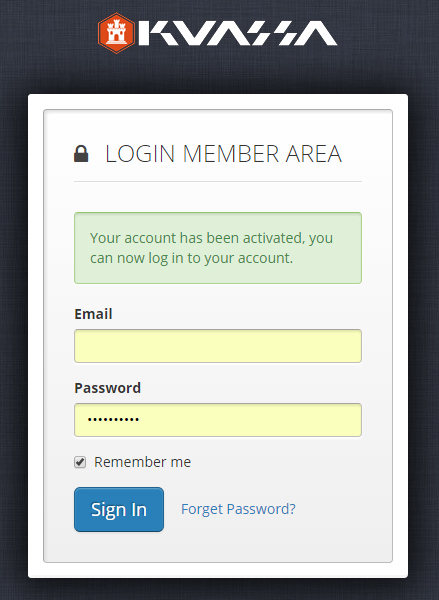
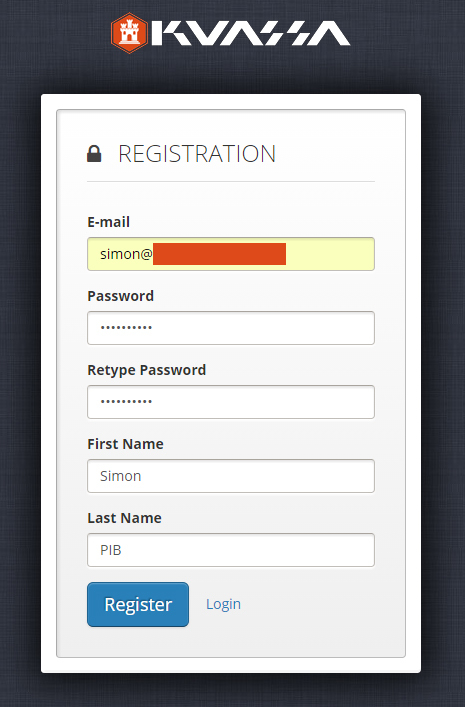
1. Visit - https://member.kuassa.com/ - and create/log into your Kuassa account.

2. After creating your account, confirm via email and then log into your account.

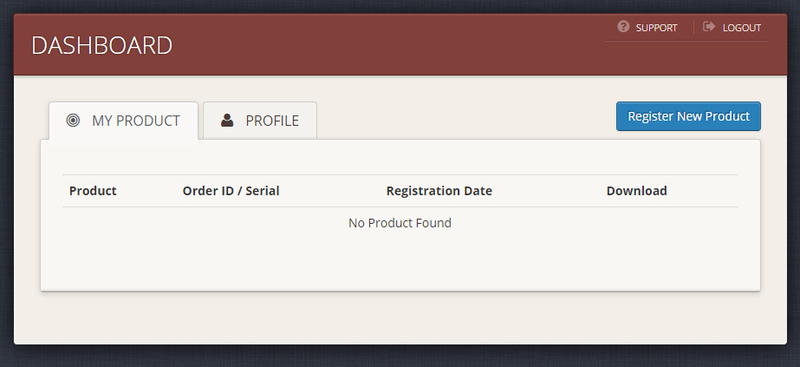
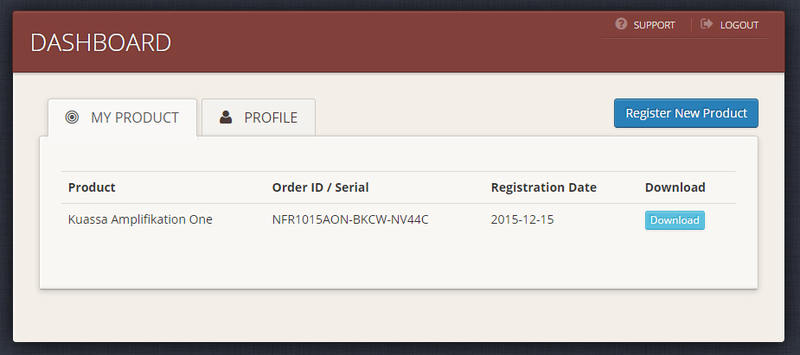
3. Once you have logged in, click 'Register New Product.'

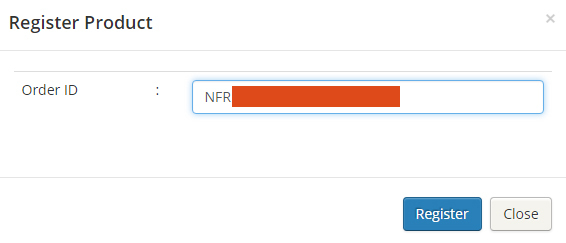
4. Enter your product serial which is available in your User Account.

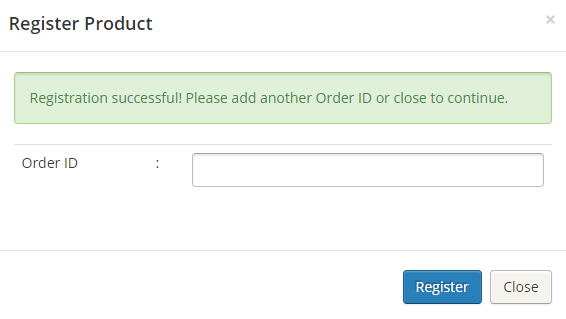
5. You will receive a notification that your registration was successful - click 'Close.'

6. Click 'Download' to obtain your licence file.

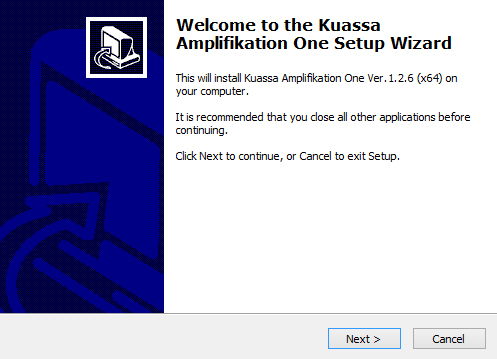
7. Now, download and launch your installer. Click 'Next.'

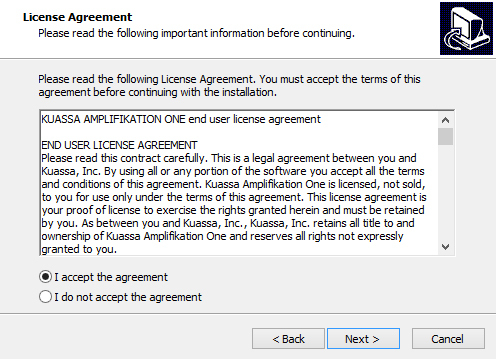
8. Read the licence agreement and if happy, click 'I Accept the Agreement' and then click 'Next.

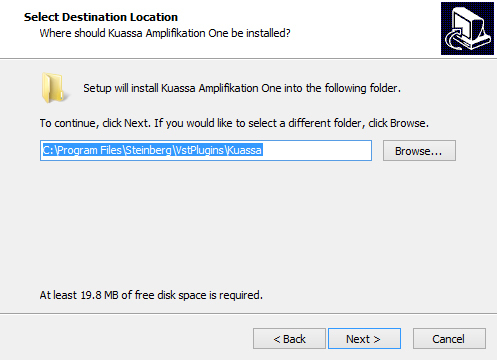
9. Select where you wish your plugin to be installed, then click 'Next.'

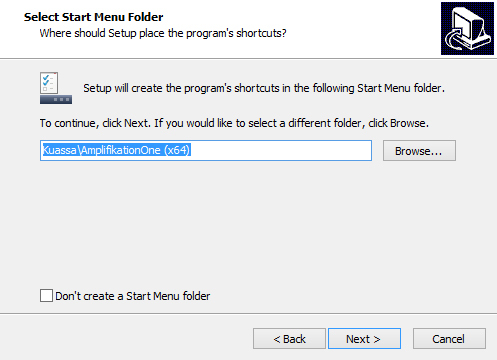
10. Select where you wish to place the programs shortcut and then click 'Next.'

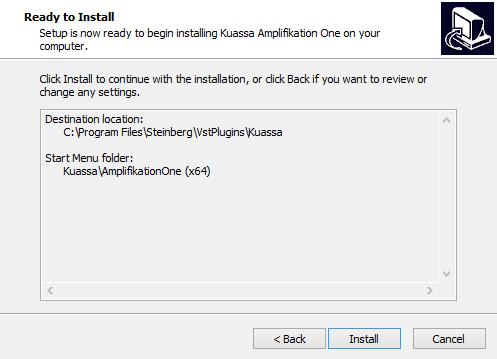
11. Check you are happy with your installation and then click 'Install.'

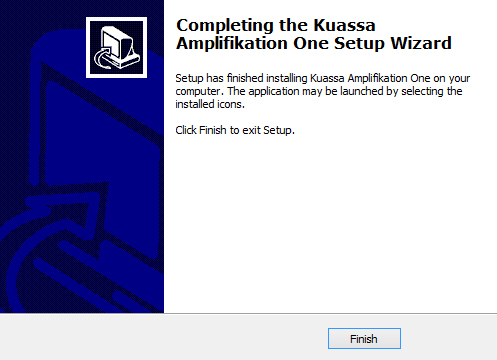
12. Click 'Finish.'

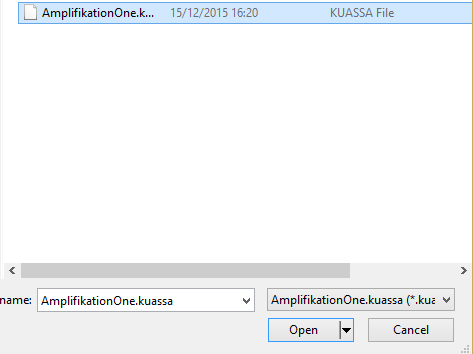
13. Open your plugin within your DAW > click 'File' and then 'Import Licence.'

14. Locate your licence file, highlight then click 'Open.'

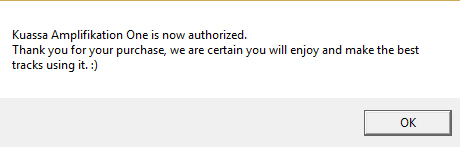
Your Software is Now Authorised and Ready for Use Within Your DAW!

Plugin Boutique Rewards

Discover the most rewarding loyalty programme among all plugin retailers.

  • Free Loopmasters Samplepacks
  • Discounts on products and courses
  • Extra Virtual Cash claimed immediately at checkout
Find out more

Follow us:

X (Twitter) Facebook YouTube Instagram
Logo Logo

Plugin Boutique Limited, Part of the Beatport Group LLC.

Copyright © 2011-2025 Plugin Boutique. All rights reserved