Log In
.jpg)
Free gifts available with your purchase
Sonic Legacy That You Can Now Enjoy In Your Own Studio
The Legacy EQ is a plugin that recreates the sound and feel of our classic MPC digital equalizer: a versatile and musical EQ that was originally designed as an analog circuit with digital control, and later became a digital staple in high-end post-production and film studios around the world.
The Legacy EQ lets you shape your mix with smooth and precise control: each band has a limited and carefully chosen range that matches the original analog knob, and the Q factor is optimized to give you the best results for each frequency. Whether you need to add some sparkle, warmth, punch, or clarity to your tracks, the Legacy EQ will help you achieve professional sound quality with ease.
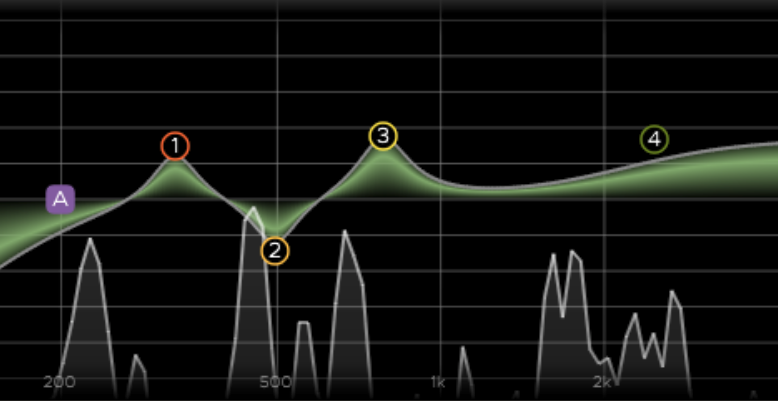
Comprehensive Main Display
Shape your sound with the AVA LegacyQ’s main display graph. You can drag a band’s icon to set its frequency and gain. You can use the mouse-wheel or 2-finger drag to change the band’s Q. The main display also shows you a high-quality, fast RTA analyzer that you can switch to be PRE or POST EQ. You can adjust the speed and trim of the display to suit your signal. The AVA LegacyQ will make your mix sound better by giving you a clear and easy way to control your EQ.
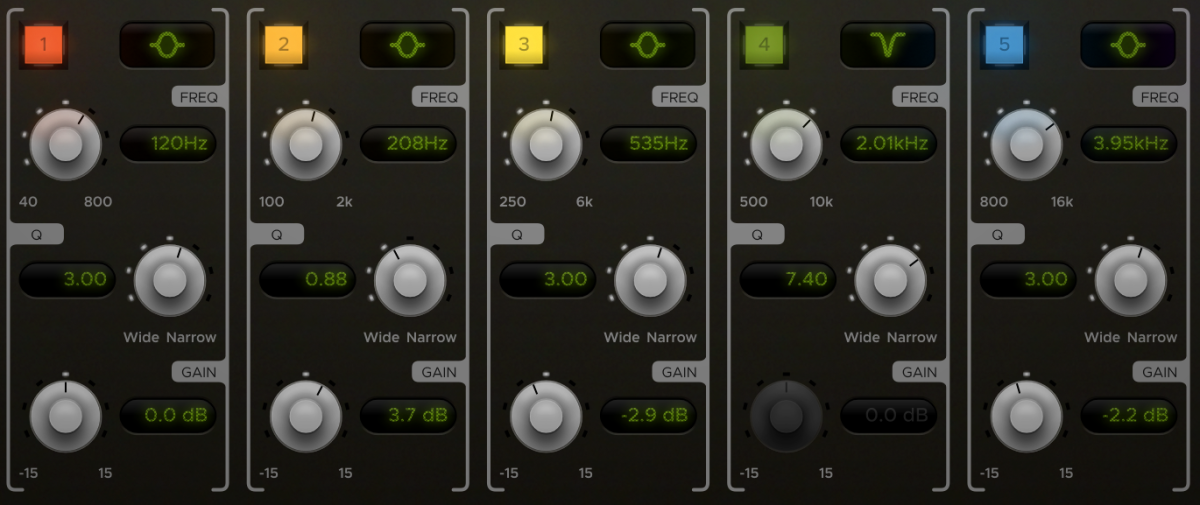
5 EQ Bands
With the Legacy EQ, you can sculpt your mix with flexible and powerful parametric EQ bands that let you choose the shape that suits your needs. Whether you want to boost the lows, cut the highs, notch out a problem frequency, or create a filter sweep effect, the Legacy EQ gives you the tools to shape your sound with accuracy and creativity.
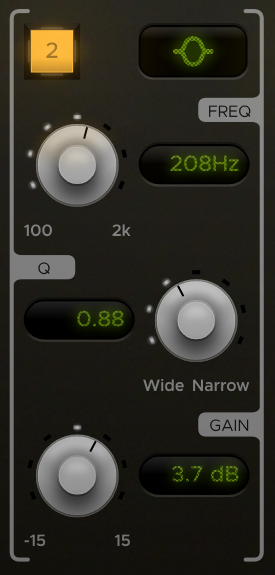
EQ Band Controls
The Legacy EQ lets you activate and customize each EQ band with simple and intuitive controls. You can choose the shape of each band from six different options, including bell, low/high shelf, low/high cut, notch, and band-pass, to fine-tune the frequency response of your mix. You can also adjust the Q factor of each band, from wide to narrow, to control how much the EQ affects the surrounding frequencies. And you can boost or cut the gain of each band, within a range of -15/15 dB, to balance the levels of your tracks. The Legacy EQ will make your mix sound better by giving you the flexibility and precision to shape your sound exactly how you want it.
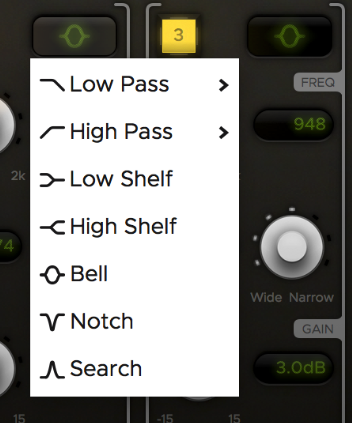
Band Shapes
Shape your sound with the Legacy EQ’s versatile band shapes. You can choose from six shapes for each EQ band. The notch and search shapes help you find and remove unwanted tones. The filter bands have steeper slopes and more power. You can select from four shapes for each filter band. The Legacy EQ will make your mix sound better by giving you more options and control over your EQ.
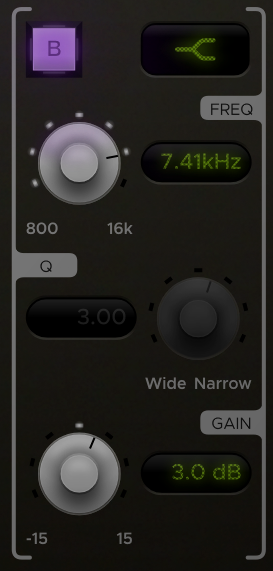
2 Filter Bands
The 2 filter bands give you more power and precision to shape your sound. You can choose the shape and slope of each filter band from four. The wide notch shape lets you tune the frequency more easily by affecting a wider range than a typical notch. The band-pass and notch shapes let you isolate or remove specific frequencies with adjustable Q width. The Legacy EQ will make your mix sound better by giving you more control and flexibility over your mix.
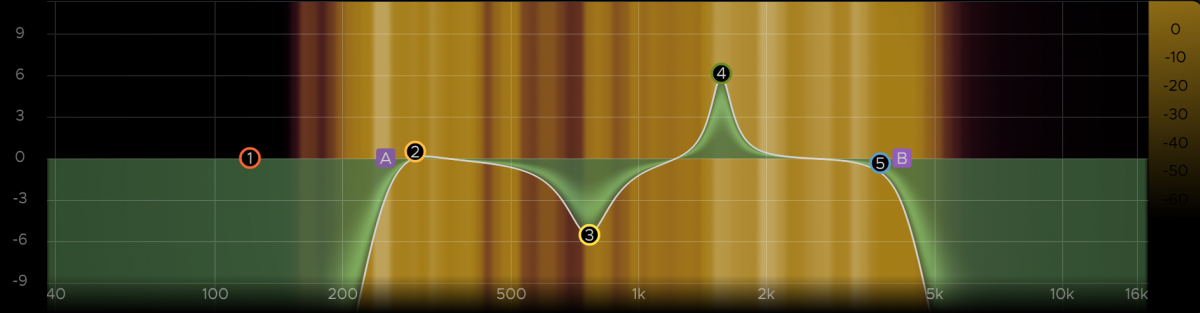
High-Precision Rta Analyzers
The Legacy EQ’s RTA analyzers give you a detailed and accurate view of the frequencies in your mix. You can see the full resolution of the bass and sub-bass spectrum, without any loss of quality or detail. This helps you to fine-tune the low end of your tracks, and achieve a balanced and powerful mix. The Legacy EQ will make your mix sound better by giving you a clear and precise way to monitor your EQ.
Features
- Comprehensive main display
- 5 parametric EQ bands
- Extensive EQ band controls
- EQ Band Shapes
- 2 filters with selectable shapes
- High-precision RTA analyzers
System Requirements
- MacOS: 10.9 or newer required
- Windows: Win7 or newer required
- Linux: Please try the demo
Host DAW support:
- ProTools: 10.3.5 or newer required for Windows, 11 or higher required for Mac. Enable the AAX format during installation
- Logic: Enable the AU format during installation
- Cubase: Enable the VST and/or VST3 format during installation
- Most other workstations: Enable the VST format during installation