


 Log In

Free gifts available with your purchase

Go from shimmering bright to warm and wide with a twist of a knob! The Tonelux Tilt plug-in is a fast and easy way of making a track sit better in a mix or make it sound "warmer" or "cooler". It's also perfect in a live situation where you need to tweak the whole mix to adjust for ear fatigue.
You may want to put Tonelux Tilt first on all your channels. It includes all the controls you need for a quick and rough setting before you get into the details - and it's quite possible you will find that Tilt was all your track needed to find its place in the mix.
The Tilt filter does precisely what the name says - if you activate it and turn the control knob clockwise, it will attenuate the lows and boost the highs. Go counterclockwise, and the opposite happens - the sound gets fatter and darker. Turn on or off the Loud switch to make the effect stronger or back to keep it more subtle. So by the twist of a single knob, you give your sound a basic and nice sounding frequency trimming.
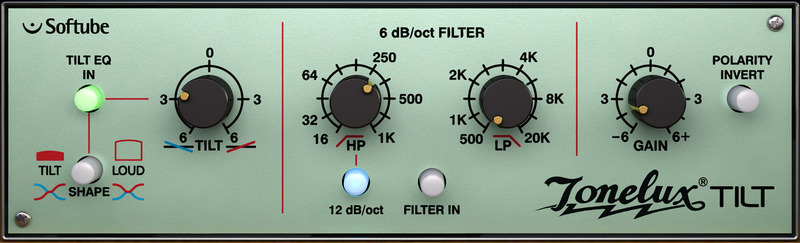
Move on to the gentle and natural sounding high and low pass filters, that are sweepable and switchable from -6dB to -12 dB per octave. Finally, you will find a polarity reversal switch and a gain knob. See? All you need for a basic rough setting of each and every channel! Softube's model of Tonelux Tilt also includes modeling of the transformer found in the Tonelux MP1a mic preamp. The transformer adds a subtle distortion for bass frequencies which fattens up the low end of a track.
The Tilt plug-in is a joint development effort between Tonelux designer Paul Wolff and Softube, bringing the famous Tonelux sound to the digital world. The innovative Tilt design was first featured on the Tonelux MP1a discrete mic preamp module and has been a godsend for engineers and producers that need to take control of their sound in a fast and effective manner.
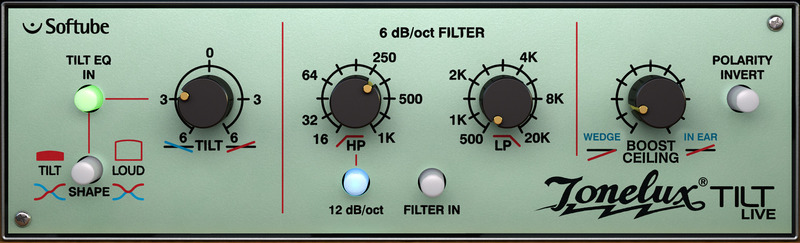
A special "Live" version of the Tilt plug-in is included, which is optimized for Digidesign VENUE and other live systems and contains features requested by live sound engineers.
Features
- Get the basic sound in place with a single knob
- High and Low Pass filters, with 12 dB/oct option
- Modeled output transformer distortion
- Created together with original Tonelux designer Paul Wolff
- Tilt Live plug-in included, optimized for live sound engineers
- Very CPU friendly
System Requirements
- macOS Big Sur 11, Monterey 12, Ventura 13
- Windows 10 (64-bit), Windows 11
- Softube account
- iLok account
- Computer with AU, VST, VST3, and/or AAX-compatible DAW host software
- Internet access (for downloading installers and managing licenses)
Supported CPU Families
- Apple macOS computers with Intel Core i3/i5/i7 or Apple silicon (M1 or newer) CPU. Apple silicon is supported natively.
- Windows computers with quad-core Intel Core i3/i5/i7 or AMD quad-core processors with SSE 4.2 support.
- Other Intel processors (Celeron, Pentium, and Xeon) are compatible if they support SSE 4.2 instructions.
Supported Host Software (DAW)
Any 64-bit VST, VST3, AU, or AAX (Pro Tools 11.0.2 or higher) compatible host application should work. However, due to plug-in host differences between DAWs—and our rigorous standards—Softube only officially test their plug-ins and instruments in the most recent versions of Pro Tools, Logic Pro, Cubase, Ableton Live, Studio One, and Reaper. Softube plug-ins are not tested regularly in non-listed systems. They will likely work if the system requirements are met. However, the manufacturer cannot guarantee a solution for issues in unsupported systems.
Softube strongly recommend using VST3, as some of their plug-ins have features that are not present in the older VST format. Supported sample rates: 44.1, 48, 88.2, 96, 176.4, and 192 kHz, in both mono and stereo. The most recent maintenance release of your DAW application is recommended. AAX DSP is not currently in active development. TDM/VENUE/RTAS are no longer supported. See Legacy Installers.
Important Note: Make sure that you always use the latest iLok License Manager. It is not included in the Softube installer but can be downloaded from www.ilok.com
Joe Chiccarelli
Mixer/Engineer/Producer for Beck, U2, The Strokes, Elton John, etc.
"My new addiction is the Tonelux Tilt. How brilliant is Paul Wolff?"
Brad Wood
Producer & Engineer (Smashing Pumpkins, Liz Phair, Pete Yorn).
"Filters, phase reverse, gain: these are essential features that I use on every mix. Add the Tilt option and this plugin becomes essential on every channel."
Koen Heldens
Beyoncé, Lil Wayne, Missy Elliott, Timbaland.
"Tonelux Tilt is everything I need to start off my mixes. Whenever a sound is too dull or bright, I'm capable of fixing it in a split of a second rather than minutes."


