


 Log In

Free gifts available with your purchase
Manny Marroquin EQ
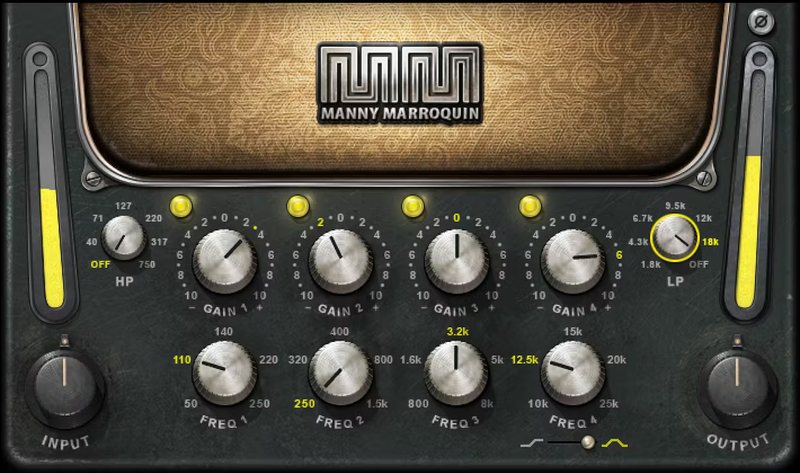
Mix and Match Classic Hardware EQs—with Modern Attitude
10x Grammy winner Manny Marroquin’s secret to creative equalization is to pick specific EQ curves from 6 different go-to vintage equalizers. Now, we’ve combined his “greatest hits” frequency curves from all 6 EQs into one dazzling plugin.
The switch-selected frequencies in vintage EQs were chosen for deliberate musical reasons, so imagine 34 frequency curves hand-picked by a superstar mixer—that’s Manny Marroquin EQ.
“When I EQ, I’m looking to do something creative rather than just ‘clean up.’ That’s when I go for one of my six go-to EQs: SSL 9080 XL K for its high and low pass filters; Quad 8 or Neve 1073 for the low end; Quad 8 or Motown for lows/low mids; Motown, 1073 and API 550B for mids/high mids; and Avalon 2055 for its silky high end. Waves and I captured the best of each of my favorite EQs – and put them together this easy-to-use plugin.”
—Manny Marroquin
Features
- Created with mix engineer Manny Marroquin (Kendrick Lamar, Lizzo)
- Distills Manny’s recipe for EQ, developed over years of mixing
- Combines Manny’s 6 go-to hardware EQs into one plugin
- Uses curves from Manny’s Neve, API, SSL, Avalon, Motown units
- Apply to everything—vocals, keys, bass, drums, guitar, buses
- 4 bands, each with 5 fixed frequencies and boost/cut
- 28 stellar presets by Manny, Tony Maserati, Yared Nevo, and more
- Low CPU consumption allows using virtually unlimited instances
System Requirements
Mac
- macOS Monterey 12, Ventura 13, Sonoma 14, Sequoia 15
- VST / AU / AAX
PC
- Windows 10+
- VST / AAX














