Buy Pivot, get a free gift with purchase:
Tilt EQ
Pivot is a tilt equaliser, with adjustable slope and mid/side modes. Powerful EQ, made simple.
Pivot is a powerful tilt equaliser, allowing you to quickly shift the spectral content of your audio. Mid/Side modes allow you to adjust the stereo content of your audio separately, allowing you to clean up muddy stereo bass, or crisp up the wide treble in your master tracks.
Features
Shift Your Weight
Pivot is a simple to use tilt EQ, allowing you to shift the spectral content of your track around a mid-point like a seesaw. A little bass-heavy? Turn the dial to the left. Treble a bit loud? Move it to the right. It features an adjustable slope and mid-way point to get the exact balance you need.
Mid/Side EQ
Along with normal mono or stereo processing, Pivot offers a mid/side mode. Useful for making your master sound more immersive, you can brighten up the side channel for a bright and wide feel, or reduce the level of stereo bass, tidying up the stereo spread of your bass frequencies.
Lightweight
As far as consuming your CPU goes, Pivot isn't hungry. You can load up multiple instances on multiple tracks without grinding your workstation to a halt. It also has the option to do simple shelf boost and cuts, meaning you can replace your sluggish and unintuitive EQs when you just want a quick adjustment.
In Detail
Pivot is a powerful tilt equaliser, allowing you to quickly shift the spectral content of your audio. Mid/Side modes allow you to adjust the stereo content of your audio separately, allowing you to clean up muddy stereo bass, or crisp up the wide treble in your master tracks.
System Requirements
Windows
- Windows 10 and later (64-bit only)
- VST2, VST3 & AAX compatible DAW
Mac
- macOS 10.13 and later (M1 Apple Silicon supported) (64-bit only)
- VST2, VST3, AU & AAX compatible DAW
Ubuntu
- Ubuntu 18.04 and later (64-bit only)
- VST2 & VST3 Compatible DAW
Note: Pivot should work in any DAW that can run VST, VST3, AAX, or AU plugins, on any dual-core system with at least 1 GB of RAM.
Important note: When accessing this software via a Rent to Own plan or the Beatport Studio membership, it's installed and run through the Beatport Access portal. An internet connection is required every 30 days to validate your license.

Note: Complexer 2 is used as the example.
Mac
Registration
1. Go to https://venomode.com/redeem
2. Enter your Full Name, Email Address, Voucher (found in the 'Serial' section within your Plugin Boutique User Account) and Password > Click 'Register'.

Installation
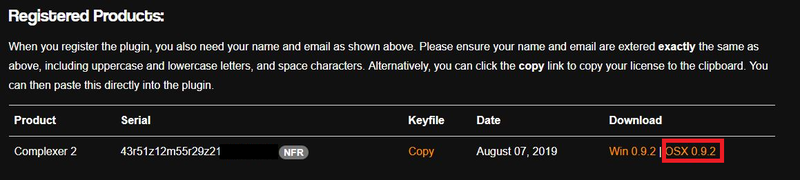
1. Within the section titled 'Registered Products', select the Mac OS X installer to download the installer file.

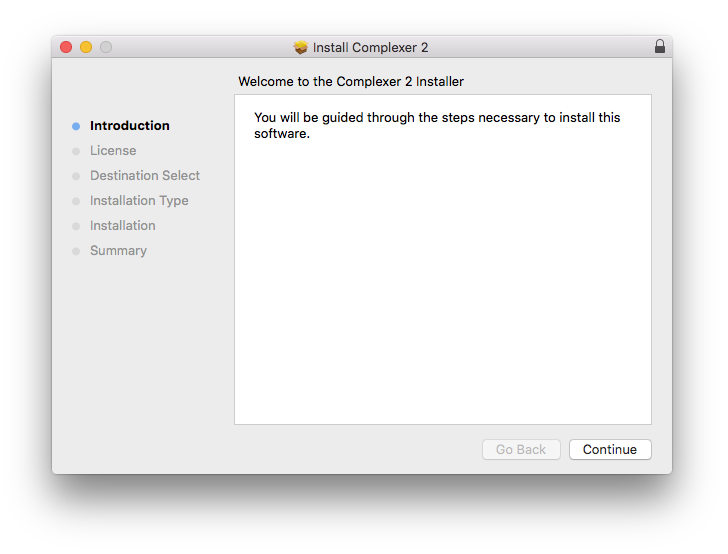
2. Open the .pkg file to begin the installation > Click 'Continue'.

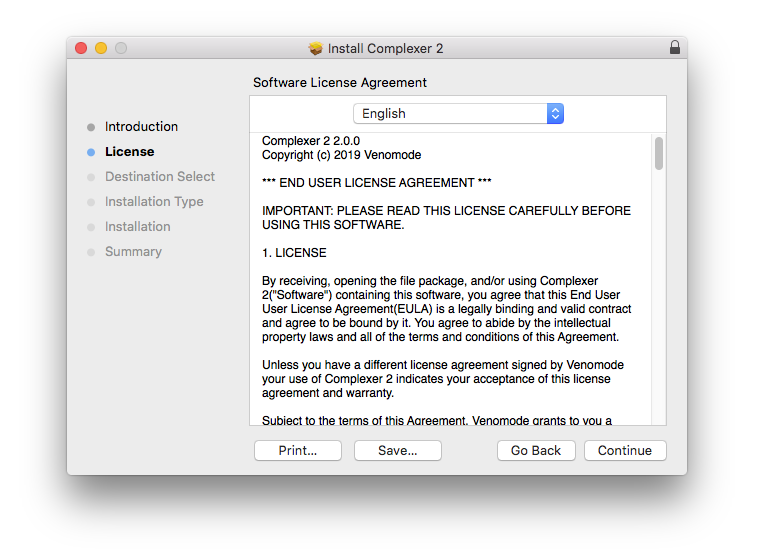
3. Click 'Continue'.

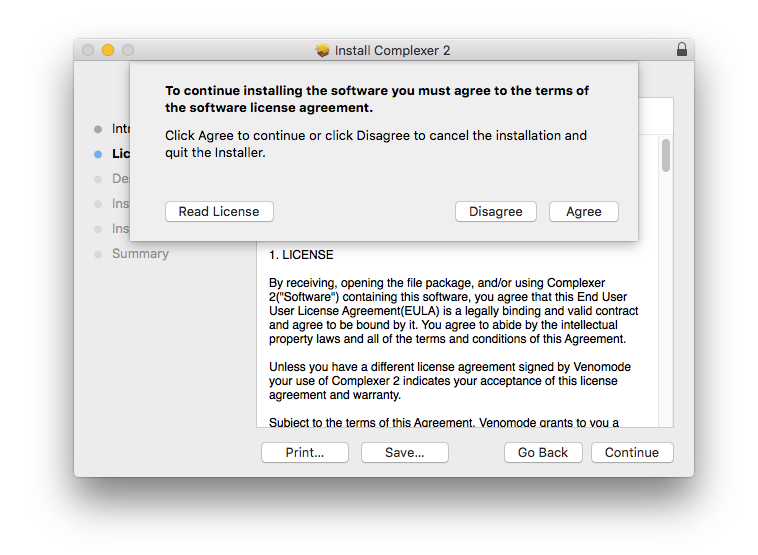
4. Click 'Agree'.

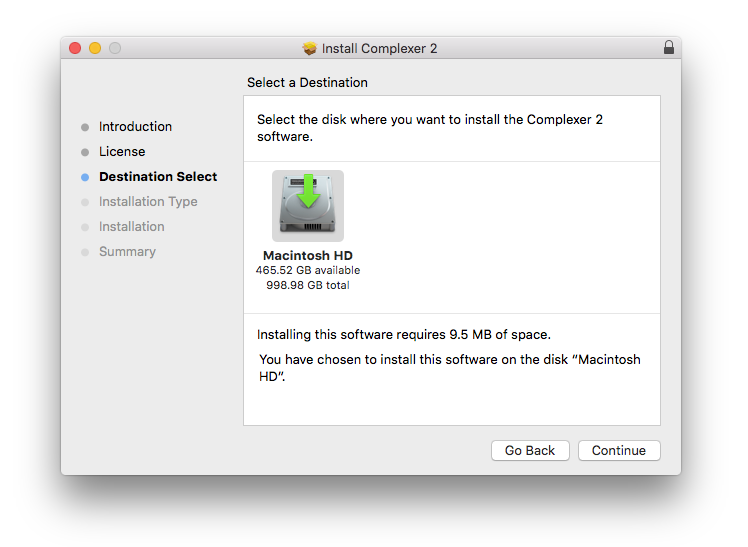
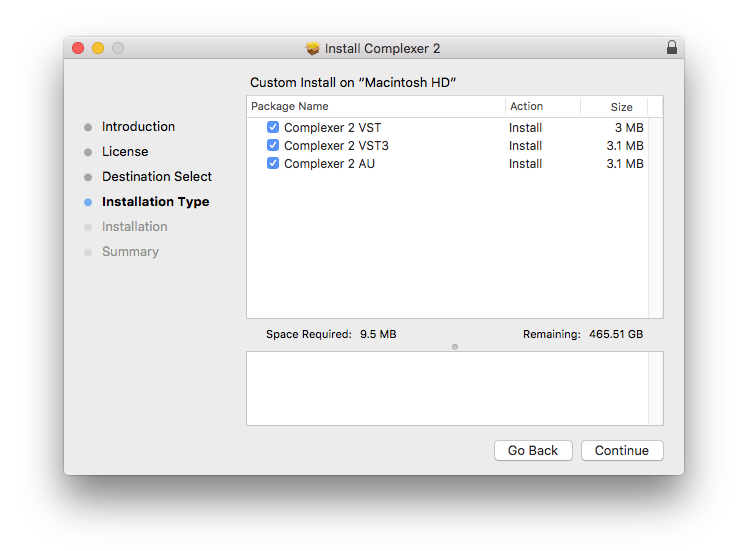
5. Click 'Continue'.

6. Click 'Continue'.

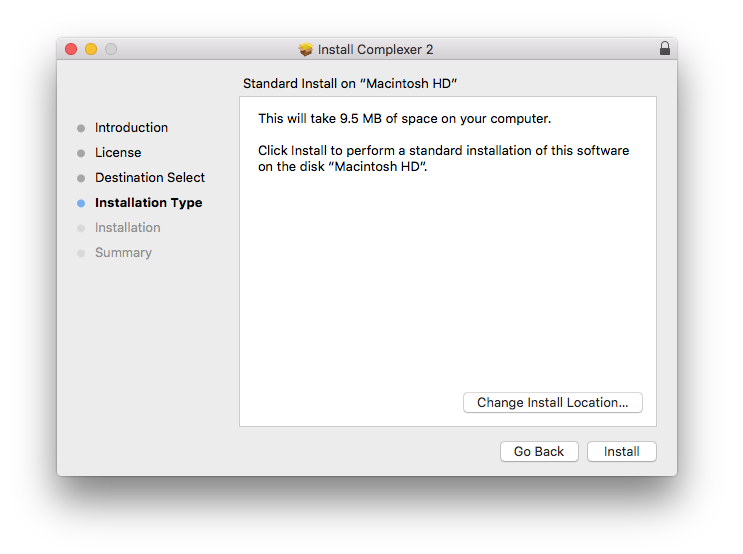
7. Click 'Install'.

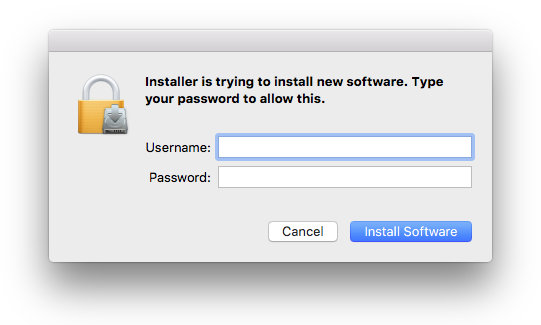
8. Enter your computer Username and Password > Click 'Install Software'.

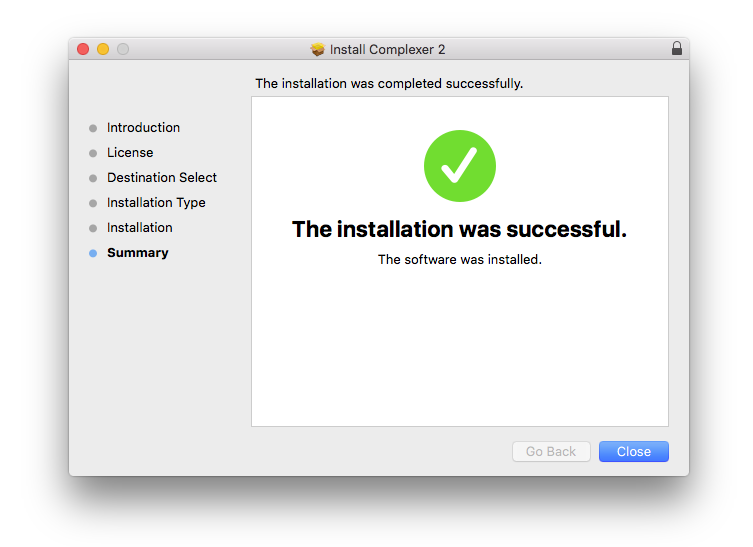
9. The installation is complete > Click 'Close'.

Activation Type 1
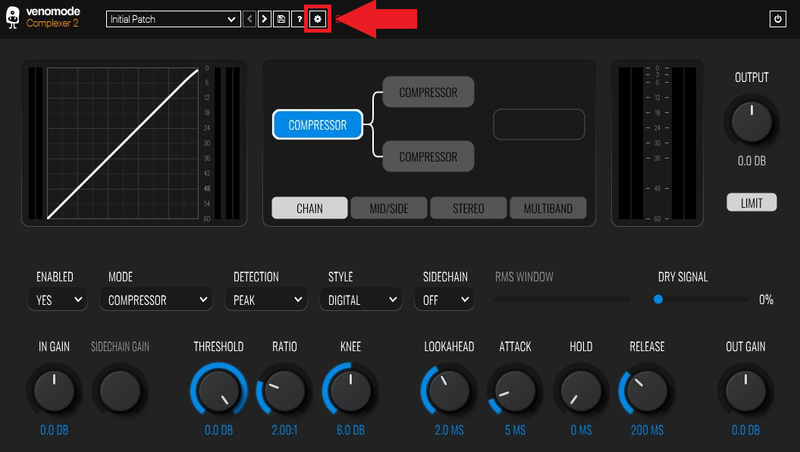
1. Open your newly-installed plugin in your DAW > Click the Gear icon at the top of the plugin window.

2. Enter your Name, Email Address and Serial Number found in your Venomode user account > Click 'Register'.

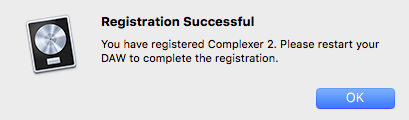
3. Click 'Ok' > Restart your DAW.

Activation Type 2
1. Open your newly-installed plugin in your DAW > Click the Gear icon at the top of the plugin window.

2. Go to your Venomode User Account > Click 'Copy' to copy your Keyfile to the clipboard.

3. Go back to the plugin in your DAW > Click 'Paste Keyfile'.

4. Click 'Ok' > Restart your DAW.

Your software is now activated and ready to use within your DAW.

Windows
Registration
1. Go to https://venomode.com/redeem
2. Enter your Full Name, Email Address, Voucher (found in the 'Serial' section within your Plugin Boutique User Account) and Password > Click 'Register'.

Installation
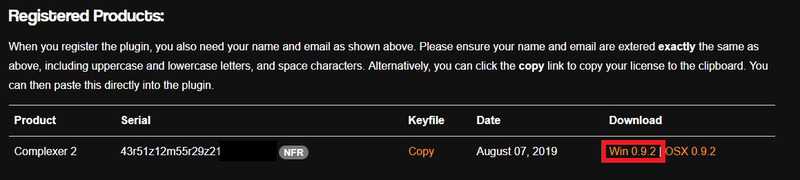
1. Within the section titled 'Registered Products', select the Windows installer to download the installer file.

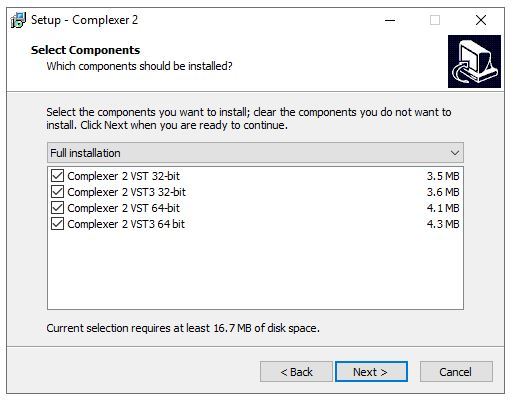
2. Open the .exe file to begin the installation > Select 'I Accept the Agreement' and click 'Next'.

3. Click 'Next'.

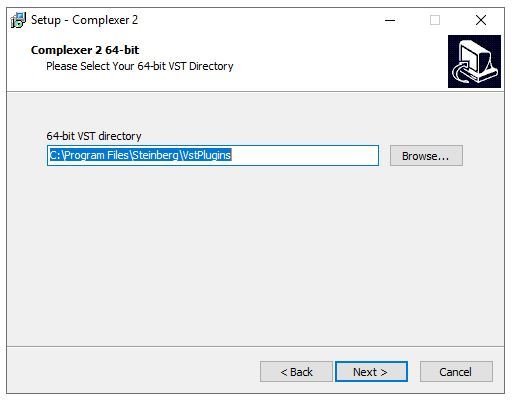
4. Click 'Next'.

5. Click 'Next'.

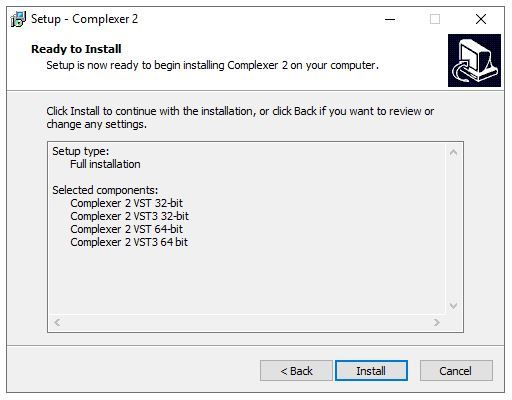
6. Click 'Install'.

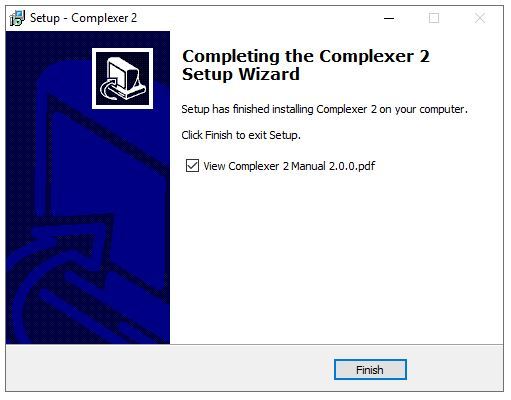
7. Click 'Finish'.

Activation Type 1
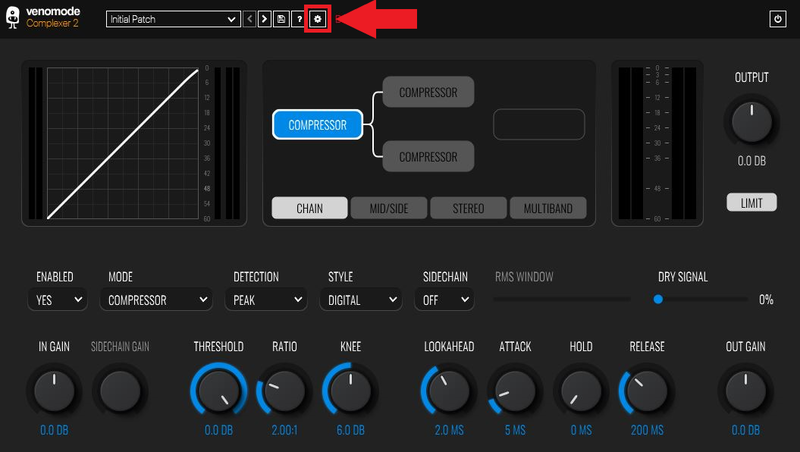
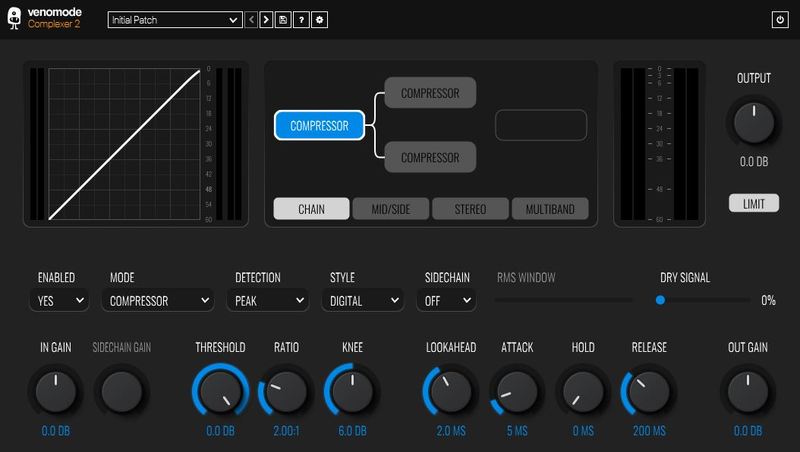
1. Open your newly-installed plugin in your DAW > Click the Gear icon at the top of the plugin window.

2. Enter your Name, Email Address and Serial Number found in your Venomode User Account > Click 'Register'.

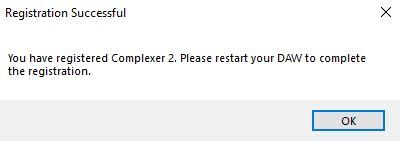
3. Click 'Ok' > Restart your DAW.

Activation Type 2
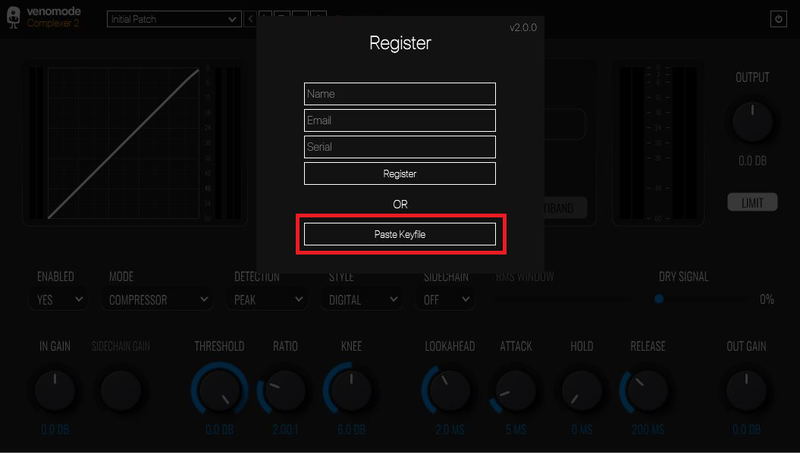
1. Open your newly-installed plugin in your DAW > Click the Gear icon at the top of the plugin window.

2. Go to your Venomode User Account > Click 'Copy' to copy your Keyfile to the clipboard.

3. Go back to the plugin in your DAW > Click 'Paste Keyfile'.

4. Click 'Ok' > Restart your DAW.

Your software is now activated and ready to use within your DAW.