


 Log In
.jpg)
Free gifts available with your purchase
Powerful & Precise Human Ear EQ
Perfect for mixing and mastering, EQuivocate’s auditory filters and match EQ functionality make it incredibly powerful, simple to use, and natural-sounding.
EQuivocate uses filters that are modeled on the human ear. Each of the 26 critical bands tickles a different part of your inner ear, making any combination of settings sound as natural as possible. Combining this with a linear-phase filter shape that reduces pre-echo makes EQuivocate an EQ with a difference you can hear.
Use EQuivocate’s Match EQ feature to make the sound of your track match or complement the audio signal streamed to its sidechain. You can also use it to make a final master match the tone of a reference track, or help fit a sound into a dense mix and unlike other match EQ plug-ins, EQuivocate provides a transparent match without trying to model imperceptible differences which can cause a match EQ to sound unnatural. Feed your favorite song or individual track into it and instantly morph your tone to match.
The 26 filters are distributed along the Mel Spectrum, but you can customize the filters and their frequencies. When combined with usability options like Automatic Level Compensation, Draw EQ Curve, and individual solos for each critical band, EQuivocate is as powerful as it is precise.
Science Behind EQuivocate
Humans can only detect the presence of a tone if it is a certain distance from another tone playing at the same time. The Mel Scale defines the arrangement of auditory frequency bands such that each band sounds equally spaced from all others. This division of sound describes how humans hear.
Most graphic EQs are IIR (infinite impulse response) or analog-style filters. These have a lot of great properties, but unfortunately, the shape of an IIR filter isn’t very flexible. For instance, even with every band set flat, the total filter shape isn’t actually flat. Furthermore, when you boost or cut each band, you’re affecting the ones next to it as well. EQuivocate uses a linear phase FIR (finite impulse response) filter that doesn’t have these problems so what you hear is true to what you see on the screen.
Instead of using what DSP engineers call “ideal” rectangular FIR filters, these are triangularly shaped filters. These are often used in hearing models as a first approximation to the critical bands in your inner ear. When you shape filters like the ones in your ear, the filtered signal sounds natural. In a complex signal, at any given time, you can really only hear one sound source in each filter.
EQuivocate’s 26 bands are spread out based on the critical bands of the inner ear. More filters wouldn’t be useful since your ear would just average them together. As a result, EQuivocate simply sounds more natural than any other EQ on the market.
Features
- Simple yet musical, the 26 linear phase auditory filters are shaped to approximate the critical band filters in your ear.
- Match EQ feature matches the tone of one track to another. Blend two tracks to sound like they came from the same source, complement each other for better separation, or make a final master have a similar tone to a reference track!
- Click and swipe your mouse across the gain slider field to draw an EQ curve. Then toggle Draw Curve off to fine tune.
- Use the output level Auto button to automatically compensate for level changes introduced by the EQ.
- Solo the output of one or more bands to easily find problem frequencies.
- Add or remove filters to customize your sound.
- Includes artist presets from Richard Devine, Jeremy Lubsey, Alex Saltz, Sebastian Arocha Morton, Richard X, and John McCaig.
- Start with the presets or create your own. Use the Compare button to toggle between two unique settings.
System Requirements
Windows
- Windows 8 and later (Windows 11 supported) (64-bit only)
- AAX, VST2, VST3
Mac
- macOS 10.9 and later (Intel / M1 Apple Silicon supported) (64-bit only)
- AAX, AU, VST2, VST3
Important Notes:
- Newfangled Audio tests their desktop plugins in Ableton Live, Cubase, FL Studio, Logic Pro, Pro Tools, and Studio One (However, their plugins should work with any compatible host.)
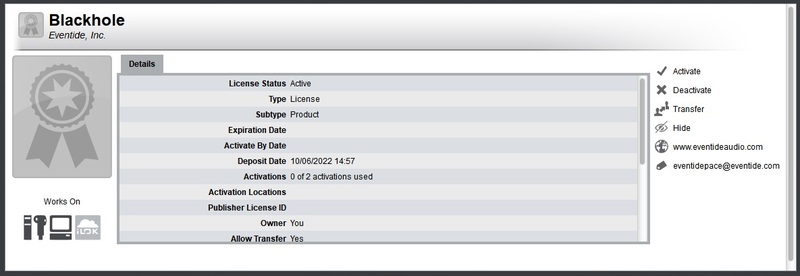
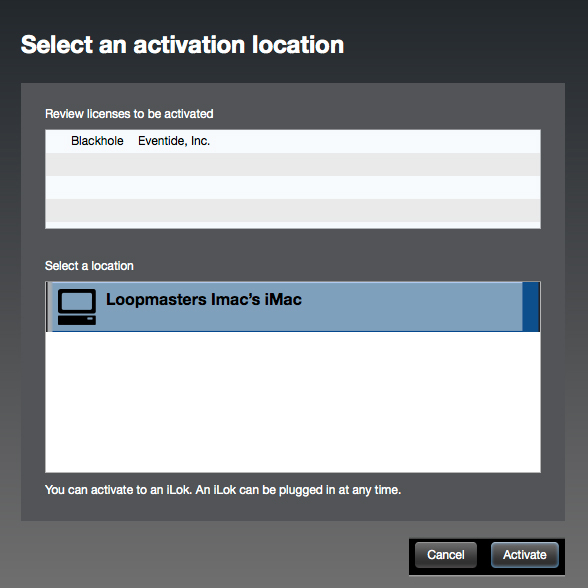
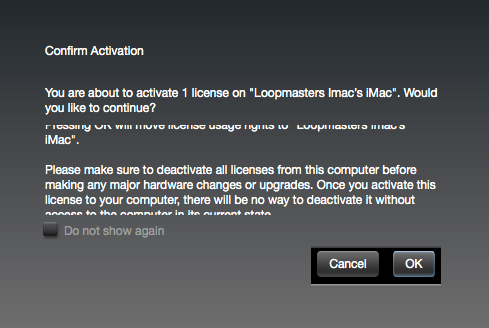
- No iLok dongle is required to run this software - only a FREE iLok account/Manager is required for authorisation.





Reviews Summary
While it aims to provide a helpful overview, it may not capture every perspective or detail. We encourage you to read individual reviews to make an informed decision.
The majority of users highly praise this EQ plugin, particularly highlighting its excellent matching EQ functionality, ease of use, and fantastic sound quality with a subtle, pleasing coloration. It is described as clean, precise, powerful, and a great value. While one reviewer found it unexceptional and another strongly preferred competitors like FabFilter, most reviewers find it to be a unique and highly useful tool in their arsenal.


