


 Log In

Free gifts available with your purchase
UA’s Renowned Plate Reverb Modeling In An Easy‑To‑Use Plug-In
Now compatible with any soundcard on Mac and PC
The Pure Plate Reverb plug-in provides UA's revolutionary plate reverb emulation in a simple, affordable package — with all of the essential features. By harnessing the musical, deep, organic sound of this classic effect, Pure Plate Reverb gives you warmth and texture to your sources that only plate reverb can provide.
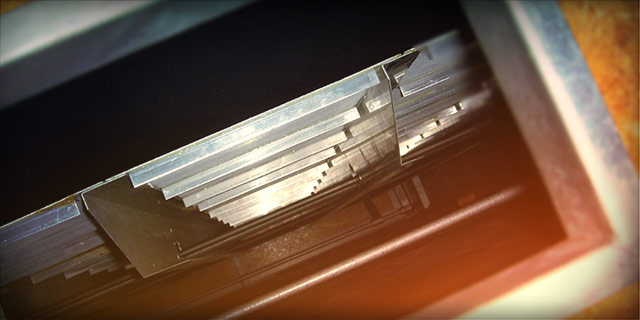
Groundbreaking Reverb Emulation Technology
The Pure Plate Reverb plug-in was engineered by the modeling experts at Universal Audio to be a no-compromise emulation of this classic effect. By capturing all of the sonic and mechanical nuances of the steel plate, transducers, and dampers, the Pure Plate Reverb plug-in gives vocals, guitars, strings, and synths a lush, satisfying space that gently flatters any source.
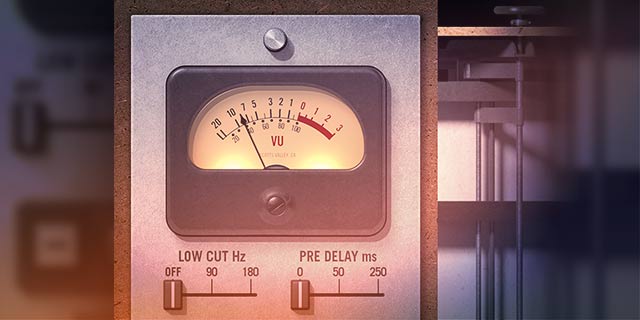
Easy to Use
Whether you’re tracking in realtime using an Apollo interface, or mixing in your DAW, Pure Plate Reverb’s intuitive controls deliver musical results for beginners and pros alike. The ultra-effective Baxandall-type Bass and Treble controls sculpt the timbre of the reverb, while the Low Cut Hz input filters and Pre Delay further season the reverb’s character. Finally, the Balance control lets you place your “space” perfectly in the stereo spectrum. No matter the source, Pure Plate Reverb gives you the rich analog dimension and depth of an old-school plate reverb system.
Features
- Use any audio interface, with both UAD Native and Apollo Realtime/UAD-2 versions included
- Easily add natural depth and shimmer to vocals and instruments
- Sculpt with classic plate reverb controls like mechanical damping and input filters
- Quickly tweak the perfect reverb tone with Bass and Treble controls
- Mix with artist presets from Patrick Carney (The Black Keys), Richard Chycki (Rush, Dream Theater) Chuck Zwicky (Prince, The Time) and more
Versions Included with your Purchase
- UAD Native: Runs on your Mac or PC without any UA hardware
- Apollo Realtime & UAD-2: Runs accelerated on Apollo interfaces and UAD-2 hardware
- macOS Big Sur 11, Monterey 12, Ventura 13, Sonoma 14, Sequoia 15 and Tahoe 26
- Windows 10 or Windows 11 (64-bit editions)
- Intel, AMD, or Apple silicon processor
- Internet connection to download software and authorize UAD Native plug-ins (UADx)
- Free iLok account
- Compatible with iLok USB (2nd generation or higher) but not required
- Free UA Connect application for managing UAD Native plug-ins (UADx)
- A supported DAW compatible with VST3, AU, or AAX plug-in file formats.


