


 Log In

Free gifts available with your purchase
Screaming guitar feedback in the box! Release your inner beast with the first realistic guitar feedback simulator on the market. Go from moderate and subtle to rampant and wild by the twist of a knob (or two). To break new musical ground, try inputting a synthesizer, a violin, or even your mother's grand piano.
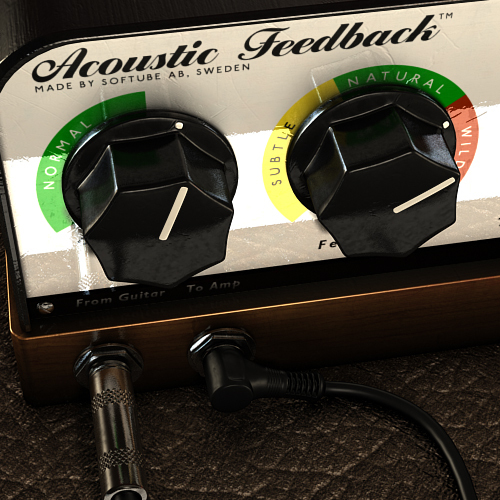
One thing that is really hard to achieve with a guitar amplifier simulation plug-in or hardware is the interaction in a room between the guitar and an amplifier turned up loud. Enter Acoustic Feedback - because this plug-in does precisely that. Whether you just want single notes to keep hanging a little longer and gently fade to sustained feedback or you want instant and rampant howls for your noise rock, Acoustic Feedback is your friend.
Acoustic Feedback comes bundled with a limited version of the White amp from Vintage Amp Room.
Features
- Realistic simulation (physical modeling) of guitar feedback
- Fully responsive to vibratos, bends, slides, tremolos etc
- Simple user interface: Control amount of feedback with the Feedback knob, and the sensitivity with the Tolerance switch
- Compatible with MIDI foot controls
- Includes a stripped down*, but extremely useful, version of the White amp from Vintage Amp Room
- Please note: Due to careless handling of the White amp, only the Master Volume and Mic position controls remain intact. All other pots have been broken off. Or something like that...
System Requirements
- macOS Big Sur 11, Monterey 12, Ventura 13
- Windows 10 (64-bit), Windows 11
- Softube account
- iLok account
- Computer with AU, VST, VST3, and/or AAX-compatible DAW host software
- Internet access (for downloading installers and managing licenses)
Supported CPU Families
- Apple macOS computers with Intel Core i3/i5/i7 or Apple silicon (M1 or newer) CPU. Apple silicon is supported natively.
- Windows computers with quad-core Intel Core i3/i5/i7 or AMD quad-core processors with SSE 4.2 support.
- Other Intel processors (Celeron, Pentium, and Xeon) are compatible if they support SSE 4.2 instructions.
Supported Host Software (DAW)
Any 64-bit VST, VST3, AU, or AAX (Pro Tools 11.0.2 or higher) compatible host application should work. However, due to plug-in host differences between DAWs—and our rigorous standards—Softube only officially test their plug-ins and instruments in the most recent versions of Pro Tools, Logic Pro, Cubase, Ableton Live, Studio One, and Reaper. Softube plug-ins are not tested regularly in non-listed systems. They will likely work if the system requirements are met. However, the manufacturer cannot guarantee a solution for issues in unsupported systems.
Softube strongly recommend using VST3, as some of their plug-ins have features that are not present in the older VST format. Supported sample rates: 44.1, 48, 88.2, 96, 176.4, and 192 kHz, in both mono and stereo. The most recent maintenance release of your DAW application is recommended. AAX DSP is not currently in active development. TDM/VENUE/RTAS are no longer supported. See Legacy Installers.
Important Note: Make sure that you always use the latest iLok License Manager. It is not included in the Softube installer but can be downloaded from www.ilok.com
Gitarre & Bass
By far the best-selling musician magazine in German-speaking ! Made with pride since 1986!
"With only a few adjustments you really have a tool that can reproduce realistic feedback."
Reviews Summary
While it aims to provide a helpful overview, it may not capture every perspective or detail. We encourage you to read individual reviews to make an informed decision.
Overall, users find this feedback VST to be a simple, unique, and budget-friendly alternative to plugins like Blue Cat AcouFiend or hardware like the FreqOut. While most appreciate its cool sounds and value, some note that the feedback behavior can feel unnatural and requires extra workarounds like adding delay to sustain properly.


