/ Filter / eMo F2 Filter
Waves

eMo F2 Filter

$24.99 $39.00

35% off until Dec 07

Waves eMo F2 Filter
Waves eMo F2 Filter
Waves eMo F2 Filter
Waves eMo F2 Filter gallery thumbnail
Buy Now
Product information

eMo F2 Filter

The Simple Solution to Common Audio Problems

So many issues need only a simple high or lowpass filter—prevent bass buildup, reduce hiss, keep low frequencies out of reverb, fix acoustics issues, reduce amp sim harshness, minimize mic p-pops, and more. So why dig through multiple parametric EQ stages to find what you need?

eMo F2 Filter’s touch-friendly interface, full LV1 compatibility, zero latency, and low CPU consumption make it a natural for fixing live performance problems—quickly and simply.

Features

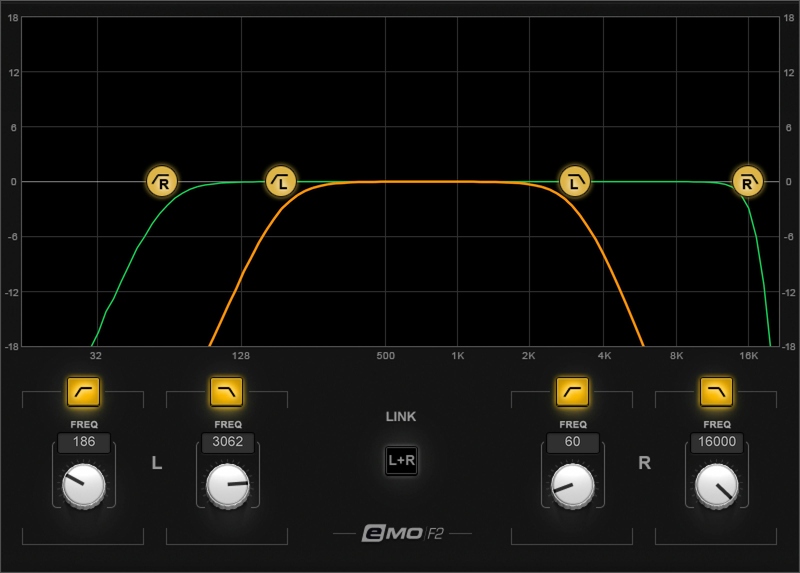
  • 2-band high-pass/low-pass filter, with 18-dB-per-octave rolloff for each filter
  • Use as a separate plugin or as part of the eMotion LV1 live mixer’s channel strip
  • Zero latency with ultra-low CPU consumption
  • Mono, dual mono, or linked stereo operation
  • Filter right and left sides independently, or link them
  • Turn controls, drag the graphic display’s curve, or enter values
  • Multi-touch compatibility
  • Optimized for live sound mixing

System Requirements

Mac

  • macOS Monterey 12, Ventura 13, Sonoma 14, Sequoia 15
  • VST / AU / AAX

PC

  • Windows 10+
  • VST / AAX
Installation Instructions

1. Head to https://www.waves.com/create-account

2. Enter your email and choose a password to create an account (if you already have a Waves account, choose Log in, enter your details and head to Step 5) > click 'Submit'

3. Open your email inbox > click the activation link in the email from Waves

4. Click 'Log in here' > Log in to your Waves account

5. Click 'Register New Products'

6. Enter the Serial Number found in your Plugin Boutique user account > click 'Submit'

7. Click download in your Plugin Boutique user account or head to https://www.waves.com/downloads/central > download the Waves Central app for your operating system

8. Install Waves Central > Open Waves Central

9. Click 'Log in' > enter your log in details

10. Click the 'Install Products' tab

11. Tick the blue dot on all products you wish to install or click the top dot to install all products > click 'Install & Activate'

12. Click 'OK'

13. Open your DAW > open the Waves plugin

Your Waves plugins are installed and ready to use, enjoy!

Plugin Boutique Rewards

Discover the most rewarding loyalty programme among all plugin retailers.

  • Free Loopmasters Samplepacks
  • Discounts on products and courses
  • Extra Virtual Cash claimed immediately at checkout
Find out more

Follow us:

X (Twitter) Facebook YouTube Instagram
Logo Logo

Plugin Boutique Limited, Part of the Beatport Group LLC.

Copyright © 2011-2025 Plugin Boutique. All rights reserved