Log In
Free gifts available with your purchase
Conquer demanding voice or vocals in any fast-paced environment

FasTrack is the go-to plugin when you need to work quickly and effectively. The included legendary 32C EQ effortlessly a warm and rich sound that can not be obtained with ordinary EQs. FasTrack improves the sound quality of live vocals or spoken word whether you’re recording a podcast, live streaming, in the studio, on stage, or broadcasting. FasTrack is the star of the show when working with karaoke! If you are working within a DAW but need the immediacy of a live console workflow FasTrack is the plugin you need.
FasTrack’s ultra-low latency suite of processing tools has been developed with demanding audio professionals in mind, while the expertly designed presets will enable even novice users to hit the ground running. FasTrack is a complete toolbox including processing for dynamics, EQ, filters, and even effects like reverb, delay, and chorus. It’s all available in one easy-to-use plugin designed to meet the needs of a wide range of users, from beginners to experts alike. FasTrack is the ultimate sound sculptor, allowing you to craft the perfect sound in the heat of the moment.
Presets
The Presets module contains various factory and user presets conveniently located along the left side of the plugin. The main purpose of the Preset module is to allow easy access to presets so that they can be selected quickly on the fly in live settings without having to go through any menus. There are 14 factory presets and 6 user preset slots where you can store your own custom presets. There is also a default button at the very top which resets the plugin to its factory default state.
Full Featured Dynamics Section
The dynamics section includes a Noise Gate dynamic processor that attenuates signals below a set threshold. This is useful for removing unwanted background noise in a signal. The Noise Gate also has an optional expander mode offering an alternative noise gating function. The De-Esser module is a simple and intuitive implementation of Harrison’s renowned De-Esser algorithm primarily used to tame harsh frequencies caused by sibilance in speech and vocals. The Compressor module provided is a versatile tool for controlling the dynamics of any signal.
EQ
The Equalizer is based on the famed Harrison 32C channel EQ. The EQ has 4 bands which include a HI, LOW, and 2 MID bands with a proportional Q design. By default, the HI and LOW bands are shelf filters while the 2 MID bands are bell filters. The filter shapes for each band are displayed by the EQ curve icons in each section. The HI and LOW bands can be switched to bell filters by toggling the corresponding BELL buttons in either section. The curve icons will update to show the new filter shape when it is changed.
Filters
The filter section contains the famous Harrison 32C High-Pass Filter (HPF) and a Low-Pass Filter (LPF) with variable corner frequencies. Adjust the corner frequencies using the corresponding knobs or by typing values directly into the associated value labels. The BUMP button adds a gain boost at the corner frequency of the HPF when toggled on. This allows you to add a low-end boost at the selected frequency while filtering out the frequencies below it. The filter curve icon above the HPF knob will update to display the new filter shape when BUMP mode is activated.
Effects Section (Chorus, Delay and Reverb)
Chorus is an effect that can be used to add width and depth to a signal. The chorus effect essentially creates multiple duplicates of the signal and adjusts their pitch and delay to create the perception of multiple overlaid voices. This effect is particularly useful on vocals, but it can be used on other types of signals as well.
The Delay and Reverb sections are different from the other processing modules because they are processed in parallel with the main signal path. This means that the signal is split off from the main path to be processed by the effects and then gets added back to the main path at the end of the signal chain just before the final output stage. This routing is meant to emulate the traditional method of using effects sends/returns and allows the effects’ output level controls to function as effects return faders for blending the effects signals with the main “dry” signal.
The Master Controls module contains controls that affect the input and output stages of the plugin as well as a VU-style output meter. The master input trim on the left adjusts the gain of the signal at the input stage before any other processing takes place. If you’re working with a signal that is too low or too high, the master input trim can be used to adjust the level so that it is more suitable for mixing.
Routing
The Routing module at the bottom of the plugin shows the routing order of the processing elements from left to right. Each of the 6 routable processing elements are represented by a routing item which you can click and drag to change the routing order. Dragging a routing item to any of the arrows between positions will insert it at that position, shifting all other elements accordingly. If you drag one routing item over another routing item, it will swap the positions of the two items. Regardless of the routing order, the master input and output controls are always fixed at the input and output stages as shown by the INPUT and OUTPUT labels located at the beginning and end of the routing order.
Features
- 14 expertly curated presets to get you started fast
- 11 unique ultra low latency processing components
- Dynamics gate, de-esser and compressor
- Harrison’s famed 32C parametric EQ with High Pass Low Pass filters
- Chorus, delay and reverb effects
- Flexible signal processing routing
System Requirements
Mac
- macOS 11 Big Sur - macOS 13 Ventura (64-bit only) (M1 Mac supported)
- Intel Dual-Core Mac running at 2.4GHz or higher
- 4 GB of RAM minimum (8 GB of RAM recommended)
- AU, VST2, VST3, AAX Native
Windows
- Windows 10 - Windows 11 (64-bit only)
- Intel Core 2 (or comparable) CPU running at 2.4GHz or higher
- 4 GB of RAM minimum (8 GB of RAM recommended)
- VST 2, VST3, AAX Native
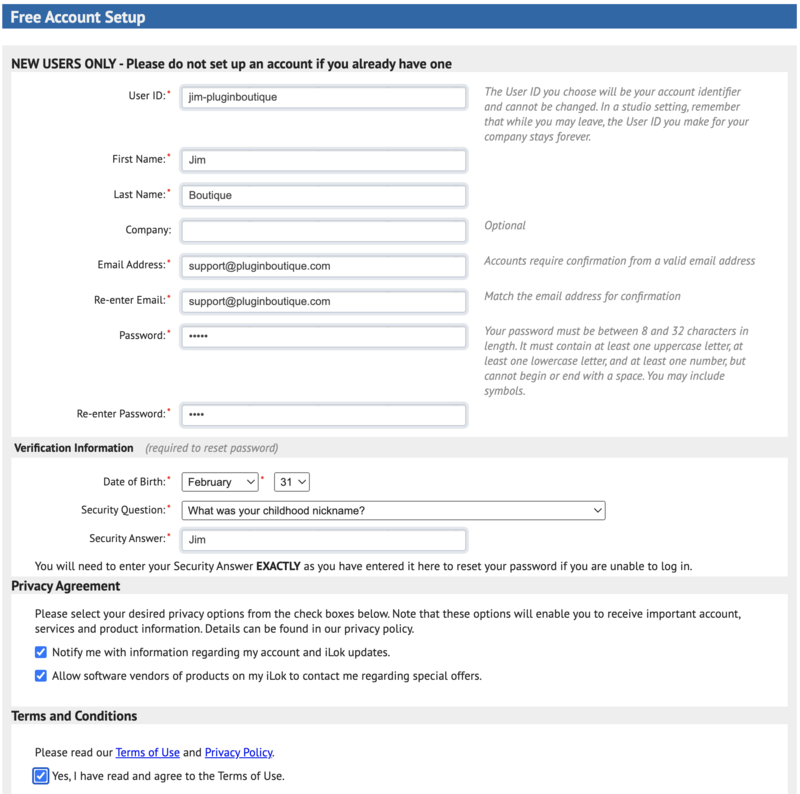
Please Note: A FREE iLok Account is required for the authorisation of this software.