


 Log In

Free gifts available with your purchase

Combining the smooth operating EQF-100 parametric passive equalizer with the mild but authoritative TLA-100A compressor, Summit Audio Grand Channel is a highly versatile channel strip that will cover a large part of your mixing needs.
The Grand Channel combines the warm and smooth tone sculpting Summit Audio EQF-100 Full Range Equalizer with the rich sounding and dead-easy-to-use Summit Audio TLA-100A Compressor. Having the two combined in a single plug-in makes adjustments easier, as you will often find that the compressor affects the equalizer and vice versa. By default, the sound reaches the equalizer before the compressor, but you can easily reverse the order with a single switch.
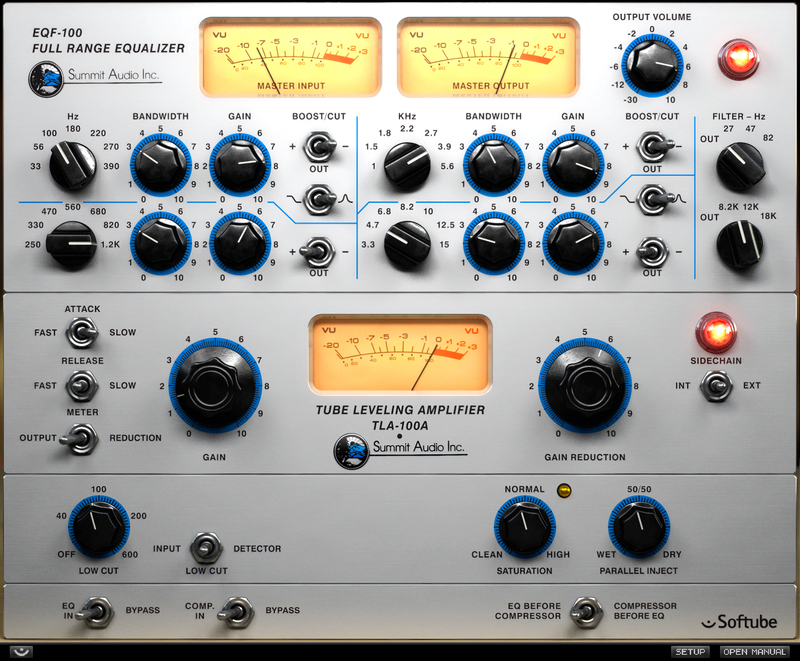
When the EQF-100 and TLA-100A were designed, Summit Audio made sure to combine the finest of what vintage tube designs had to offer with a modern sense of how these units should stand the test of time. The result was remarkable, and today you can experience the Summit Audio grandeur in digital form, just reach for the Grand Channel! As a modern addition to the classic TLA-100A, the plug-in also includes Parallel Compression, Saturation Control and Low Cut Filtering on input or detector.
Features
- Flexible and easy to use with huge sonic range
- Individual bypass for each of the two units saves CPU power
- Change the order of the equalizer and compressor with a single switch
- Each and every component carefully modeled
- Extremely analog behavior of frequencies, phase, distortion, attack, release, etc
System Requirements
- macOS Big Sur 11, Monterey 12, Ventura 13
- Windows 10 (64-bit), Windows 11
- Softube account
- iLok account
- Computer with AU, VST, VST3, and/or AAX-compatible DAW host software
- Internet access (for downloading installers and managing licenses)
Supported CPU Families
- Apple macOS computers with Intel Core i3/i5/i7 or Apple silicon (M1 or newer) CPU. Apple silicon is supported natively.
- Windows computers with quad-core Intel Core i3/i5/i7 or AMD quad-core processors with SSE 4.2 support.
- Other Intel processors (Celeron, Pentium, and Xeon) are compatible if they support SSE 4.2 instructions.
Supported Host Software (DAW)
Any 64-bit VST, VST3, AU, or AAX (Pro Tools 11.0.2 or higher) compatible host application should work. However, due to plug-in host differences between DAWs—and our rigorous standards—Softube only officially test their plug-ins and instruments in the most recent versions of Pro Tools, Logic Pro, Cubase, Ableton Live, Studio One, and Reaper. Softube plug-ins are not tested regularly in non-listed systems. They will likely work if the system requirements are met. However, the manufacturer cannot guarantee a solution for issues in unsupported systems.
Softube strongly recommend using VST3, as some of their plug-ins have features that are not present in the older VST format. Supported sample rates: 44.1, 48, 88.2, 96, 176.4, and 192 kHz, in both mono and stereo. The most recent maintenance release of your DAW application is recommended. AAX DSP is not currently in active development. TDM/VENUE/RTAS are no longer supported. See Legacy Installers.
Important Note: Make sure that you always use the latest iLok License Manager. It is not included in the Softube installer but can be downloaded from www.ilok.com

Mike Ging
Jay-Z, Kanye West, P Diddy.
"The most important one for me is the 'Parallel Inject' control. This allows me to set compression levels higher than I normally would with the hardware unit."
Steve Levine
Producer/engineer for Culture Club, The Beach Boys, The Clash and Natalie McCool.
"The Summit Audio EQF-100 is just such a nice way to get a more expensive sound out of things."
John Norten
Prince, Lady Gaga, Macy Gray.
"The mix knob on the Summit gives you the ability to do digital parallel compression. It's a great blend of analog sound with digital workflow.


