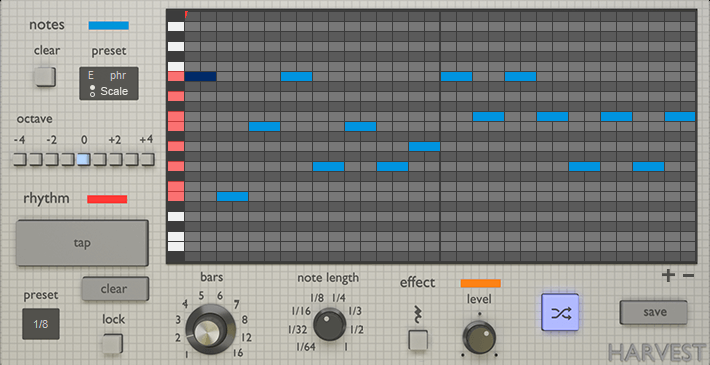
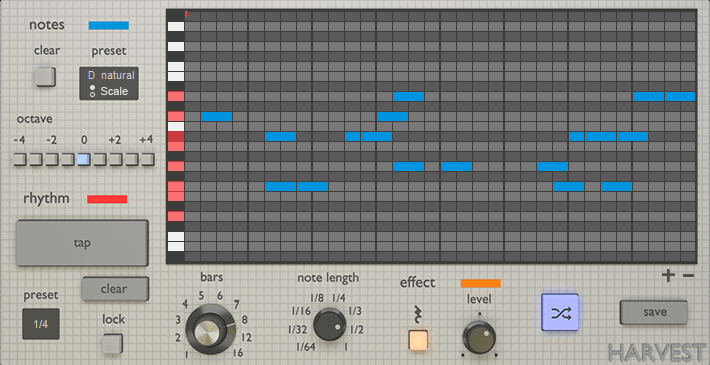
Mac
Installation
1. Download the .zip folder from your Plugin Boutique User Account > Double-click it to extract the contents.
2. Copy the file named 'Harvest-MINI.vst'.
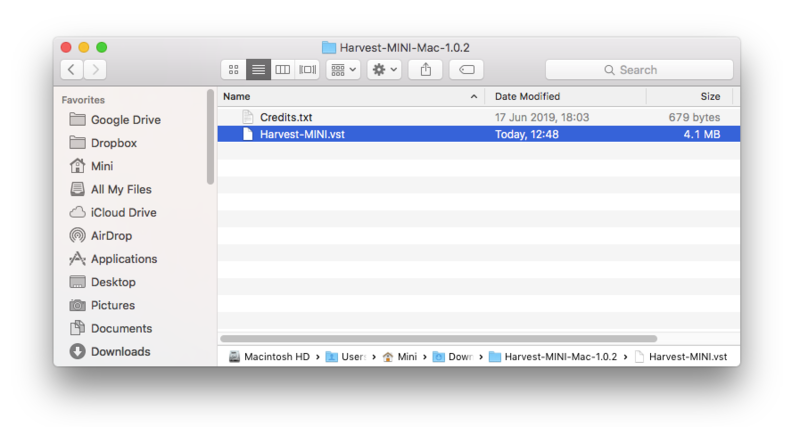
3. Paste the file here - Macintosh HD / Library / Audio / Plugins / VST
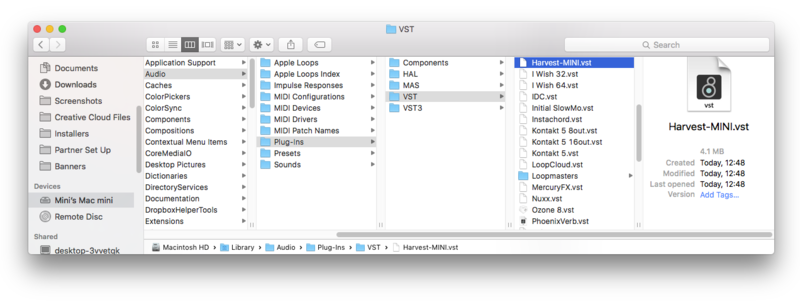
Your software is now installed and ready to use within your DAW!
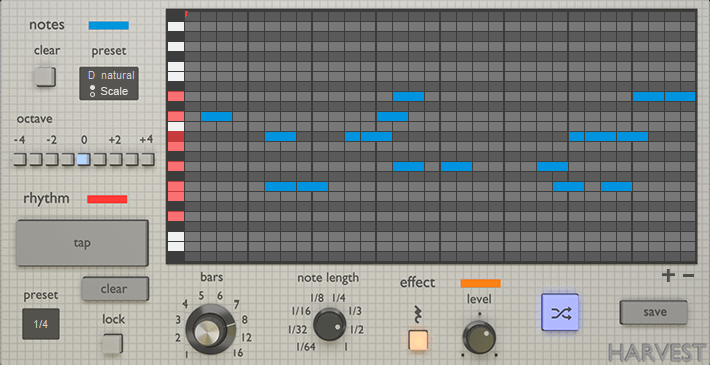
Note: In the event the plugin fails to appear in your DAW, rescan your plugin selection.
Windows
Installation
1. Download the .zip folder from your Plugin Boutique User Account > Double-click it to extract the contents.
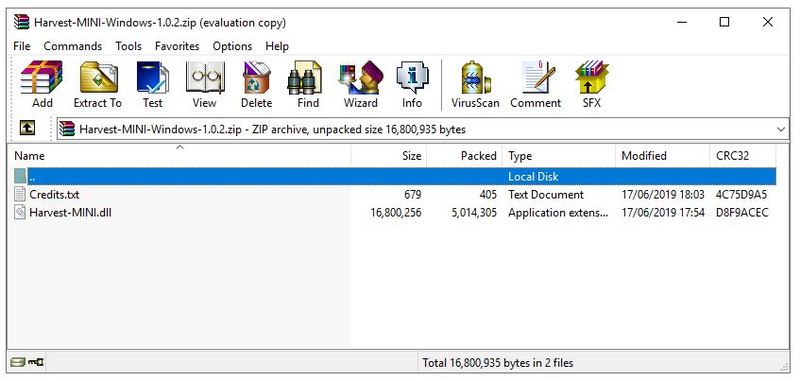
2. Copy the Harvest-MINI.dll file.
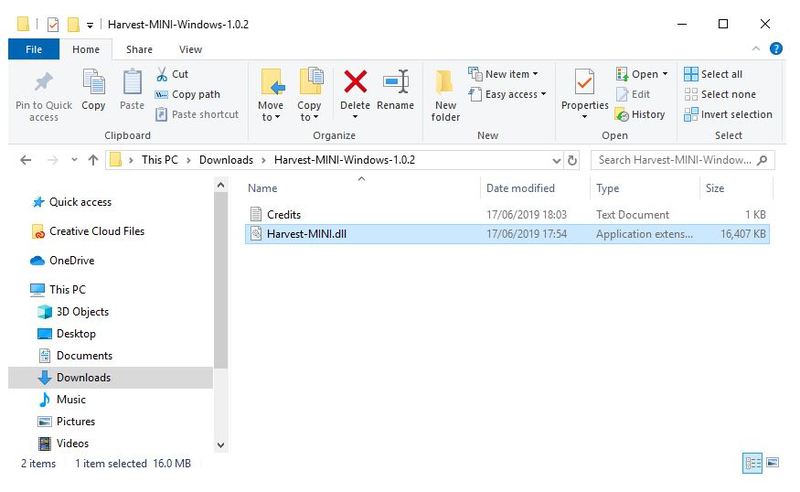
3. Paste the file in the following directories:
- C:\Program Files (x86)\VSTPlugins
- C:\Program Files\Steinberg\VSTPlugins
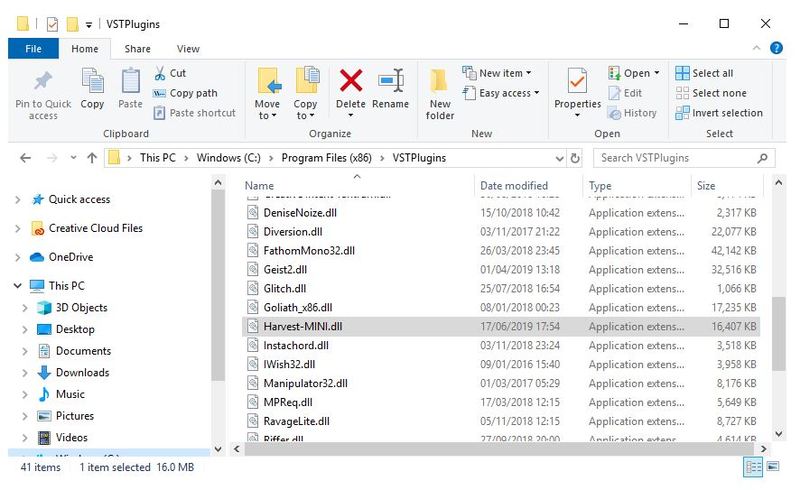
Your software is now installed and ready to use within your DAW!
Note: In the event the plugin fails to appear in your DAW, rescan your plugin selection.
Plugin Setup
Ableton Live
Step 1: Make two new MIDI tracks.
Step 2: Apply the Harvest plugin onto one track, and apply your MIDI instrument of choice to the other.
Step 3: On the “Midi From” drop down on your instrument track, change from “All Ins” and select the MIDI track that Harvest is on.
Step 4: Still on the instrument track, change the “Monitor” setting from “Auto” to “In”.
Step 5: Arm the Harvest track for recording.
Tip: We recommend creating a dedicated folder for MIDI clips created with Harvest. Having done this, you can save the folder and easily access your new MIDI clips in Ableton’s browser.
FL Studio
Note: Harvest can only be used to control VST Plugins, and therefore cannot control FL’s default instrument collection.
Step 1: Load your instrument of choice into an instrument track on the Channel Rack
Step 2: In the instrument’s window, select “Detailed Settings”, followed by “VST Wrapper Settings” (top left corner gear icons)
Step 3: Under MIDI, change input port to any desired number
Step 4: Next, load Harvest onto another instrument track on the Channel Rack
Step 5: Now, again under “VST Wrapper Settings”, select the same port chosen in step 3.
Tip: We recommend creating a dedicated folder for MIDI clips created with Harvest. Make this folder accessible in your file browser by going to Options > File Settings, and selecting your folder of choice. Note that your file browser will need to be reread when a new file is created.


 Log In