Log In

Free gifts available with your purchase
Product information
Phaser FX Engine
The Phase Shifter from the Outer Space
Note: Also available in the EFEKTOR Modulation Bundle
Full name, Phase Shifter. Typically more subtle than flanger, but sounds like warblers coming from outer space. Often used on classic electric piano, and of course by guitarists such as Brian May (Queen) and Eddie Van Halen (Van Halen).
The Efektor PH3605 Phaser provides three types of sound:
Phase One:
- Mild phasing effect, great for a clean tone. Less dramatic sweep.
Dual Phase:
- Warm and thick phasing sound that sounds great with distorted guitar tones. Great for many instruments such as guitar, bass, keyboards, and vocals.
Multi Phase:
- More intense effect. Offers more than a standard wobbling effect.
Key Features:
- Three Models of Modulation in Every Unit.
- A/B Compare Buttons.
- BPM Sync.
- Mono or Stereo Mode.
System Requirements
Mac
- Mac OS X 10.7 or later (Intel / M1 Apple Silicon supported) (64-bit only)
- Core2 Duo, or better (latest Intel i3 recommended)
- 4 GB minimum RAM
- VST, VST3, or Audio Unit compatible host / DAW
Windows
- Windows Vista or Later (64-bit only)
- Core2 Duo, or AMD Phenom ii X4 or better (latest Intel i3, AMD A4, or better is recommended)
- 4 GB minimum RAM
- VST or VST3 compatible host / DAW
Important Notes:
- Pro Tools 11 or later is required for AAX format
- Reason 7.1 or later is required for Rack Extension format
- A VST, VST3, AU, or AAX compatible host / sequencer is required to run this software.
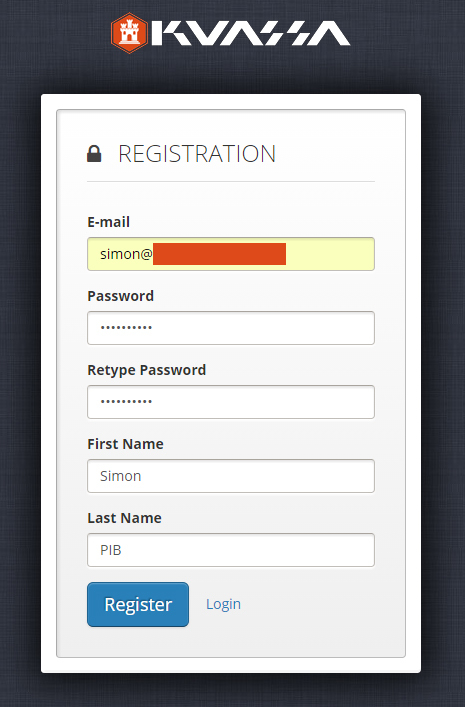
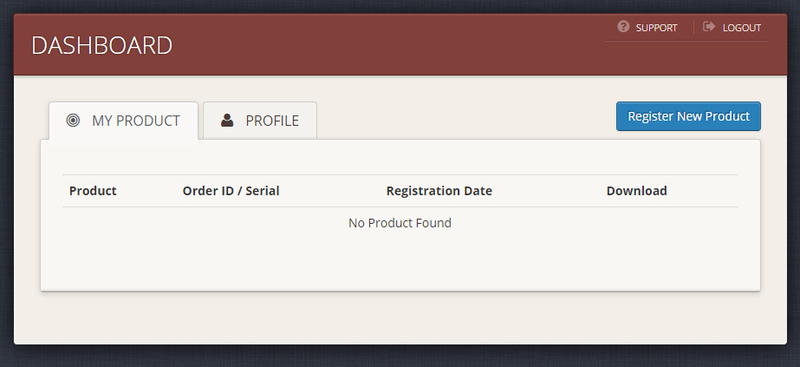
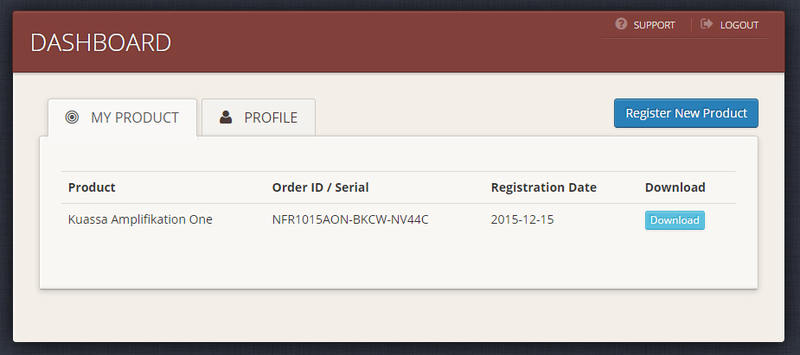
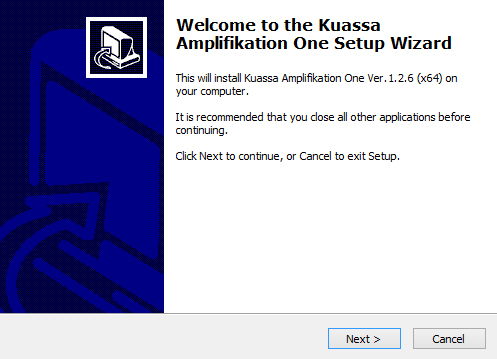
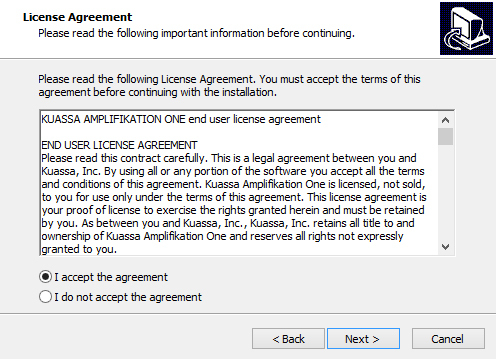
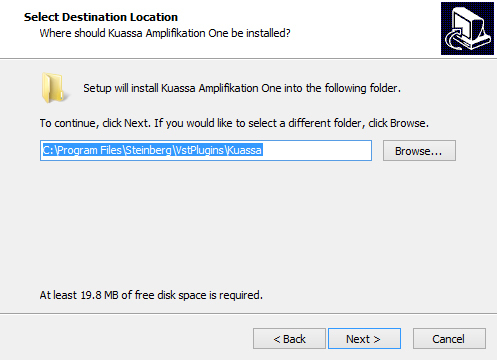
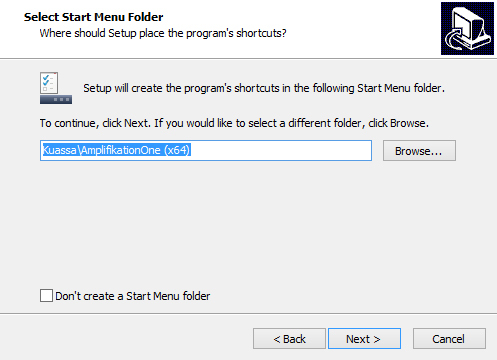
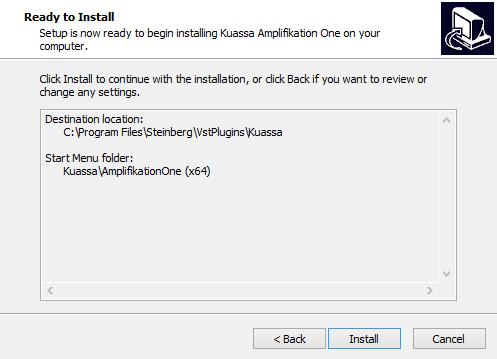
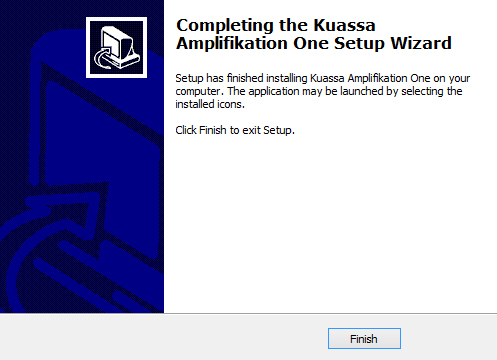
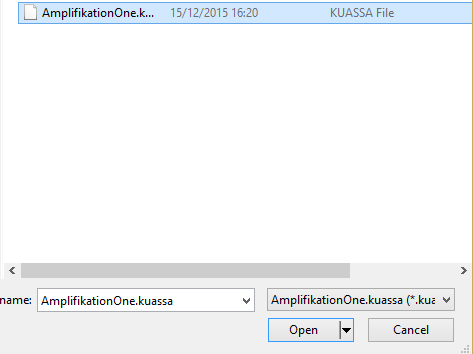
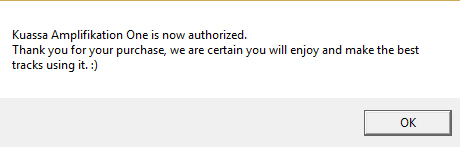
Installation Instructions